How to setup MockFlow WireframePro MCP Server for VS Code?
You can connect the WireframePro MCP Server to VS Code using either the MockFlow Desktop App or the CLI Web MCP. Method 1:...
You can connect the WireframePro MCP Server to VS Code using either the MockFlow Desktop App or the CLI Web MCP.
Method 1: MockFlow Desktop App
1 Install and open the MockFlow Desktop App. Log in and create a Wireframe project.
2 Next, open VS Code and in the Explorer section, create a folder named .json.
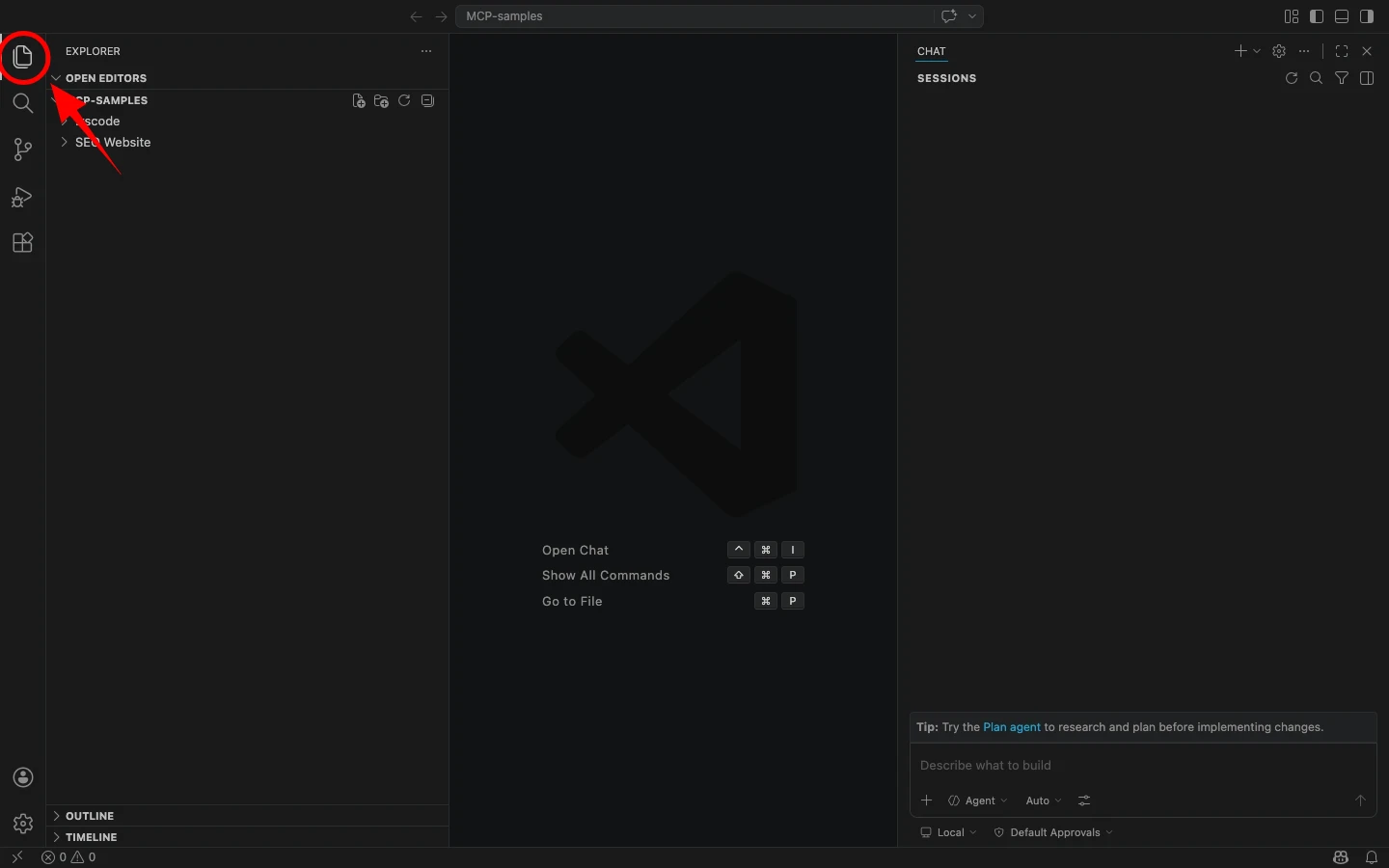
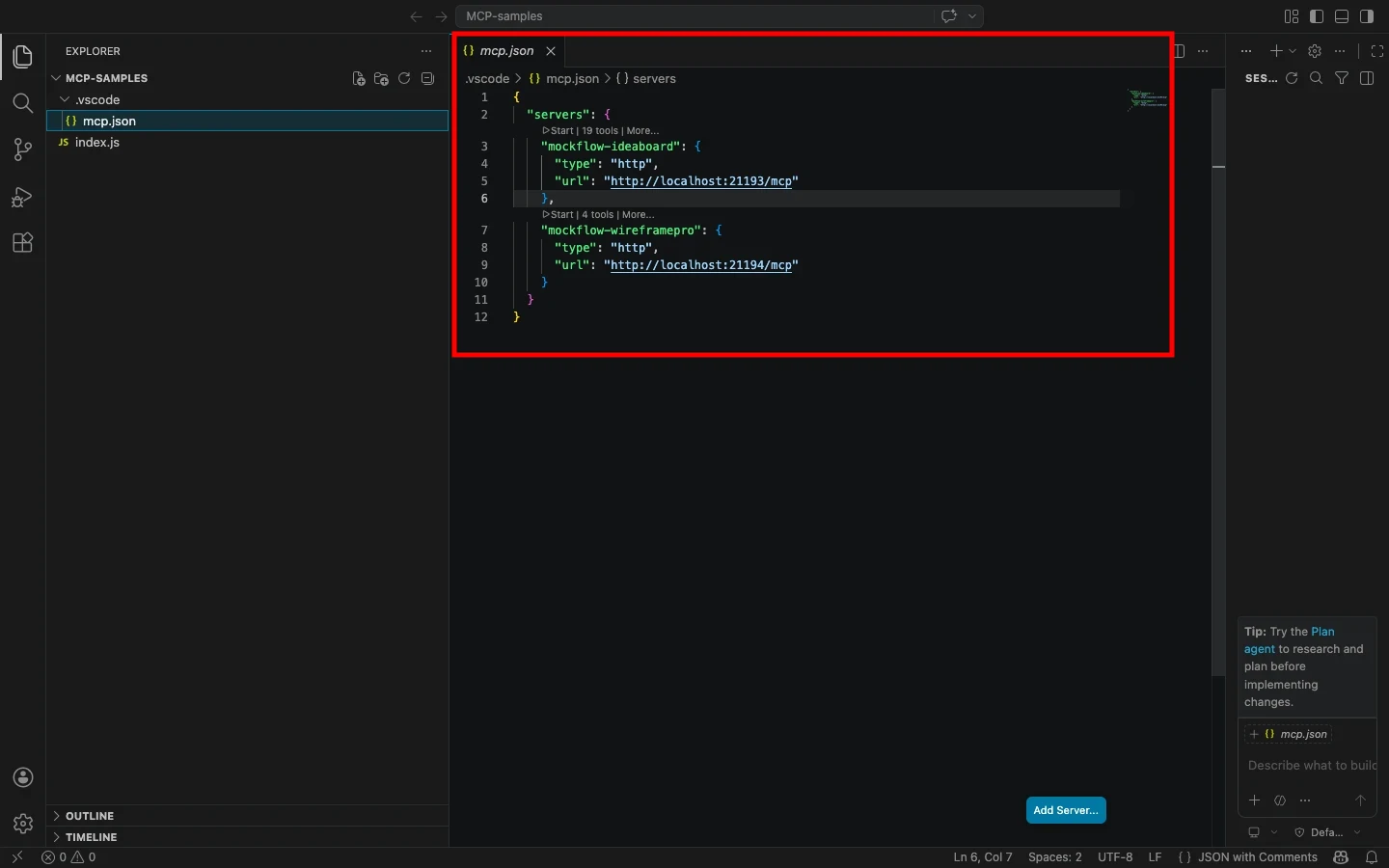
3 Now, paste the following configuration:
{ "mcpServers": { "mockflow-wireframepro": { "url": "http://localhost:21194/mcp" } }}4 Once added, the MCP server will automatically connect to the running Desktop App.
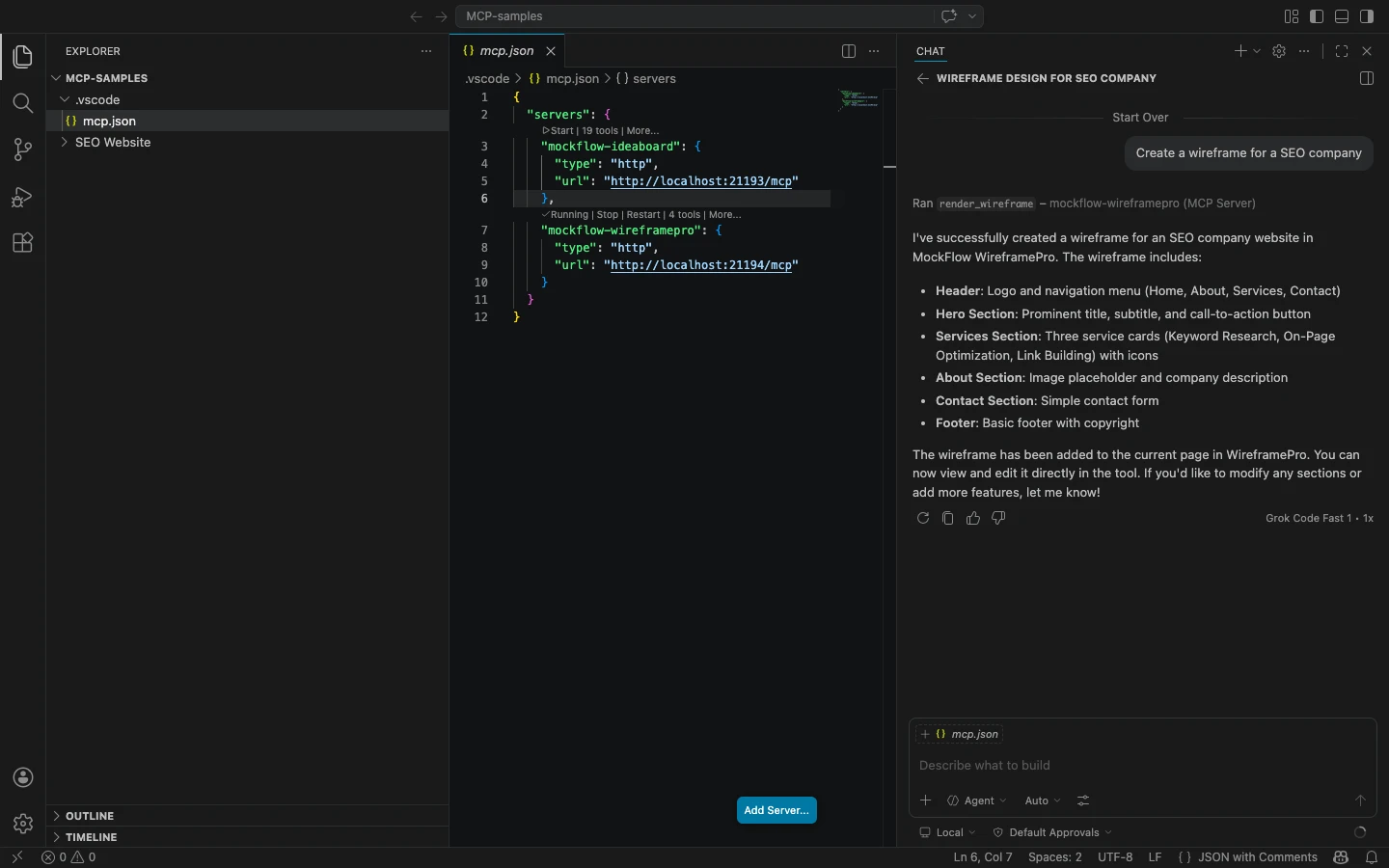
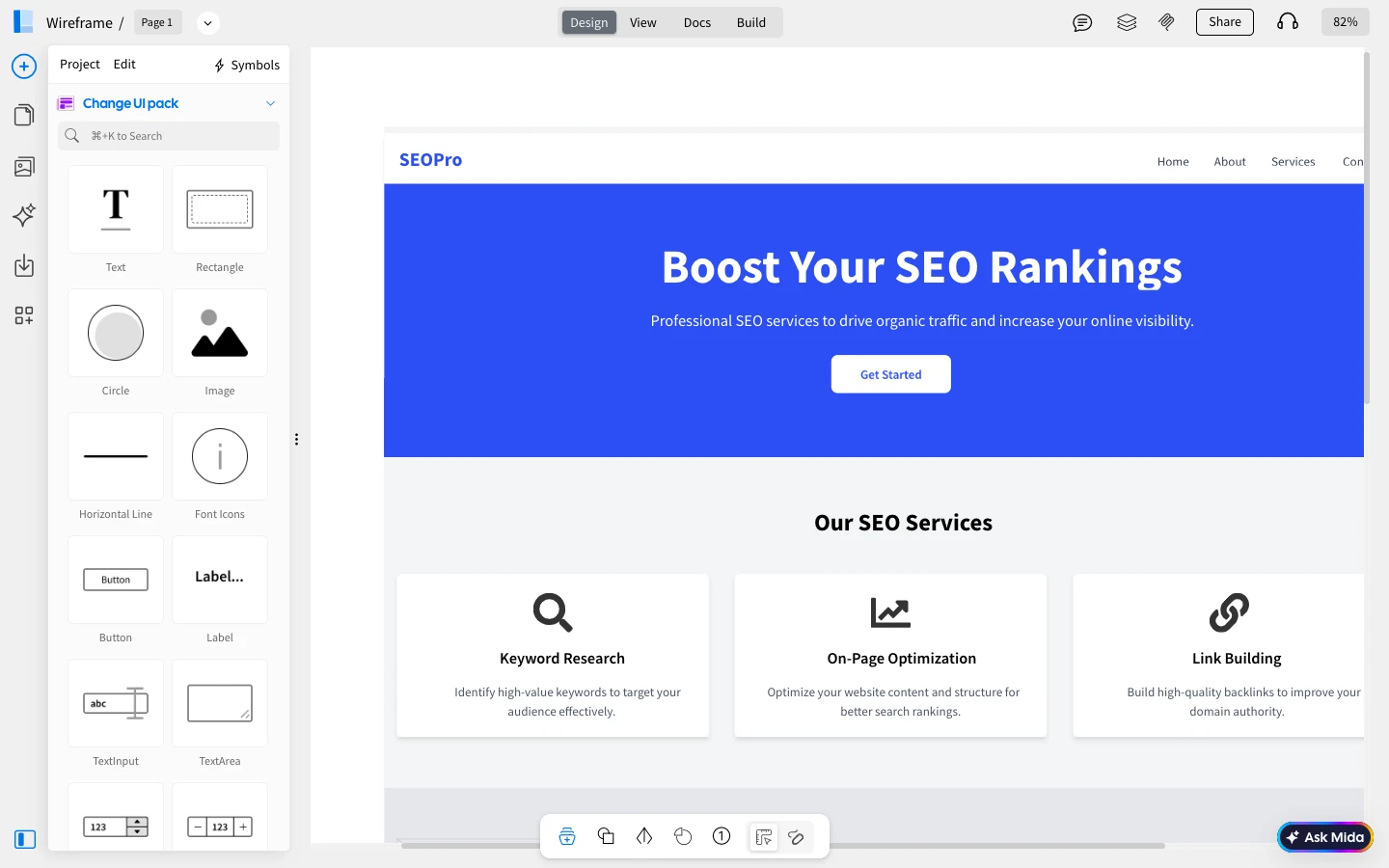
5 You can now enter a prompt in Cursor, such as “Create a Wireframe for an SEO Company,” and run it.
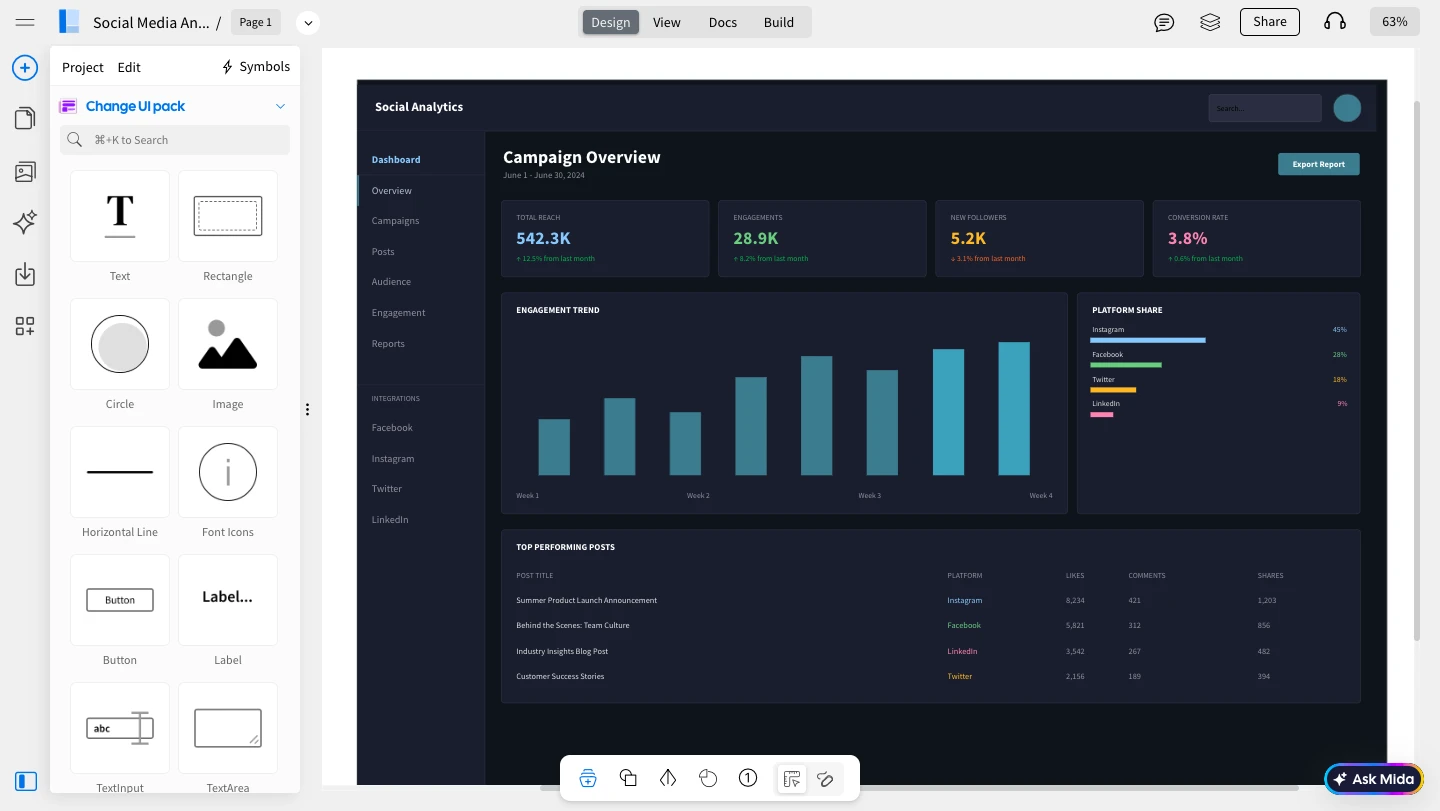
The generated wireframe will instantly appear in your MoCkFlow Desktop app WireframePro canvas.
Method 2: CLI Web MCP
1 Begin by installing the MCP package globally using npm:
npm install -g @mockflow/wireframepro-mcp2 Then log in and start the MCP server:
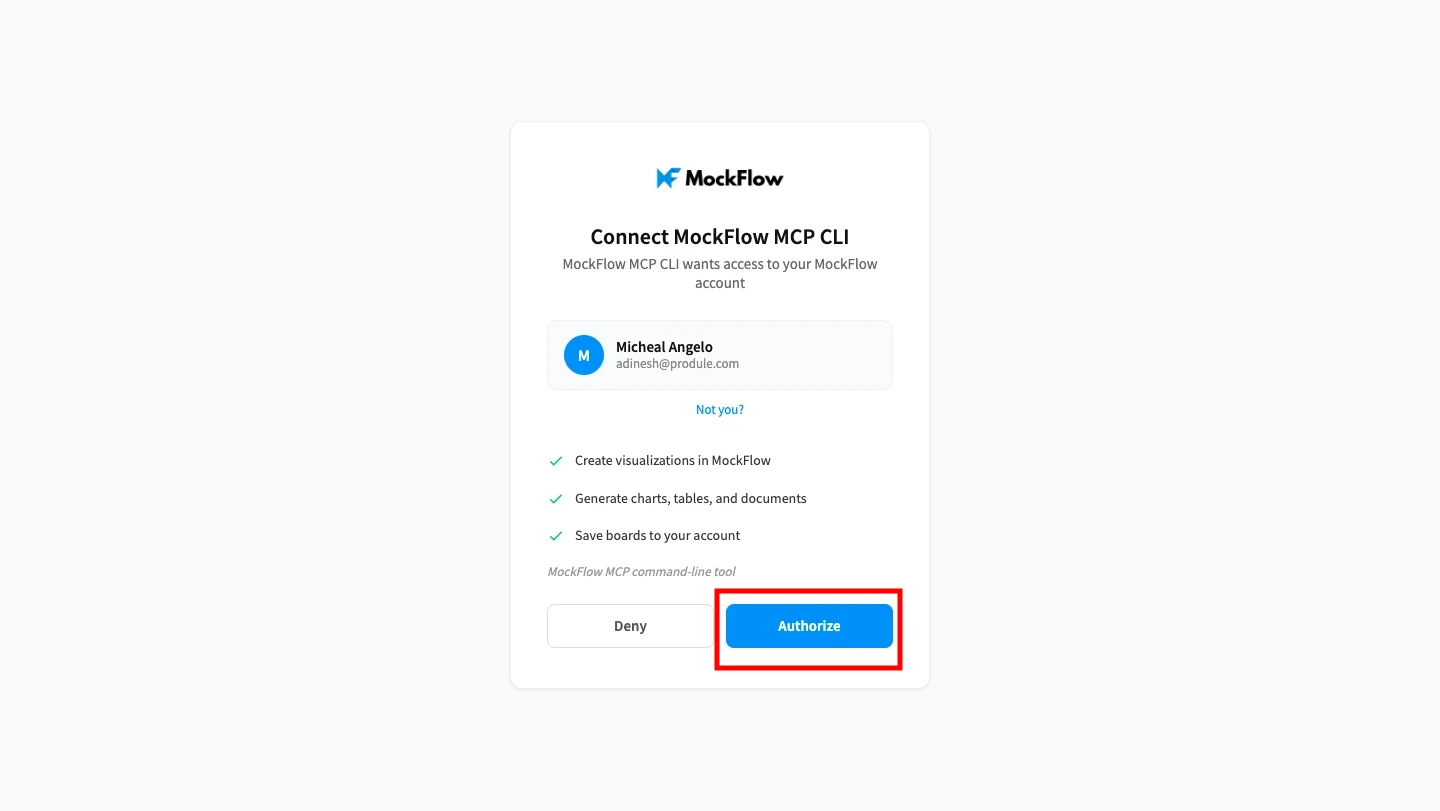
mockflow-wireframepro-mcp loginmockflow-wireframepro-mcp3 Next, click on 'Authorize' to connect MockFlow MCP with VS Code.
4 If you want to work within a specific workspace, you can optionally run:
mockflow-wireframepro-mcp --space=YOUR_SPACE_ID5 Now, inside your VS Code, under the explorer section, create a folder .json
6 Paste the same configuration as in the above method, then save it to complete the setup.
{ "mcpServers": { "mockflow-wireframepro": { "url": "http://localhost:21194/mcp" } }}7 Now, enter a prompt like “Create a wireframe for a dark mode social media analytical dashboard" in VS Code.
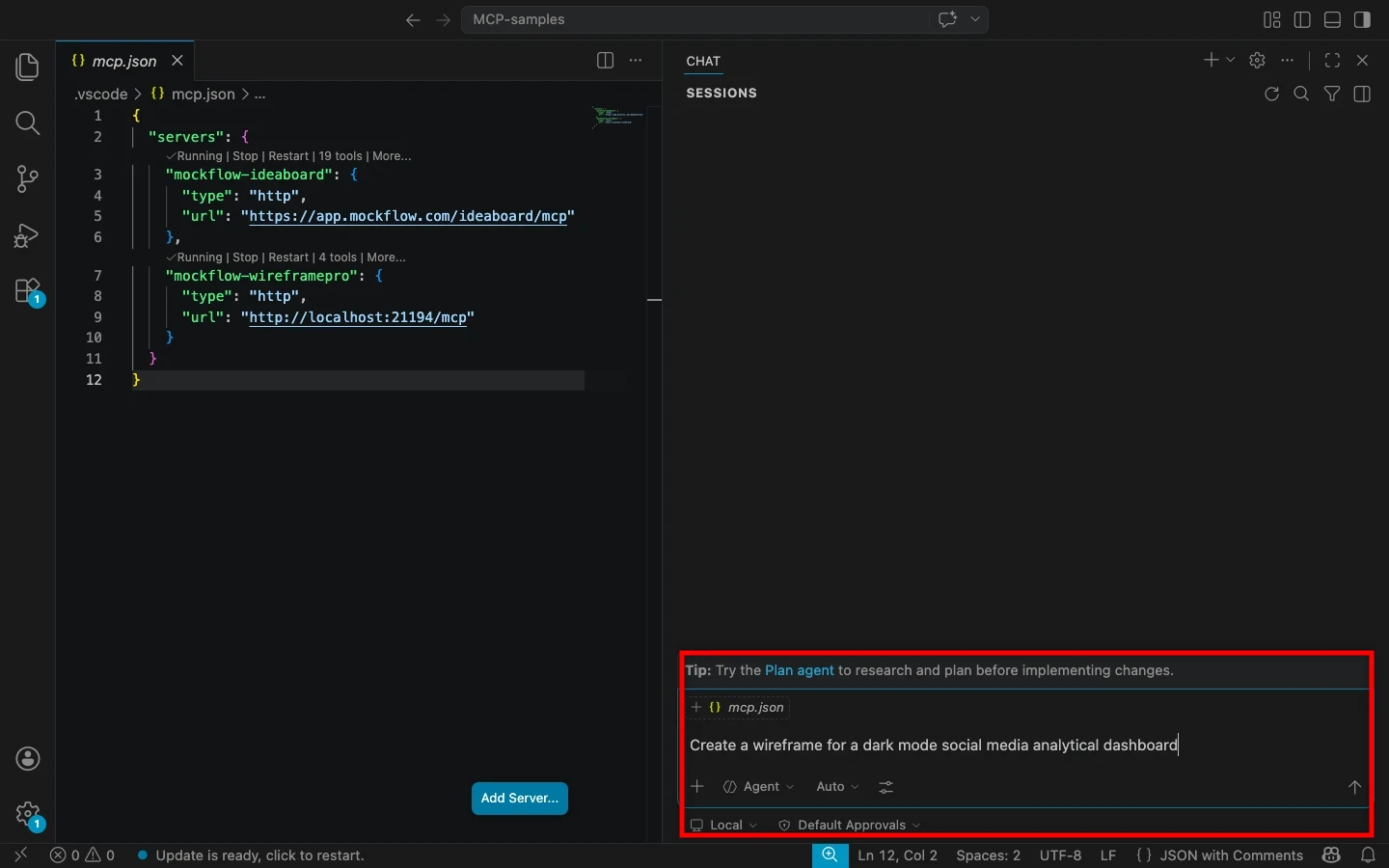
The MCP server will process your request and generate the wireframe inside MockFlow.