
Internal
How to navigate using mini-map in MockFlow Board?
A mini-map is a small, scaled-down overview of a larger space, commonly used for navigation. In the MockFlow Board editor,...
A mini-map is a small, scaled-down overview of a larger space, commonly used for navigation. In the MockFlow Board editor, the mini-map provides a zoomed-out view of the entire canvas, helping users quickly see the full layout and navigate to specific areas with ease.
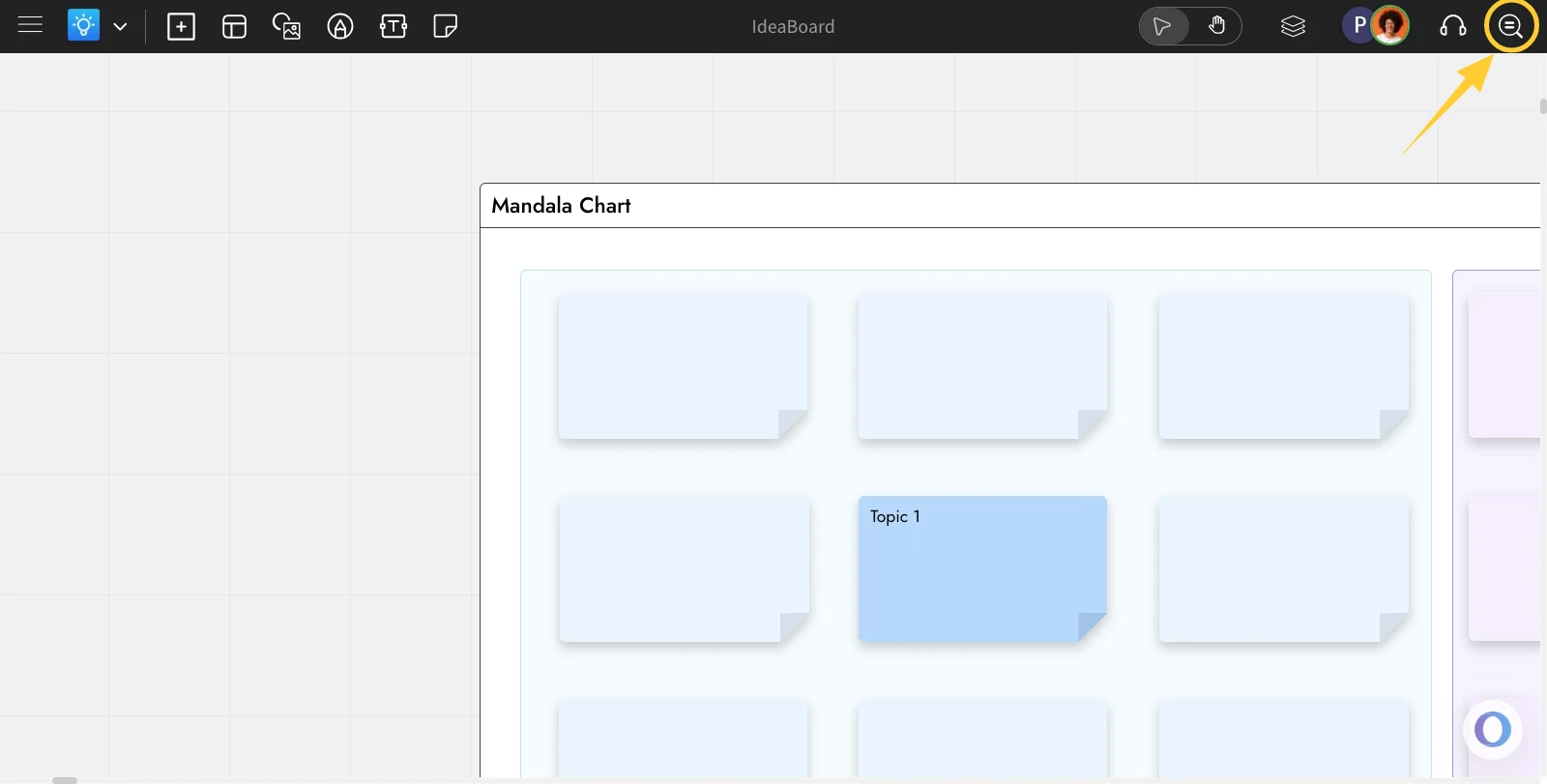
To open the mini-map, hover over the zoom icon in the top-right corner of the toolbar.
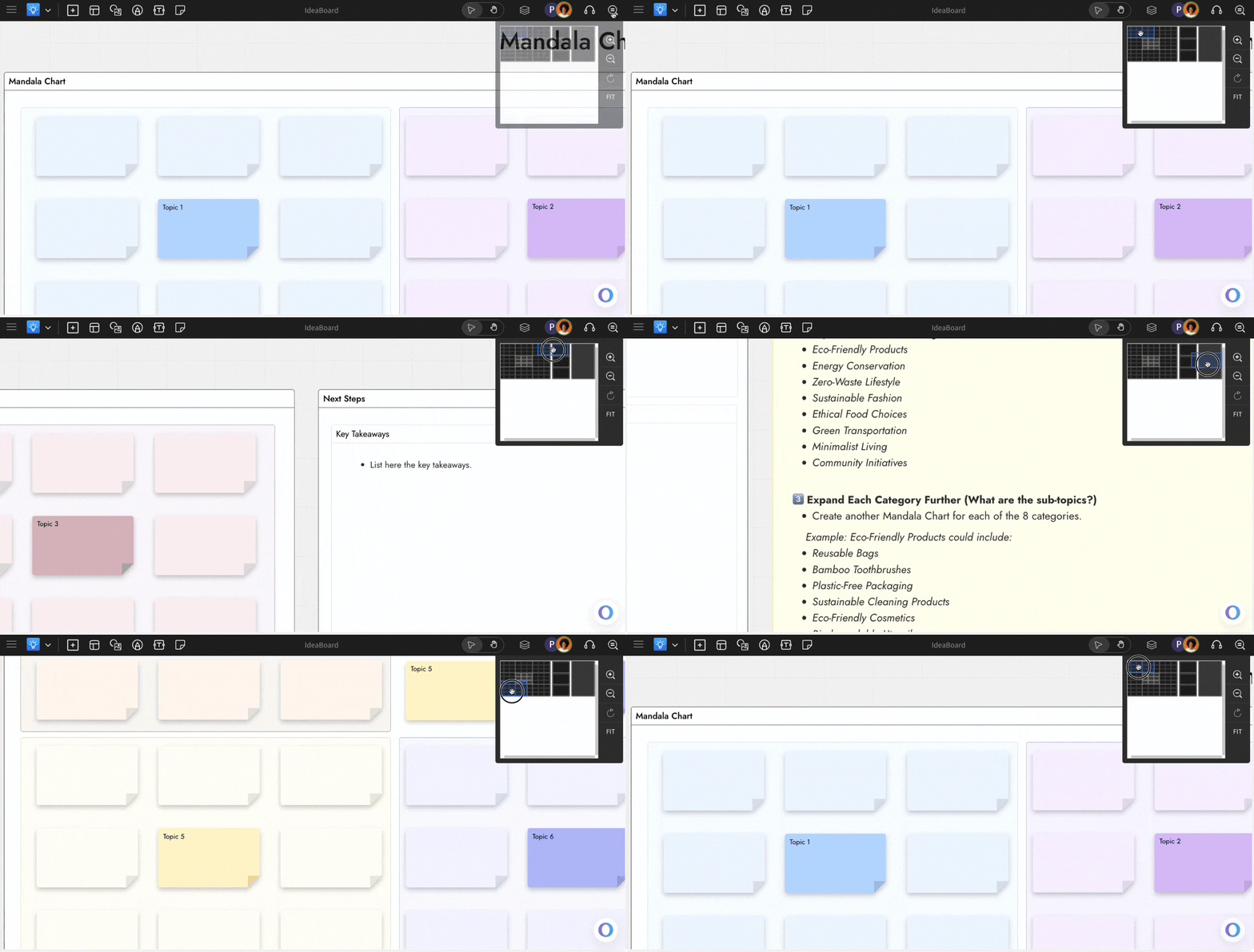
The mini-map will become visible, enabling you to explore the zoomed-out perspective of the complete MockFlow Board canvas. By clicking on any section, you can directly move to that particular area within the canvas.
Was this page helpful?