
MockFlow AnnotatePro for Atlassian Jira
Annotate images and attach to your Jira issues directly using MockFlow AnnotatePro for Jira.
This guide will walk you through how to install AnnotatePro for Jira and start adding visual annotations to your Jira issues.
First, install AnnotatePro for Jira using the following link: https://marketplace.atlassian.com/apps/1218667/mockflow-annotatepro-for-jira?hosting=cloud&tab=overview
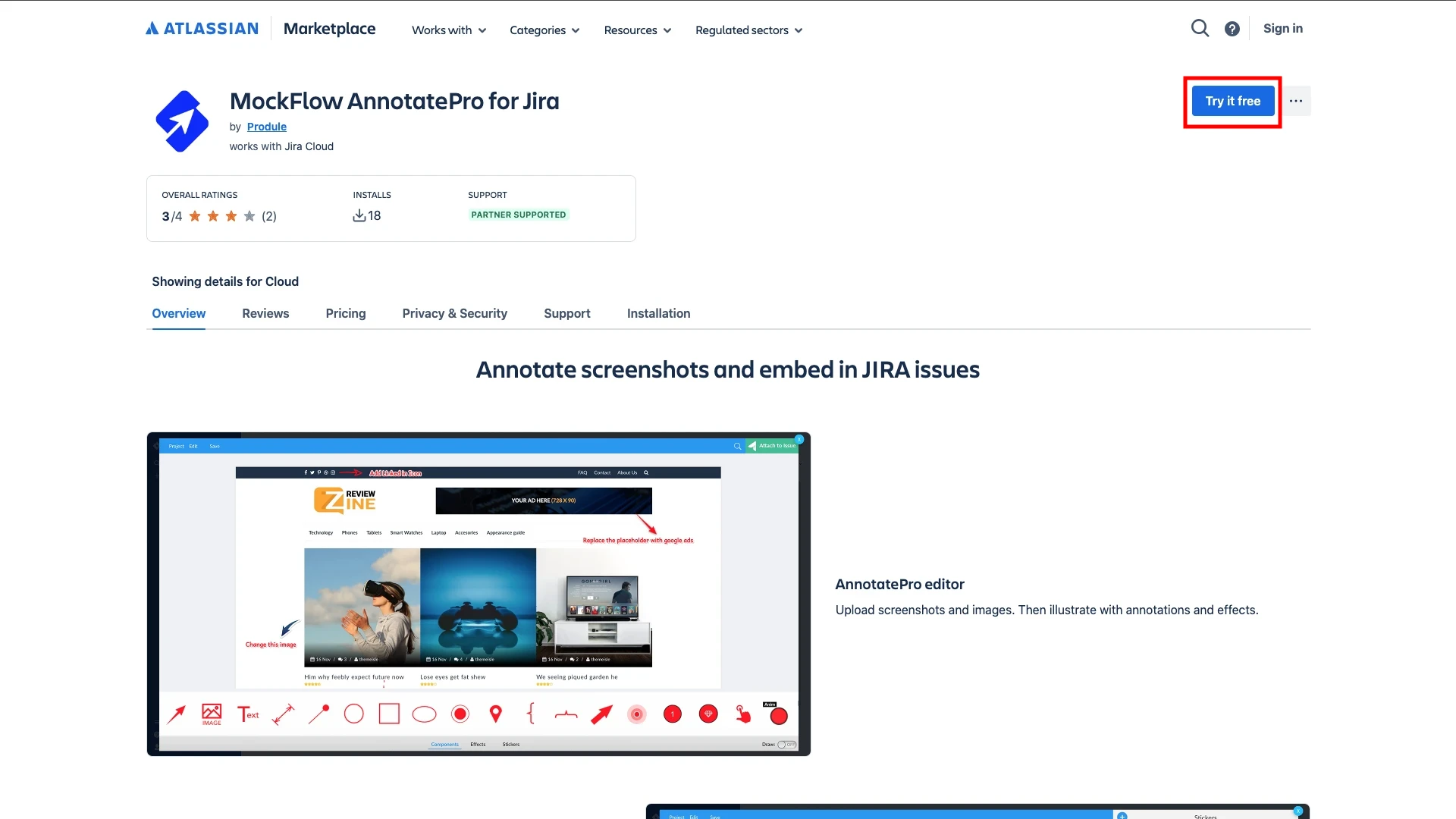
Click 'Try it free' and log in to your Atlassian account.
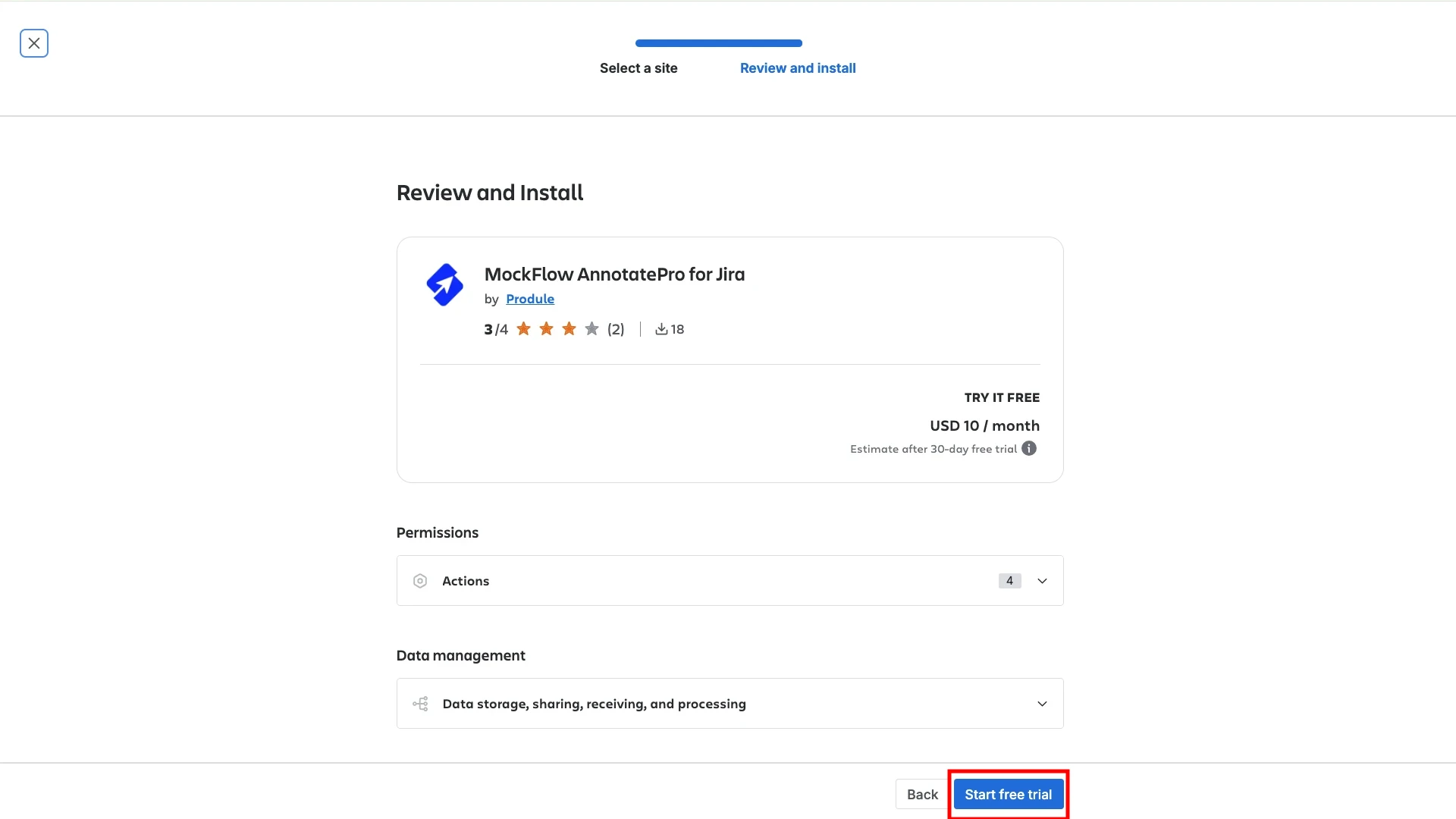
Next, click 'Start Free Trial.' Once completed, MockFlow AnnotatePro for Jira will be automatically added to your Jira apps.
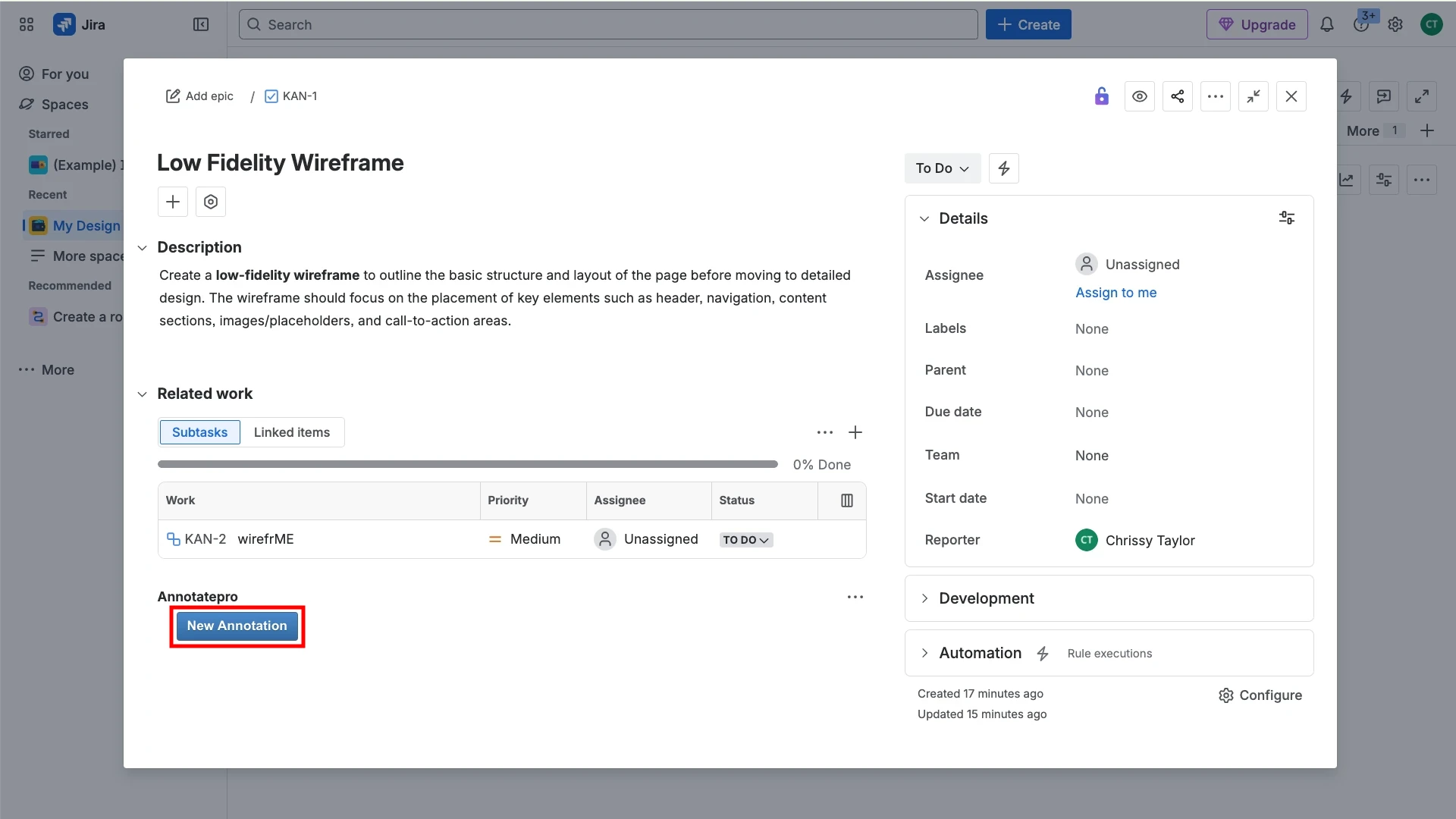
After installation, a new AnnotatePro section will appear automatically in all Jira issues. Click 'New Annotation' to open the AnnotatePro editor inside the Jira issue.
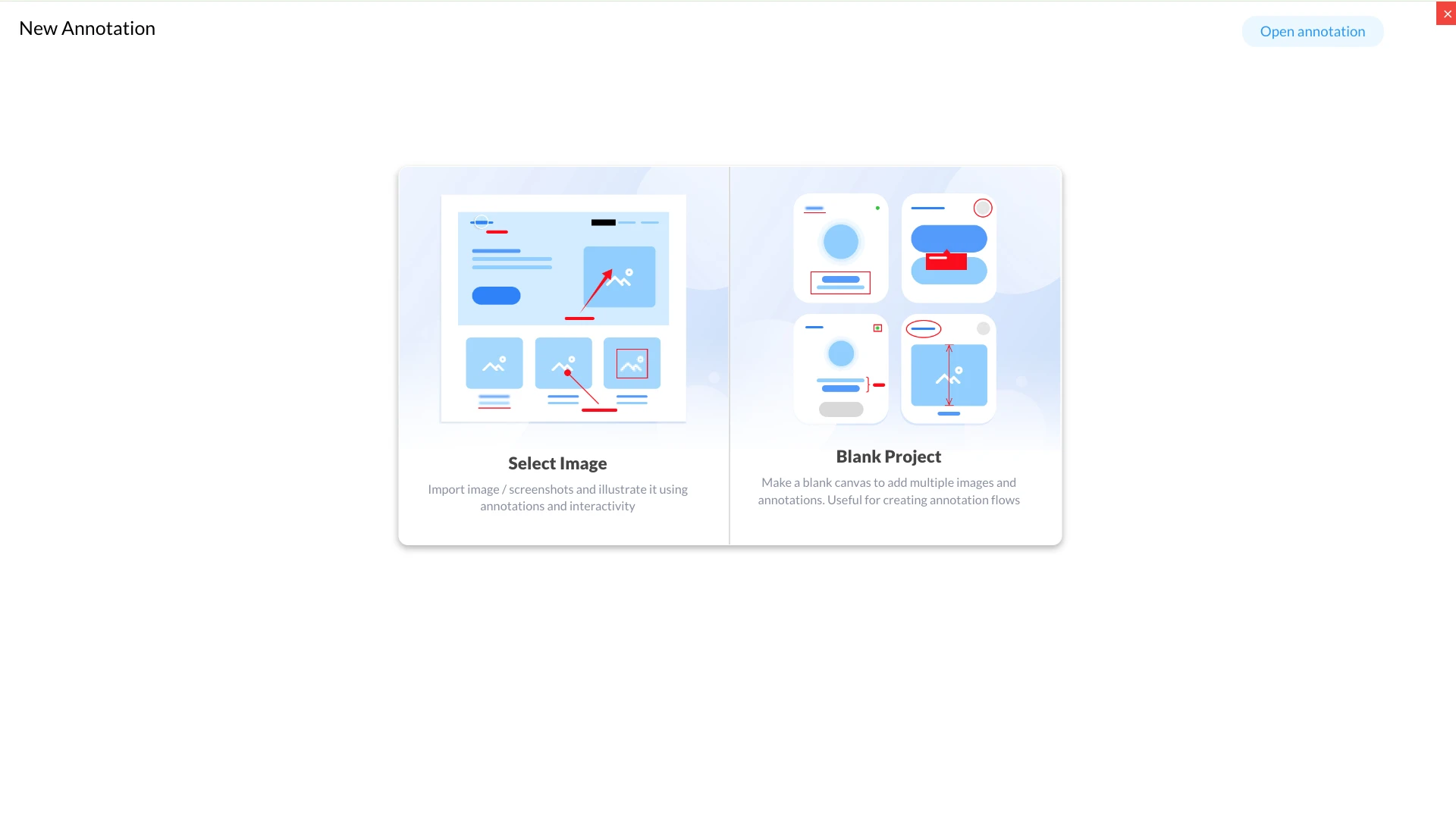
You can either upload a new image to annotate or open an image from your existing AnnotatePro projects.
After finishing adding your annotations, click 'Attach to Issue' to attach the annotated image directly to the current Jira issue.
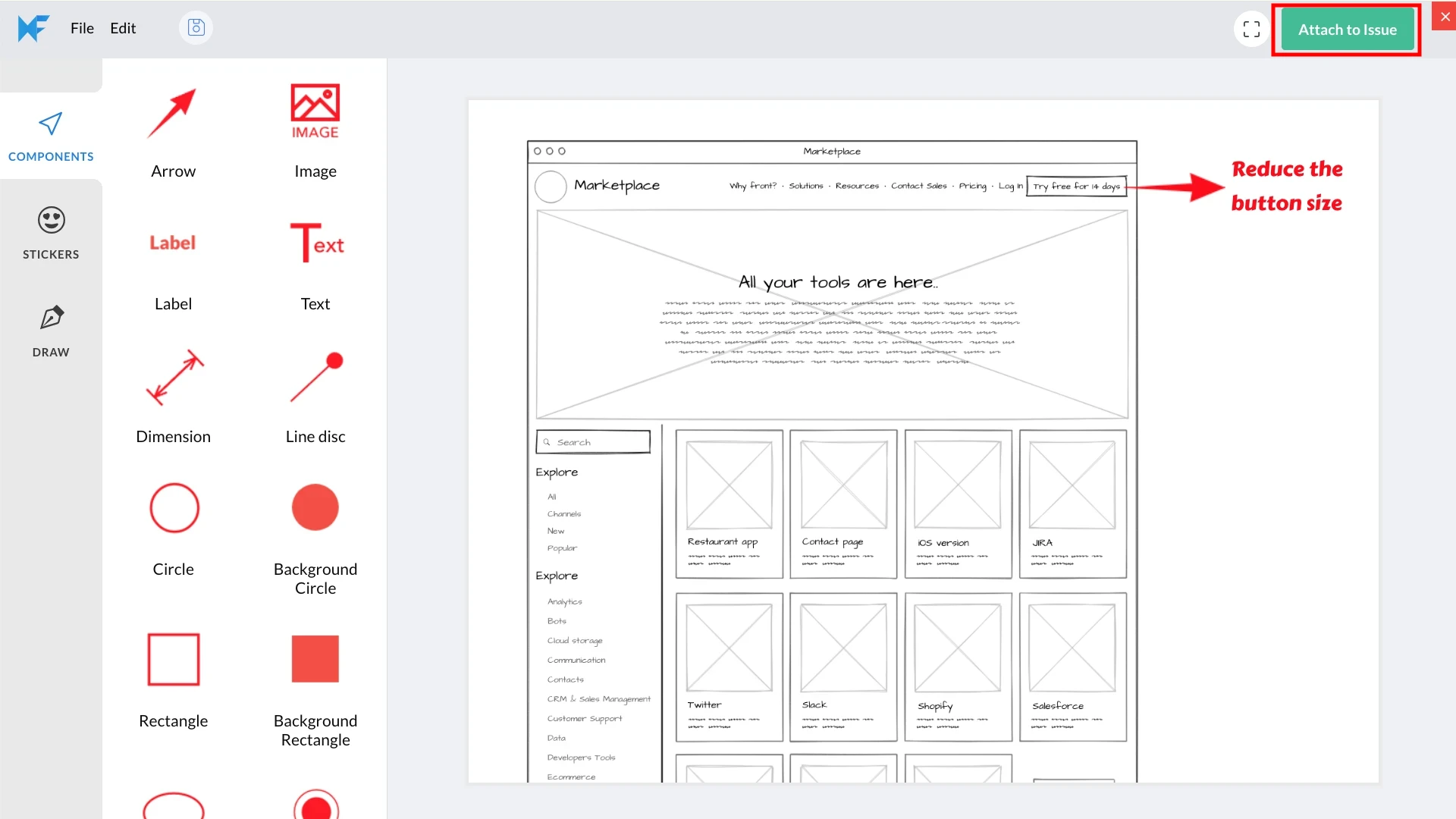
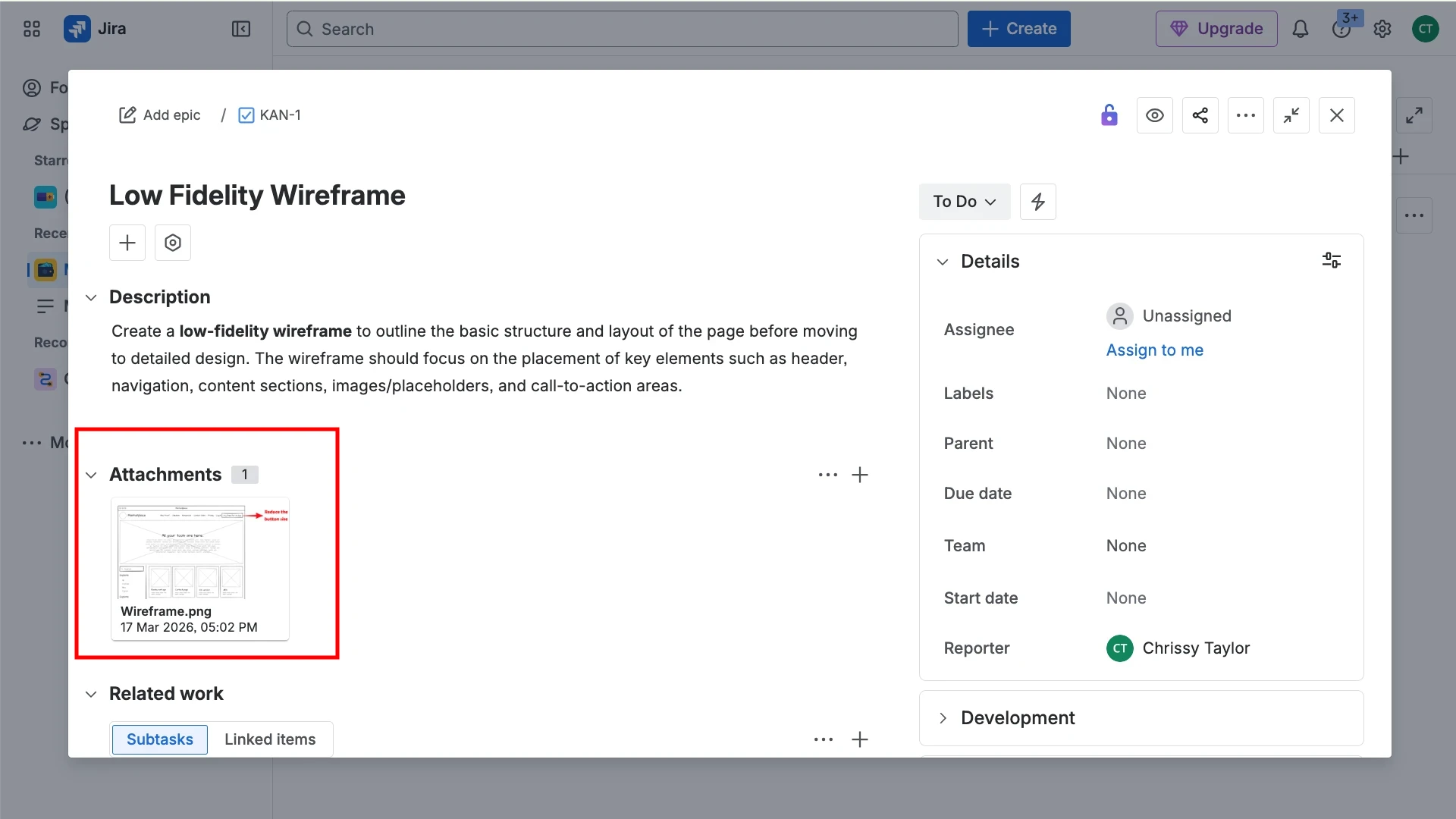
Your AnnotatePro project will now be attached to the Jira issue as an image, allowing team members to view the annotated image directly within the issue.
For any support queries, please contact support@mockflow.com