
Internal
Using Draw Mode in MockFlow Board
In MockFlow Board, by default, you are in the cursor mode, where you can drag and drop components onto the canvas. To enter...
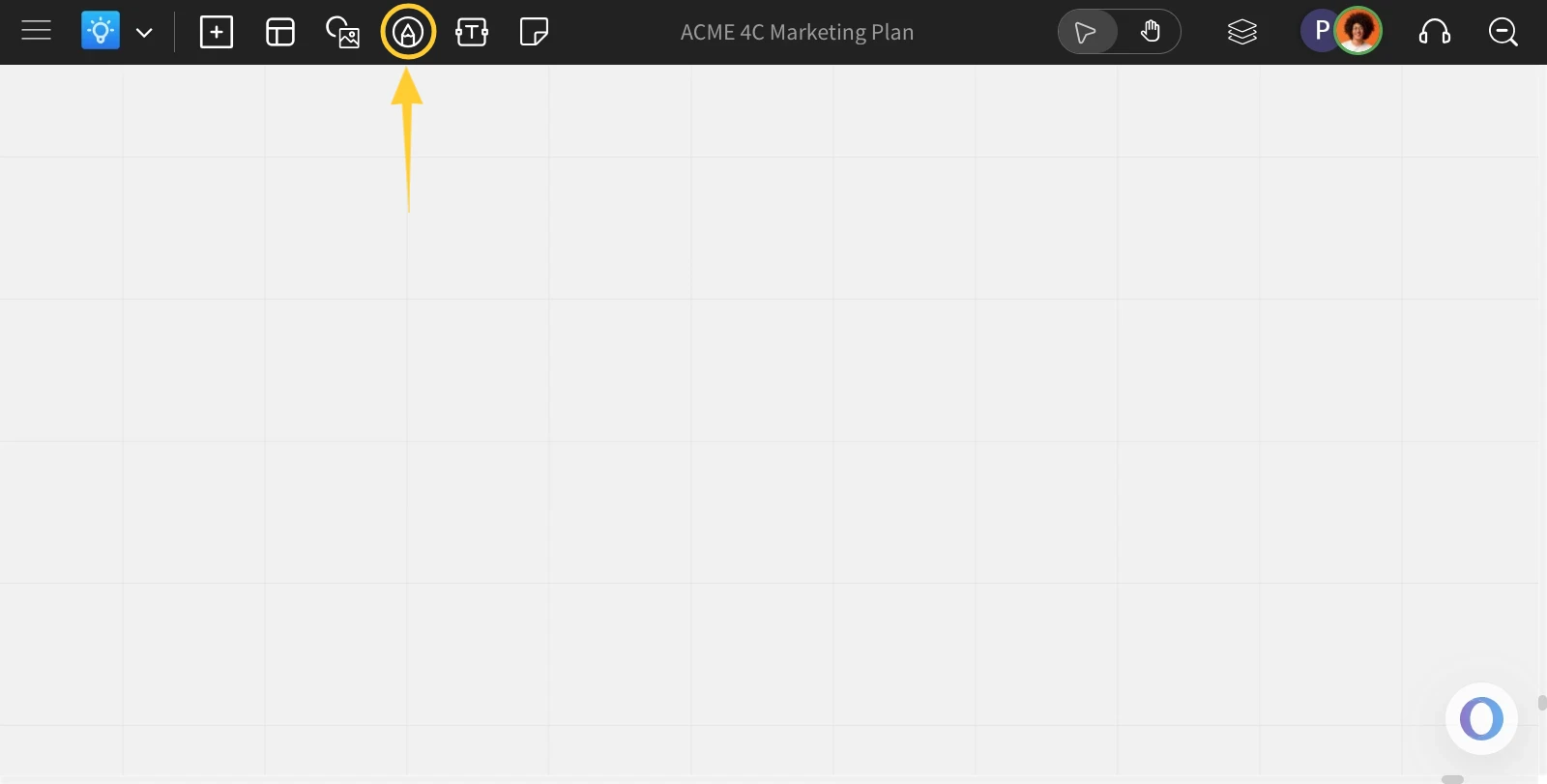
In MockFlow Board, by default, you are in the cursor mode, where you can drag and drop components onto the canvas. To enter draw mode for freehand drawing, just use the Draw mode icon on the top toolbar.
To access draw mode, click the pen icon on the top bar.
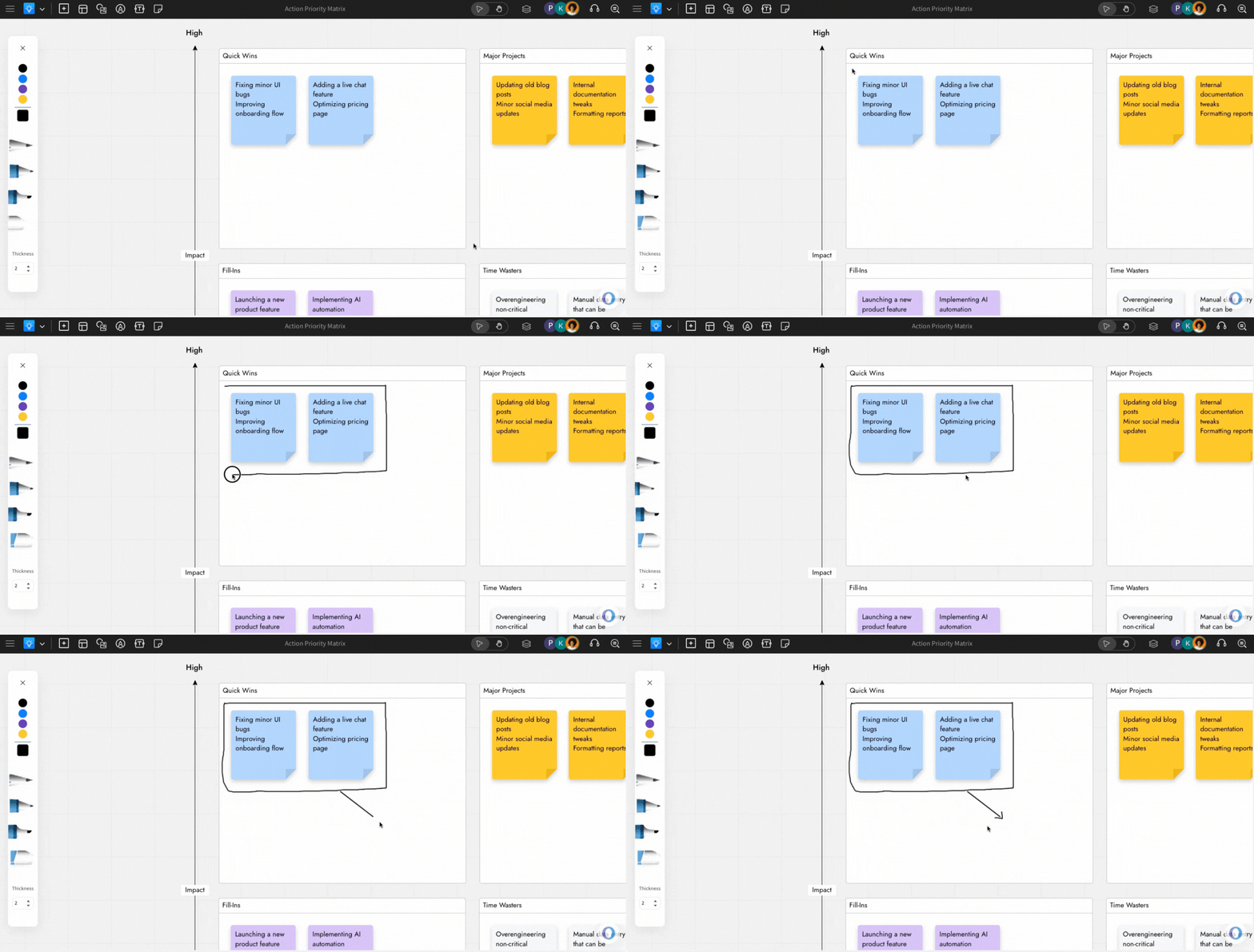
The Draw Mode will be activated, and the toolbar will appear on the left side. You can now draw freehand anywhere on the canvas.
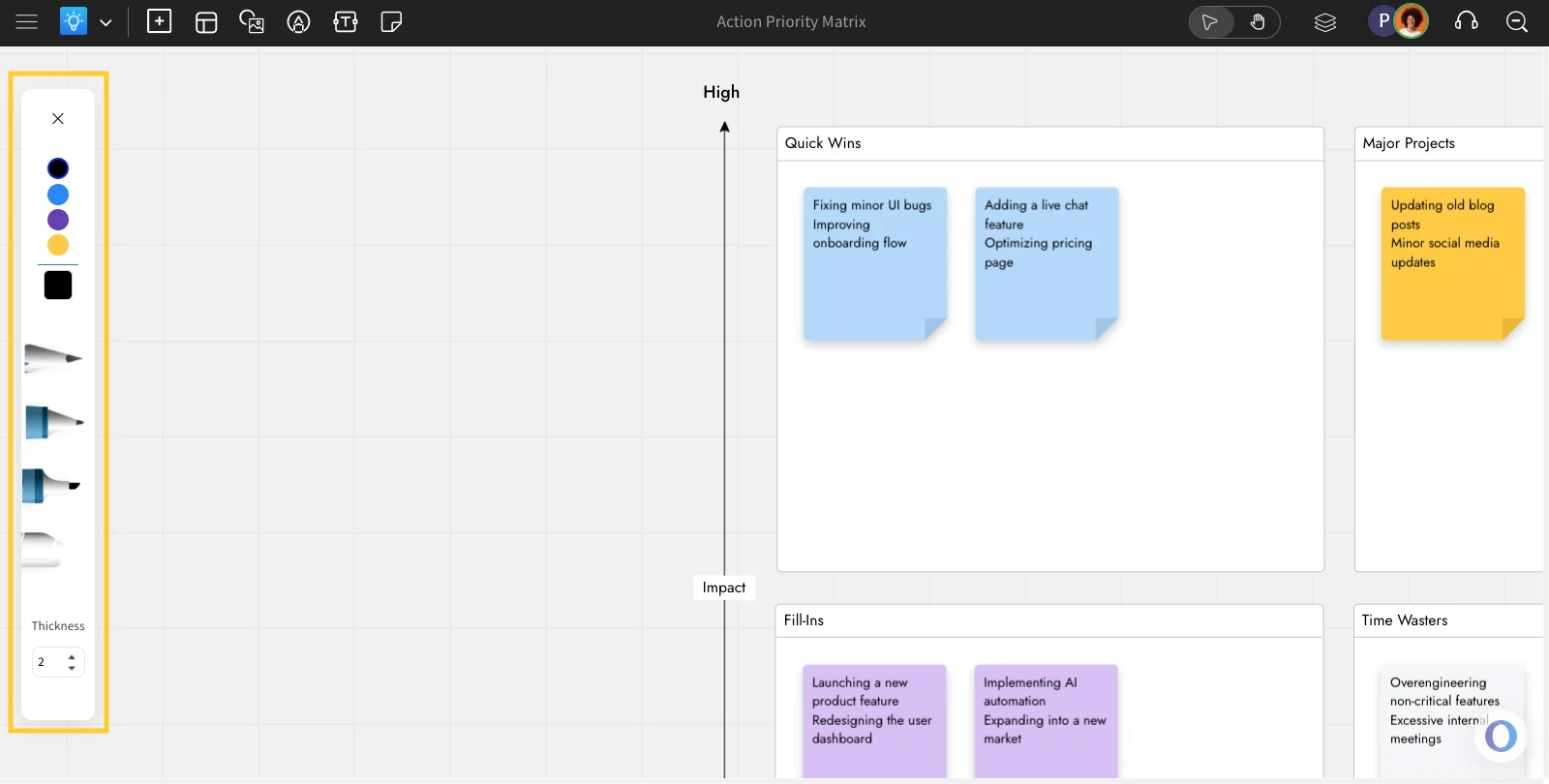
Use the Draw Mode toolbar to customize colors, stroke thickness & select drawing tools.
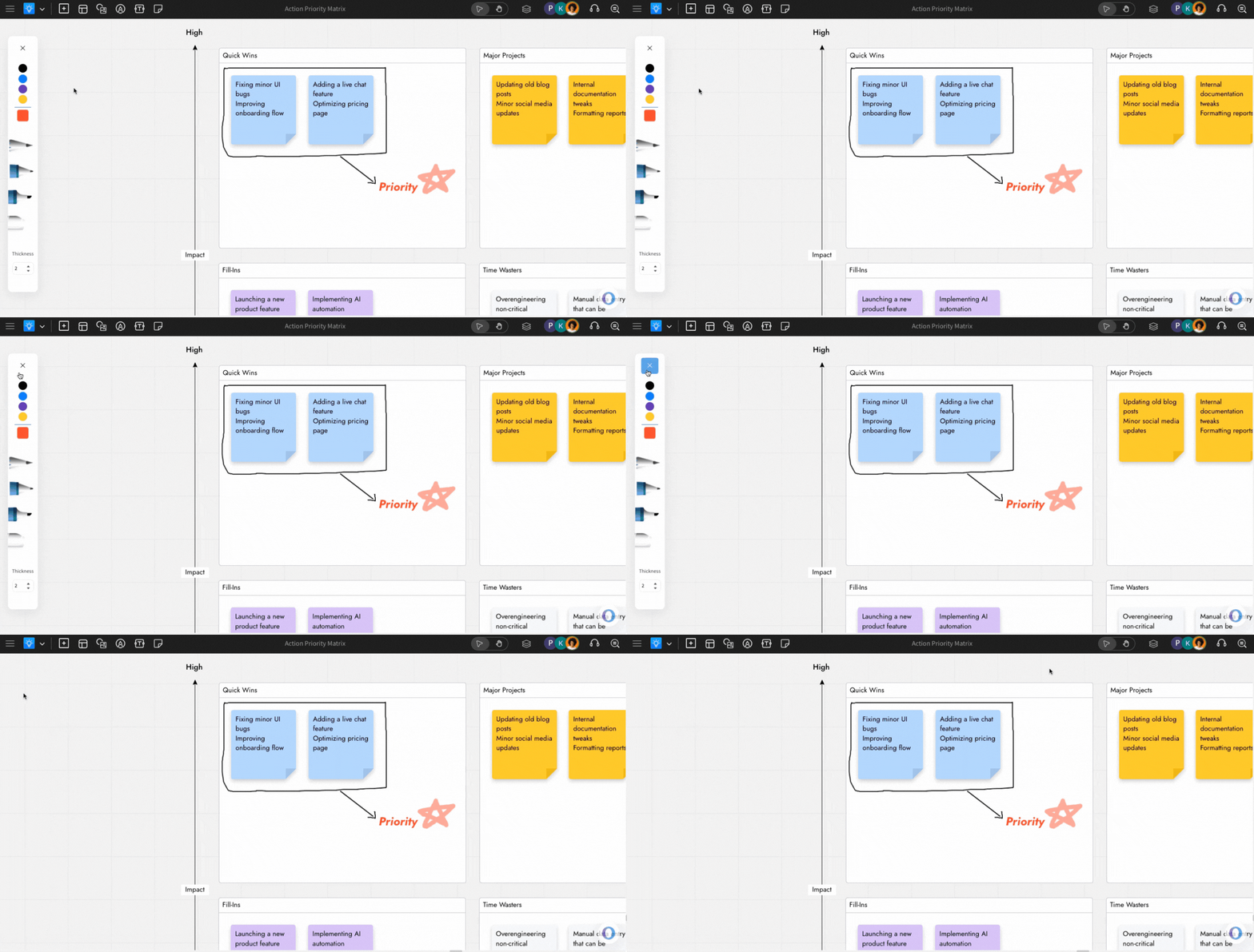
You can close the Draw Mode by clicking on the close icon in the toolbar or by pressing the 'Esc' key.
Was this page helpful?