
SSO Setup with Azure identity provider
You should have an active MockFlow Enterprise license or annual TeamPack license to integrate MockFlow with any third-party...
You should have an active MockFlow Enterprise license or annual TeamPack license to integrate MockFlow with any third-party Identity Provider that supports SSO/SAML.
MockFlow provides built-in connectors for Okta, OneLogin, and Google SSO identity providers. In addition to this, Enterprise customers can connect to any third-party SSO identity providers that support SAML methodology, such as Auth0, IBM Cloud identity, Bitium, etc.
Setting up SSO involves 2 steps:
Setting up the Identity Provider (Azure)
Click “New User” -> Enter details and click add.
Enterprise Applications -> New Application
Choose type as “Non gallery application”, enter the name “MockFlow” and click “Add”.
In the Application overview screen, click “Set up single sign-on” and “SAML” on the next screen.
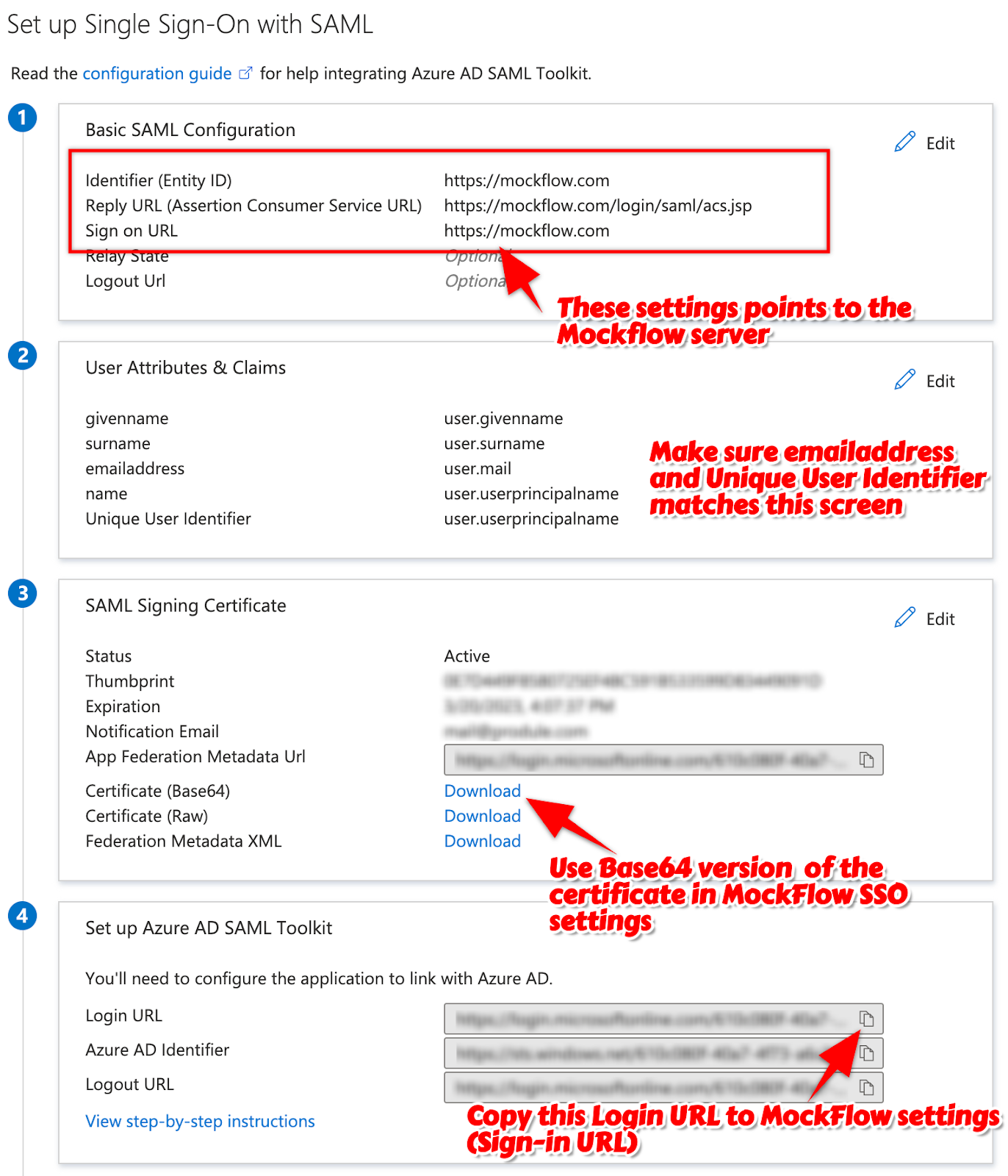
Edit “Basic SAML configuration”, and enter the following details
Identifier: https://mockflow.com
Reply URL: https://mockflow.com/login/saml/acs.jsp
Sign-on URL: https://mockflow.com/
Click Save and go back to the Single sign-on screen.
Edit “User Attributes & Claims” and click “Unique User Identifier (Name ID)”
In the source attribute, select “user.mail” and click Save.
Go to the “Users and Groups” tab and click on “Add user”.
In the “Add Assignment” screen, click “Users”, and select the user to access this application, and click on "Assign".
Now go back to the “Single sign-on” screen and copy the below details:
Copy “Login URL” for the Sign-in URL in MockFlow
Click Download at “Certificate (Base64)” to the system.
In the sidebar, click on “Properties”, and copy “Application ID” for Issuer ID in MockFlow
In the terminal, go to the Downloads folder and run the command “cat MockFlow.cer” (check file name)
Copy the contents displayed in the terminal and use them for the X.509 Certificate field in Mockflow.
Reference screenshot:
Setting up your MockFlow account
Login to Mockflow with admin privilege user having enterprise plan.
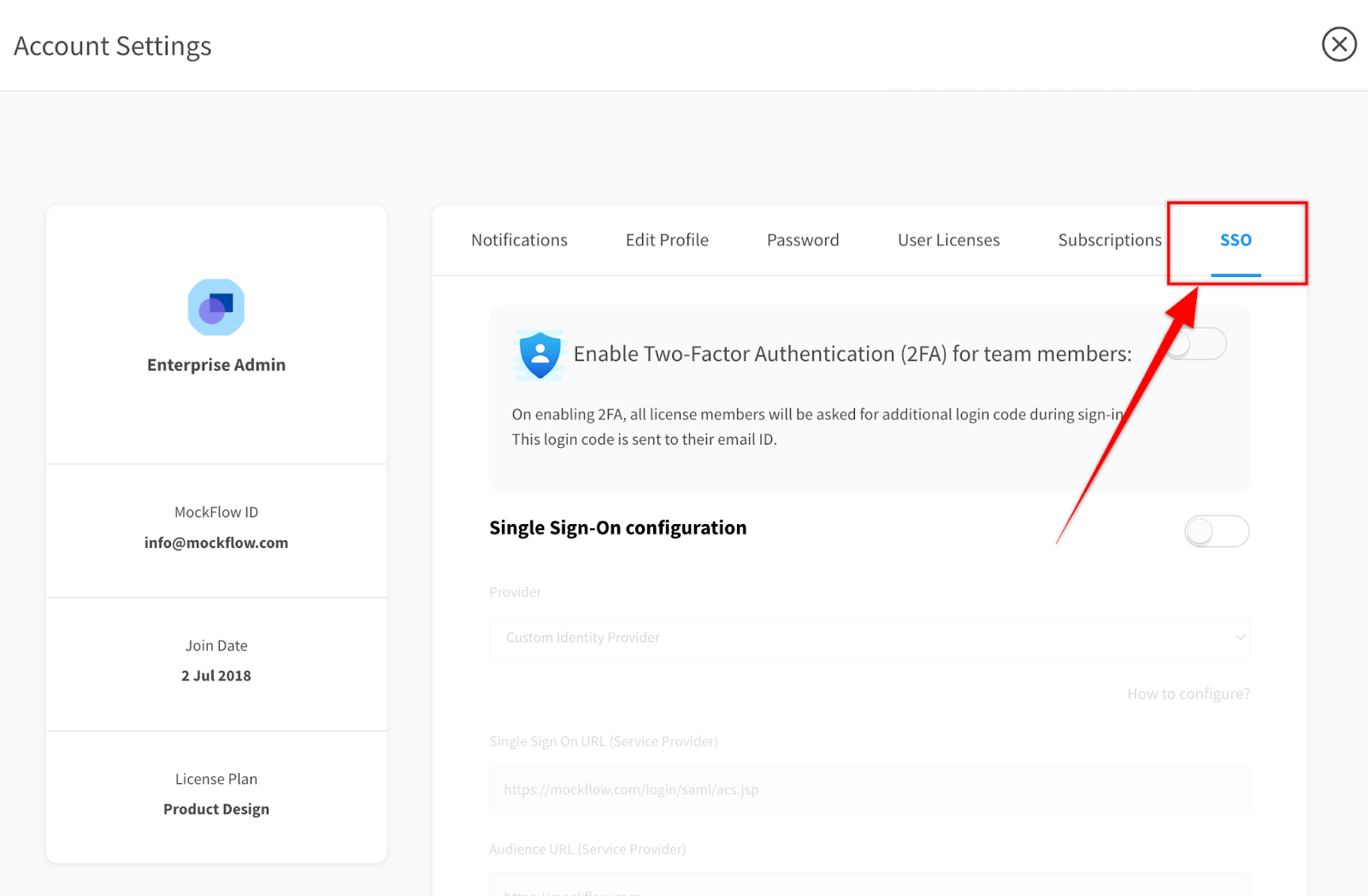
Navigate to Account settings -> User Licenses -> Select ‘SSO’ tab
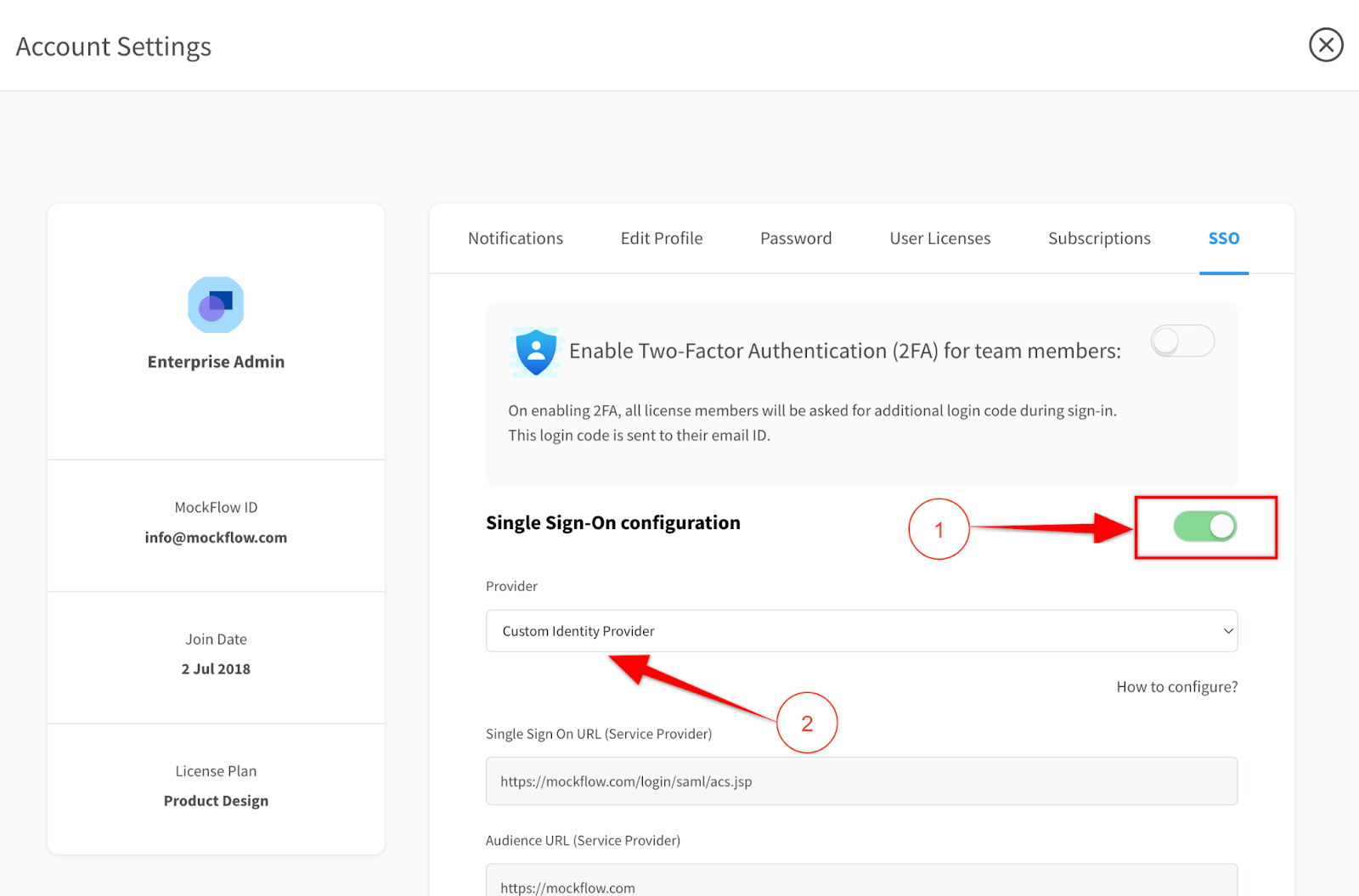
Enable Single Sign-On and select the provider as “Custom Identity Provider”.
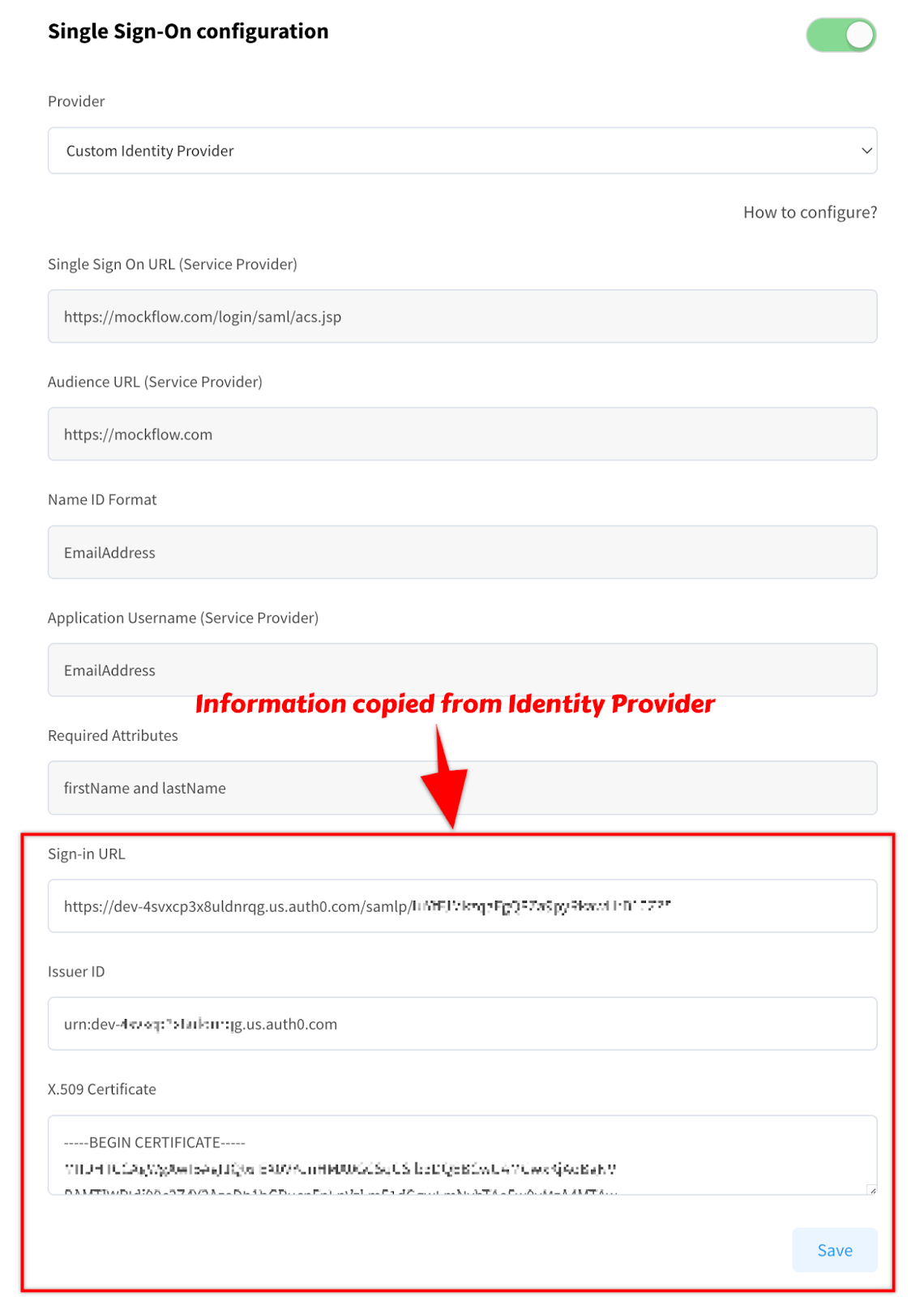
Fill up the following fields
Sign-in URL (Format: https://produle.auth0.com/samlp/HTsYxnI3iWcMjk6TfN5SJwLd4dD9aJqO)
Issuer ID: (Format: urn:produle.auth0.com)
Certificate: (Format: —-BEGIN CERTIFICATE—-XXXXXXX—-END CERTIFICATE—-)
Add users to the Mockflow account
The enterprise member accounts can be added under “Account Settings” -> “User Licenses”.
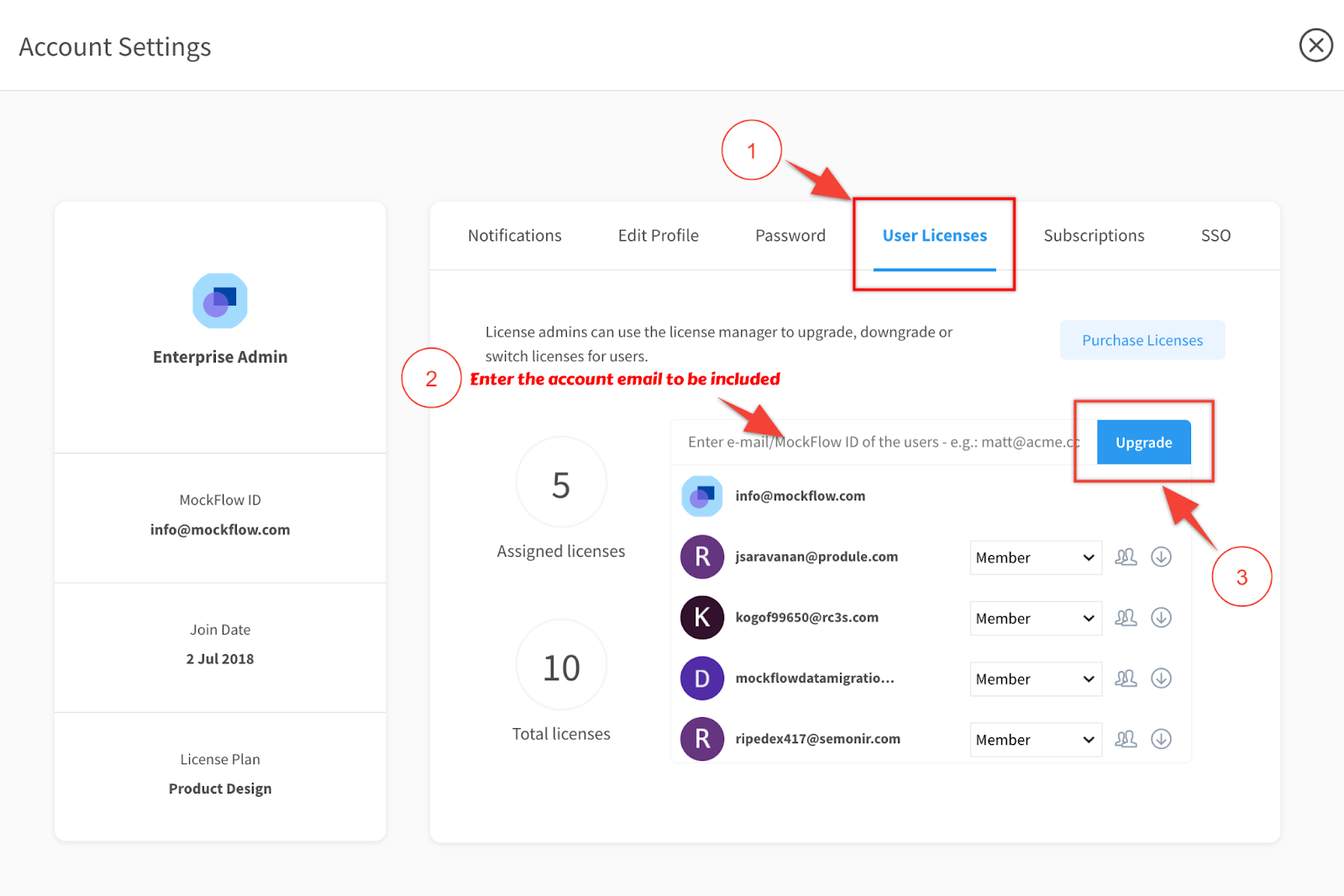
With this the SSO configuration is complete and the users can log in to MockFlow using SSO.
In case you face any issues during the configuration process and require assistance from our team, feel free to reach out to us at support@mockflow.com.