How to view layers in Ideaboard?
Layers can be useful to rearrange components to the front or back easily. You can also use the 'Bring to Front' and 'Send to...
Layers can be useful to rearrange components to the front or back easily. You can also use the 'Bring to Front' and 'Send to Back' options that are available on right-clicking the component.
Nonetheless, using layers allows you to distinctly observe them and reorganize them as necessary in a more precise manner.
In the MockFlow Board editor, click the 'Layers' icon in the top right.
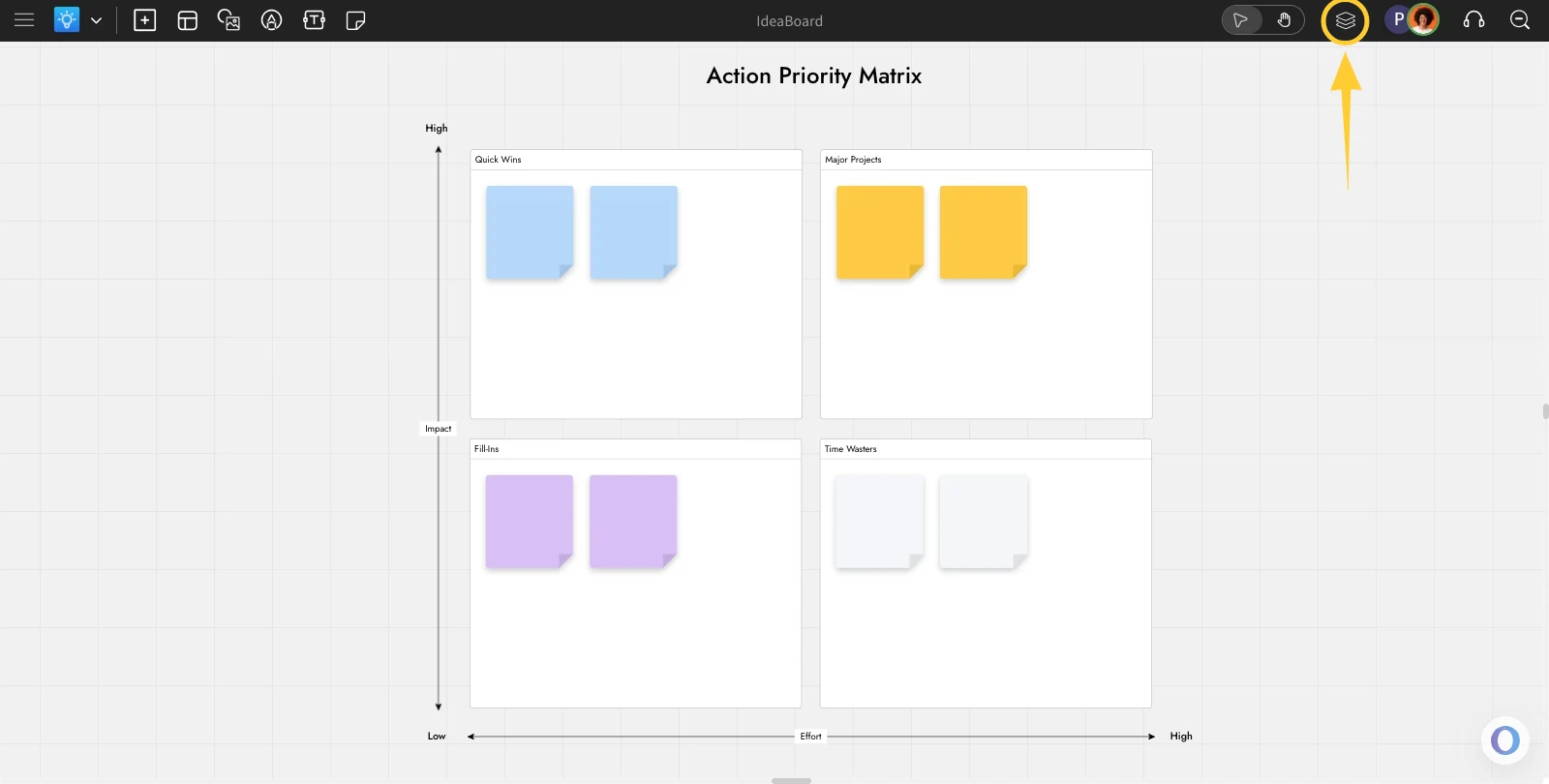
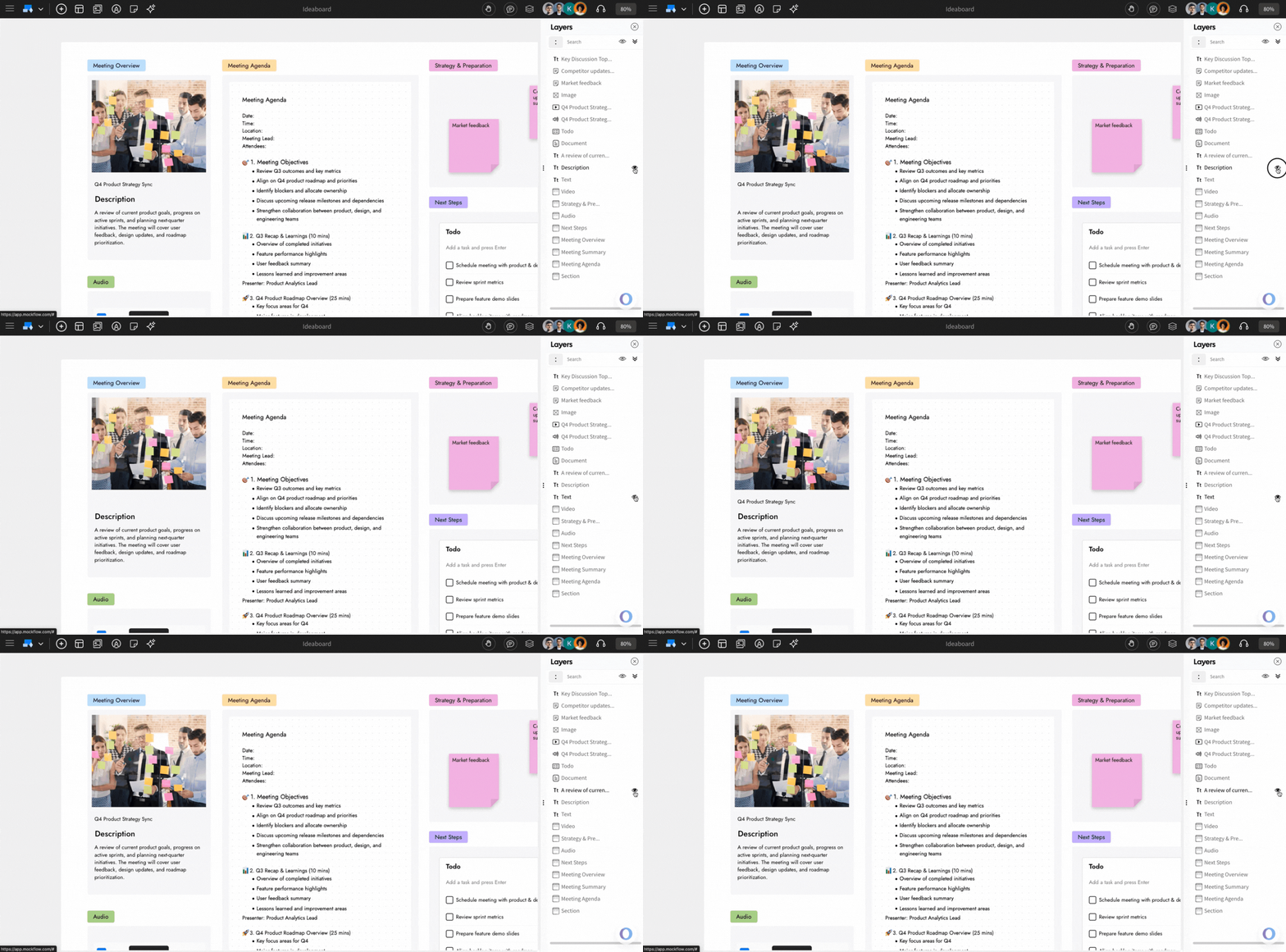
The Layers sidebar will appear, listing all components used in the MockFlow Board canvas. You can easily rearrange them by dragging and dropping.
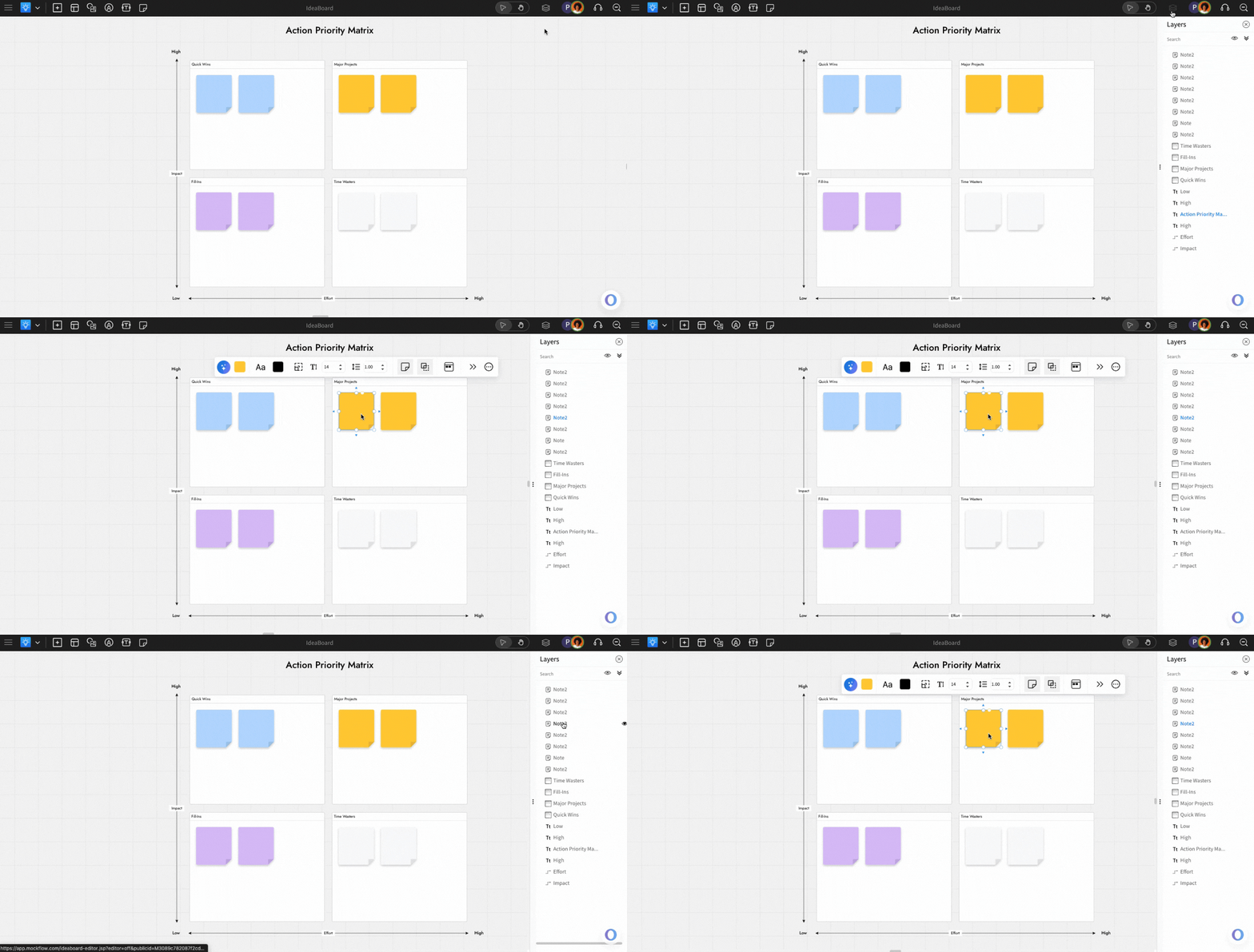
Rearrange Layers
The layers can be rearranged by dragging and dropping them, which will adjust the position of the components on the canvas.
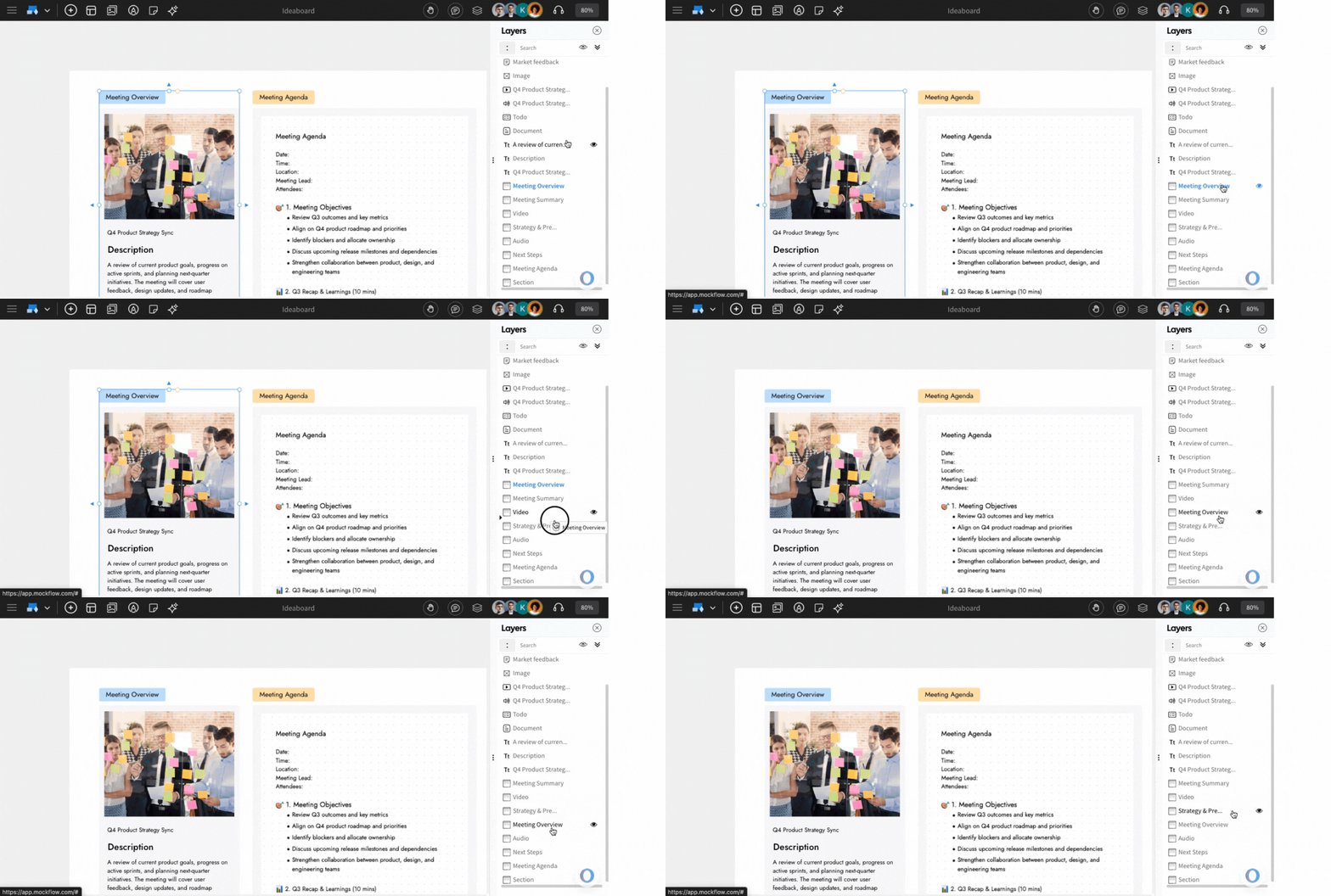
Show and Hide Layers
To differentiate between board variations in complex projects, effectively utilizing the show and hide features will help you organize your board and streamline your workflow.
Tap on to show and tap to hide the layers.
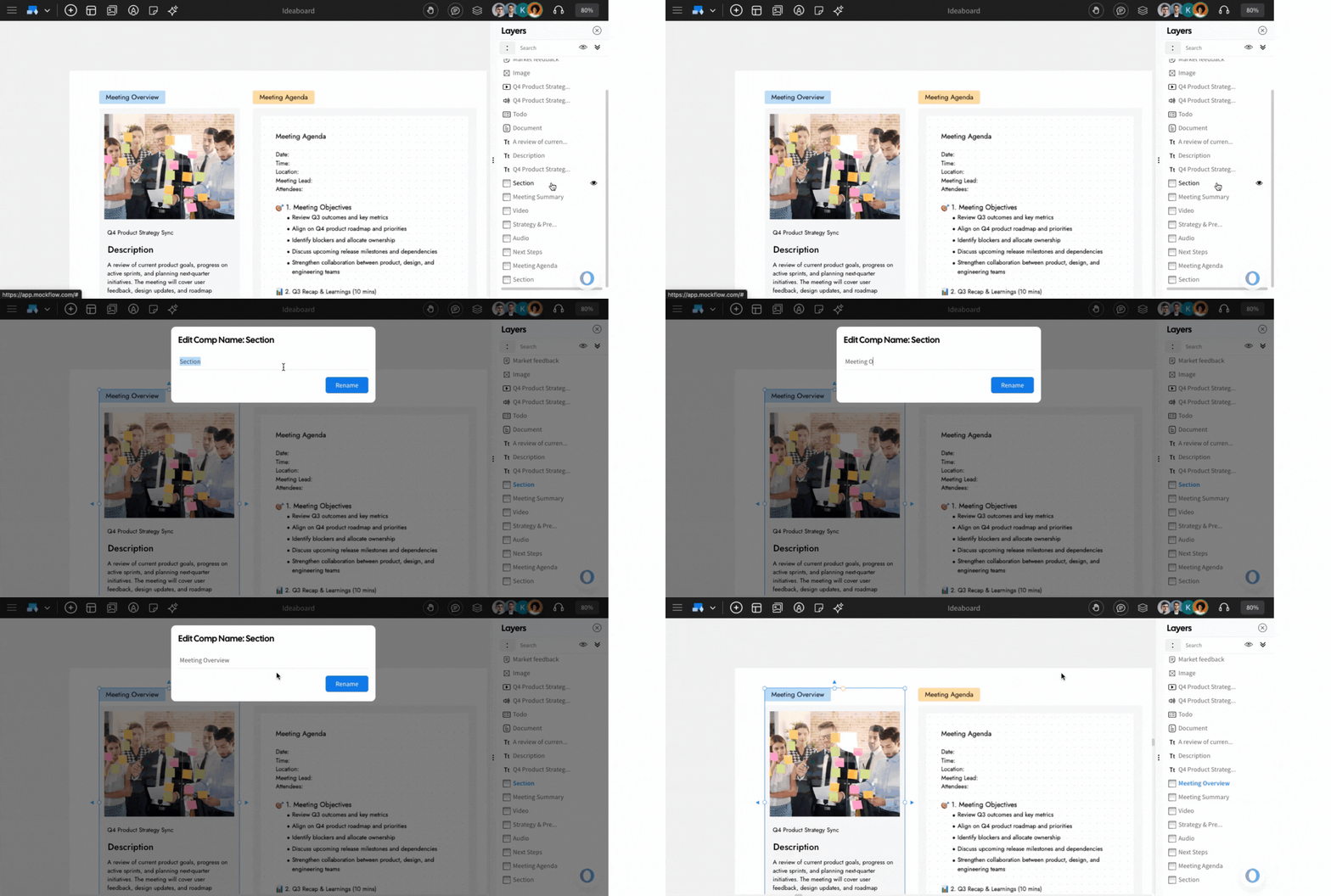
Rename the Layers
By renaming the layers, you can quickly identify their purposes, making it easier to manage complex boards. To rename a layer, double-click on the layer item, enter the new name, and click 'Rename.'