How to use templates in MockFlow Board?
MockFlow Board offers templates in various categories such as Brainstorming, Strategy, Diagramming, and more. You can...
MockFlow Board offers templates in various categories such as Brainstorming, Strategy, Diagramming, and more. You can explore the templates available and choose to use them in your board to speed up your planning process.
In the MockFlow Board editor, hover over the Templates icon in the top toolbar.
A list of ready-to-use templates will appear, categorized for easy selection. You can also search for a template using the search box.
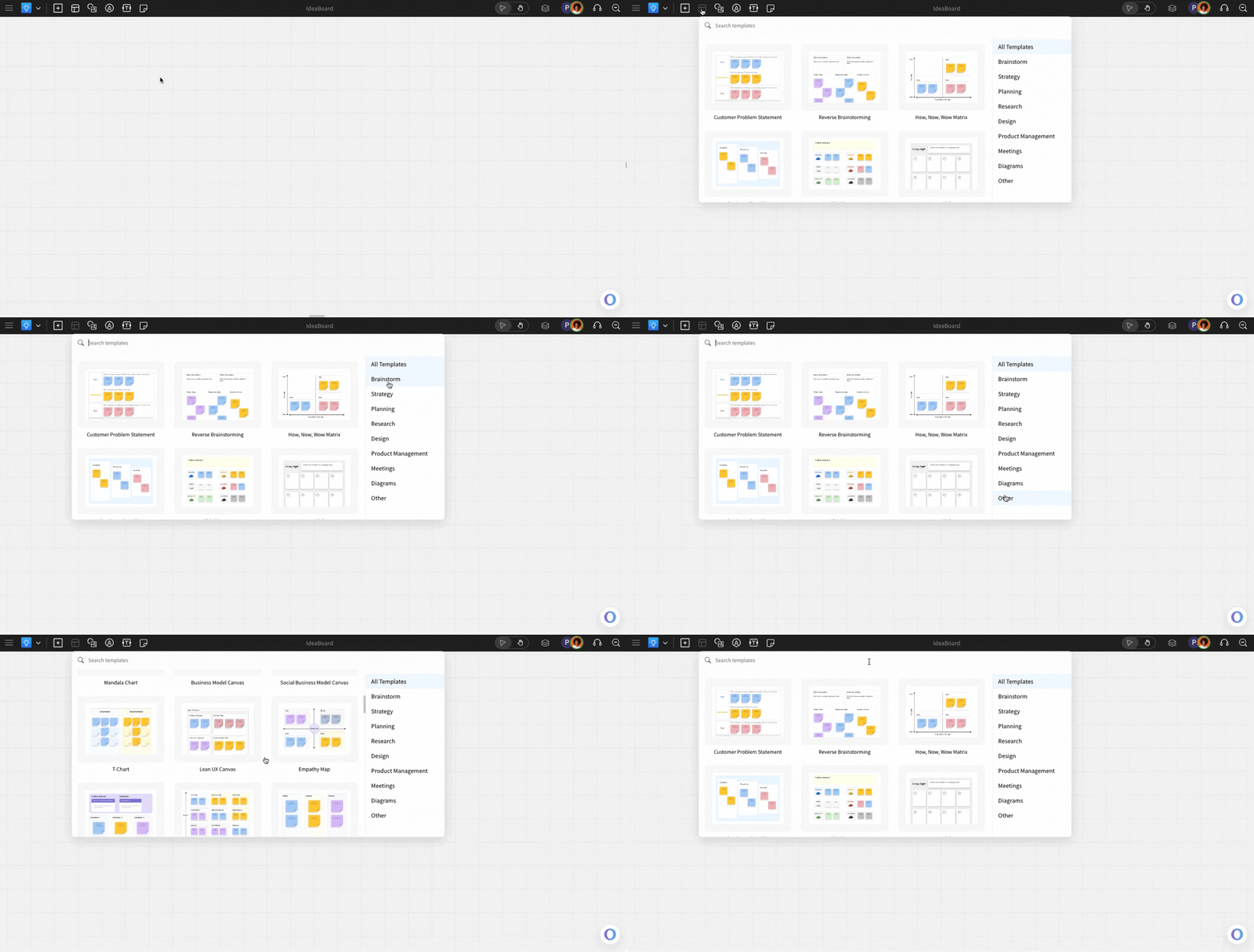
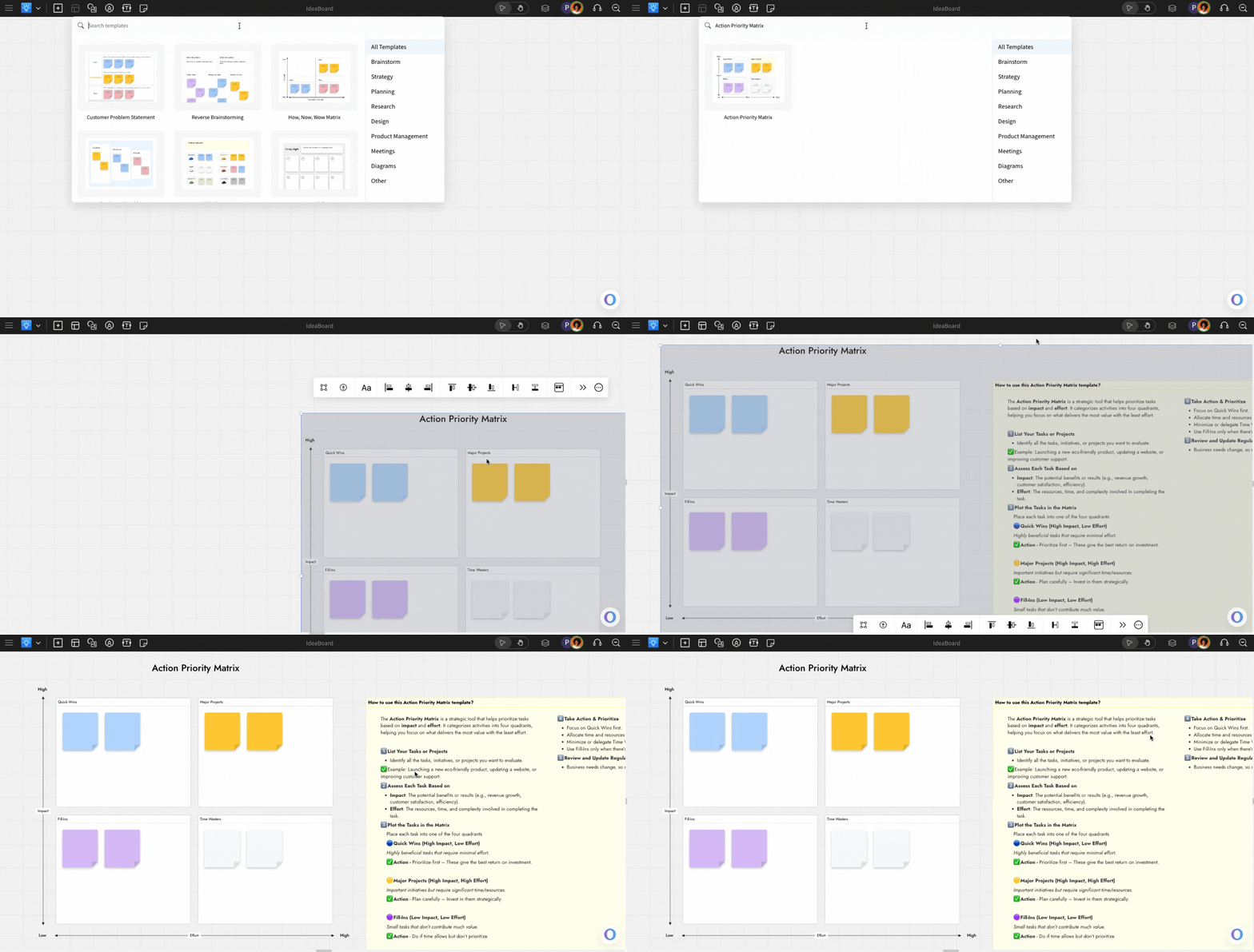
Drag and drop the desired template and position it at any location on the MockFlow Board canvas.
The selected template will be added to your MockFlow Board.
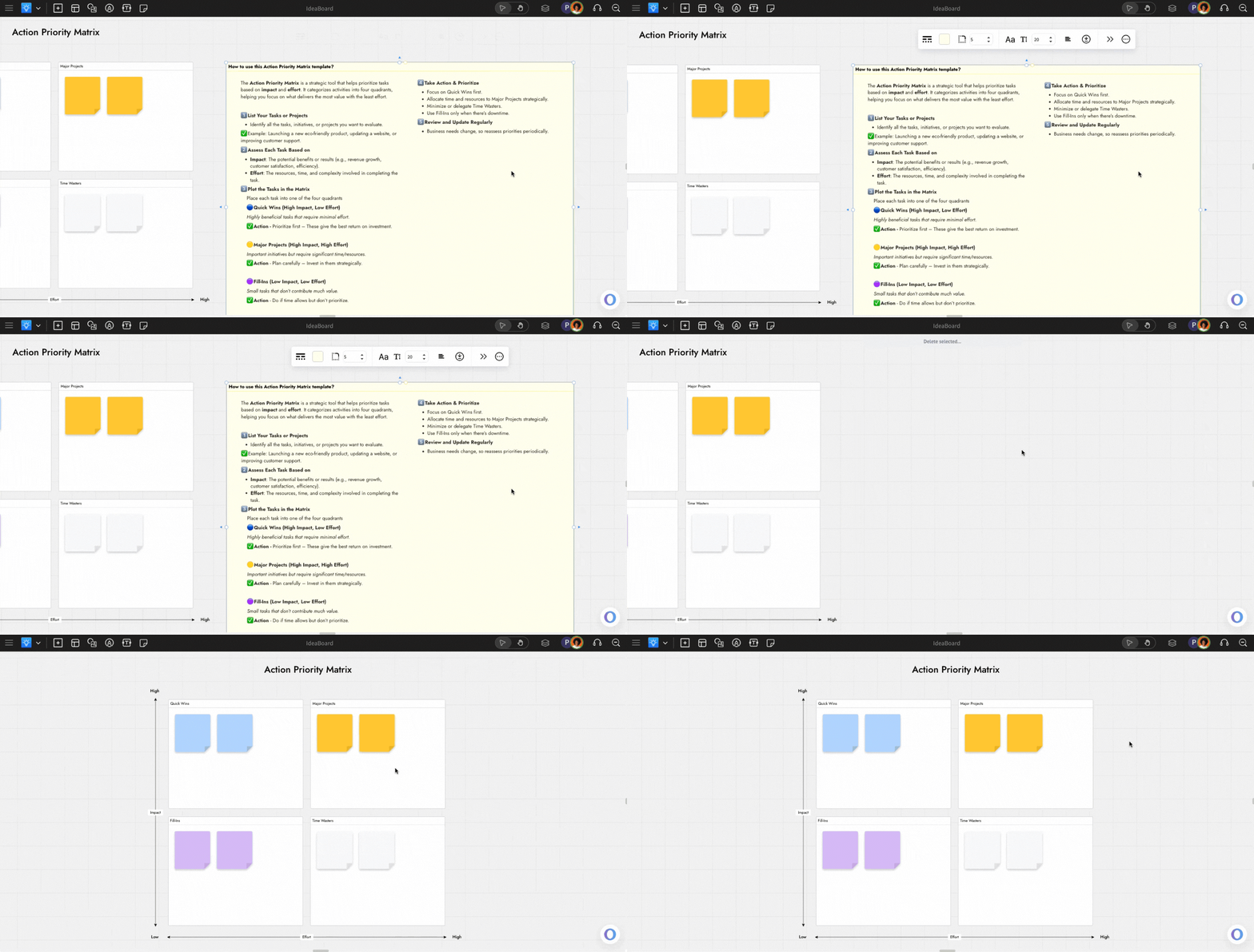
Many templates in MockFlow Board include a 'How to use the template' section, explaining how to use it, which can be helpful to use the layout efficiently. You can delete this easily by clicking on the section and using the 'delete' key or right-clicking and delete.