To-do or Checklist
Learn how to use the To-Do List component to organize tasks, and track progress directly on your whiteboard for better team collaboration using MockFlow Board.
Todo lists are perfect for brainstorming sessions, when main goals branch into subtasks, helping teams explore solutions, outline plans, or break down complex projects.
How to add a To-do or checklist?
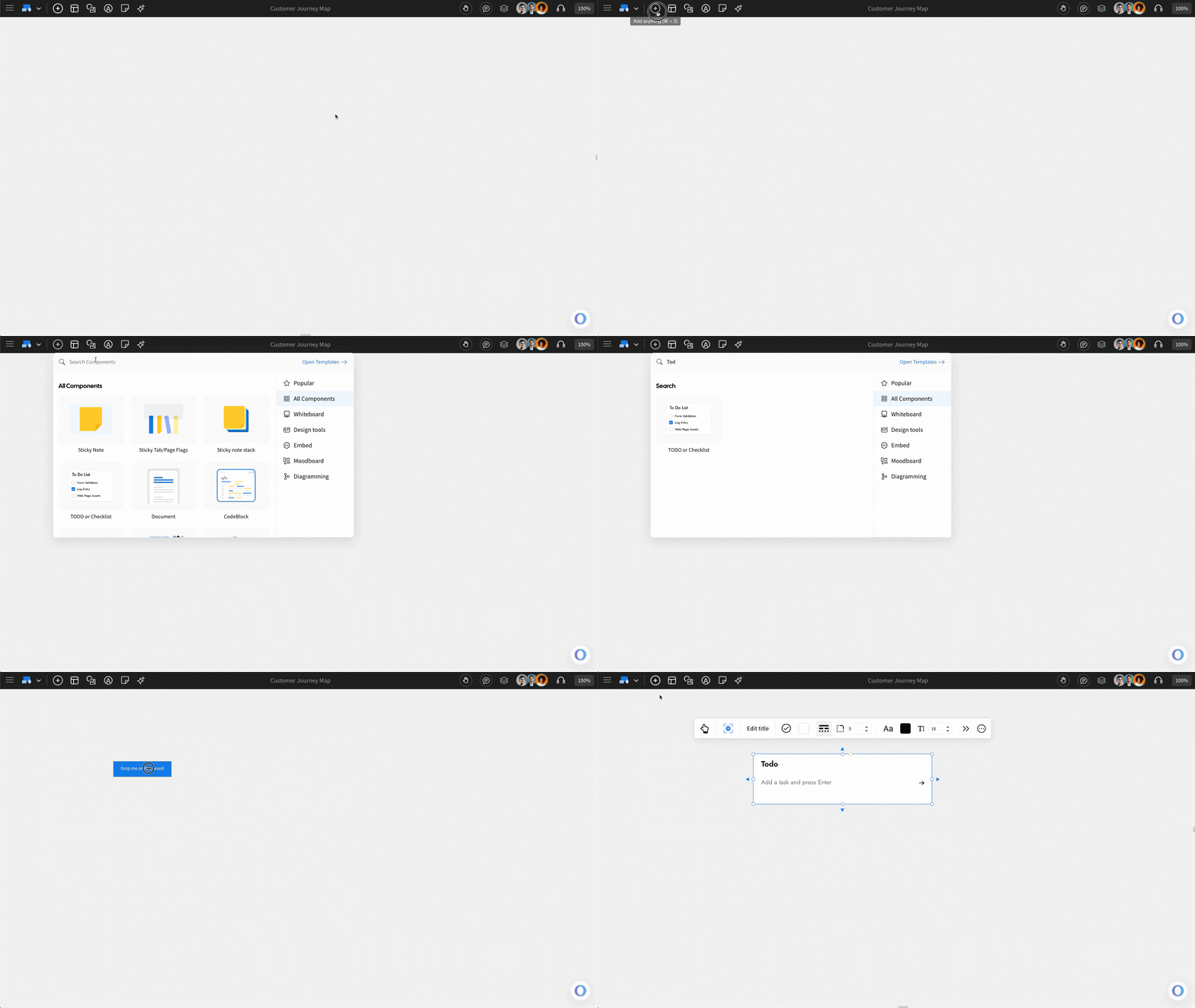
Click on the 'Add' icon on the board, locate 'Todo or checklist,' and drag it onto the canvas.
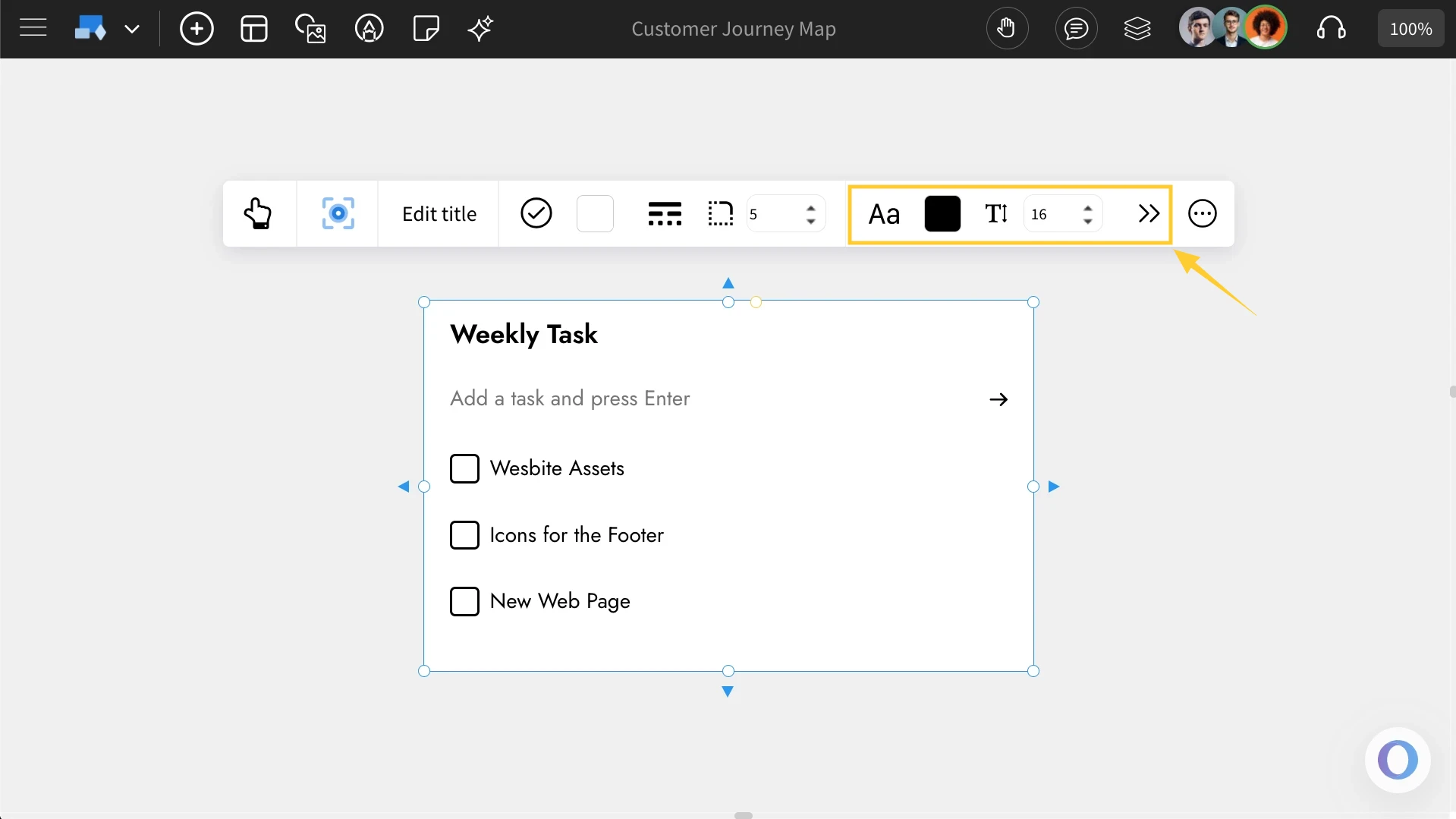
Customizing fonts in Todo: You can change the font family, font color, font size, and line height from the quick toolbar itself. More font options can be accessed from the advanced settings toolbar.
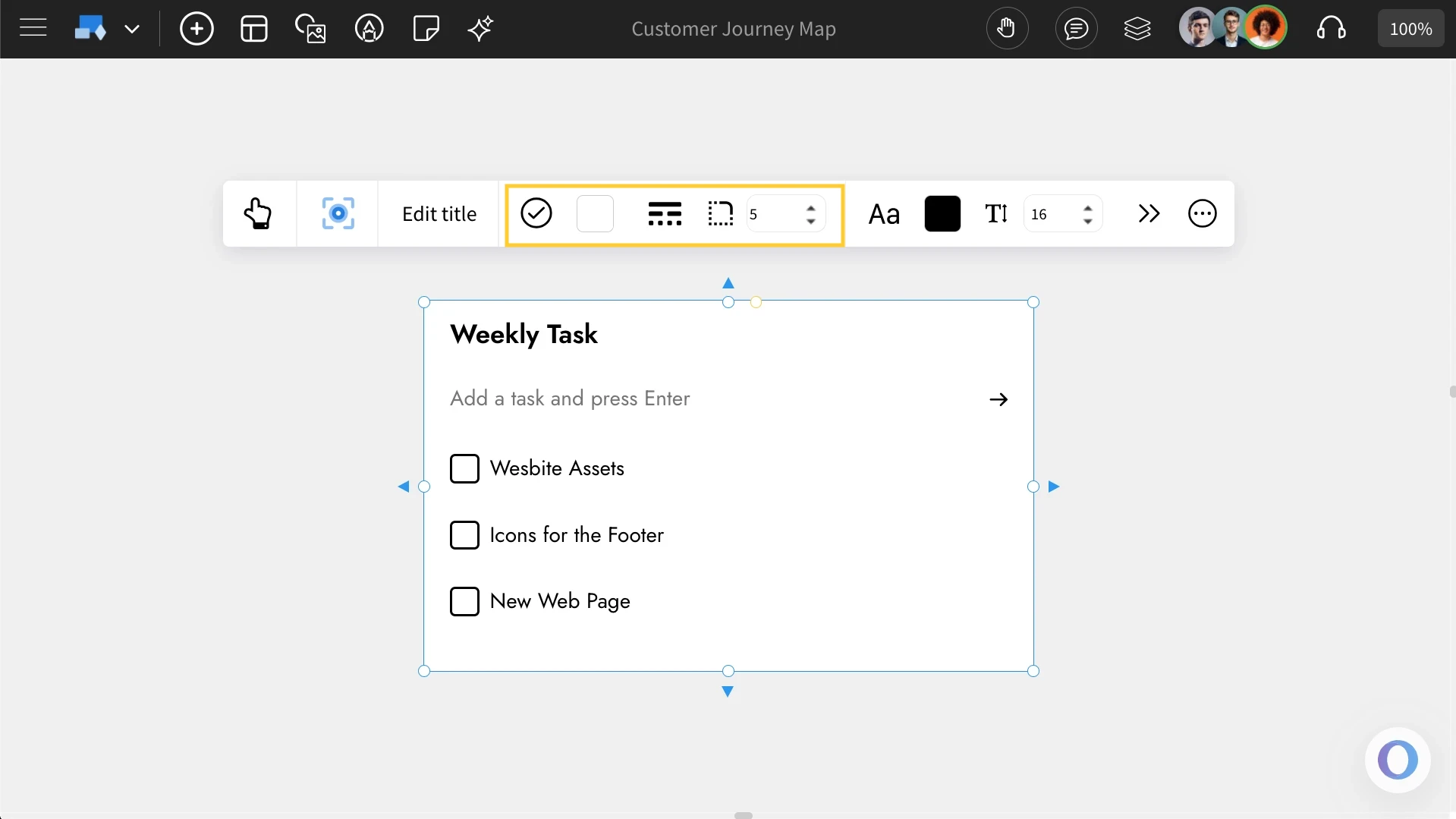
Customizing the Todo: To customize the Todo list, use these options to change the checkbox shape, change the component color, add a border, and adjust the border thickness.
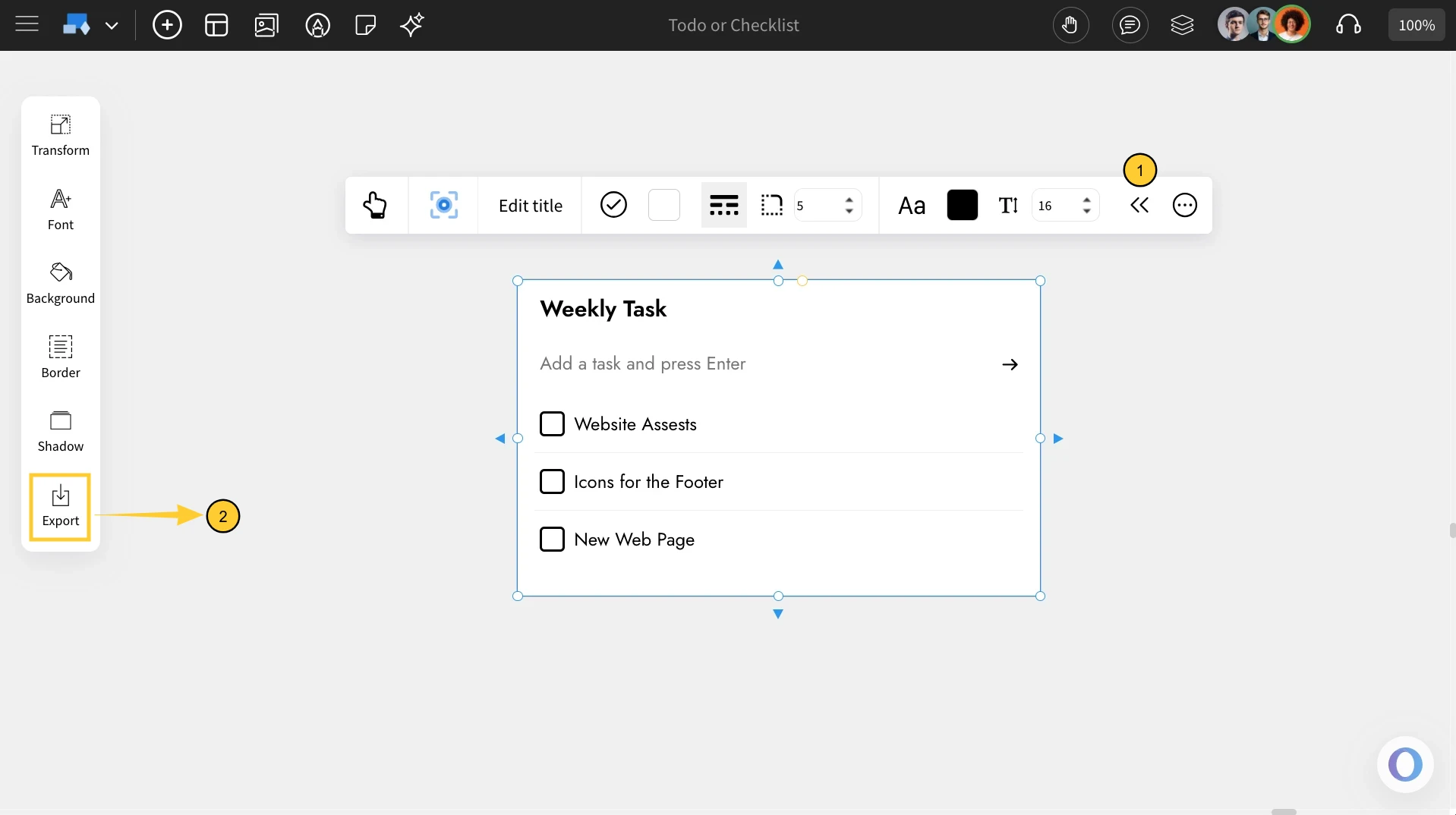
Accessing the Advanced Settings for Todo: To access the advanced settings toolbar, click on the 'Toggle Advanced Settings' option from the quick toolbar.
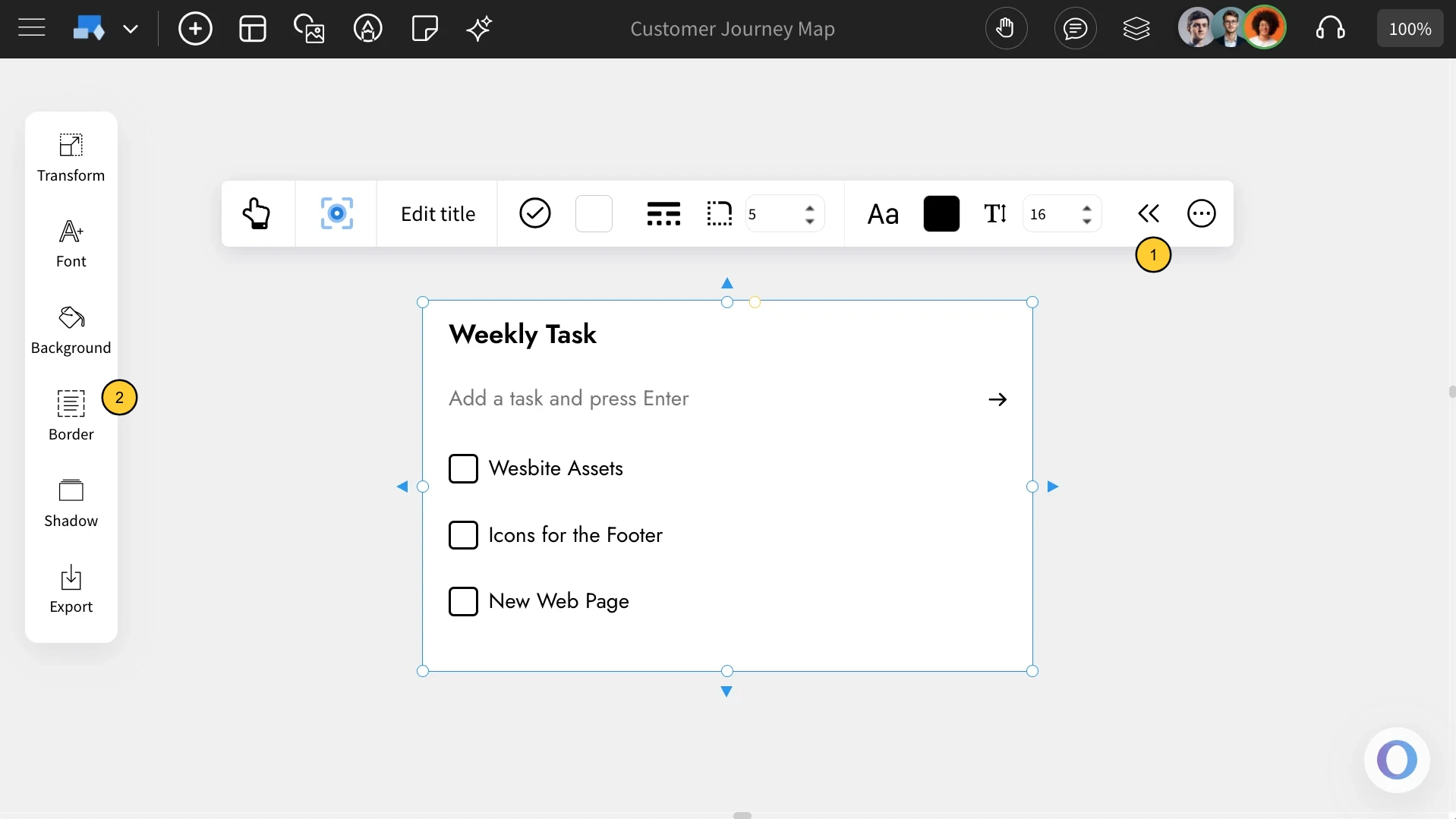
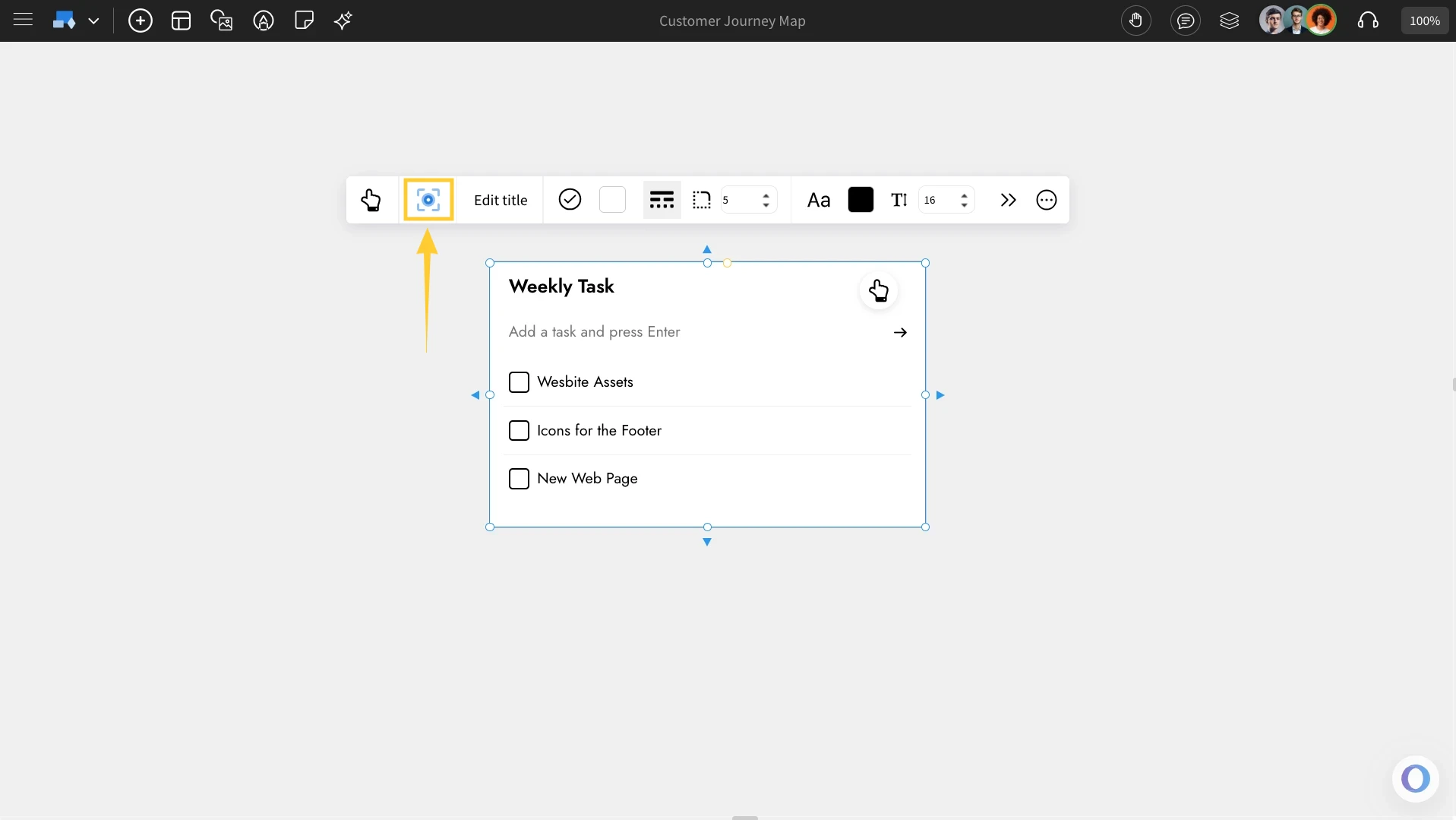
Using the Focus mode: There is an option to edit the To-do or checklist in a 'focus mode' where all other components of the board are hidden and only the To-do or checklist component being edited is visible. To turn on this focus mode, click on the focus icon in the quick toolbar (as shown below). To exit from the focus mode, click on the close icon at the top right.
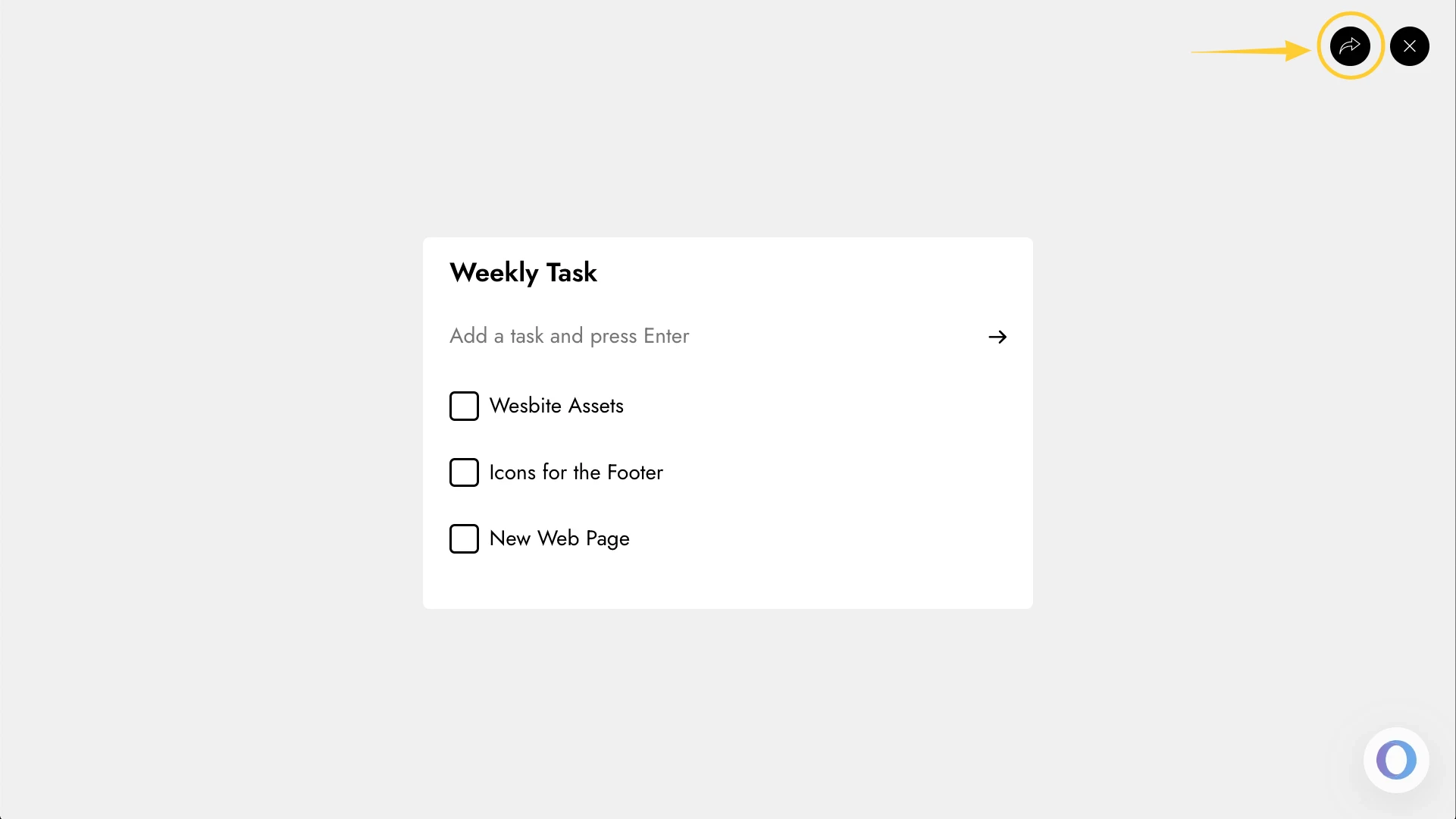
Share component link with team: In focus mode, at the top right, there is a share icon next to the close icon. Click on this share icon to copy a unique link for the component view to share directly within your team.
Exporting the Todo or Checklist: You can export the Todo or Checklist component as an image by clicking the 'Export' icon under Advanced Settings in the quick toolbar.