
How to share your board with a public link?
You can share your board with anyone by creating a public URL for your board. Follow the steps below to create a shareable link...
You can share your board with anyone by creating a public URL for your board. Follow the steps below to create a shareable link
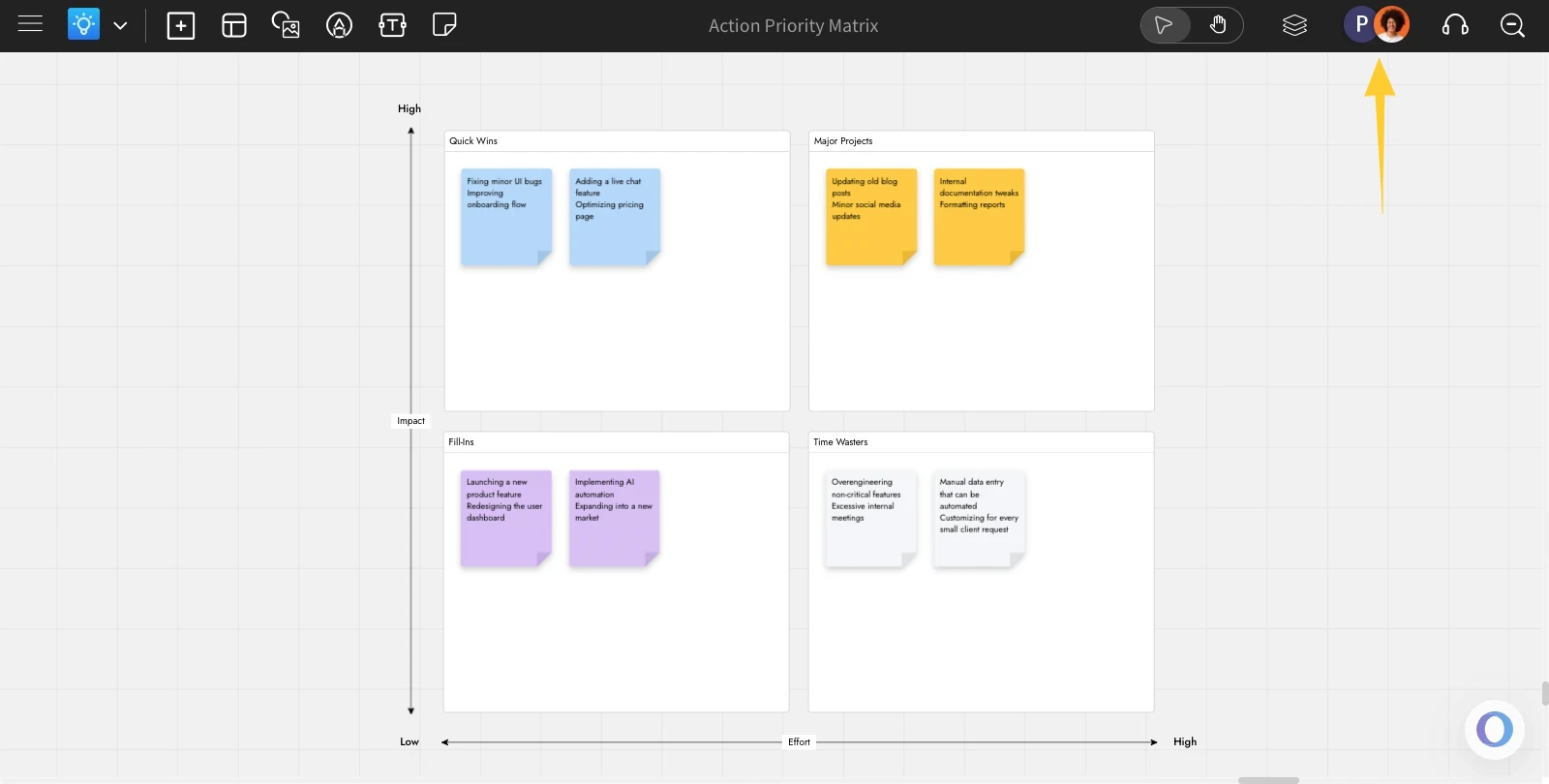
In the MockFlow Ideaboard editor, click 'Space Members' in the top-right corner.
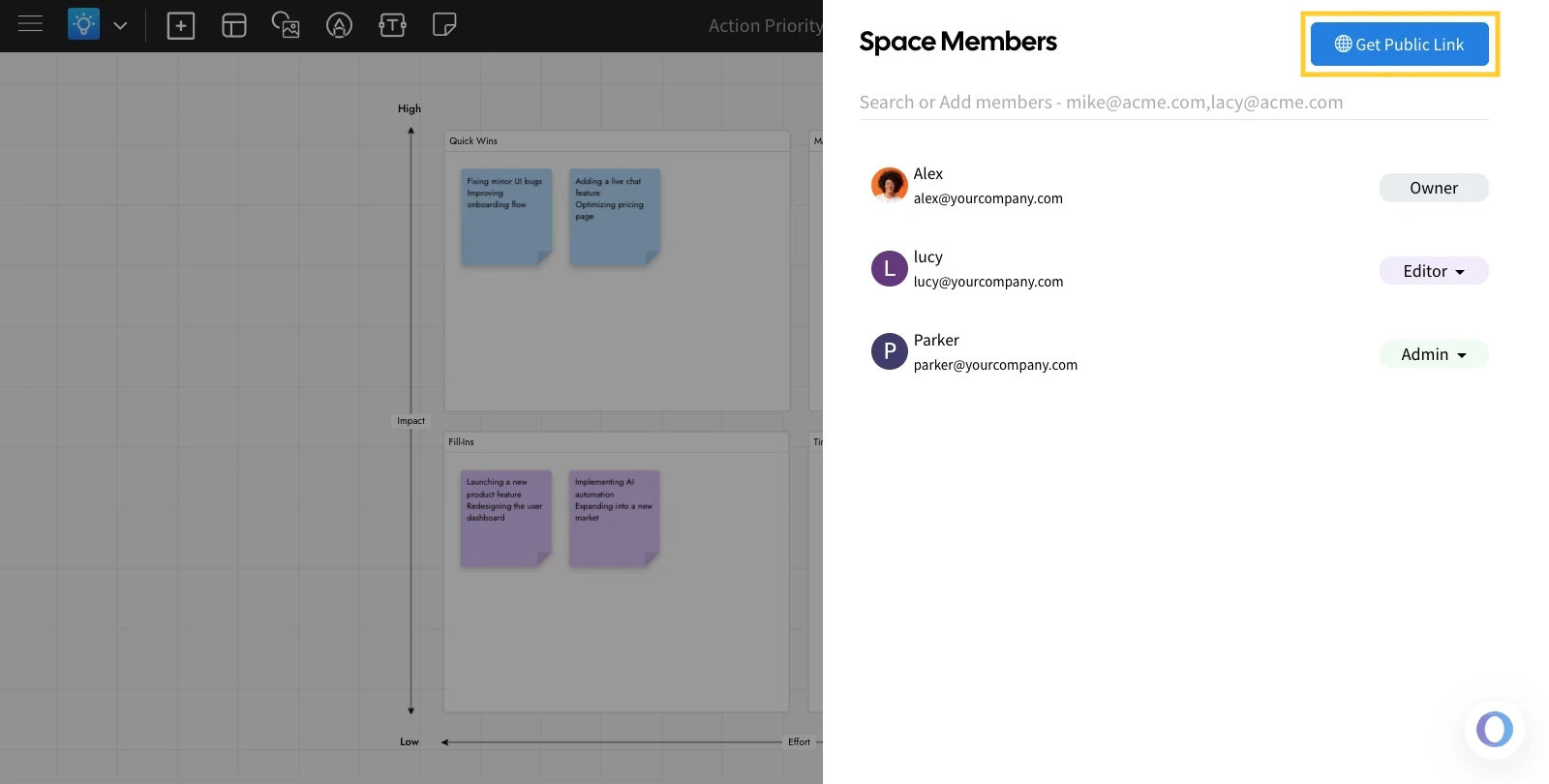
Then, click on the 'Get Public Link' button in the sidebar.
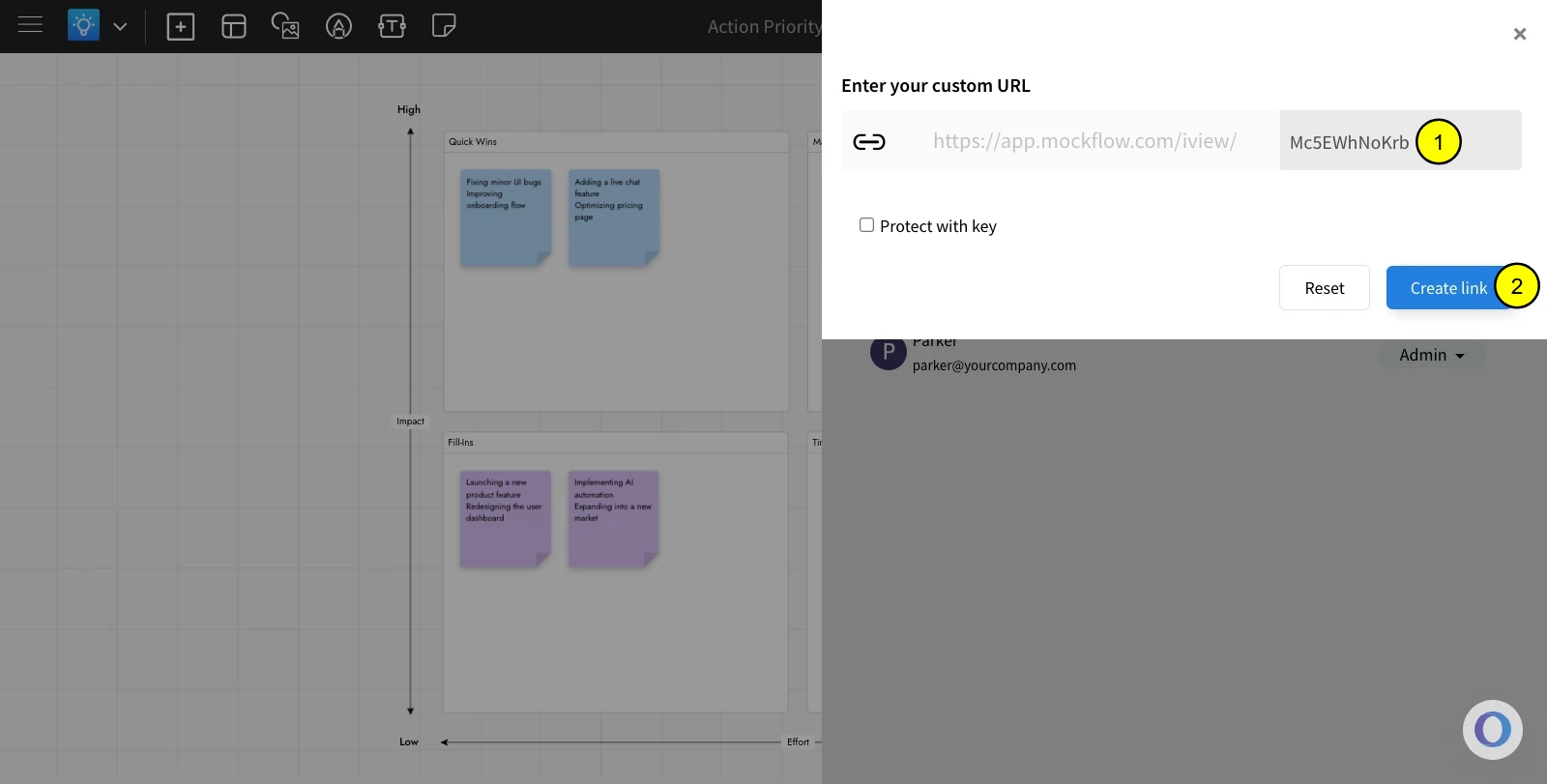
The link can be customized, if required. Click on 'Create Link' to generate a shareable link.
There is also an option for 'Protect with key' to keep the link secured with a password.
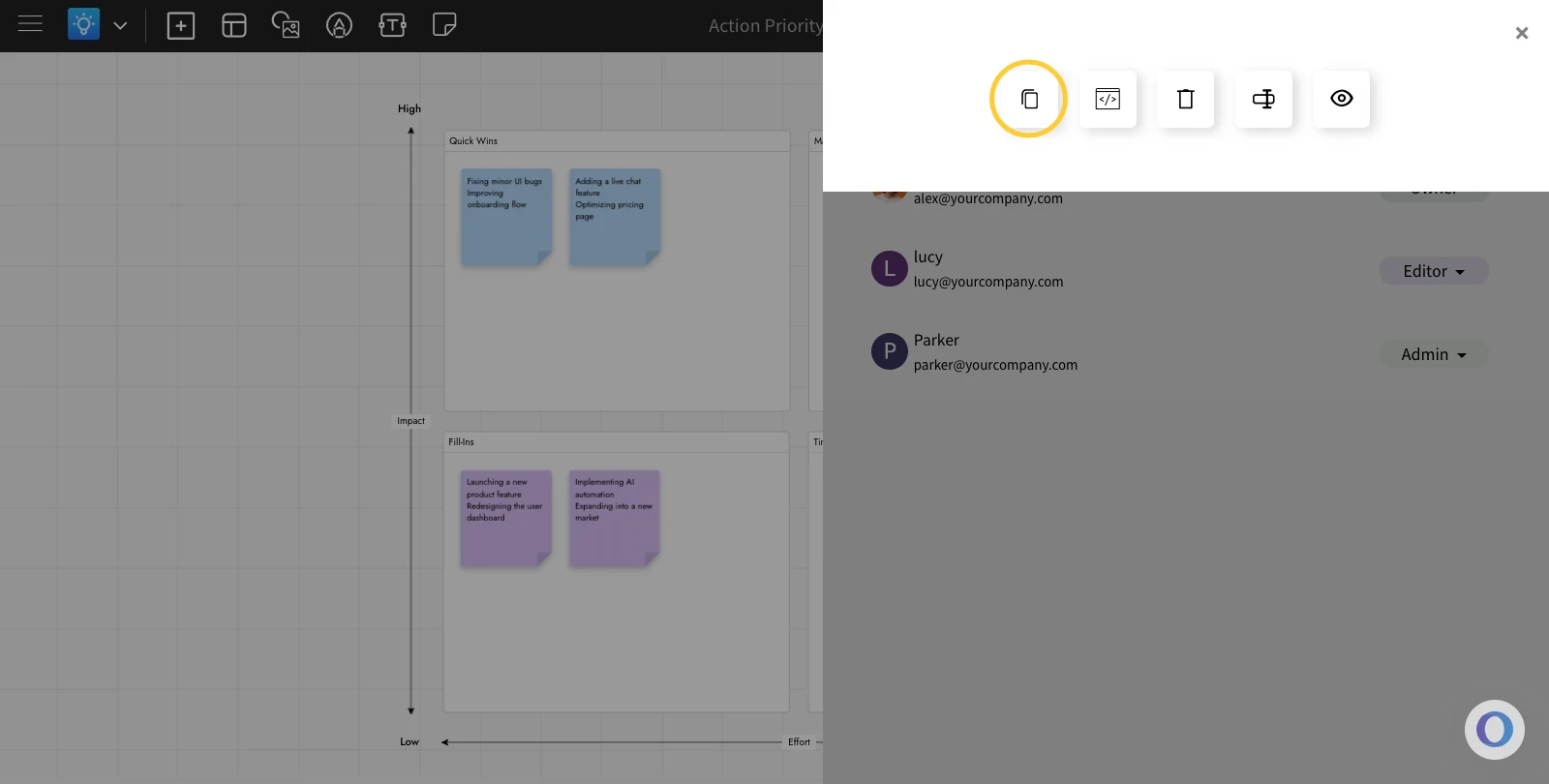
The public link for the board will be created, and you can copy the link to share your board with others.
A user who accesses the public link will only be able to view the board and cannot edit it.