
Internal
How to lock a project?
'Lock project' can be used to prevent unintended edits, ensure design consistency, and protect critical projects from accidental...
'Lock project' can be used to prevent unintended edits, ensure design consistency, and protect critical projects from accidental changes.
Navigate to a Design Space and select the project you want to lock.
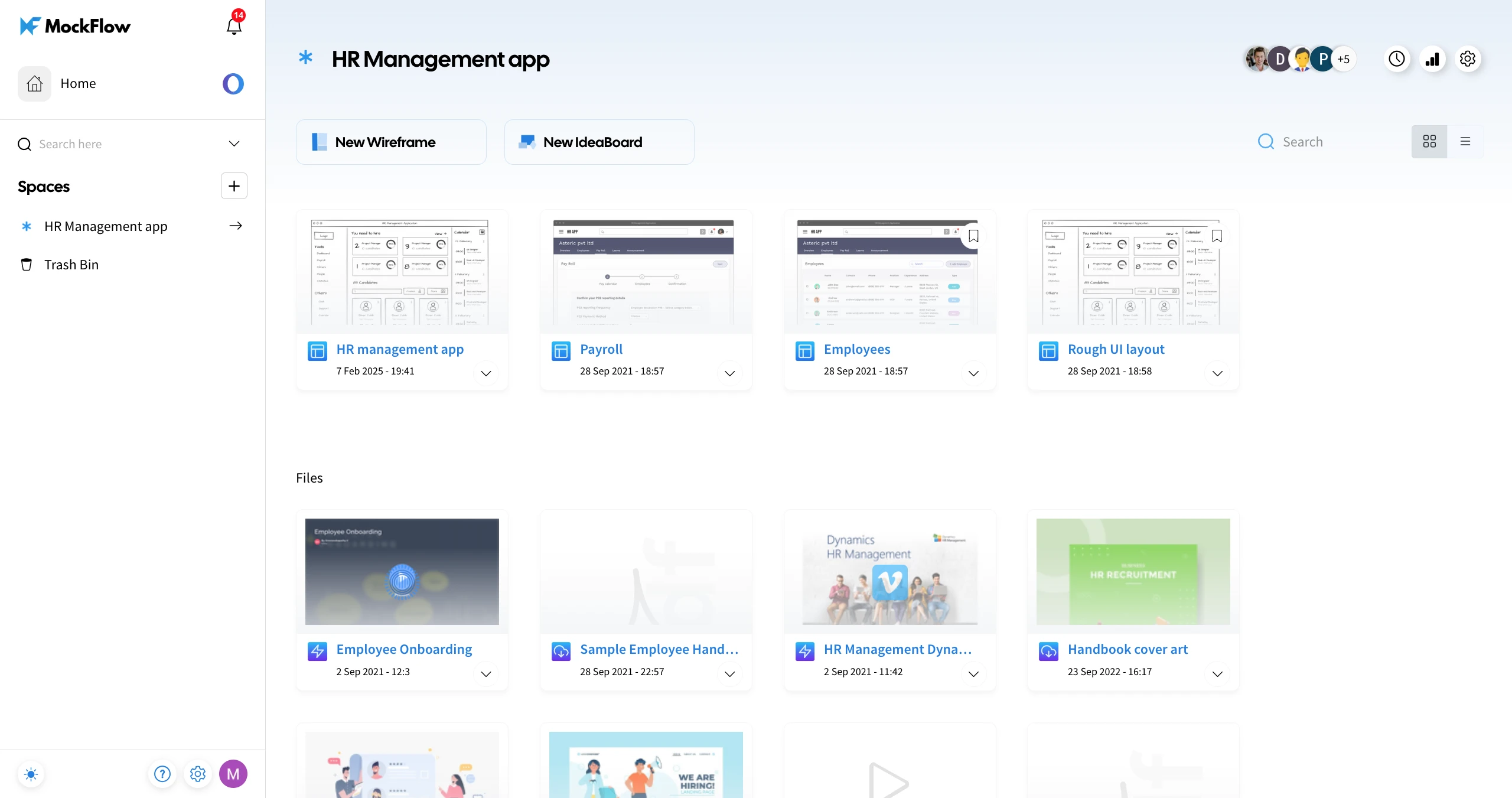
Click on the More options dropdown and choose Lock.
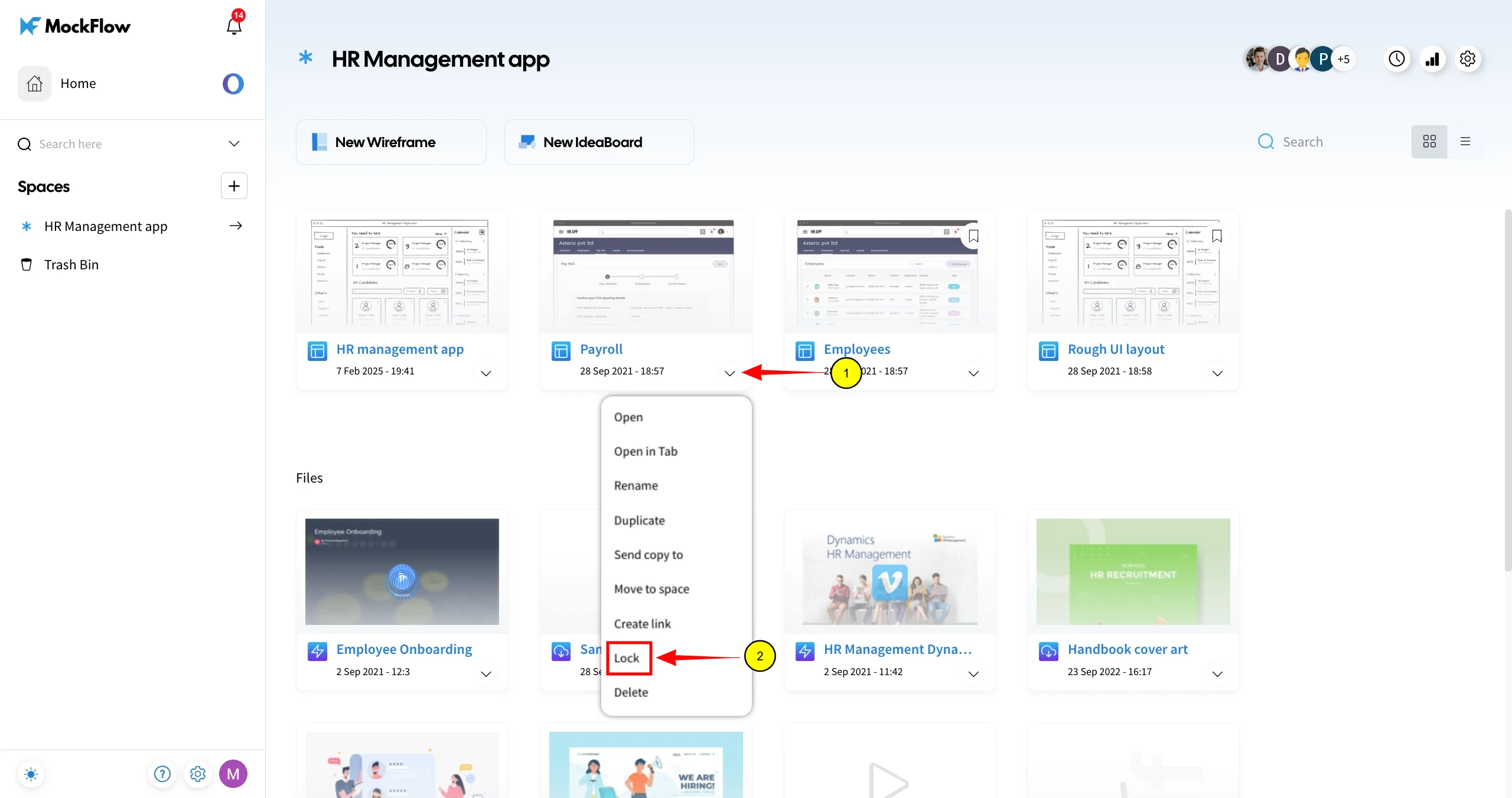
Confirm by clicking Lock in the confirmation modal.
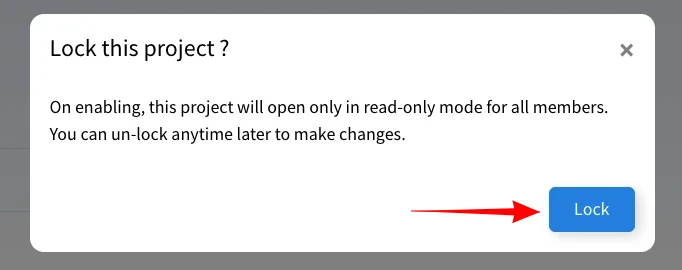
A Lock symbol will appear on the project thumbnail, indicating it is locked.
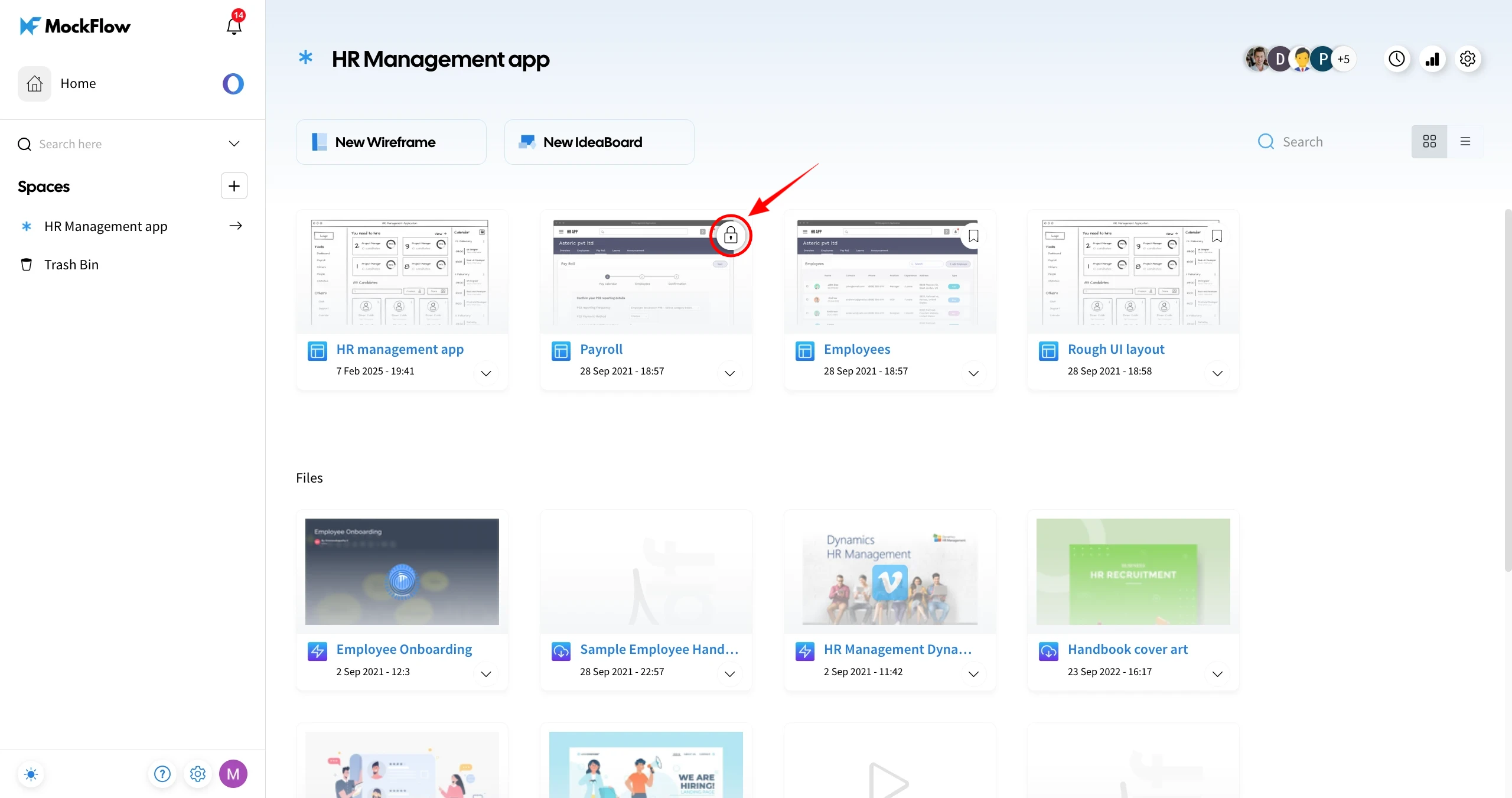
The project will be locked and accessible in view-only mode for all members in the Design Space.
Was this page helpful?