How to Compare Suggested Design With the Original
Learn how to effectively compare a suggested design with the original in MockFlow. Follow our tutorial for insightful design analysis and collaboration in your projects.
When a team member provides a visual design suggestion, you can compare it with the one you created using this option.
If you would like to know about changes suggested in the design, follow the steps below to compare them.
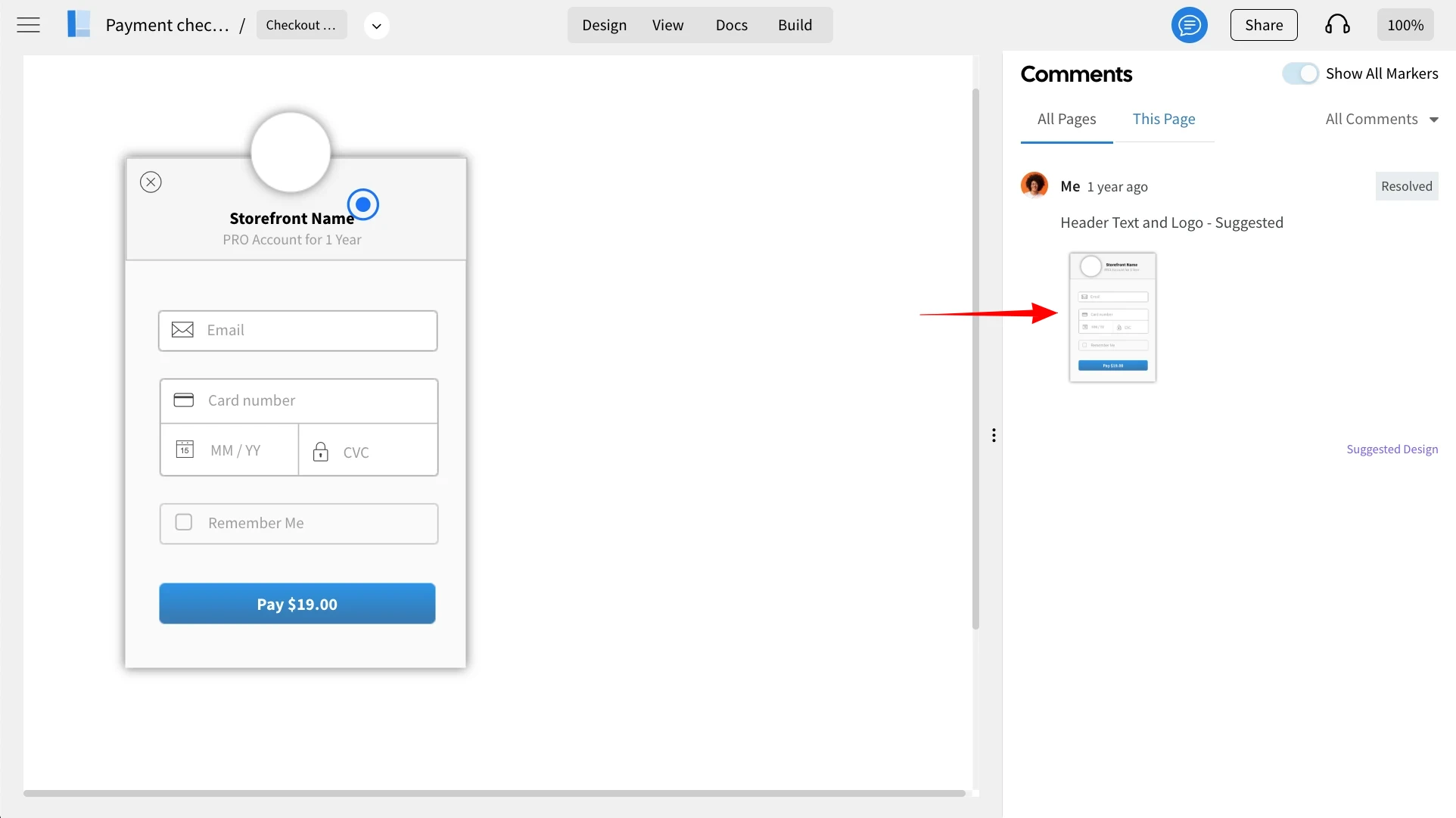
Clicking on the suggested design opens up the compare suggestion feature.
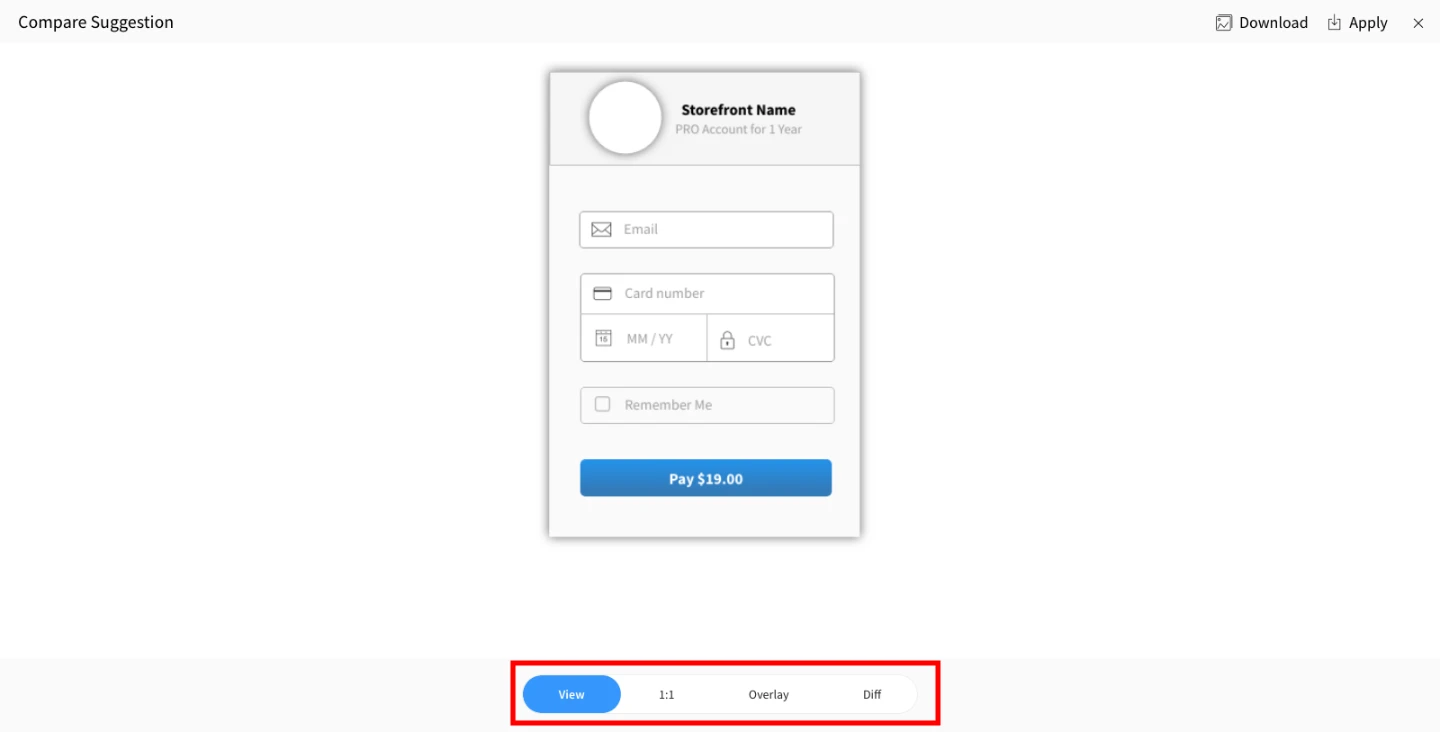
The Suggested Design can be compared with the following options.
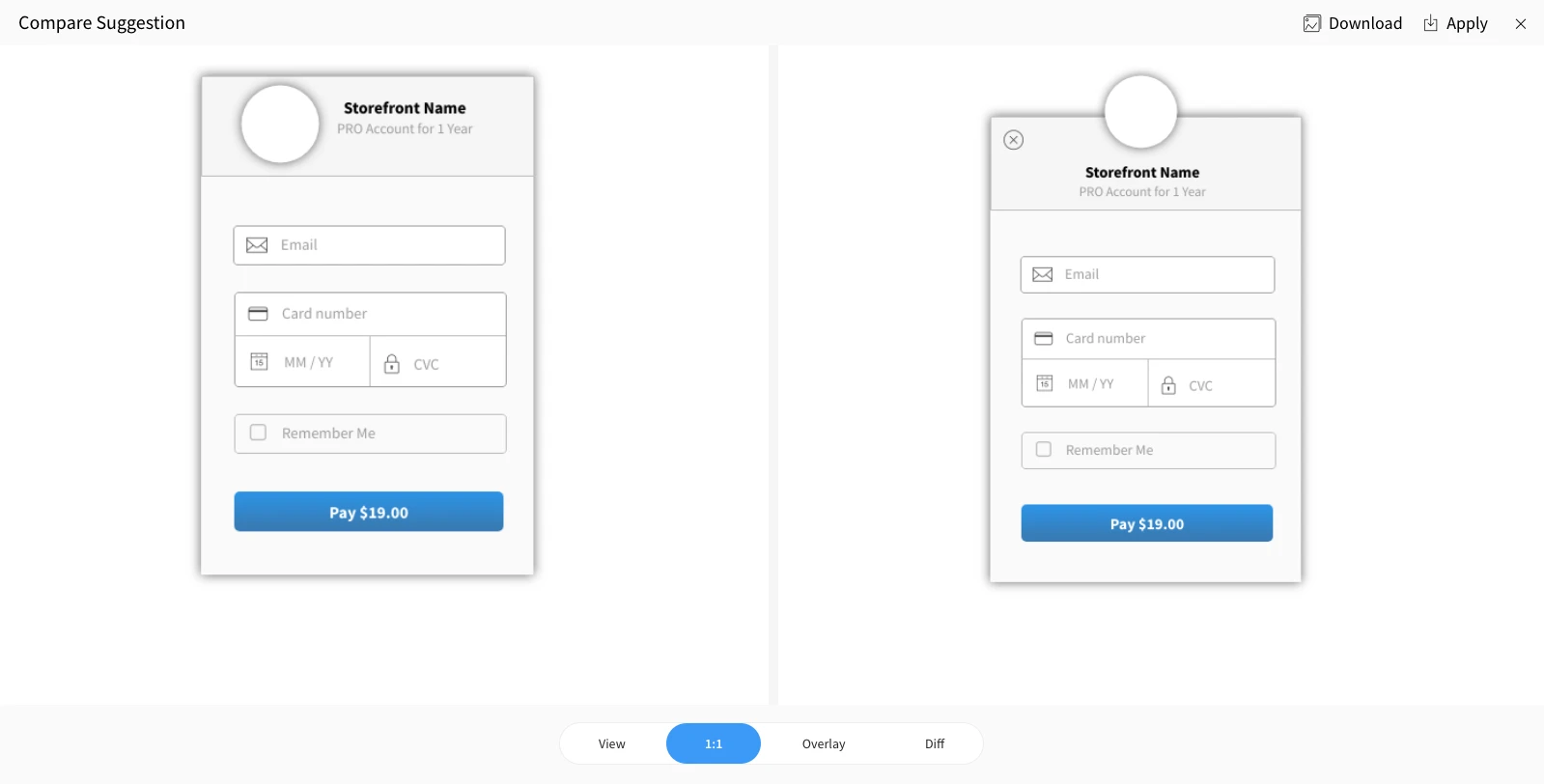
On clicking 1:1 the design can be compared side by side.
In the overlay, the initial design will be overlayed by the new suggested design to show you exactly where elements have been changed.
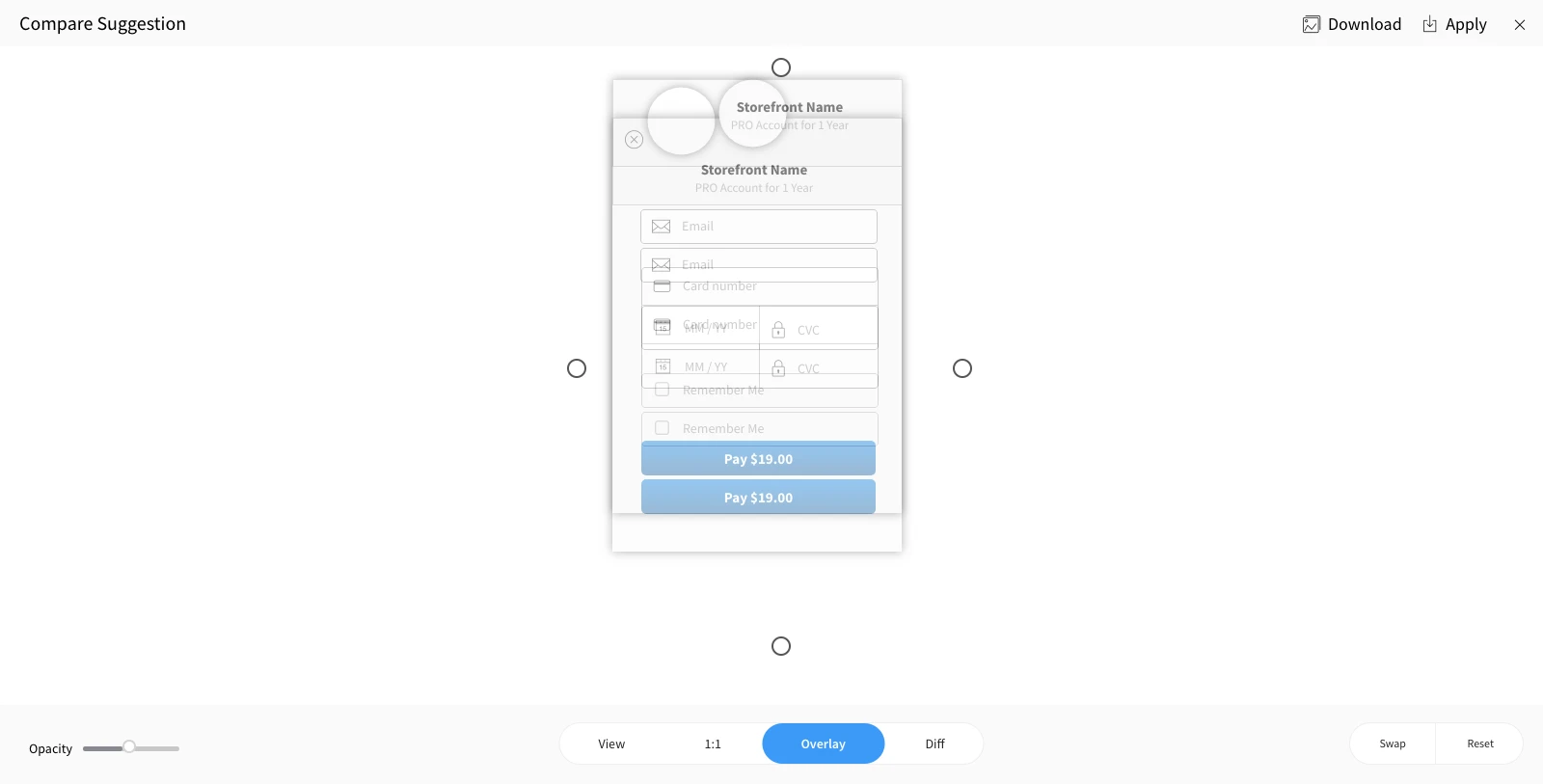
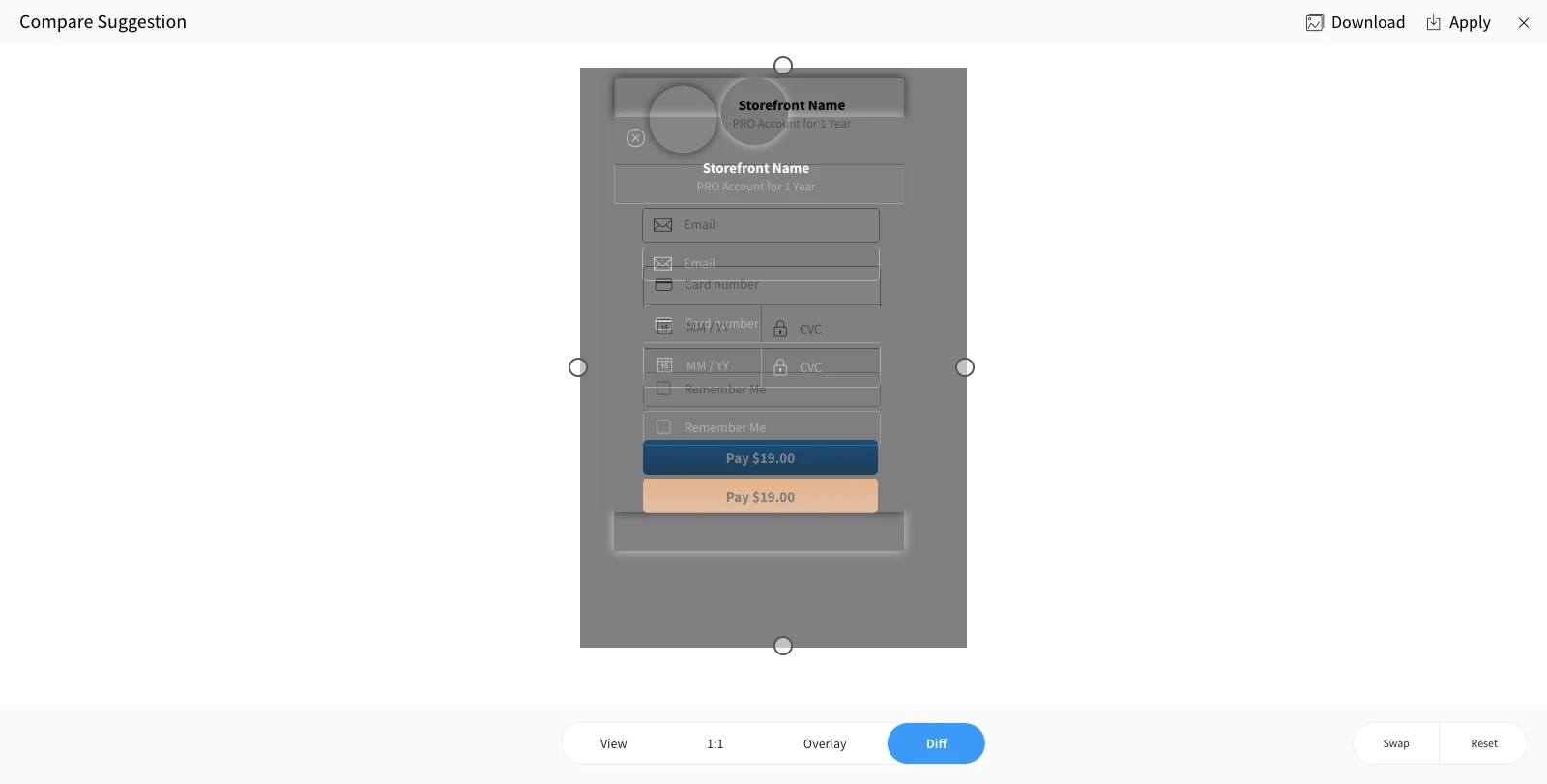
Difference points out the changes made in the design.