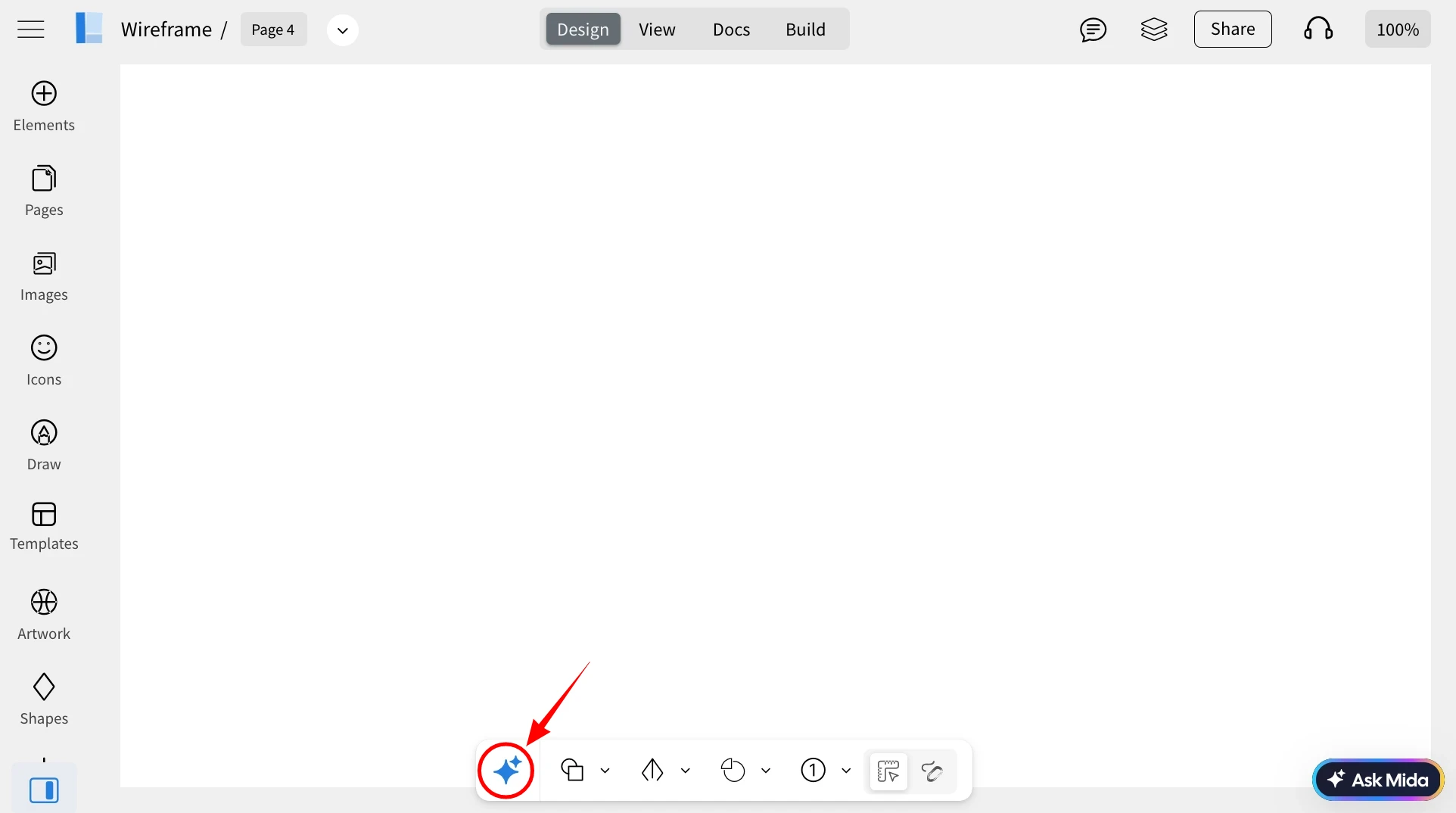
Mini Mode in MockFlow WirframePro
Discover how Mini Mode enhances WireframePro by maximizing canvas space and simplifying tool access.
Mini-Mode is a new workspace layout in WireframePro designed to maximize usable canvas space. It offers a clean, focused environment while keeping essential tools readily accessible for fast, intuitive wireframing.
How to use Mini-Mode?
To activate Mini-Mode, click the 'Mini-Mode' icon located at the bottom-left of the MockFlow WireframePro editor.
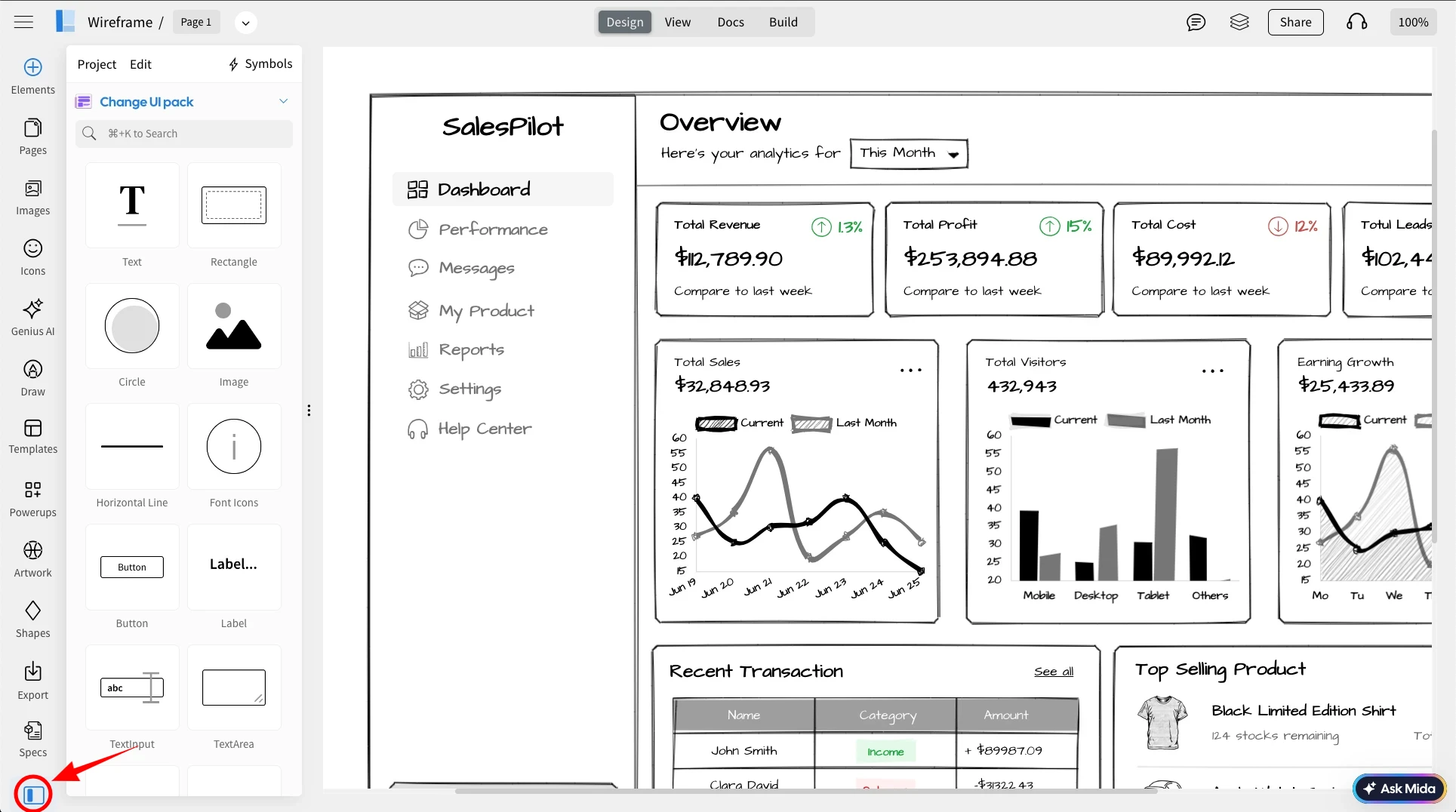
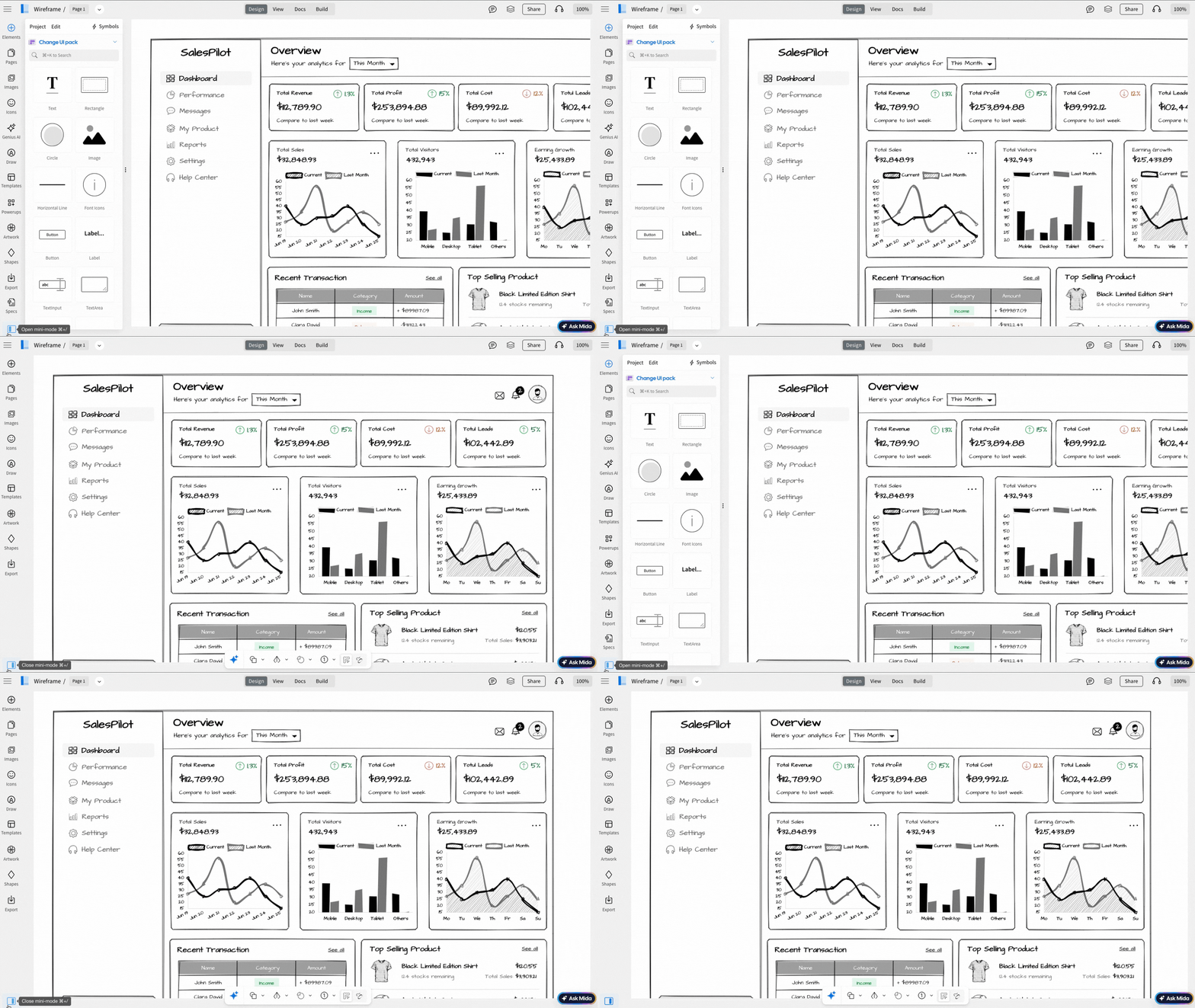
Clicking the icon toggles Mini-Mode on or off, allowing you to switch between the regular interface and the compact workspace whenever needed.
On hovering over each icon in the Mini mode tool bar, you will be able to access the tools.
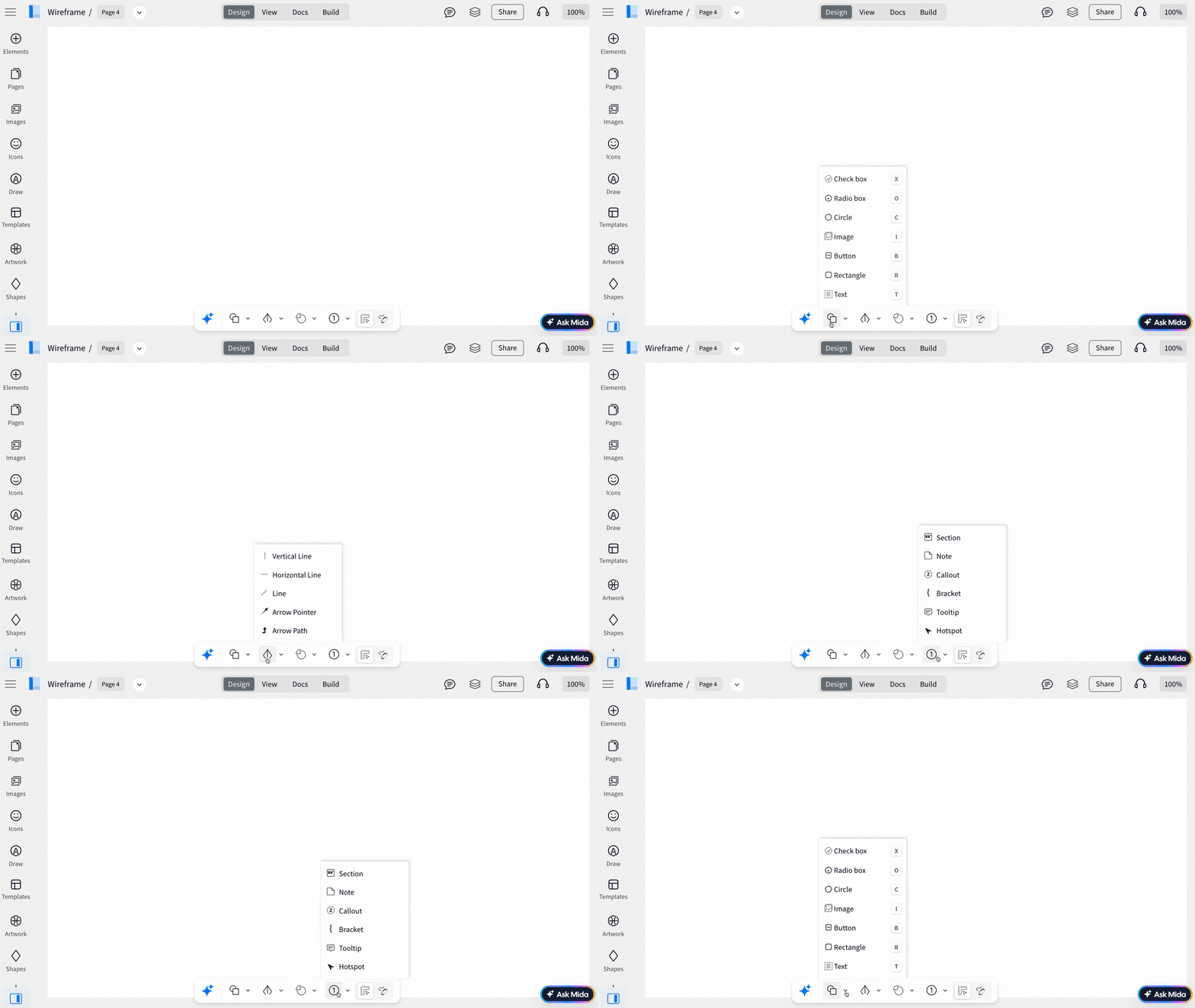
Select any component from the menu and draw directly on your canvas to start wireframing.
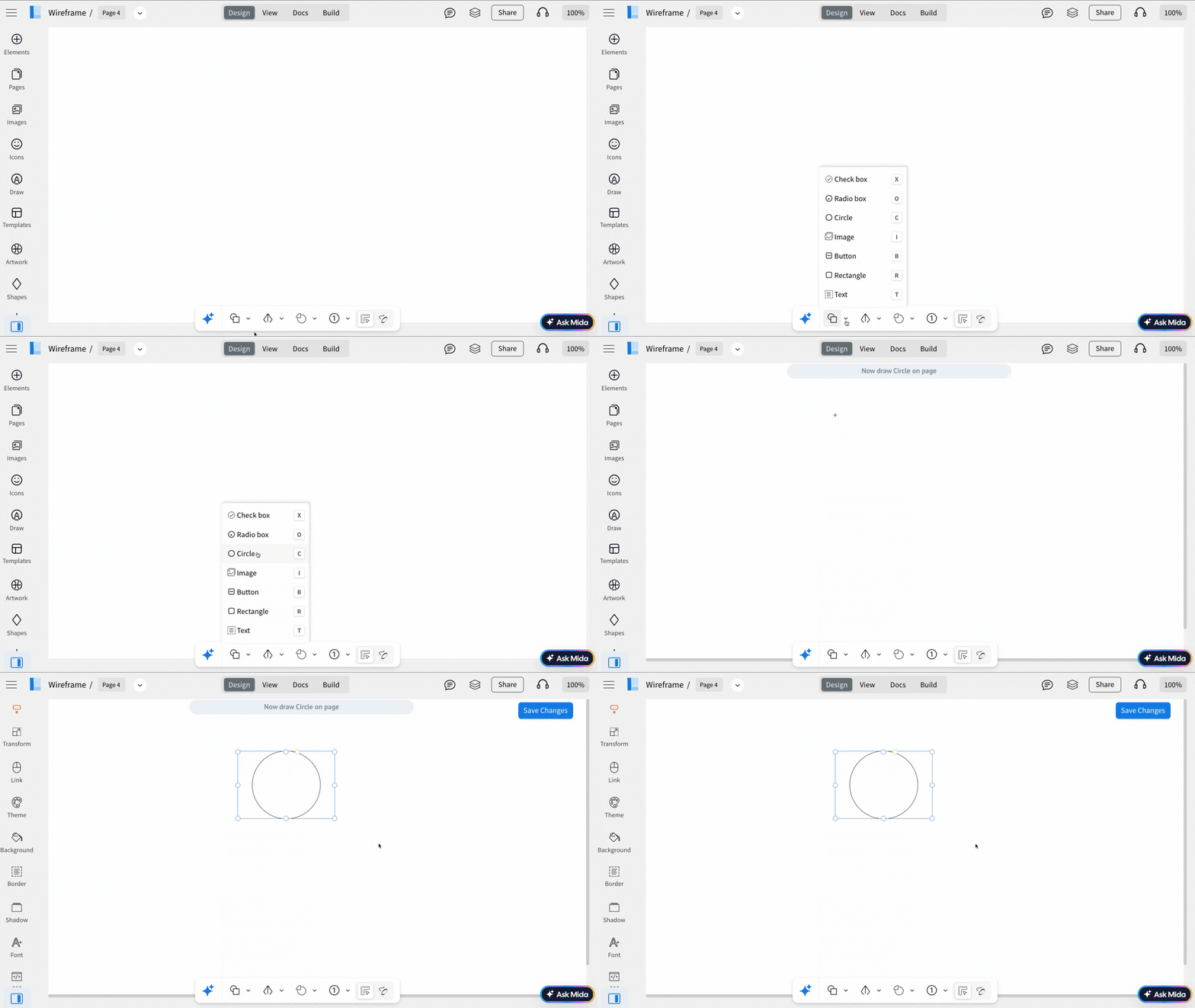
The Mini tool bar provides instant access to key actions, including AI-powered creation and frequently used functions that are collapsed into this compact toolbar. This lets you wireframe faster with fewer on-screen distractions.
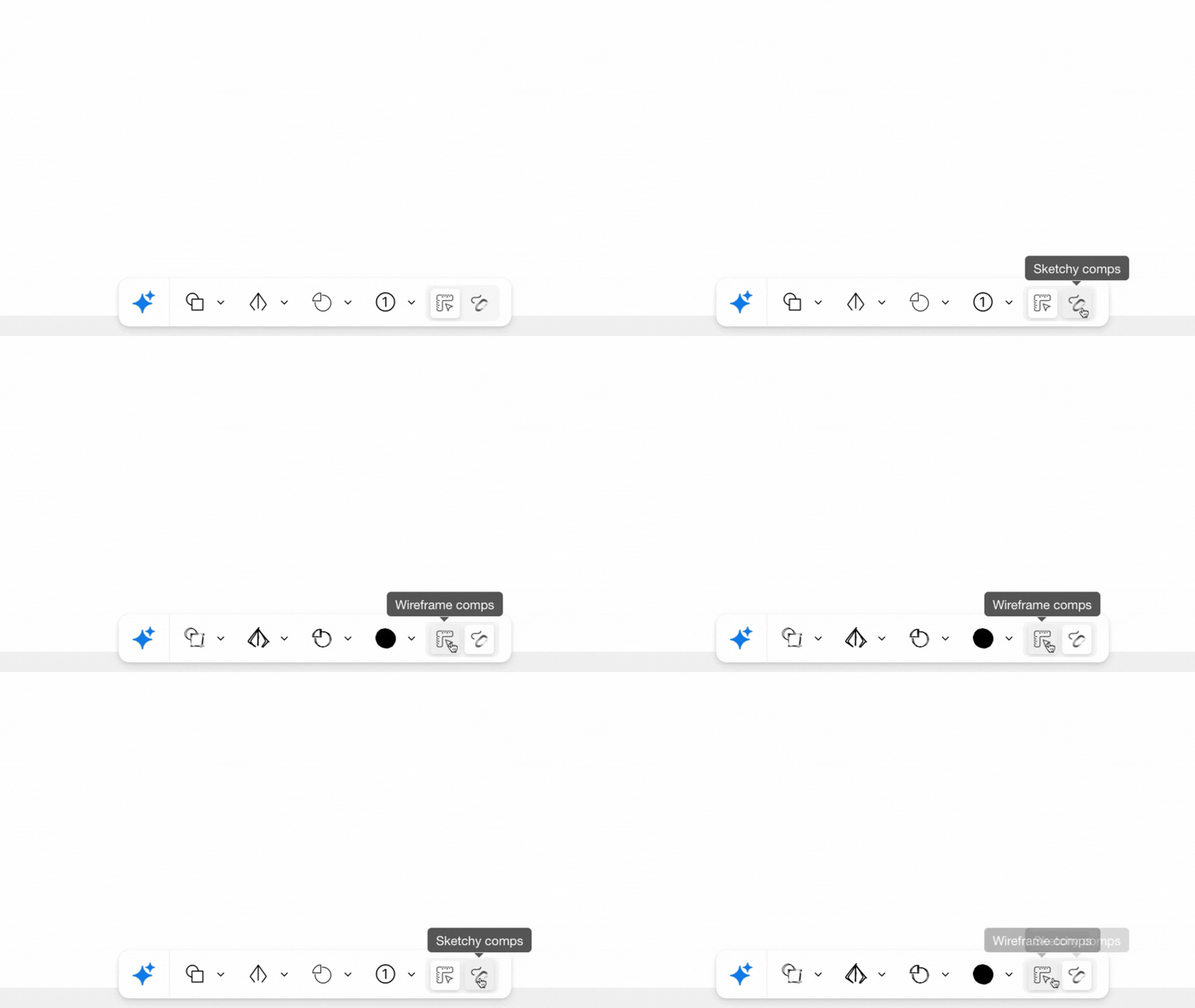
Access sketchy/normal components: Using the style-switch options in Mini-Mode, you can easily access components either in 'wireframe style' and 'sketchy style' with a single click.
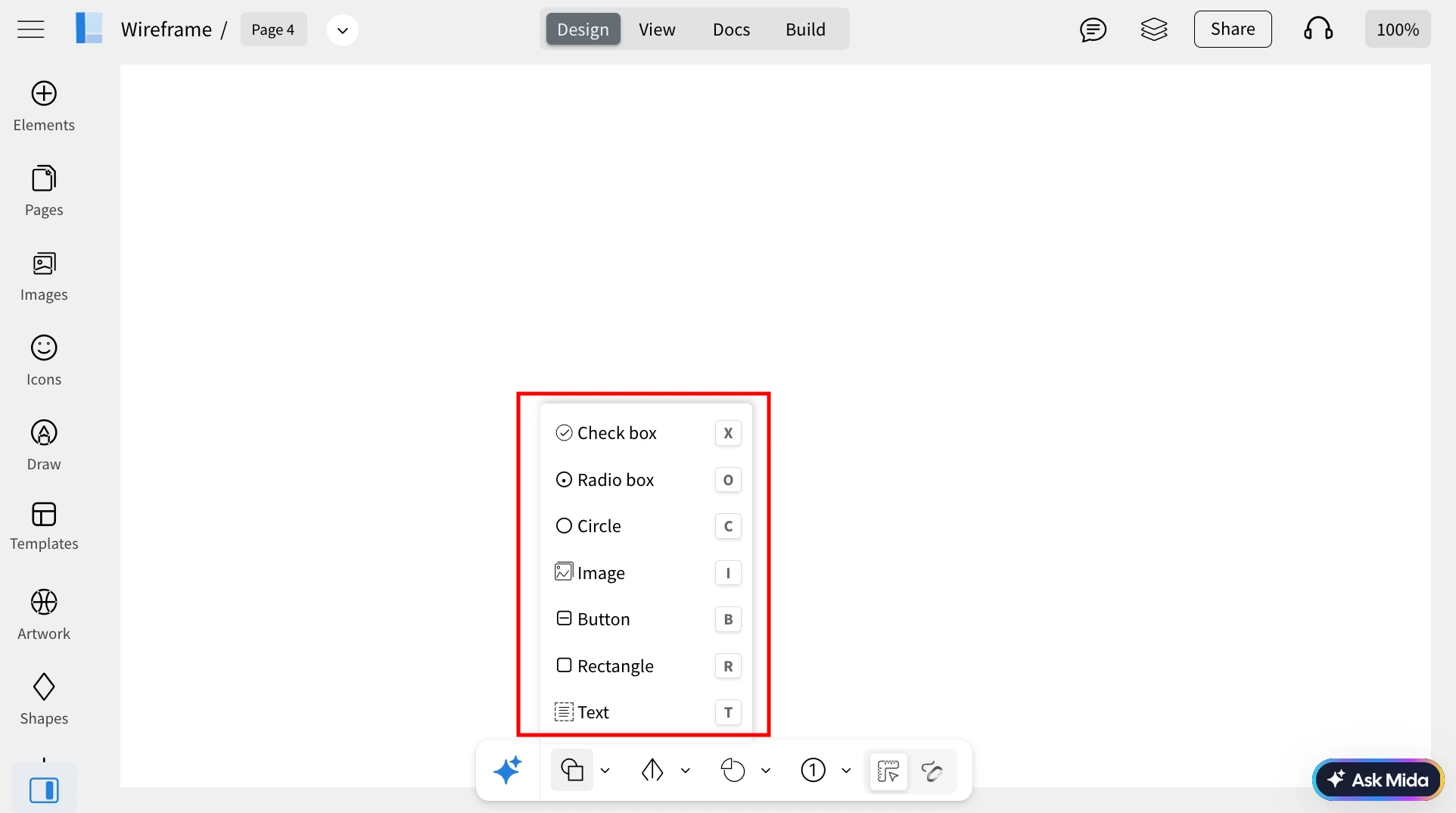
Easily accessible keyboard shortcuts: Mini-Mode supports quick component creation through keyboard shortcuts. Simply press the assigned shortcut key to add a component instantly to the canvas, helping you wireframe at a much faster pace.
The mini-mode tool bar includes a built-in AI input box that lets you generate wireframes, tables, diagrams, cloud architecture flowcharts, and even images from a text prompt.