
Internal
How to create a board from template?
Learn how to create a board from a template using the dashboard, Design Space, or editor. Follow simple steps to select and create your board with ease.
To create a board from a template, follow the steps below.
You can access templates from the dashboard, Design Space, or editor.
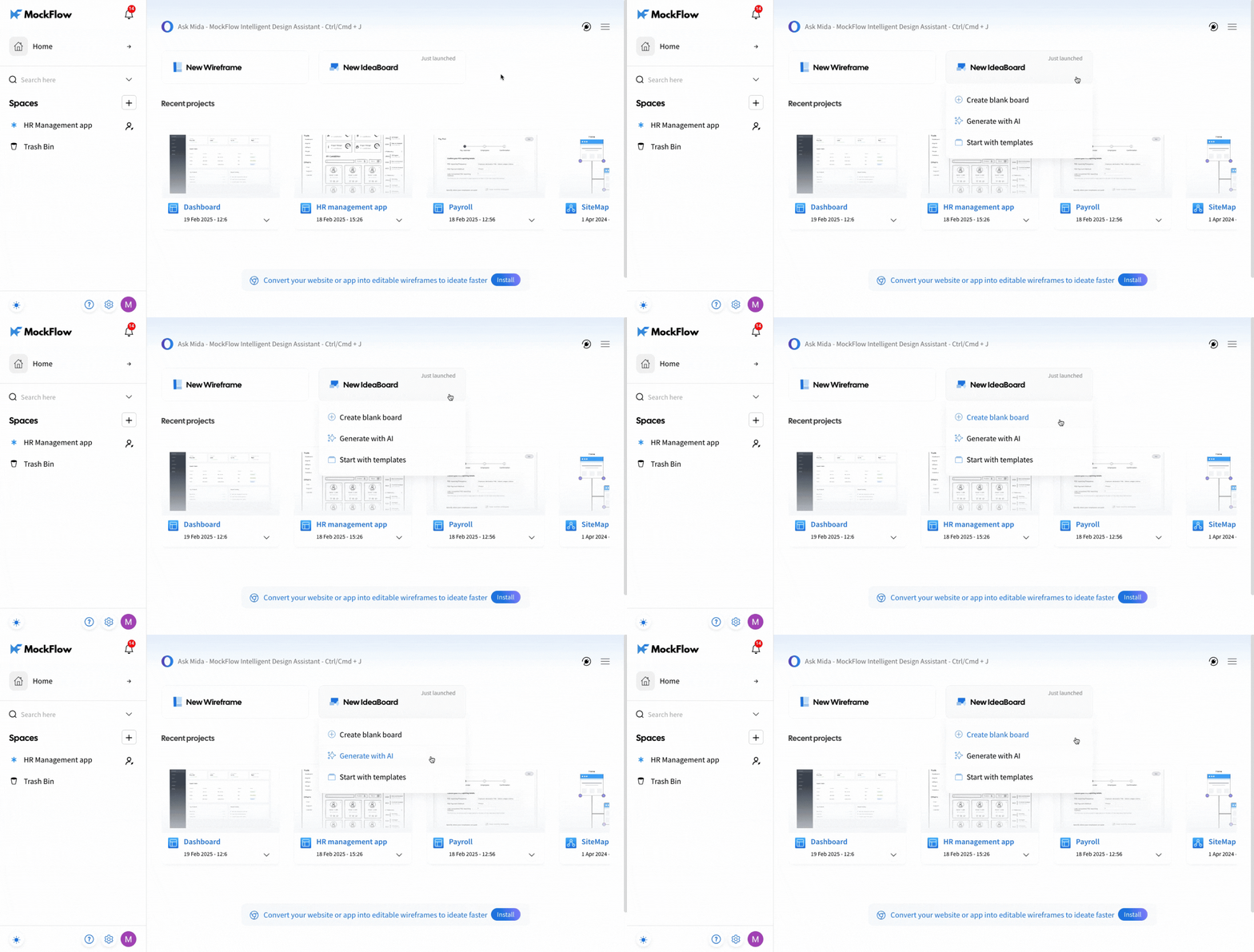
In the dashboard or Design Space, hover over 'New MockFlow Board' and select 'Start With Templates' from the dropdown.
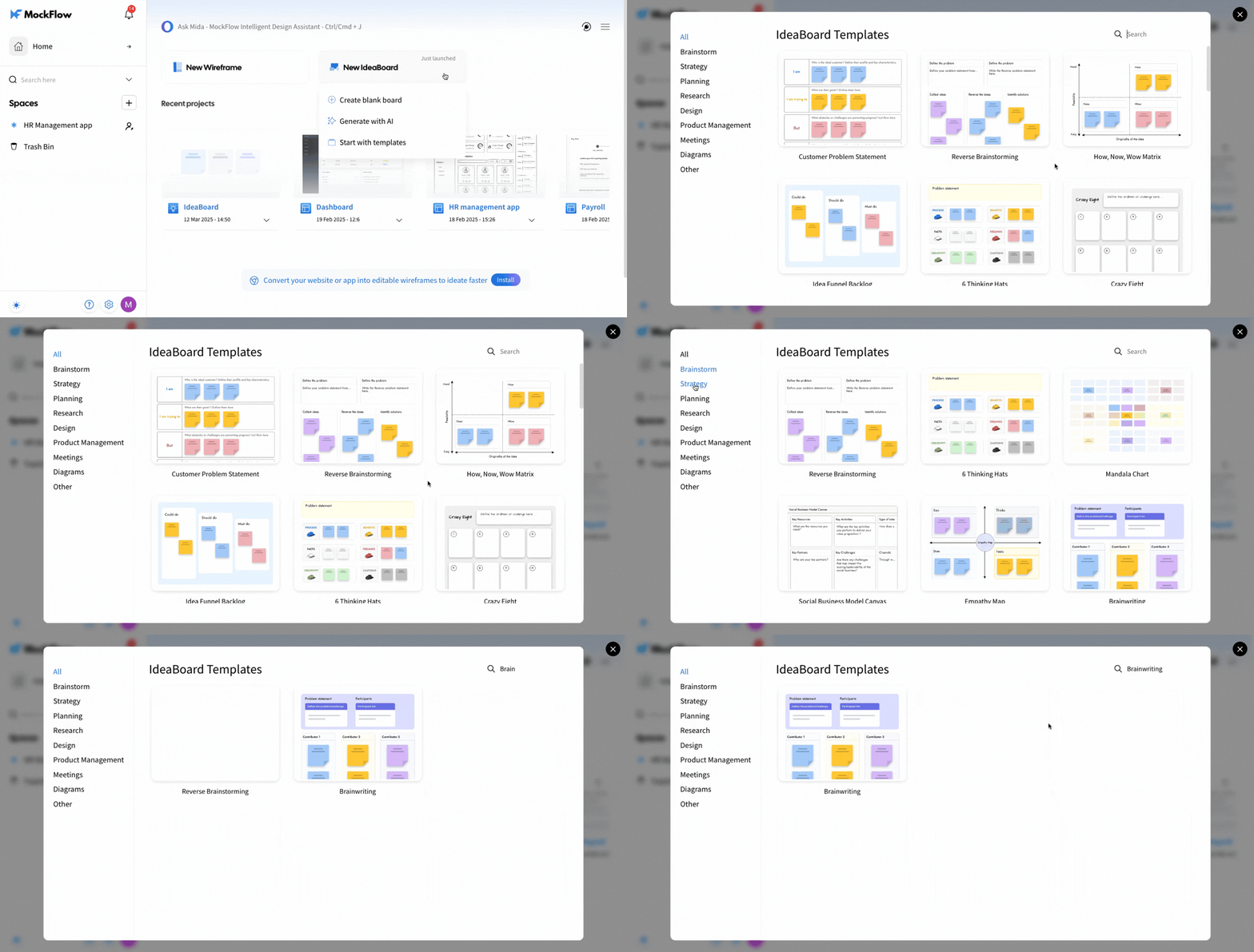
Use the search bar or browse through categories to find a template of your choice.
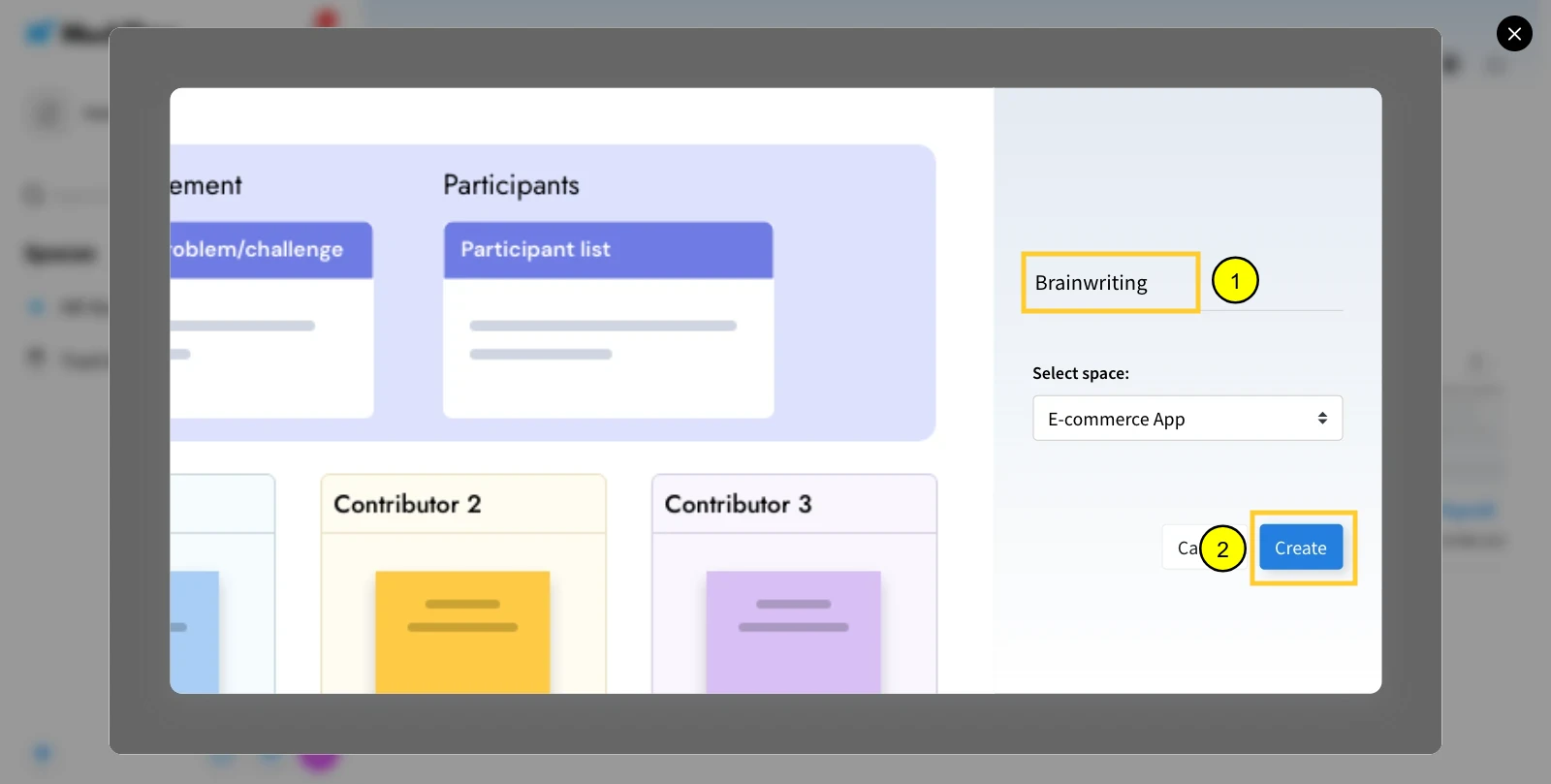
Enter a board name, choose the design space (if you started from the dashboard), and then click 'Create'.
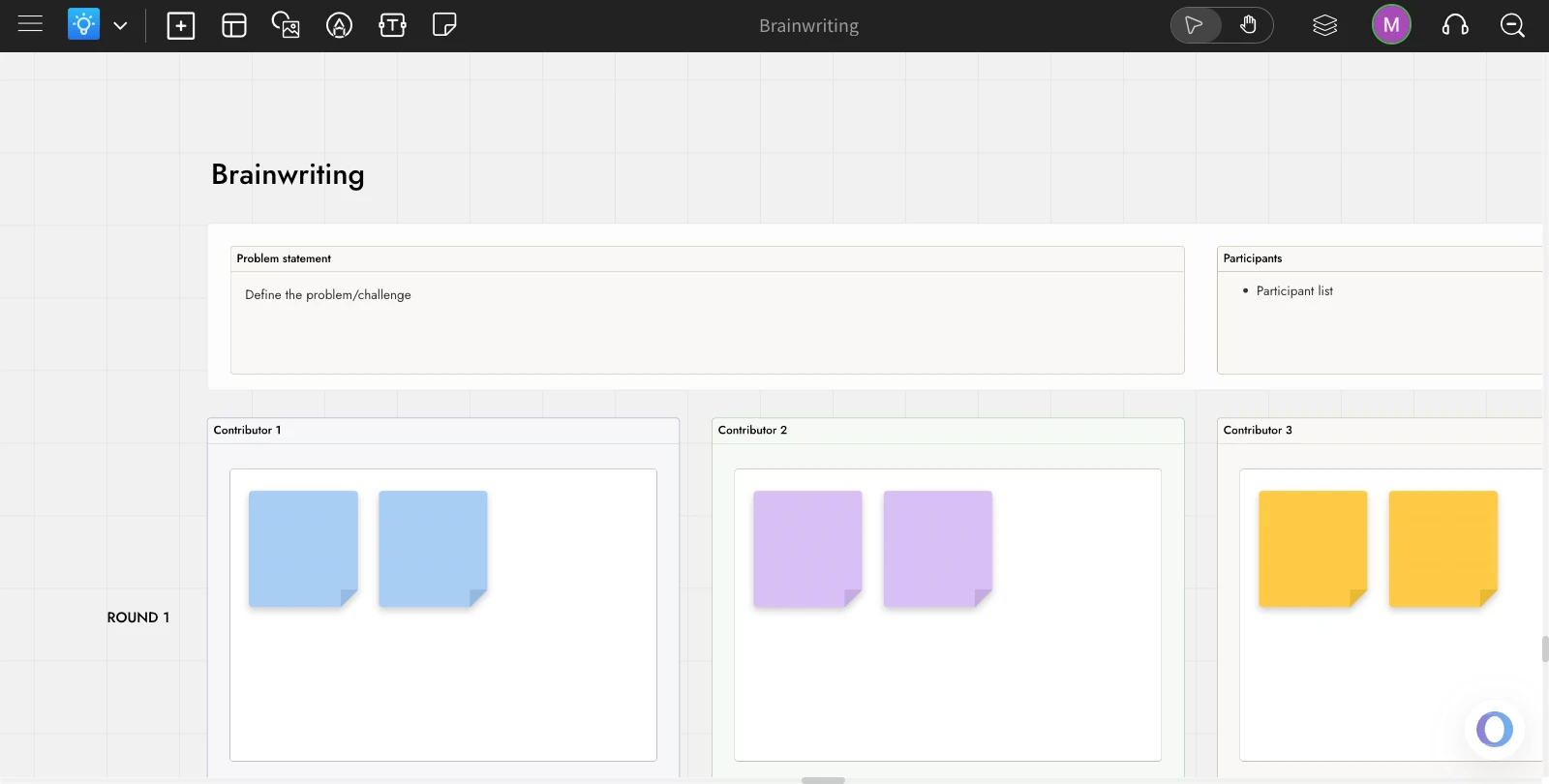
Your board is created with the selected template.
Was this page helpful?