Create a public link for your Design Space
You can share multiple boards (like a collection) at once by creating a shareable public link for the design space. Check out...
You can share multiple boards (like a collection) at once by creating a shareable public link for the design space. Check out the instructions below.
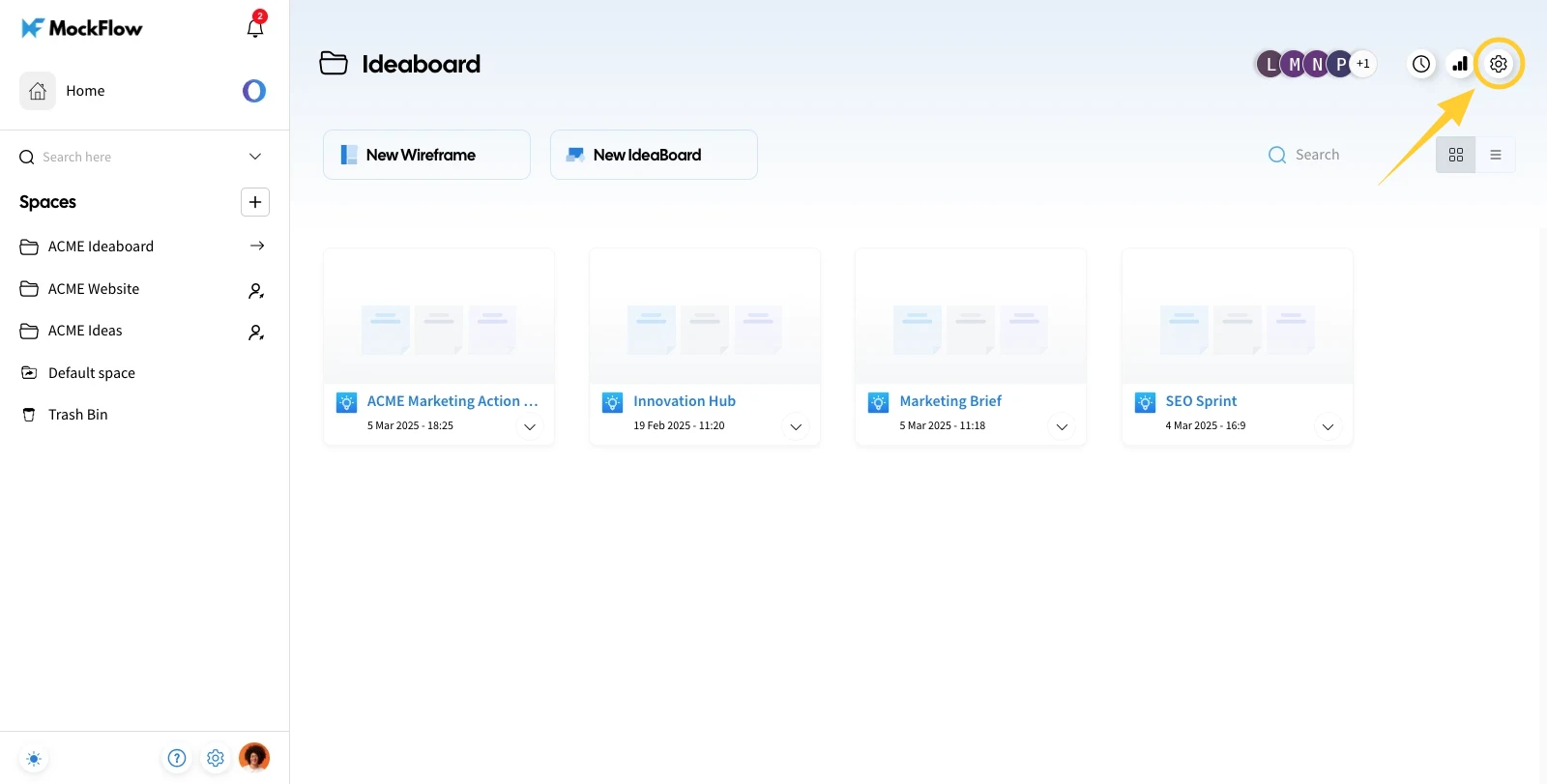
Inside your design space, click on Settings in the top right corner.
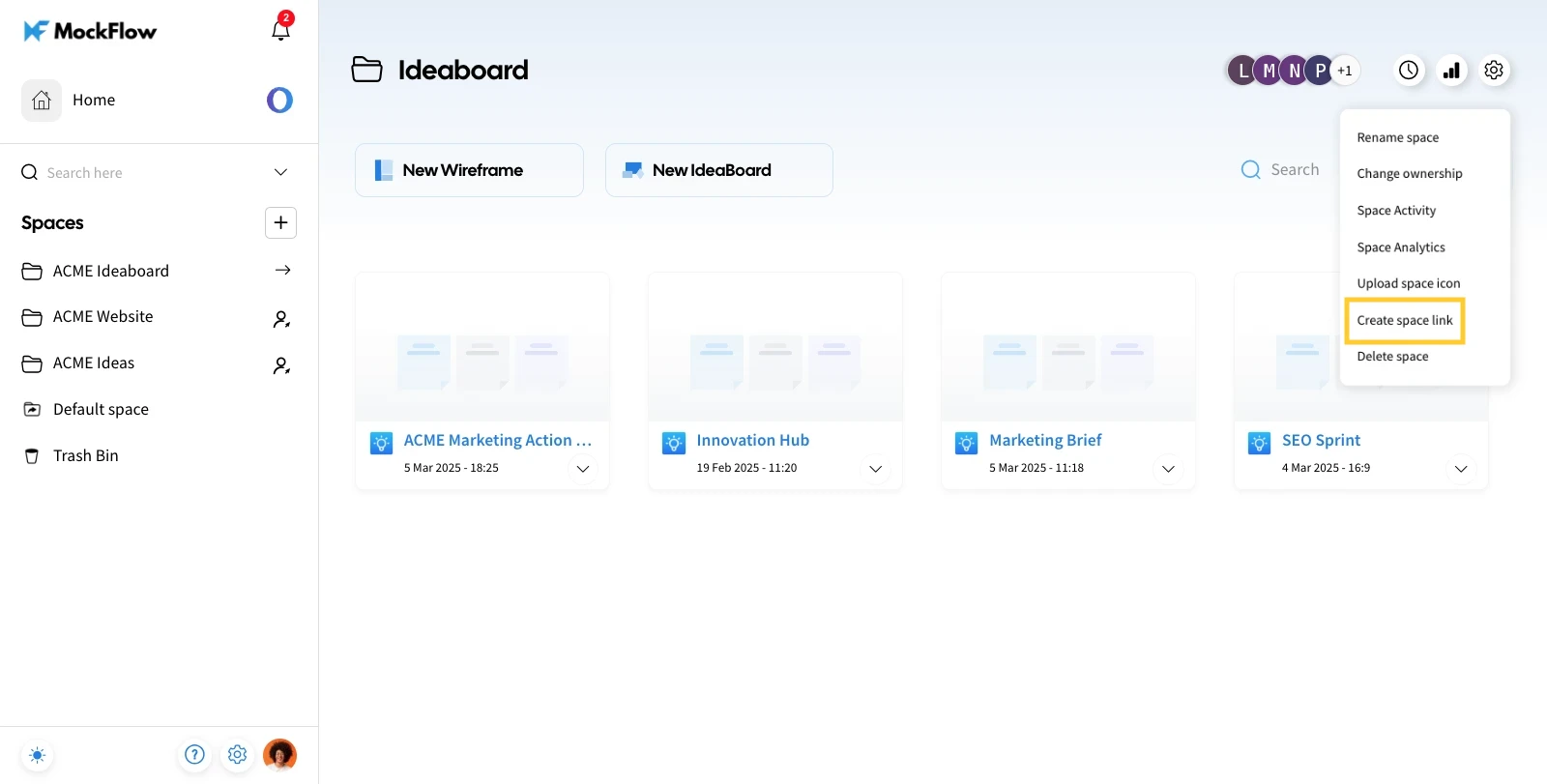
From the options list, select "Create Space Link."
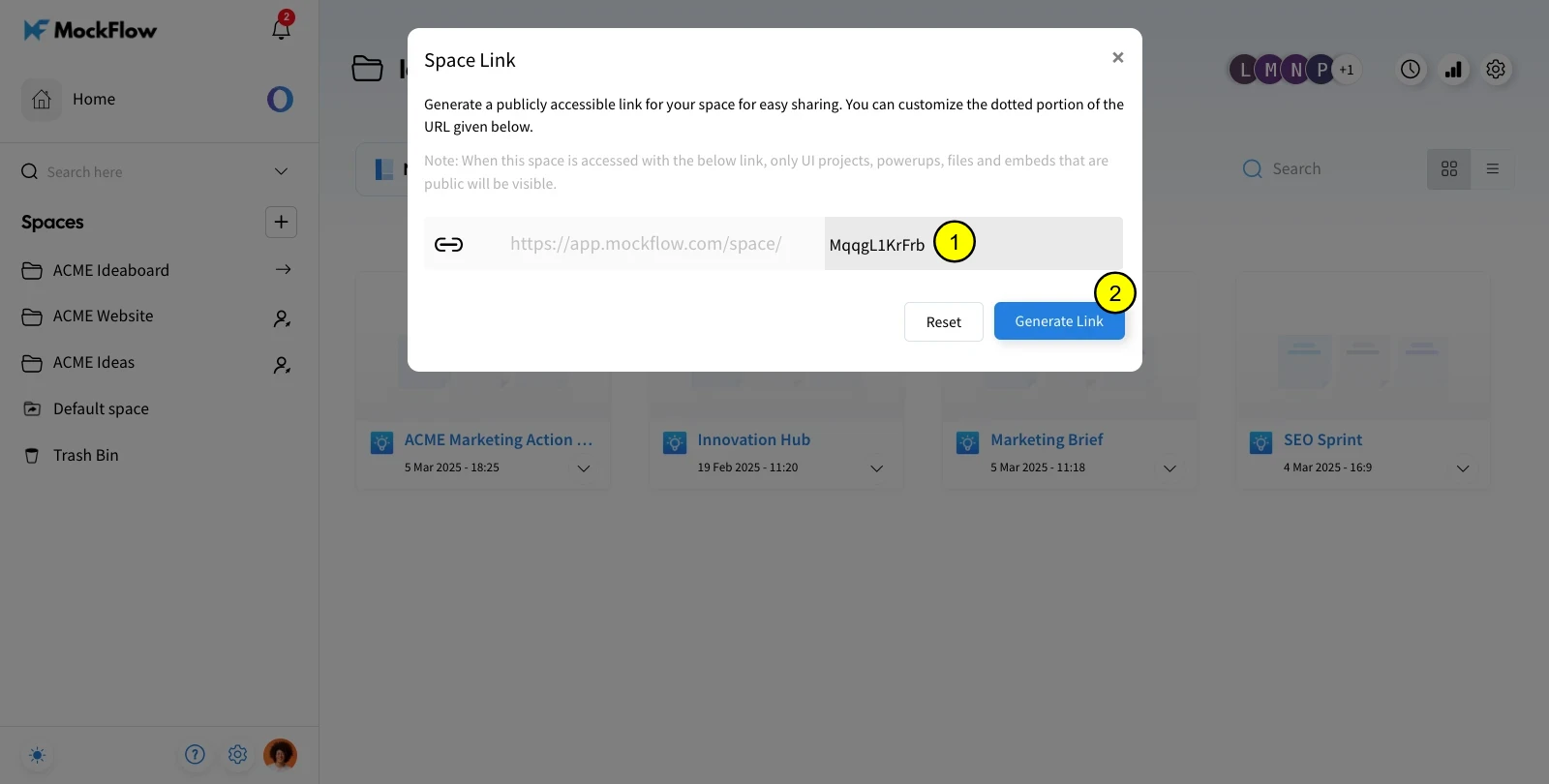
Customize the space link URL (if required) and click on "Generate Link." The link will be created.
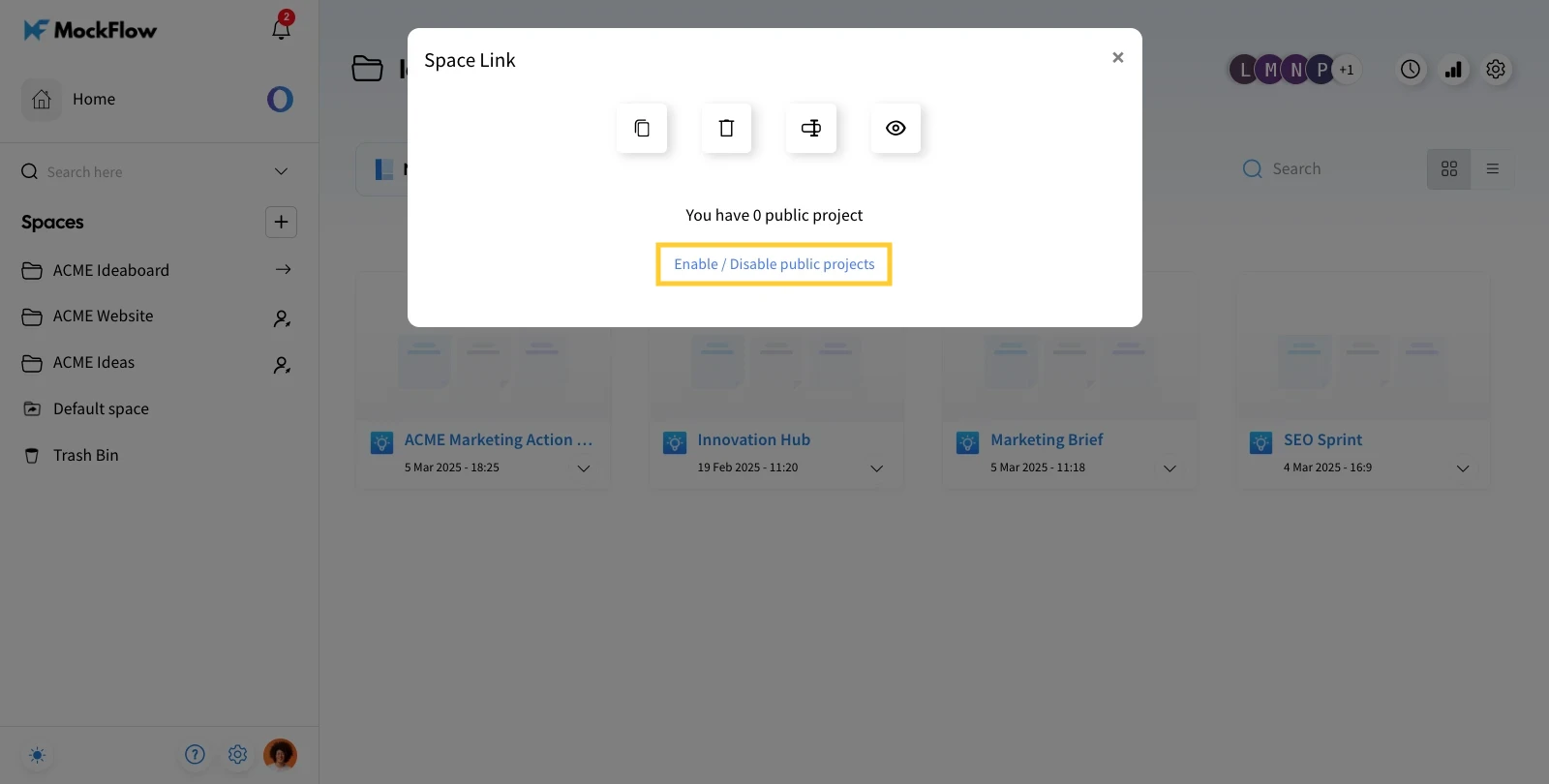
To select the projects that can be viewed from the public link, click "Enable/Disable public Projects."
Select the projects you want to display in the public link. Finally, click on Save.
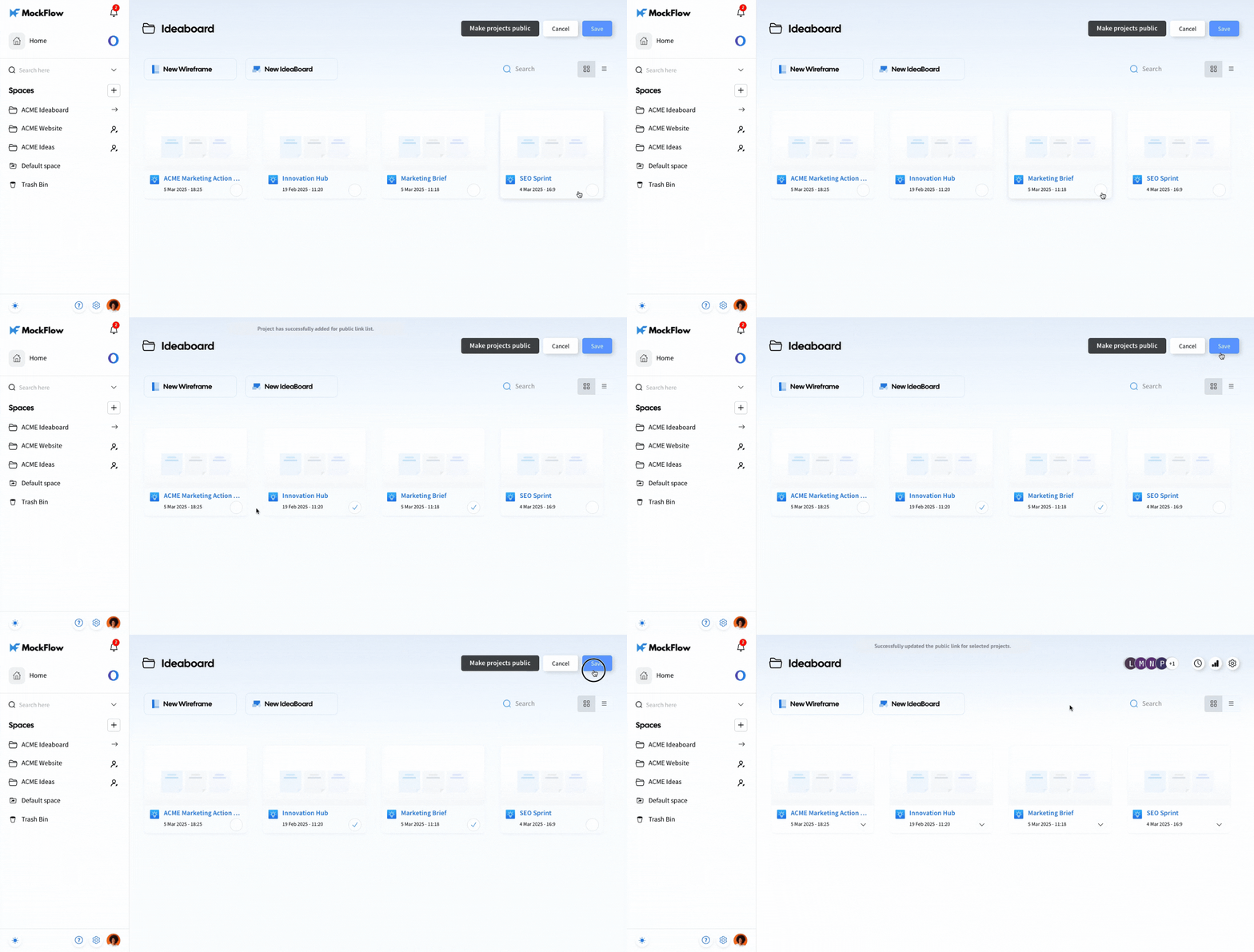
To hide any existing public projects from the link, just deselect those projects in the same step and click on Save.
You are all set to share your public link. Click on the settings icon and then on the 'View space link' option to copy the link anytime.
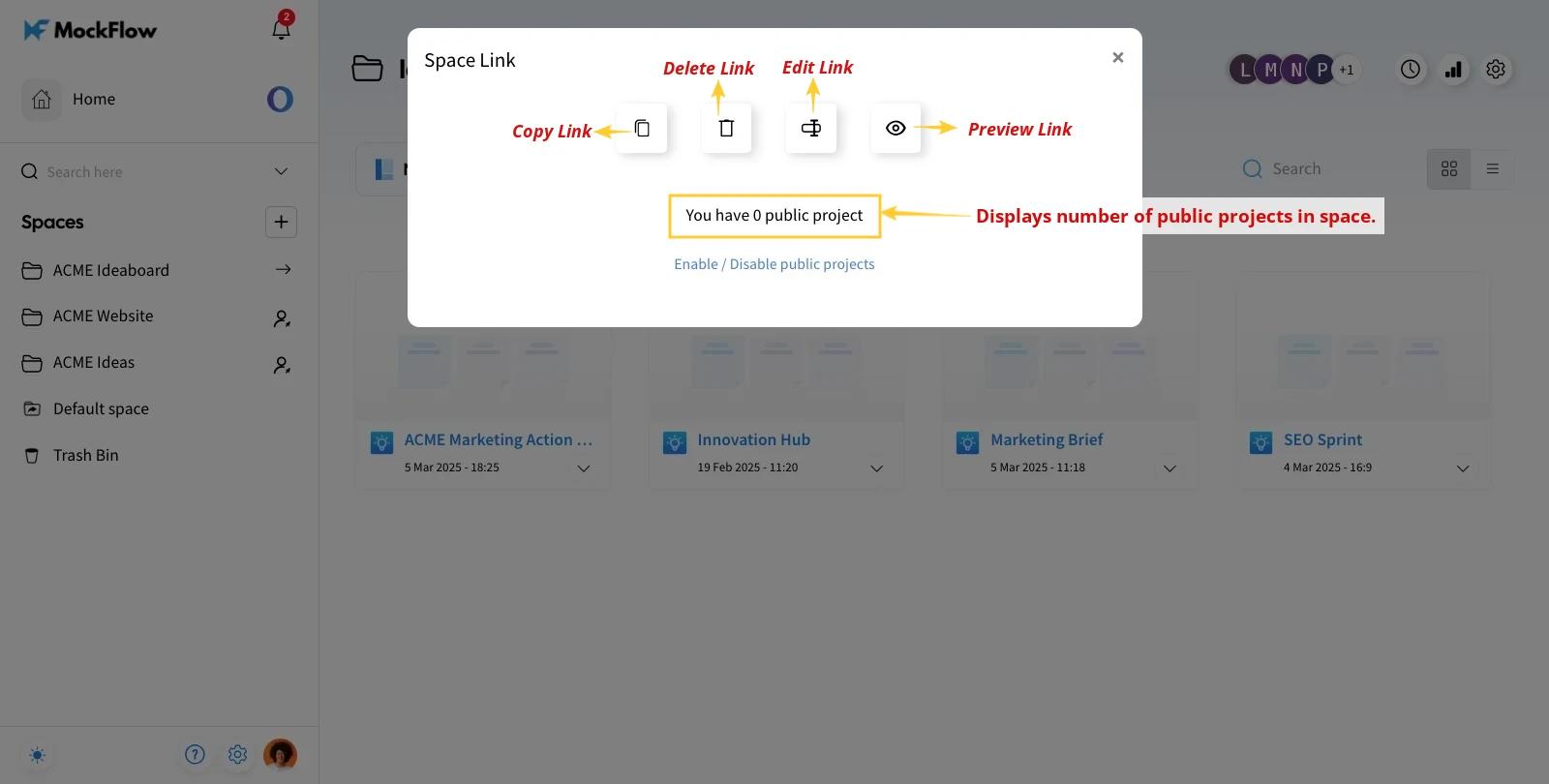
Here, you have the option to copy, edit, delete, or view the public link for the space. It also displays the number of public projects inside the space.