
Internal
Sticky Note Stack
Learn how to use the sticky note stack to add multiple sticky notes effortlessly.
A sticky note stack can be helpful when working on boards where you need to add sticky notes more frequently, like a brainstorming session.
Where to find Sticky Note Stack in MockFlow Board?
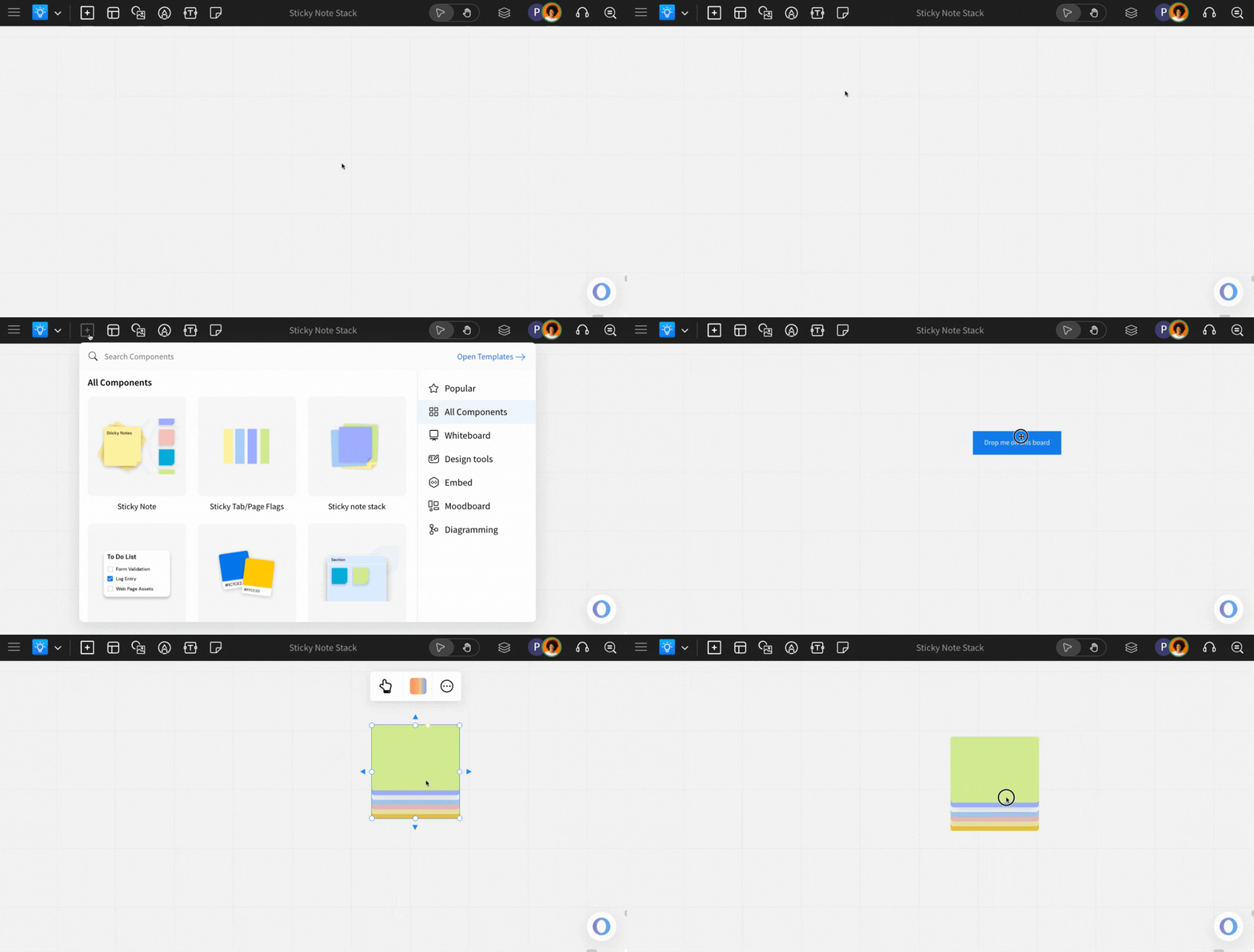
Simply click on the 'Add Anything' menu, find 'Sticky Note Stack,' and drag and drop it onto the MockFlow Board canvas.
Changing Note Color
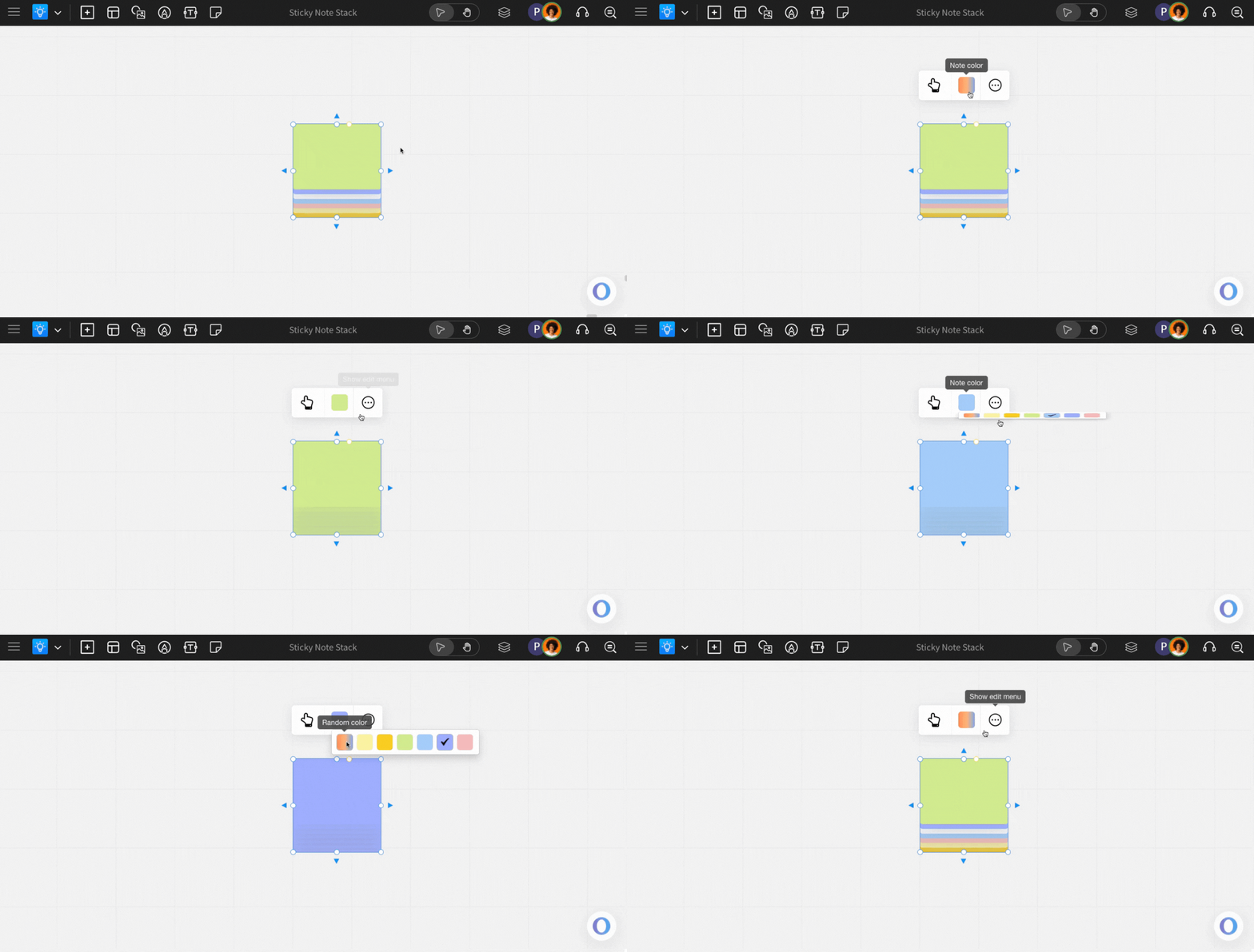
You can change the color of the sticky note stack by click on the color option on the quick toolbar. By default, it is multi-color note stack.
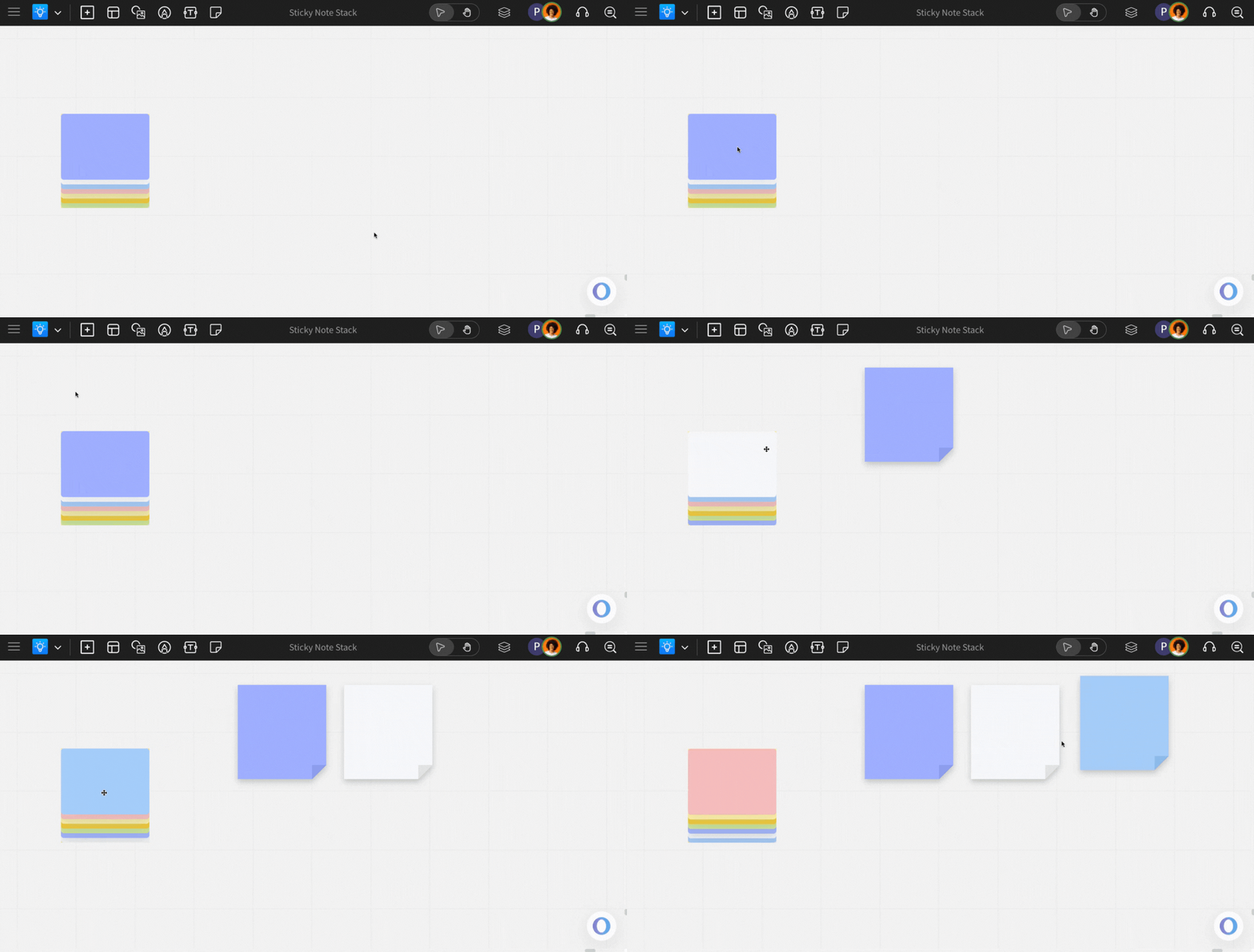
To get sticky notes from the stack, click on the hand icon to go to interact mode and just click and drag sticky notes and place it anywhere on the board. To move around the stack itself, just click on the stack and drag it.
Was this page helpful?