
Internal
Image management - Upload, edit or delete images
This article describes all features of image management in MockFlow WireframePro Upload Image Delete Image Copy Image Edit...
This article describes all features of image management in MockFlow WireframePro
Upload Image
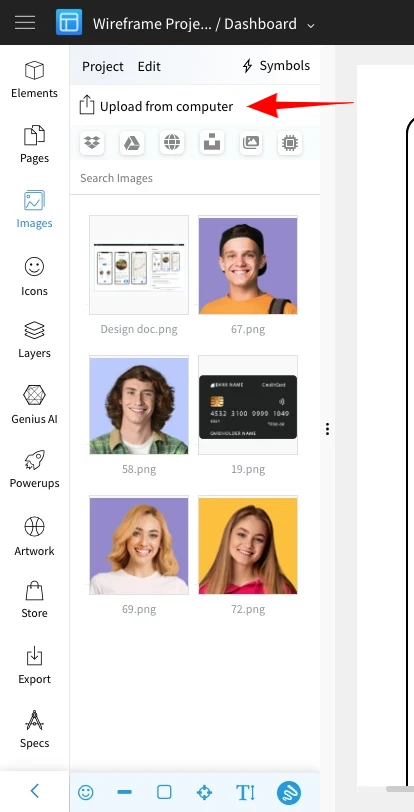
Select 'upload' to browse the image.
Select the image.
Click on open to upload the image.
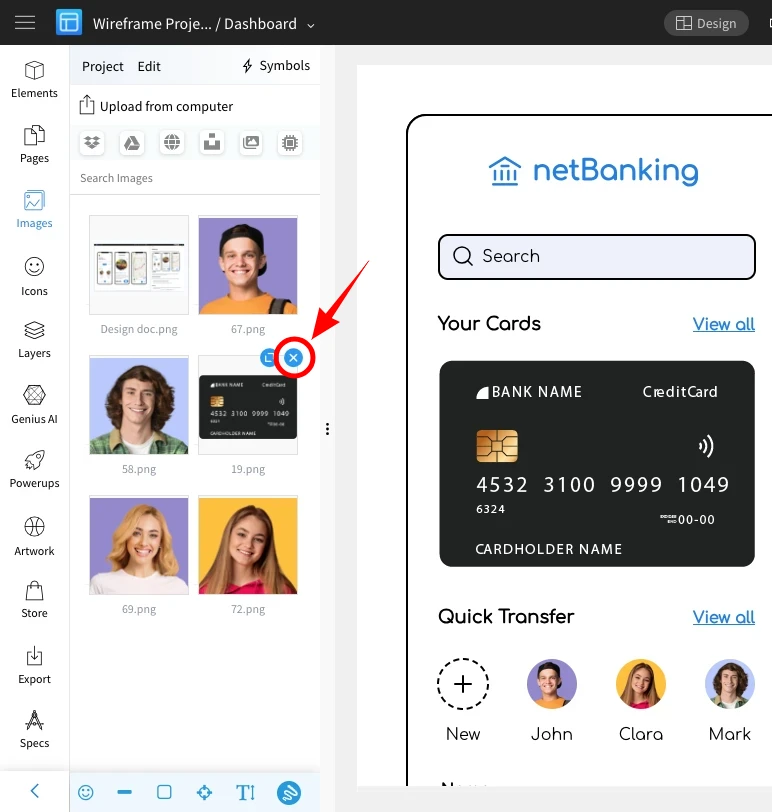
Delete Image
Select the icon to delete the image from project.
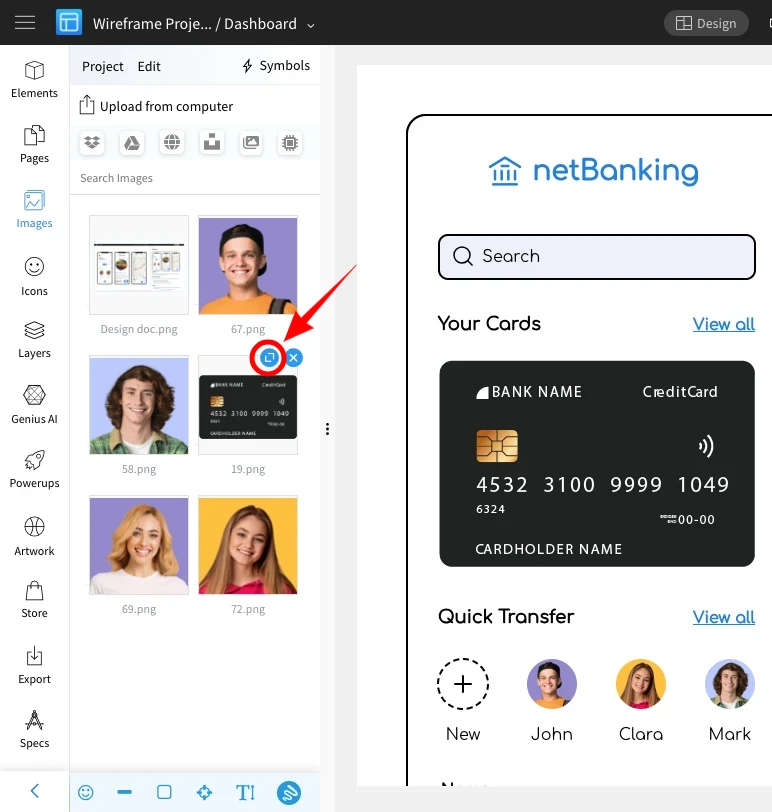
Copy Image
Select the icon to copy the link of the image from project.
Edit Image using built-in image editor
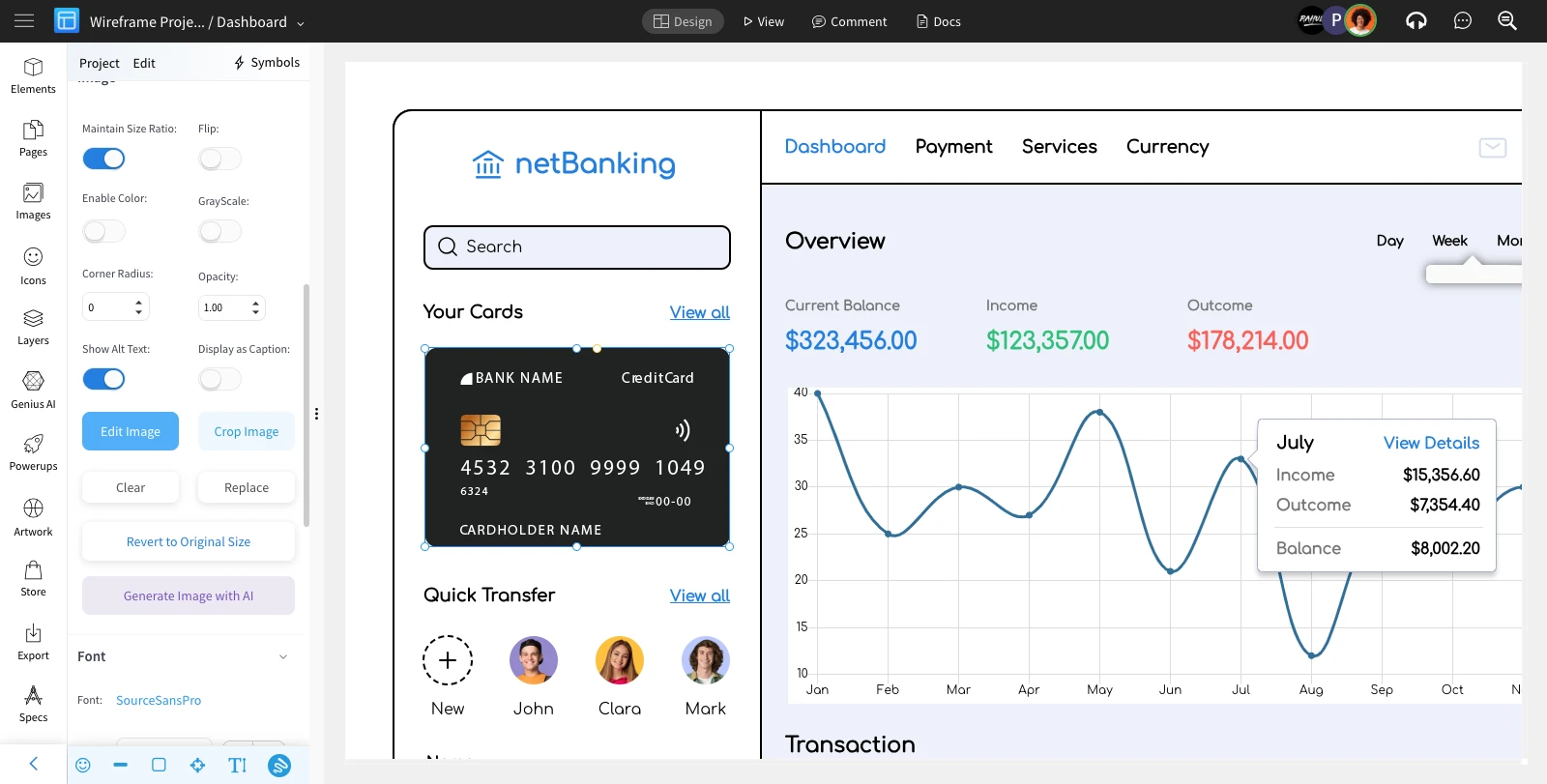
Select this icon to edit the image.
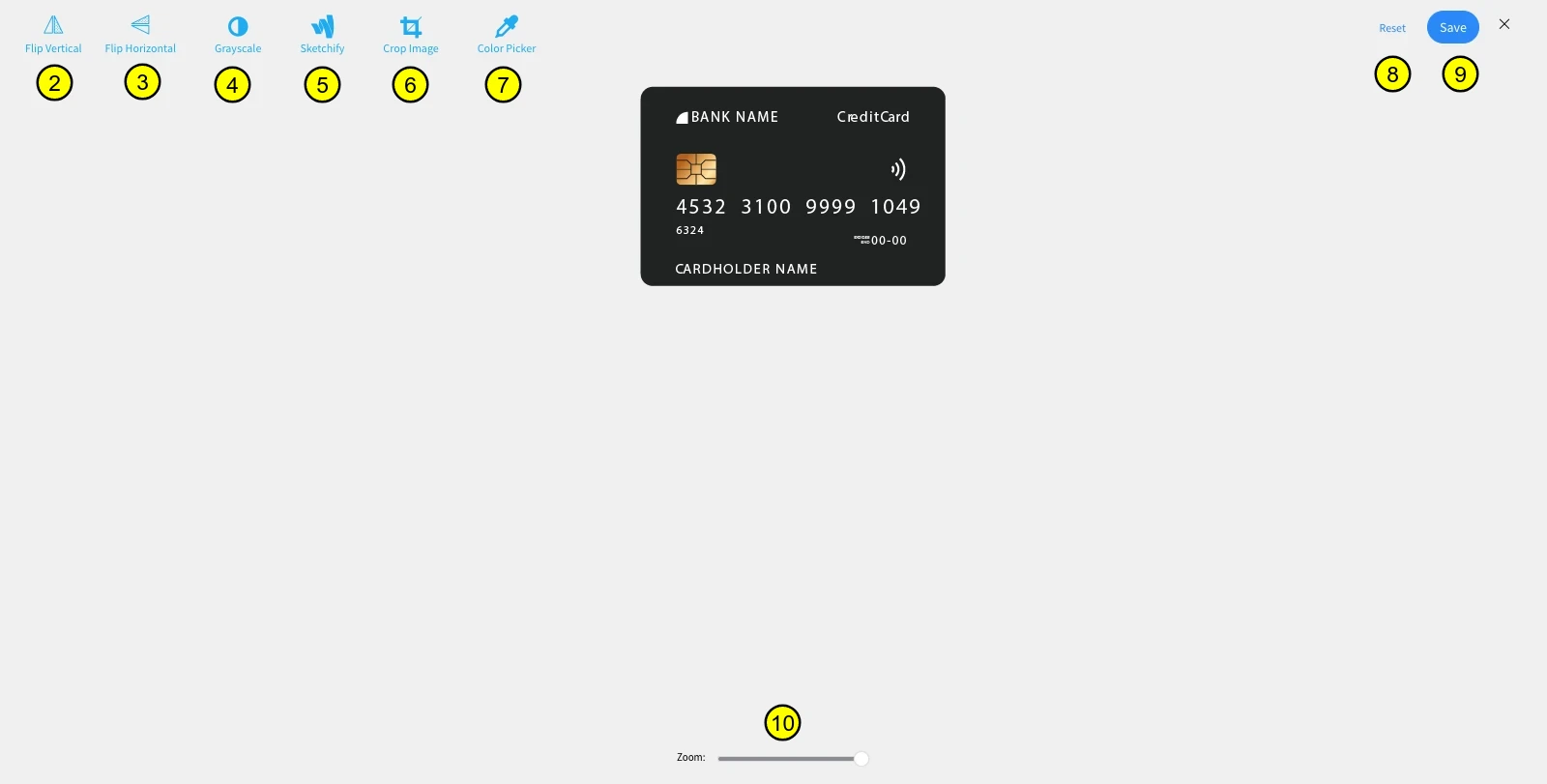
Make image straight to vertical direction.
Make image straight to horizontal direction.
Changes image to grayscale mode.
To sketch with pen tool over image.
Crop image.
Picks up the needed color from image.
Revert the changes done to image.
Save the changes.
Can customise image zooming.
Was this page helpful?