Enterprise SSO Setup with Auth0
You should have an active MockFlow Enterprise license or annual TeamPack license to integrate MockFlow with any third-party...
You should have an active MockFlow Enterprise license or annual TeamPack license to integrate MockFlow with any third-party Identity Provider that supports SSO/SAML.
MockFlow provides built-in connectors for Okta, OneLogin, and Google SSO identity providers. In addition to this, Enterprise customers can connect to any third-party SSO identity providers that support SAML methodology, such as Auth0, IBM Cloud identity, Bitium, etc.
Setting up SSO involves Setting up the Identity Provider and then setting up your MockFlow account.
Setting up the Identity Provider - Auth0
Login to the provider with administrator access
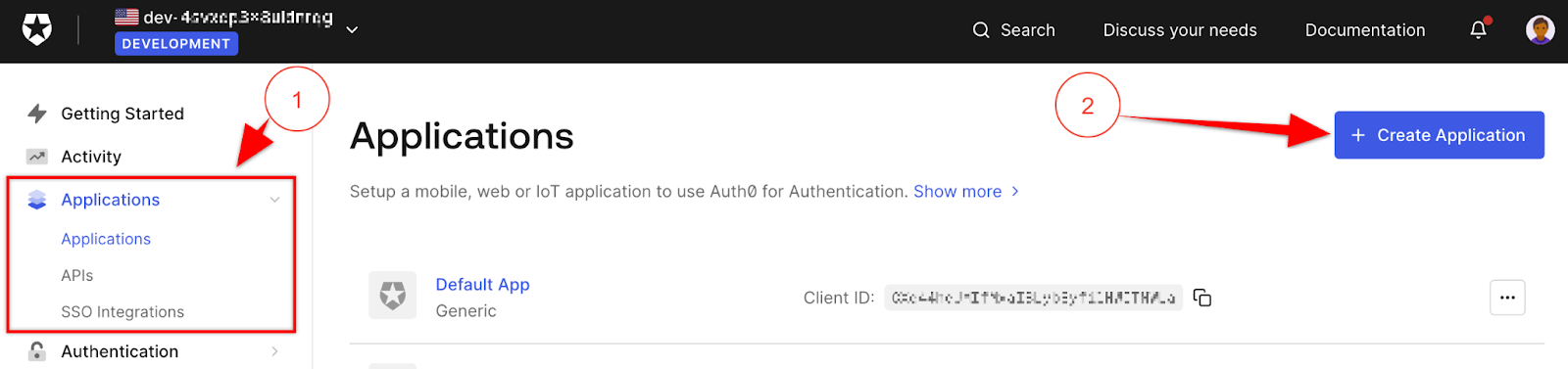
Navigate to Applications -> Create New Application
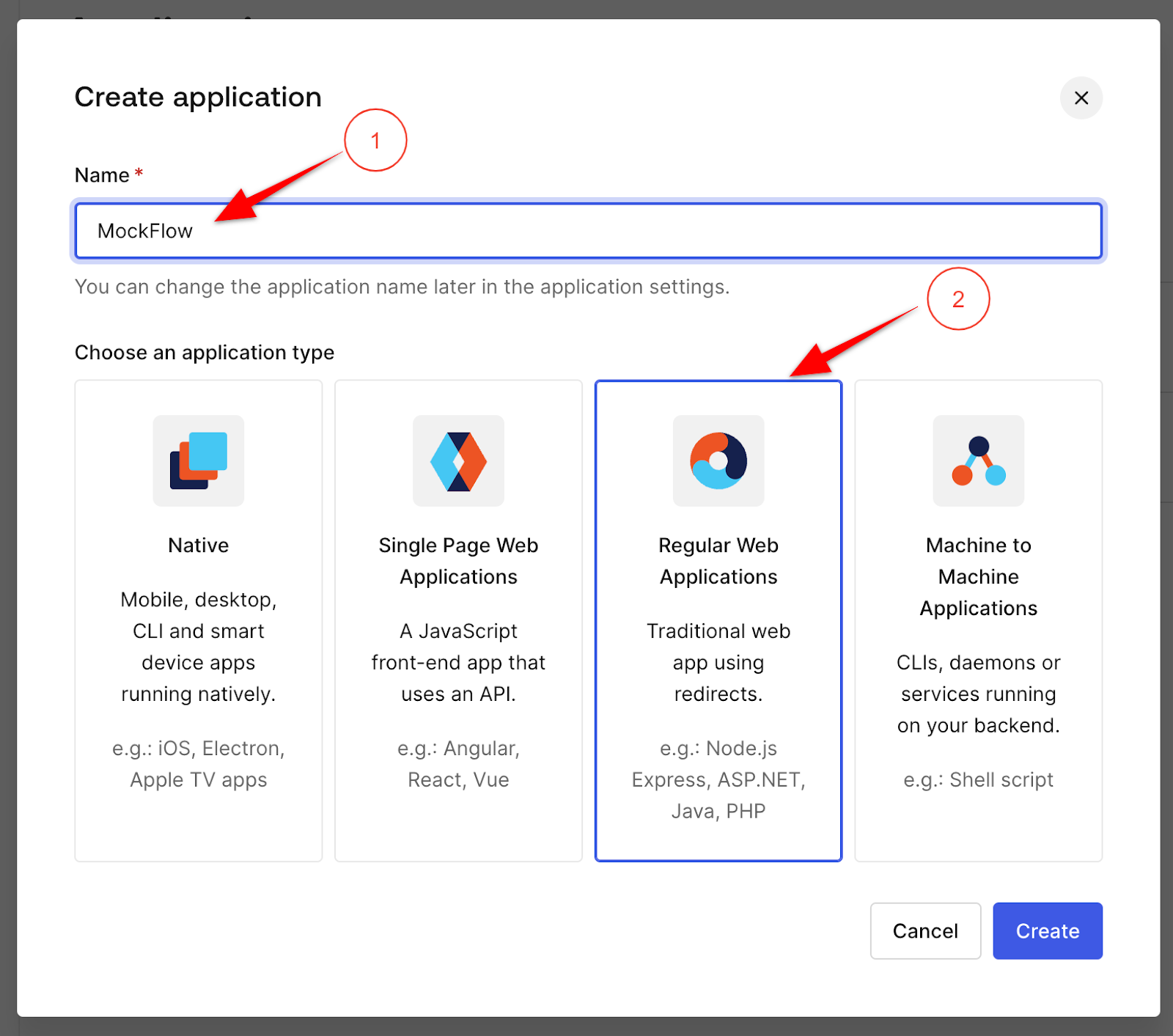
Enter “MockFlow” in the Name field and select “Regular Web Application” as the type.
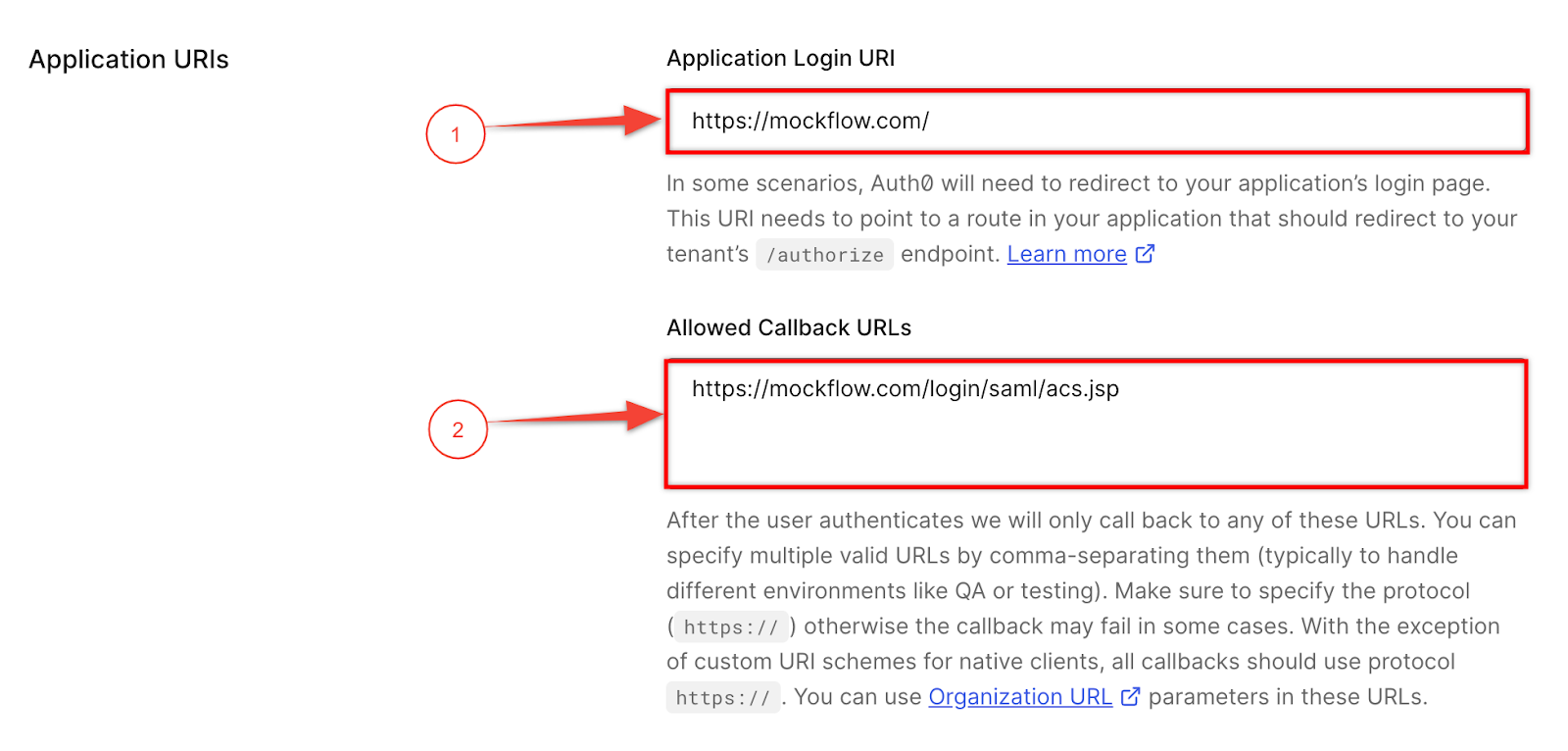
In the settings tab, add the Application URIs section details with the following information
Allowed Callback URLs: https://mockflow.com/login/saml/acs.jsp
Application Login URI: https://mockflow.com
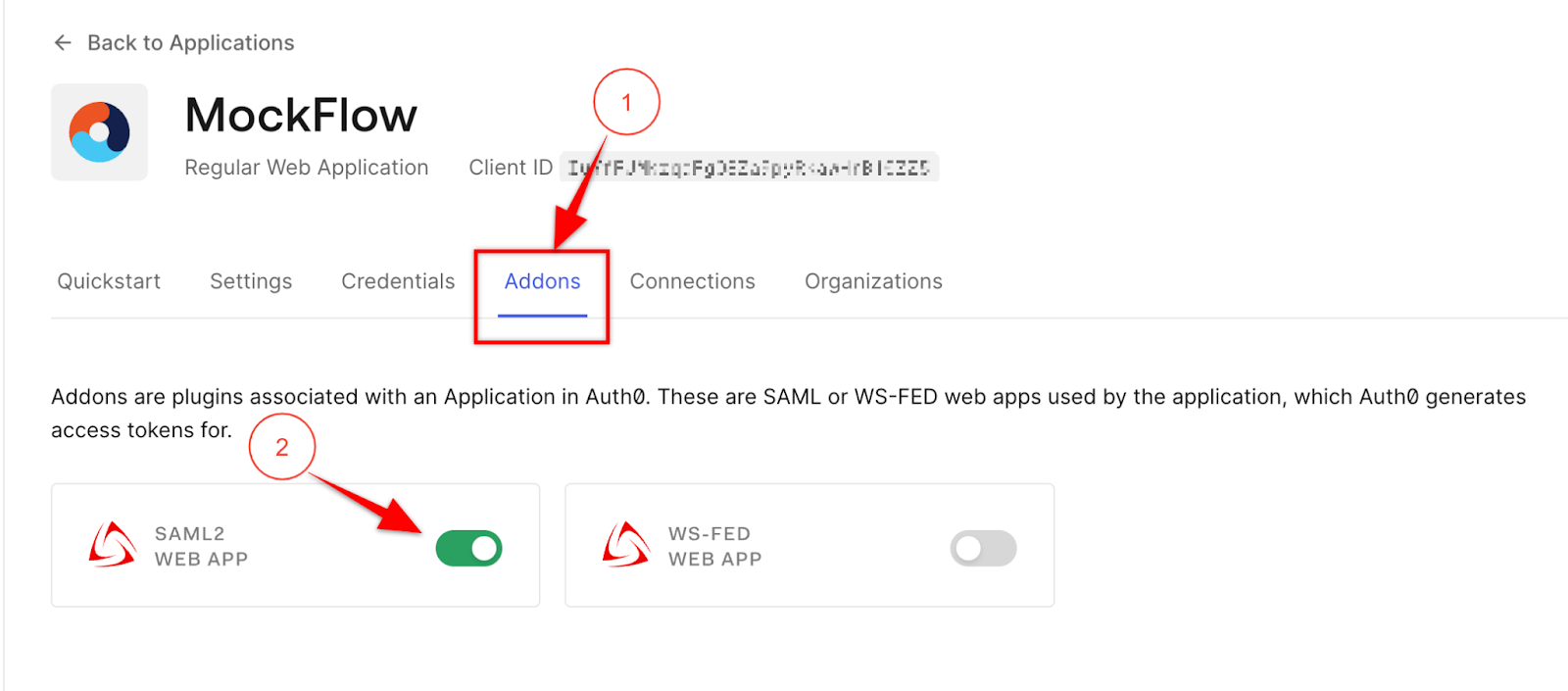
In the Addons tab, enable “SAML2 WEBAPP”.
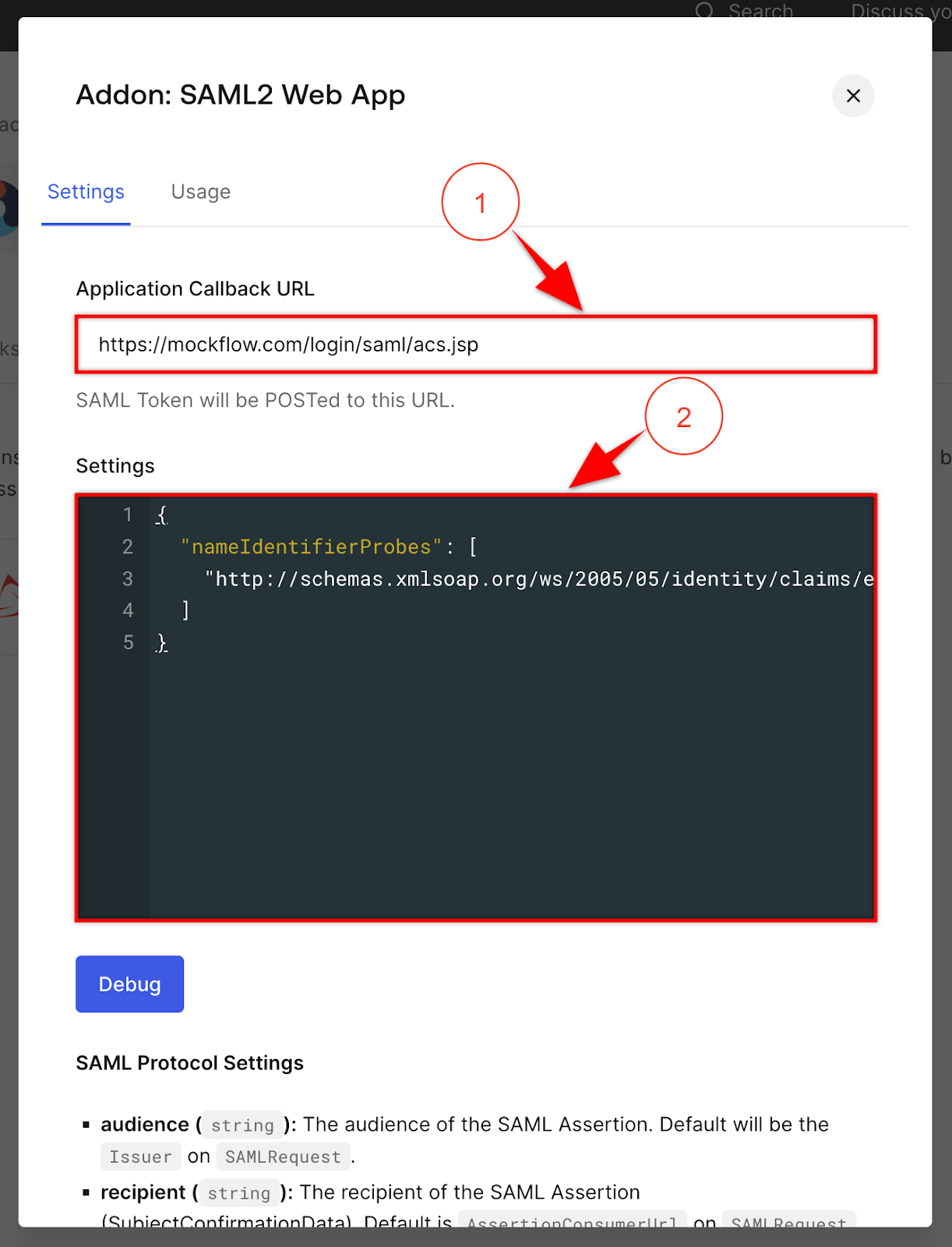
In the popup, open the “Settings” tab and ensure “Allowed Callback URL” is same as the one entered in the previous screen. Paste the following in the “settings” box and click “Save” at the bottom of the popup
{
"nameIdentifierProbes": [
"http://schemas.xmlsoap.org/ws/2005/05/identity/claims/emailaddress"
]
}
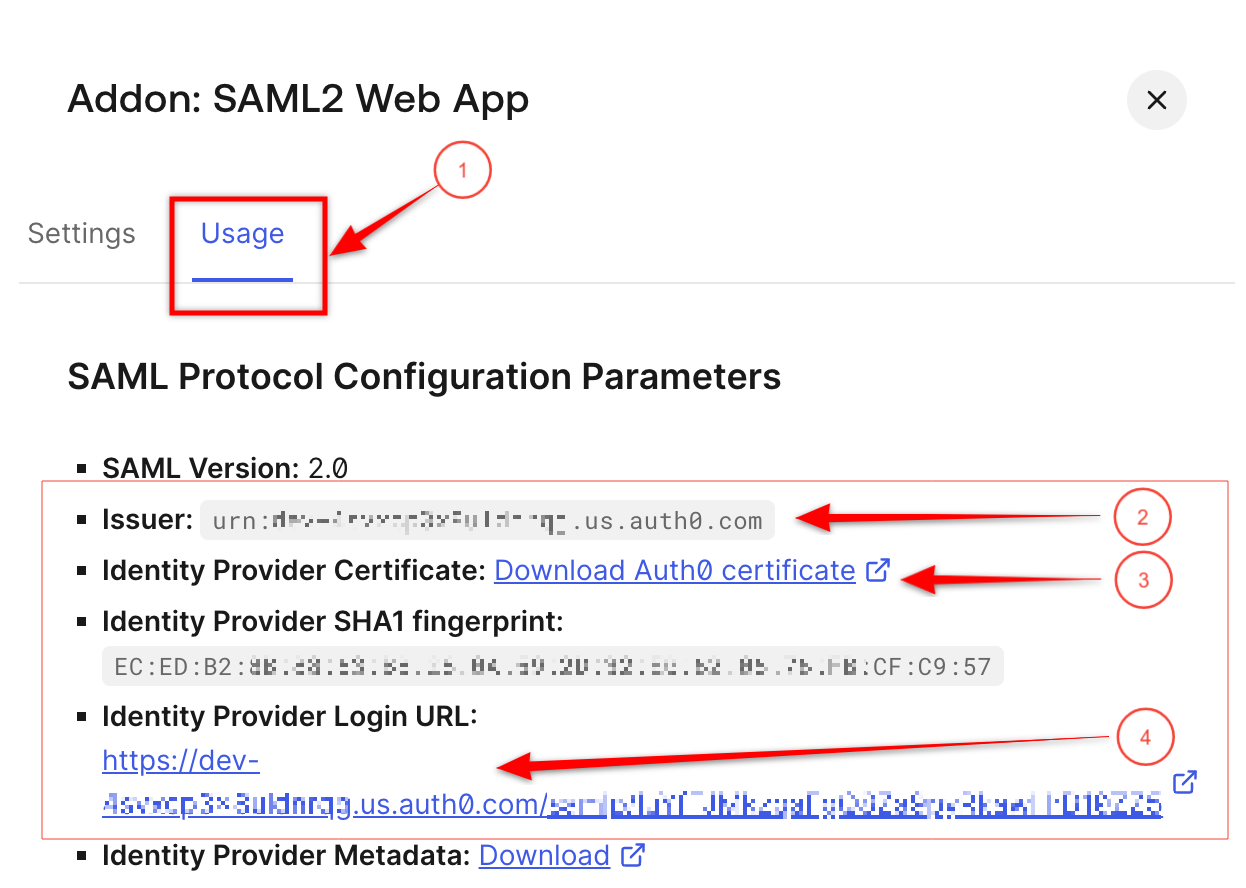
Open the “Usage” tab and copy the following fields
Issuer
Identity Provider Login URL
Identity Provider Certificate
Account Setup in MockFlow
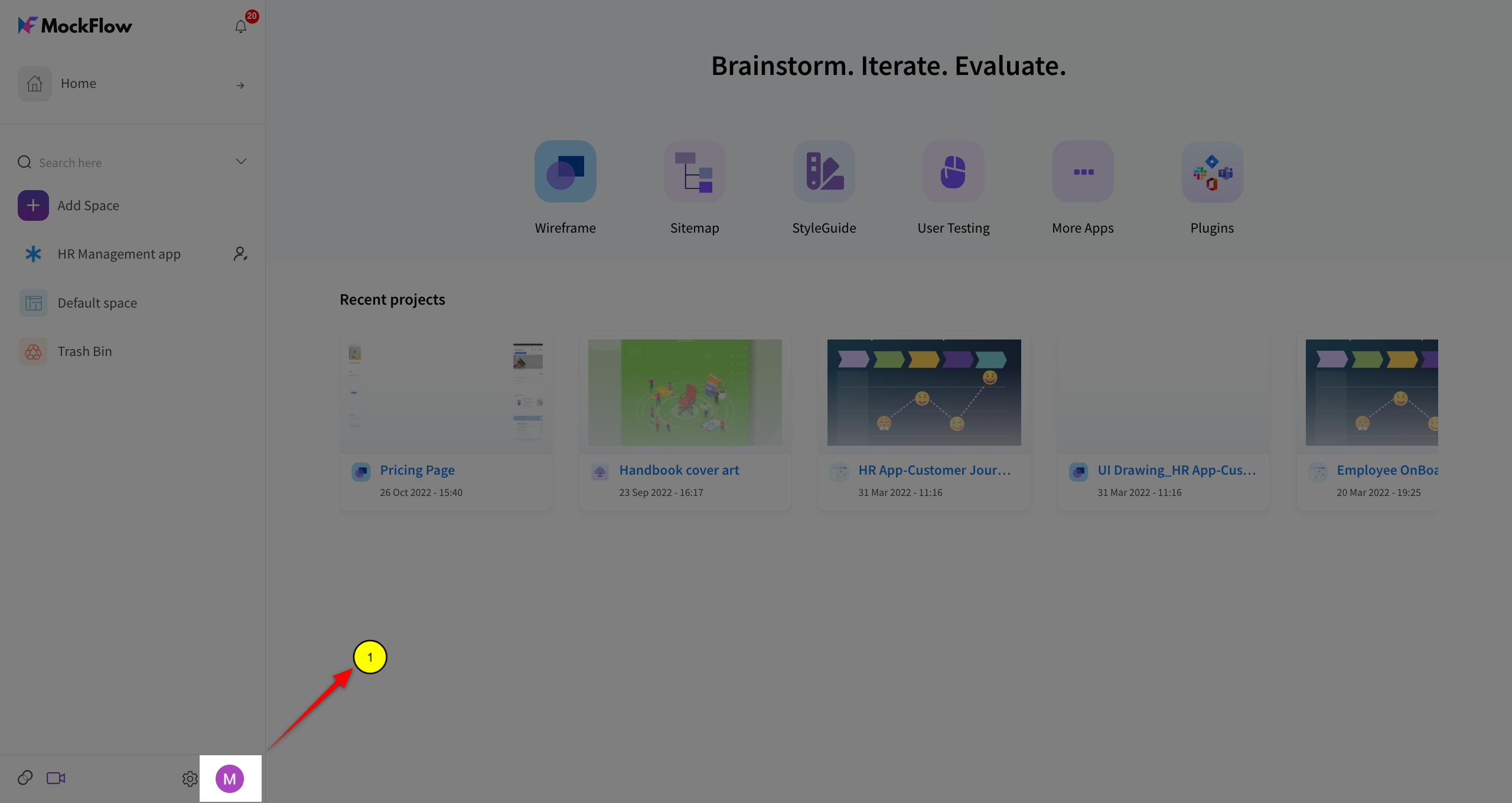
Login to MockFlow as the enterprise admin user, Click on the profile icon.
Under "My Accounts", select the tab "SSO".
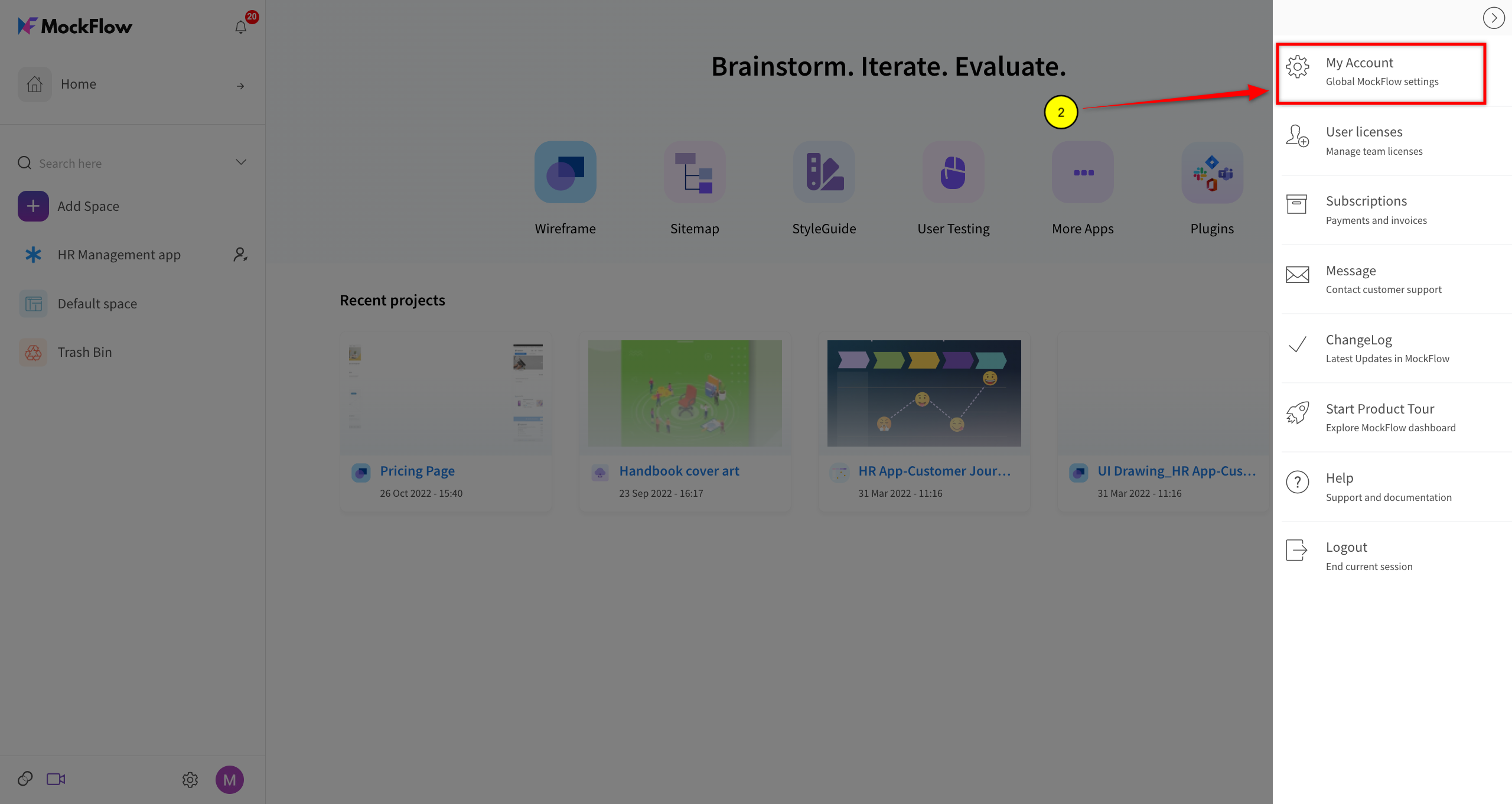
Click the toggle button to enable SSO.
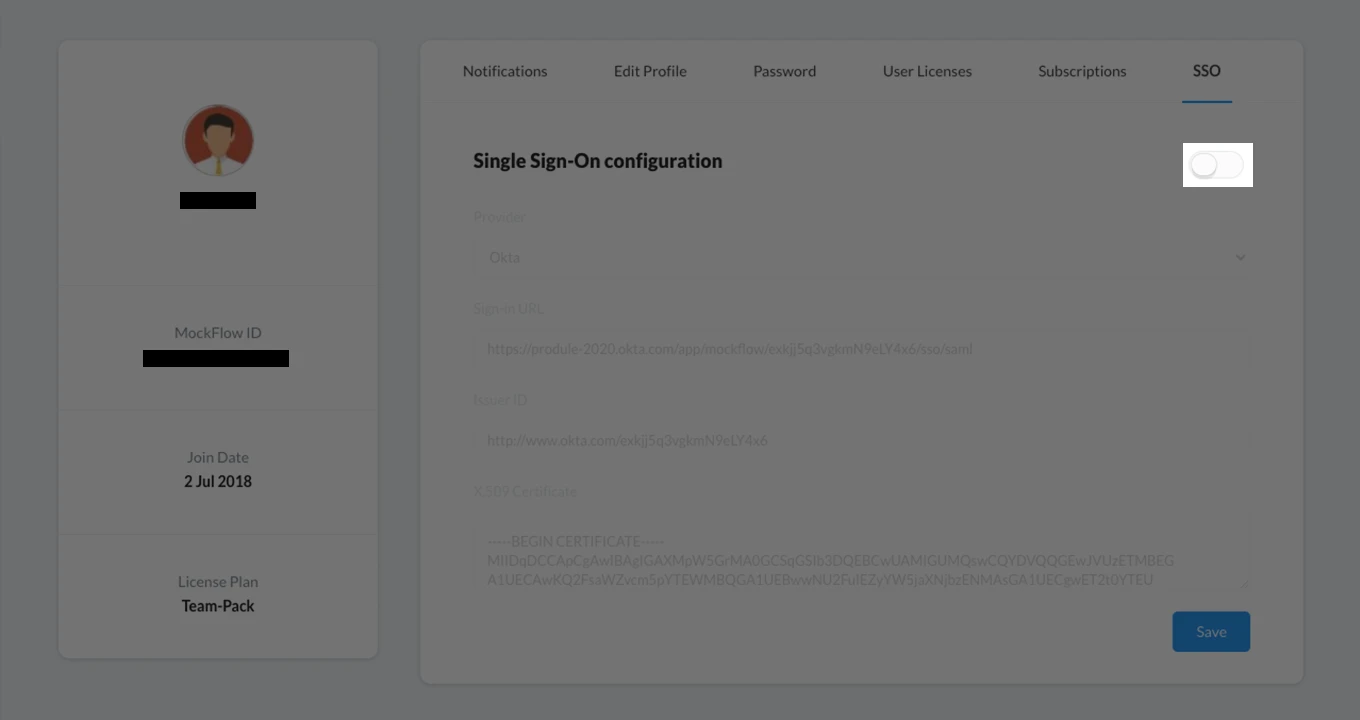
Select the provider as "Custom Identity Provider":
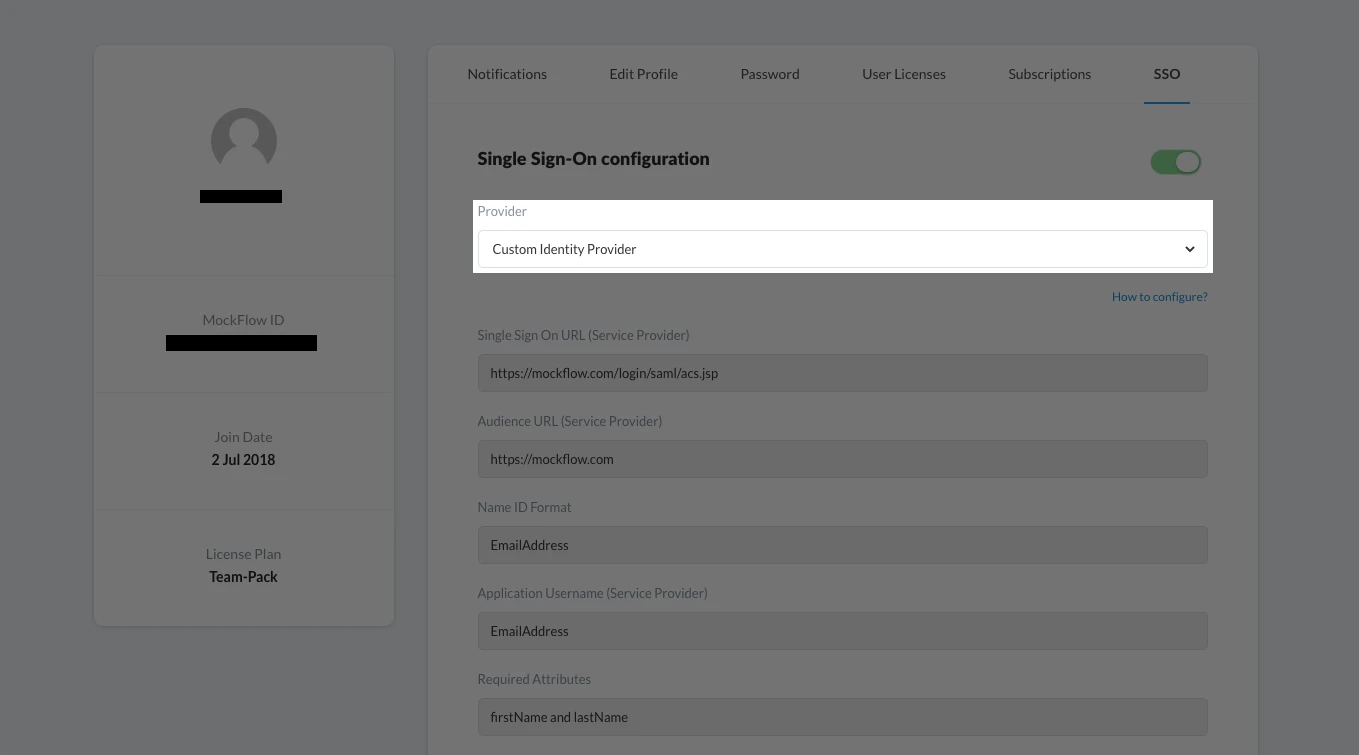
Copy the following details mentioned in the read-only fields that is required by the "Identity Provider" to create a connection:
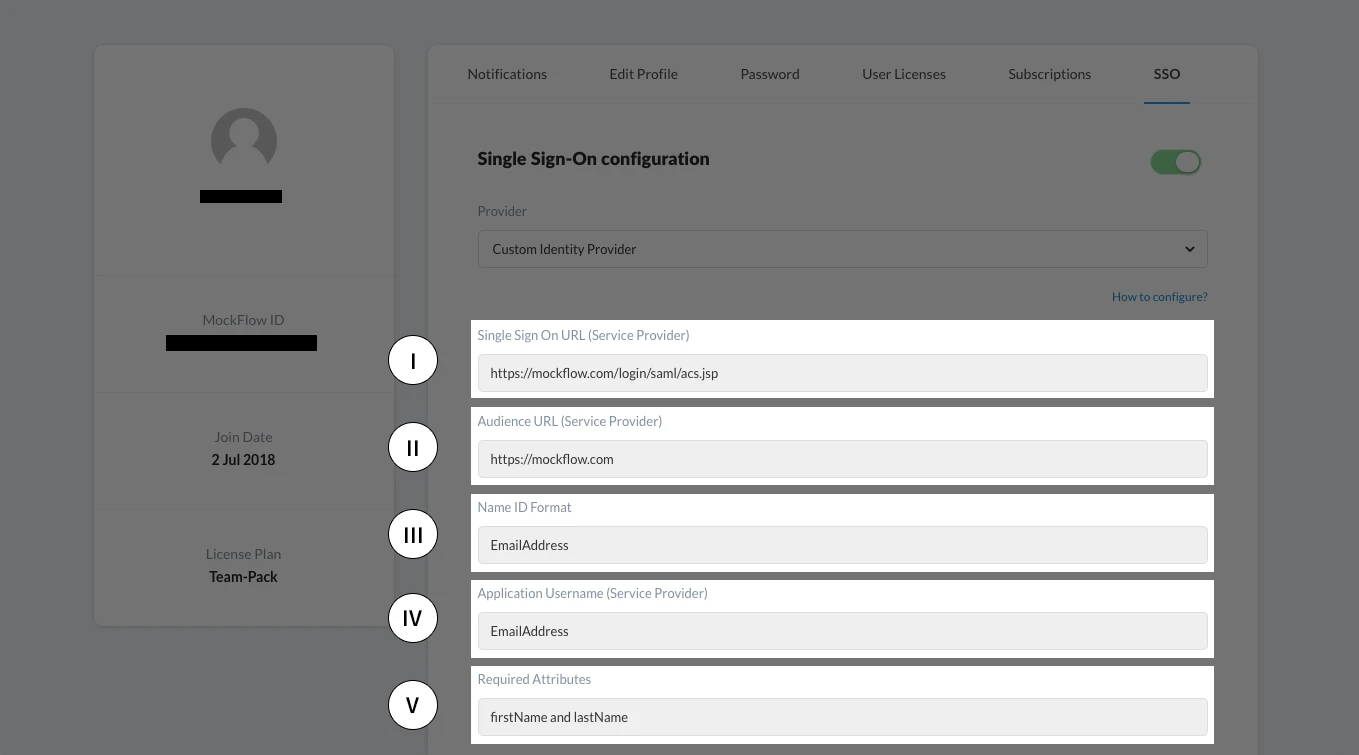
I - Single Sign On URL (Authorization callback URL)
II - Audience URL (Allowed Origin)
III - Name ID Format - The Identity Provider should return the NameId format as an emailAddress.
IV - Few providers require to set "nameIdentifierProbes" which is "http://schemas.xmlsoap.org/ws/2005/05/identity/claims/emailaddress"
V - Attributes required by MockFlow are "firstName" and "lastName"
Use the above details to create new connection/application for MockFlow in your Identity Provider.
From the Identity Provider, copy the following fields:
Sign-in URL
Issuer Id
X509 Certificate
Paste the above data in MockFlow, My Accounts -> SSO tab under the corresponding label.
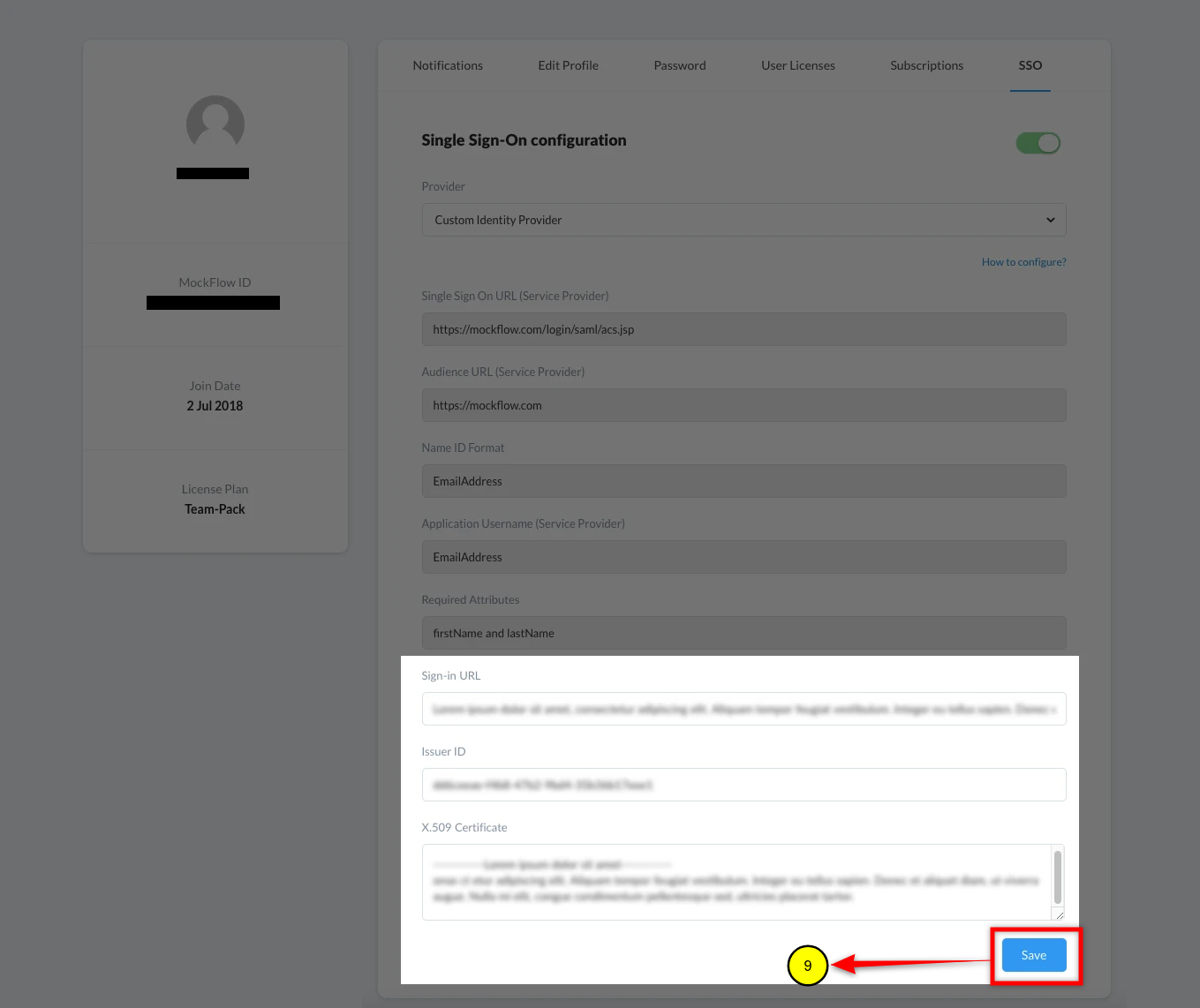
Press the "Save" button to save all your entries.
Adding users to MockFlow
You can add the list of users to allow access into MockFlow in the same "My Accounts" panel.
Under the tab "User Licenses", enter the email of the users to provide them access.
You can also revoke the license when required.
After setup: On how to log in with SSO in MockFlow
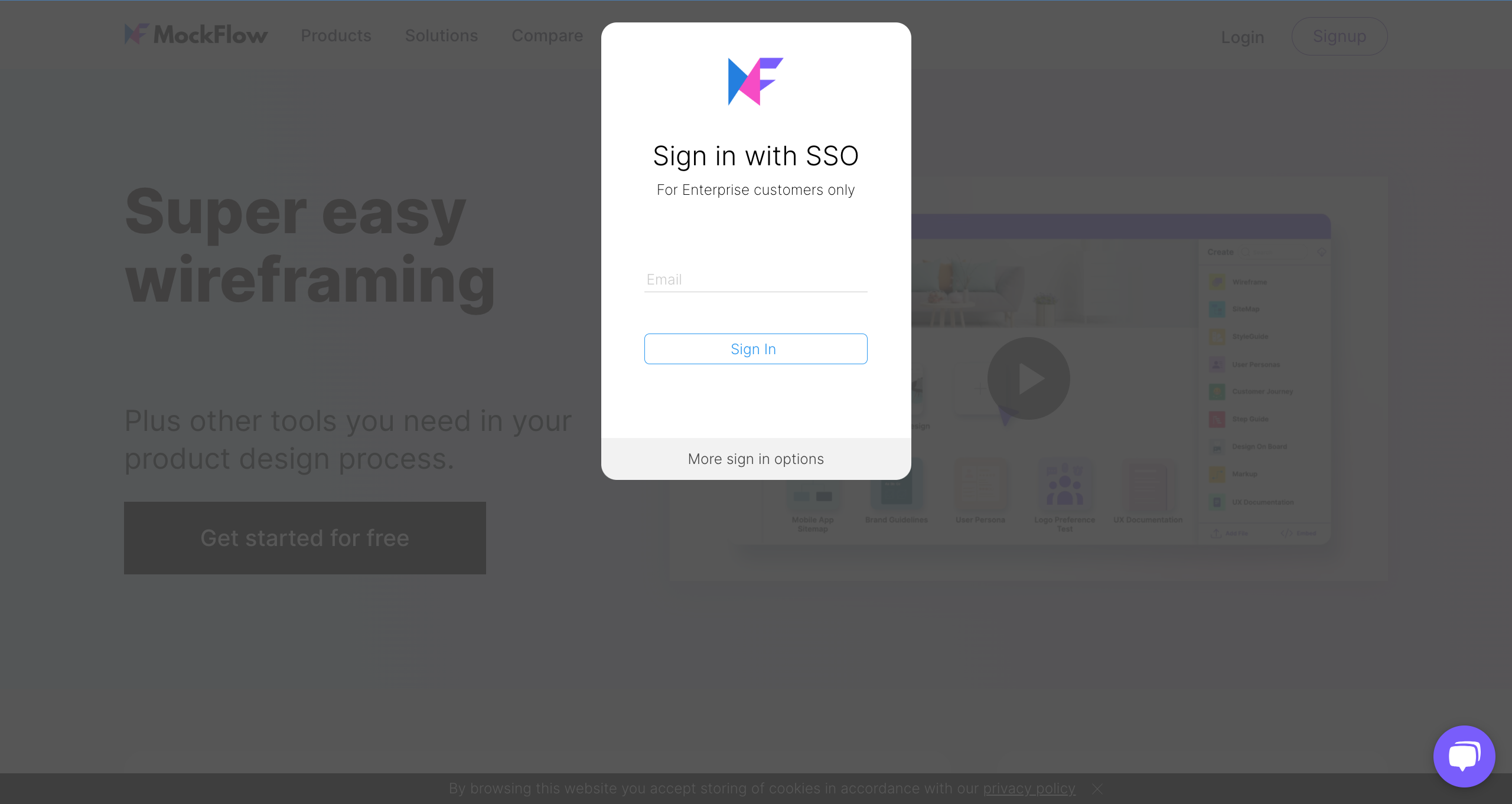
At https://mockflow.com, clicking the log in button shows the login dialog with the log in with SSO button as shown below:
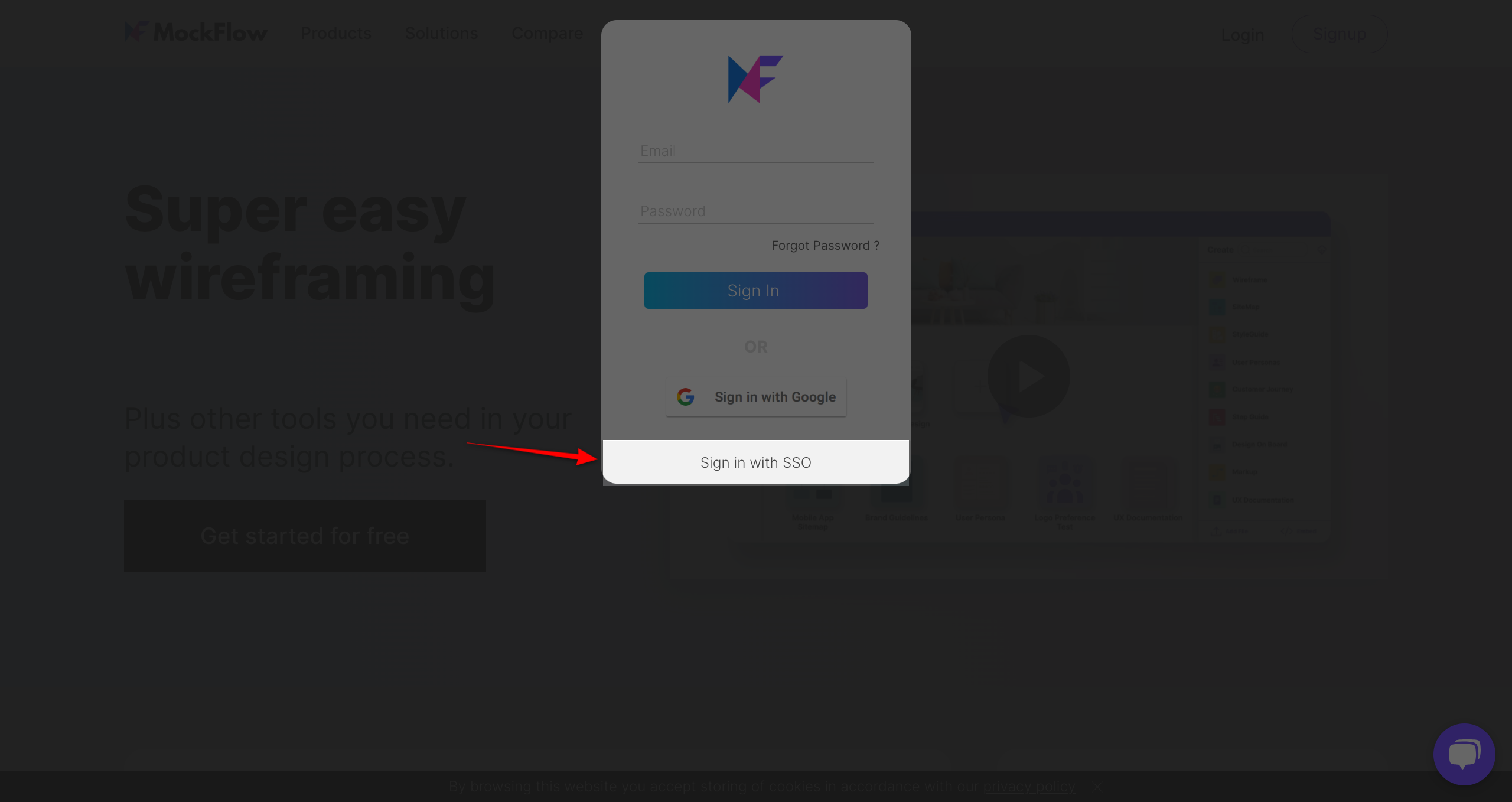
After sign in with SSO.