
Internal
Moving boards between spaces
You can move your MockFlow Board from one design space to another in a few steps. Open the design space that contains the...
You can move your MockFlow Board from one design space to another in a few steps.
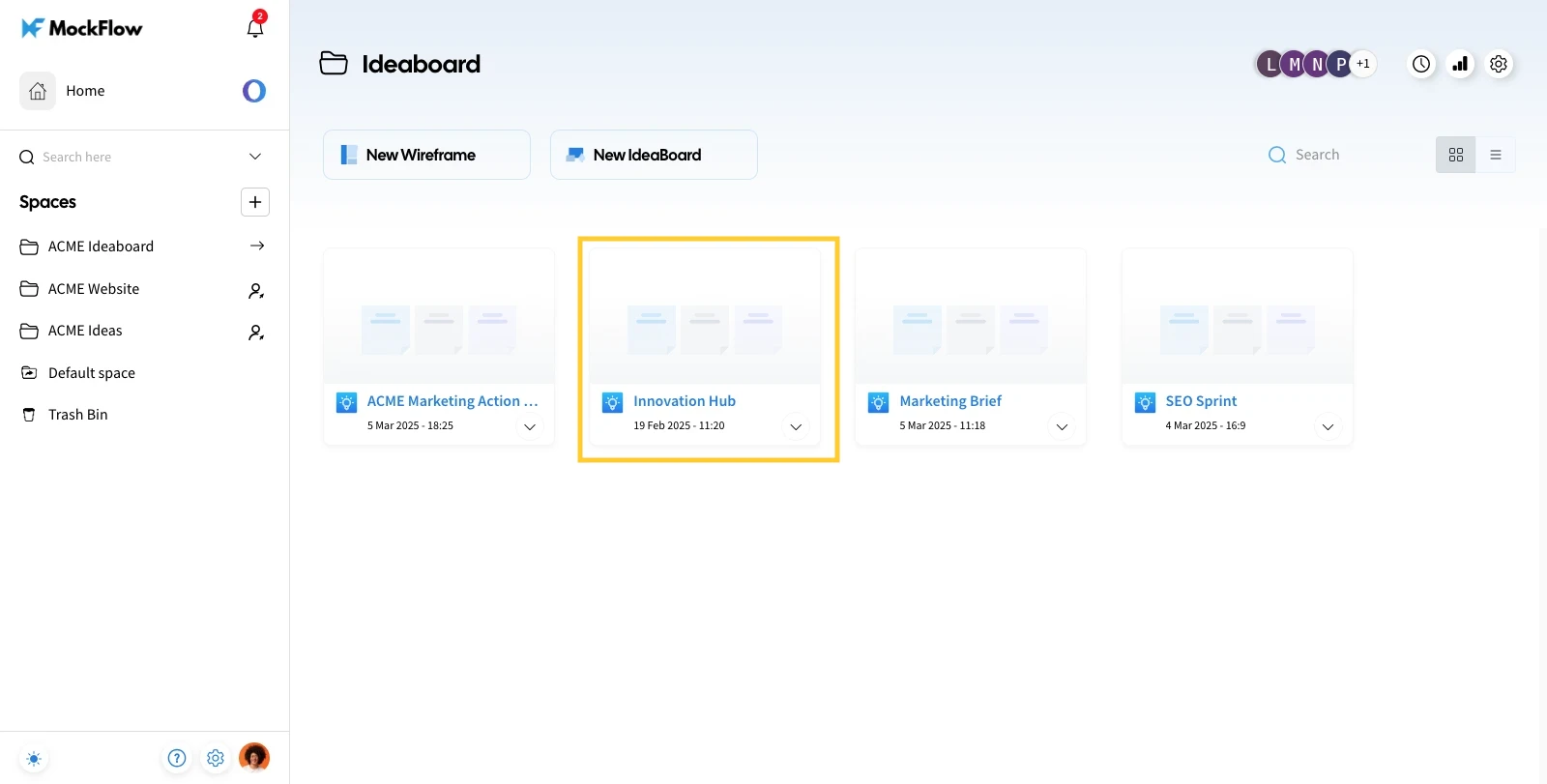
Open the design space that contains the project you want to move to another space.
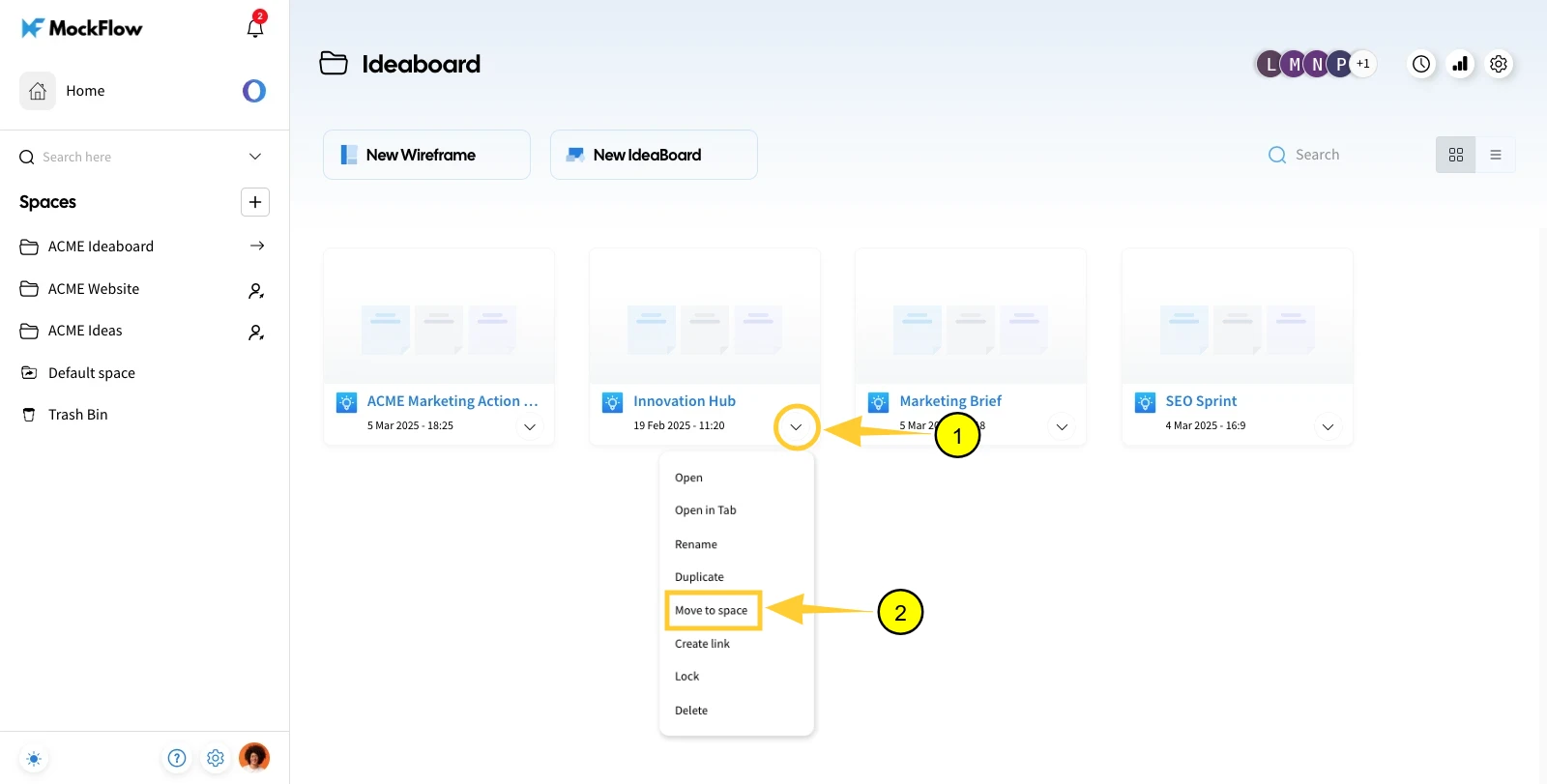
Click the 'More Options' icon and choose 'Move to Space' from the list.
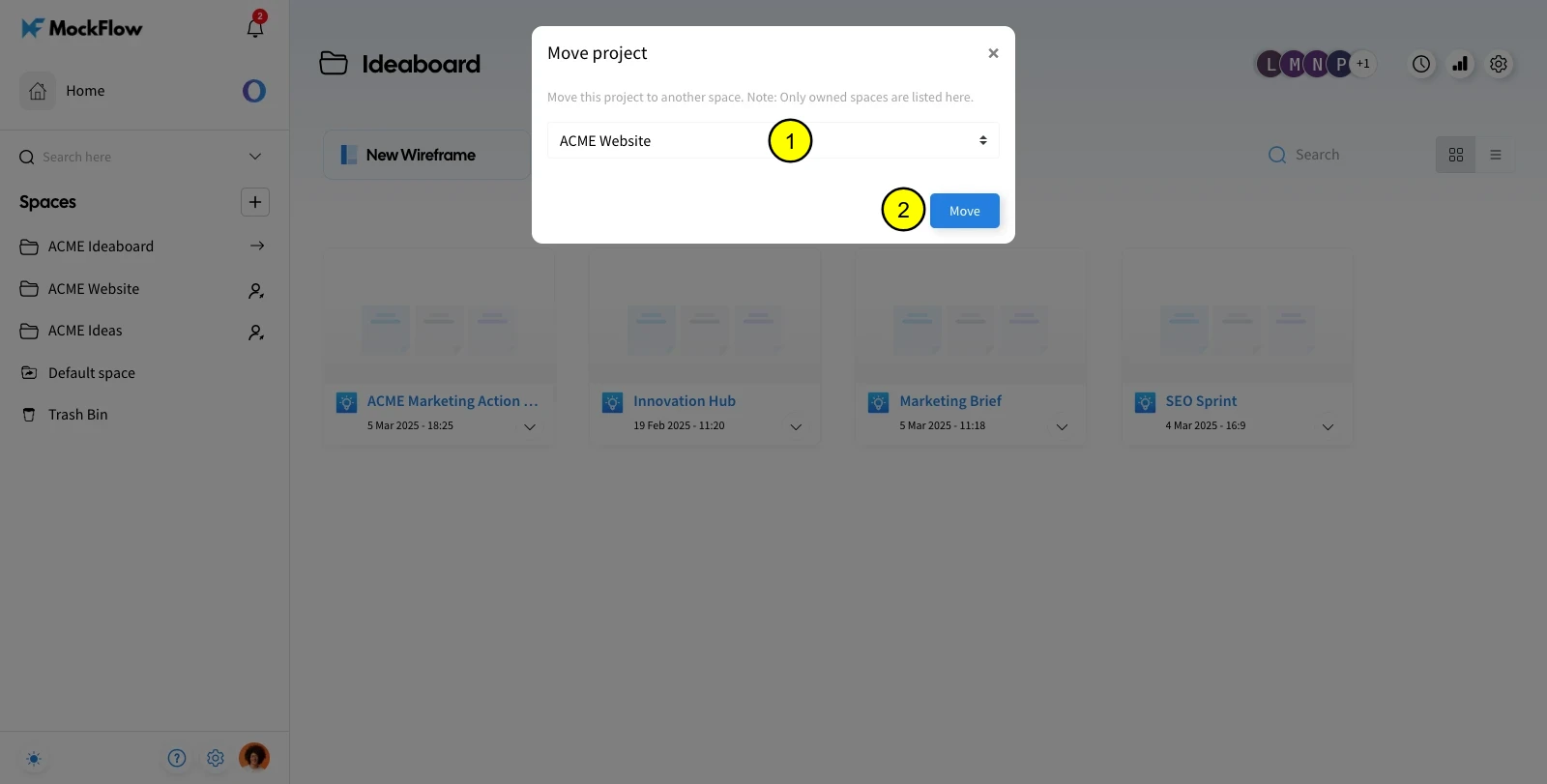
In the pop-up, select the destination space from the list and click 'Move' to transfer the boards.
Was this page helpful?