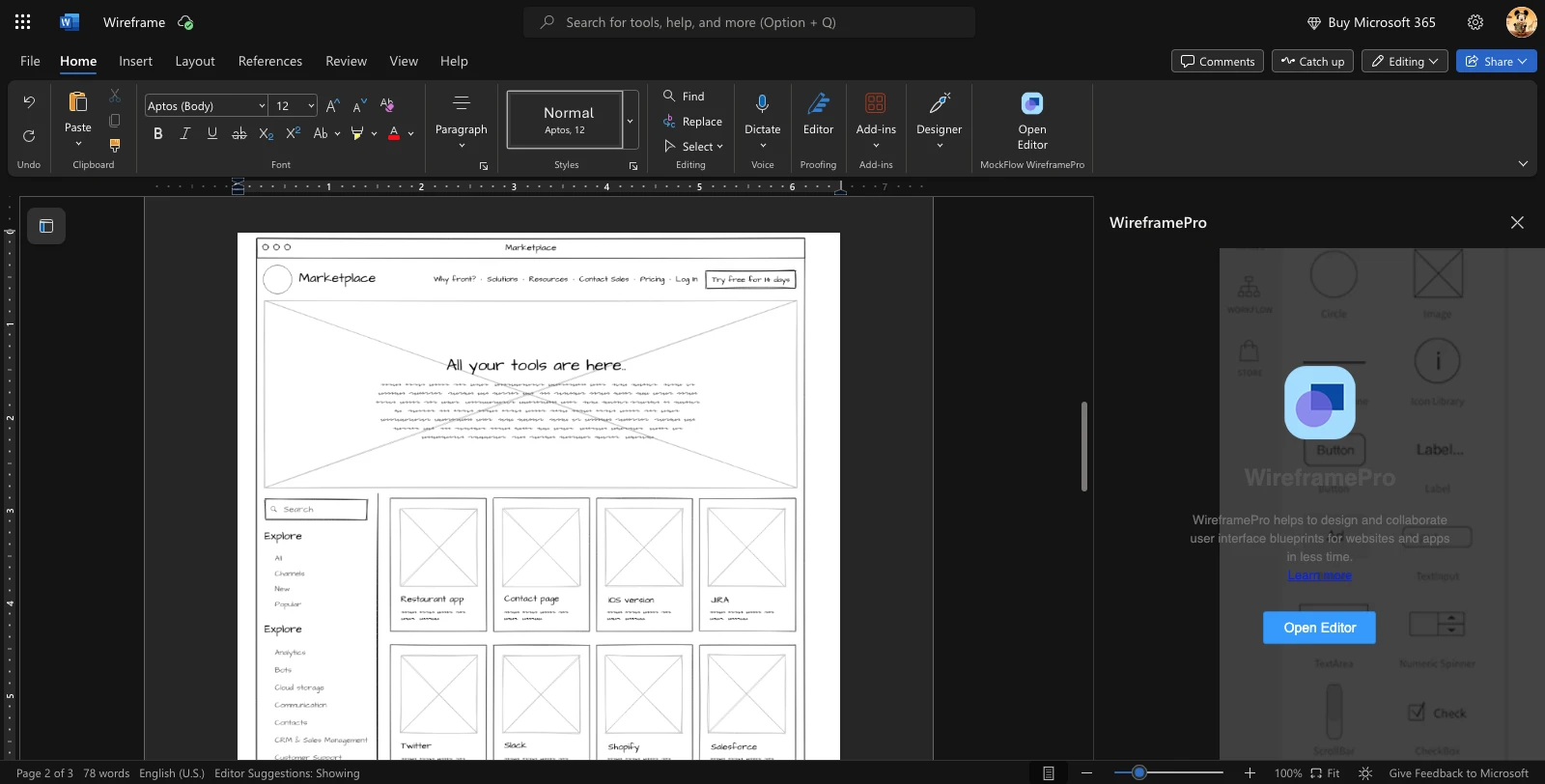
Microsoft 365 Integration
By integrating Microsoft Word with MockFlow, you can insert your UI design directly into the document at the current cursor...
By integrating Microsoft Word with MockFlow, you can insert your UI design directly into the document at the current cursor location after creating it. Whether using Office Cloud or the desktop version, you can access the wireframe editor within MS Office.
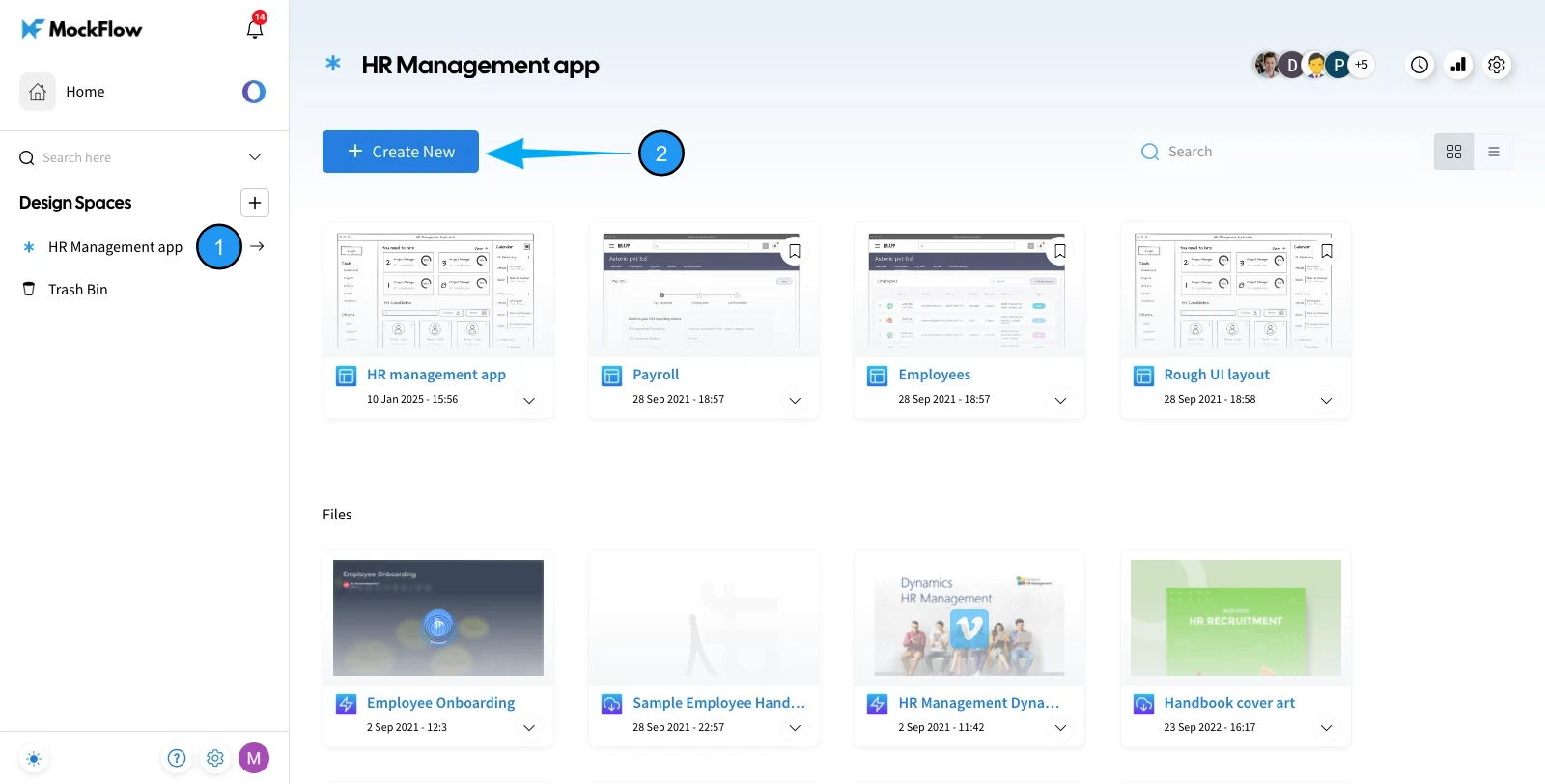
1 In the MockFlow dashboard, choose a design space and click on the 'Create New' button.
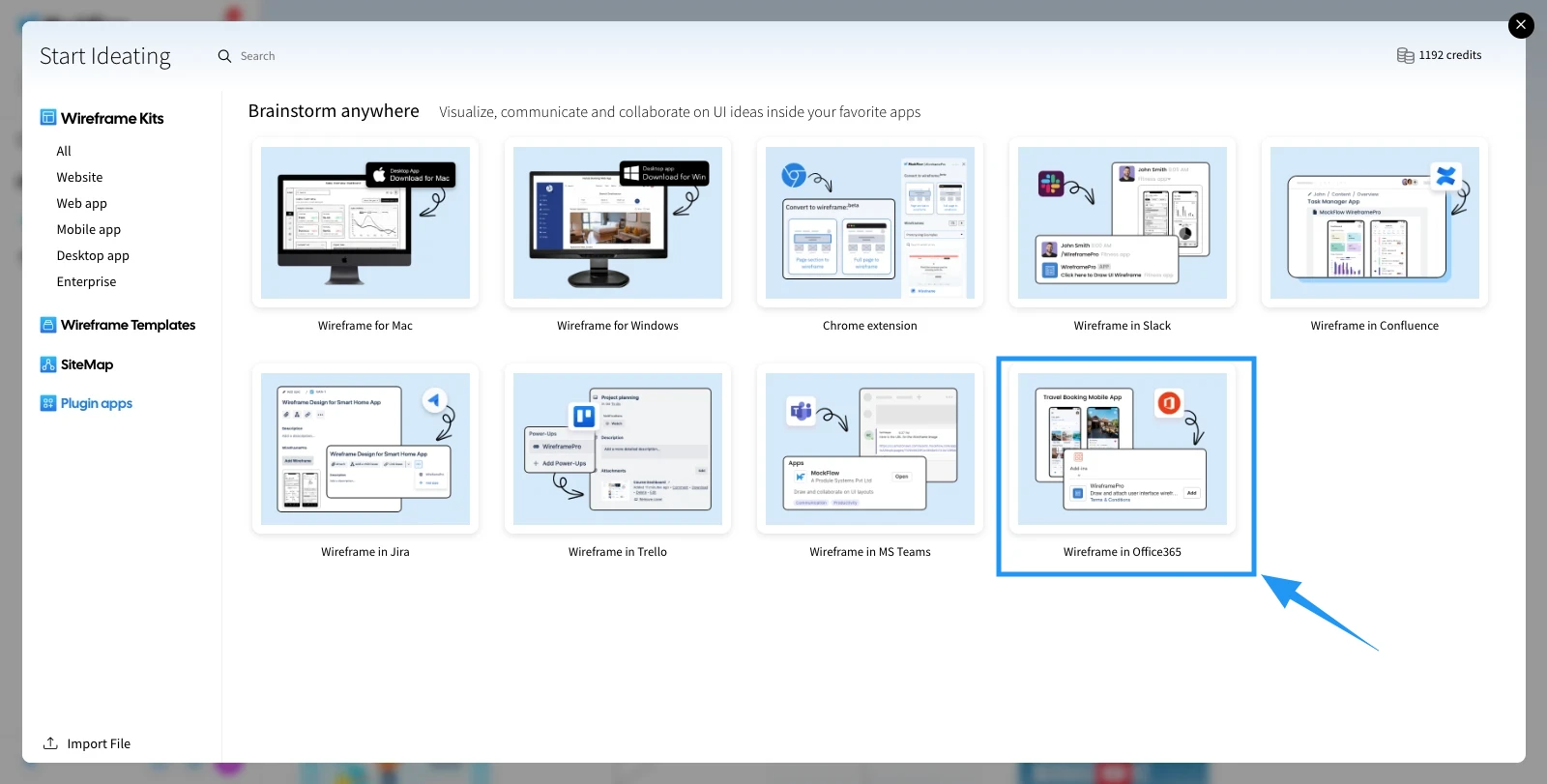
2 From the appeared dialog, select 'Plugin Apps' from the sidebar and click on 'Wireframe in Office 365.'
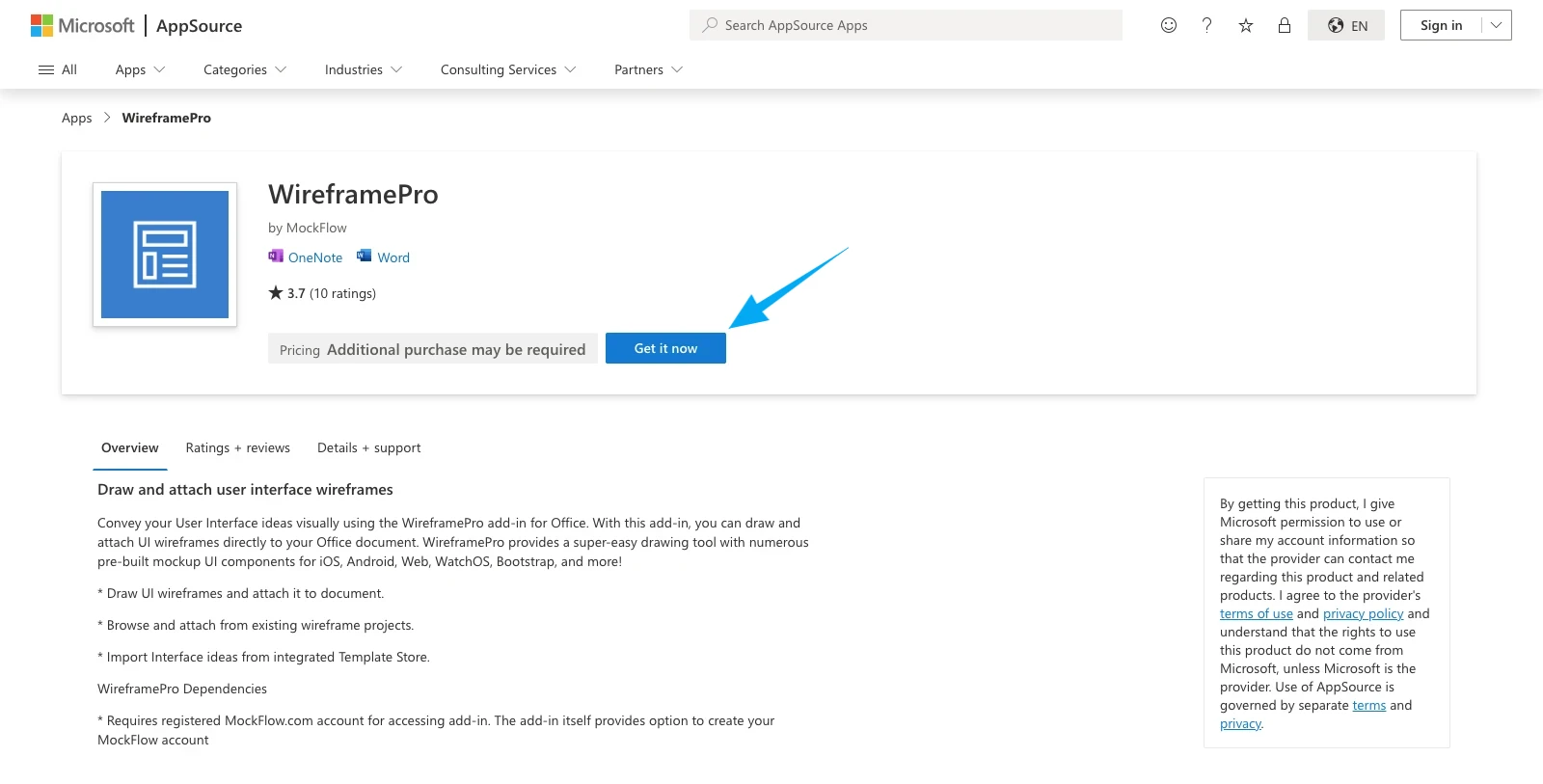
Select the Get it Now option.
Note - When you click 'Get it Now', you will be prompted to log in to your Microsoft account to add the add-in to Microsoft Word.
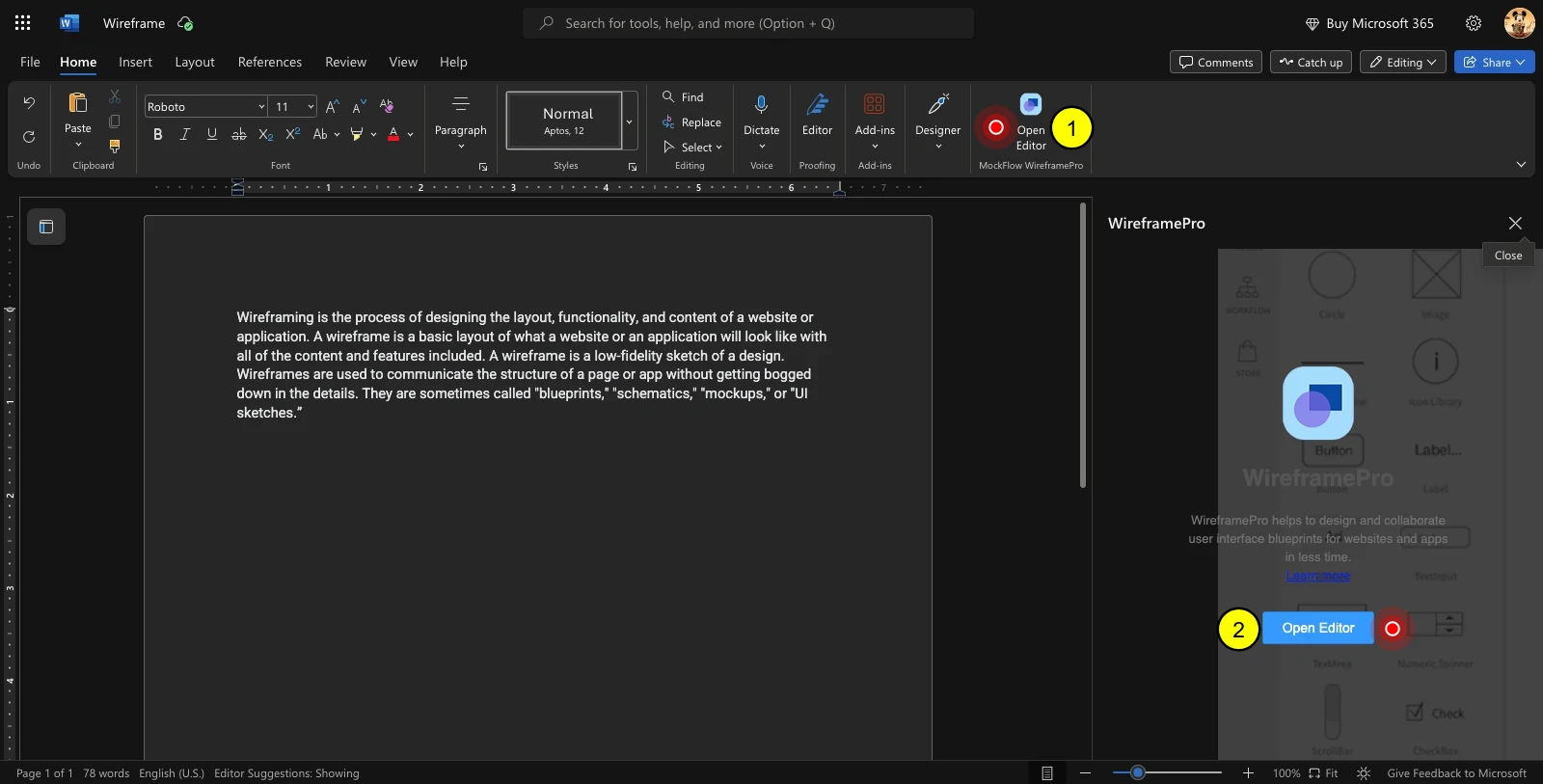
Open MS Word, click on 'WireframePro' in the toolbar, and then select 'Open Editor' from the sidebar.
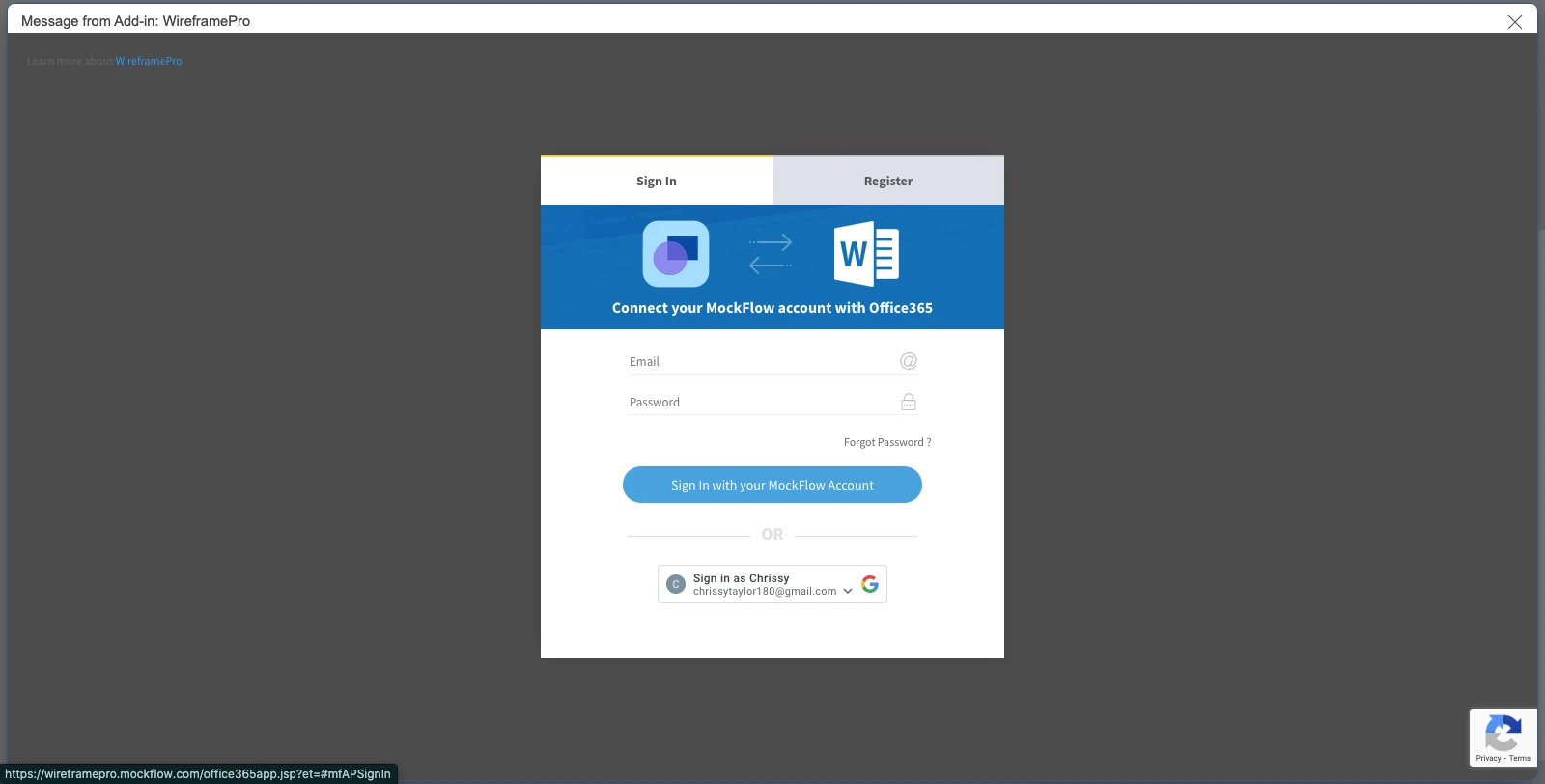
Log in using your MockFlow account.
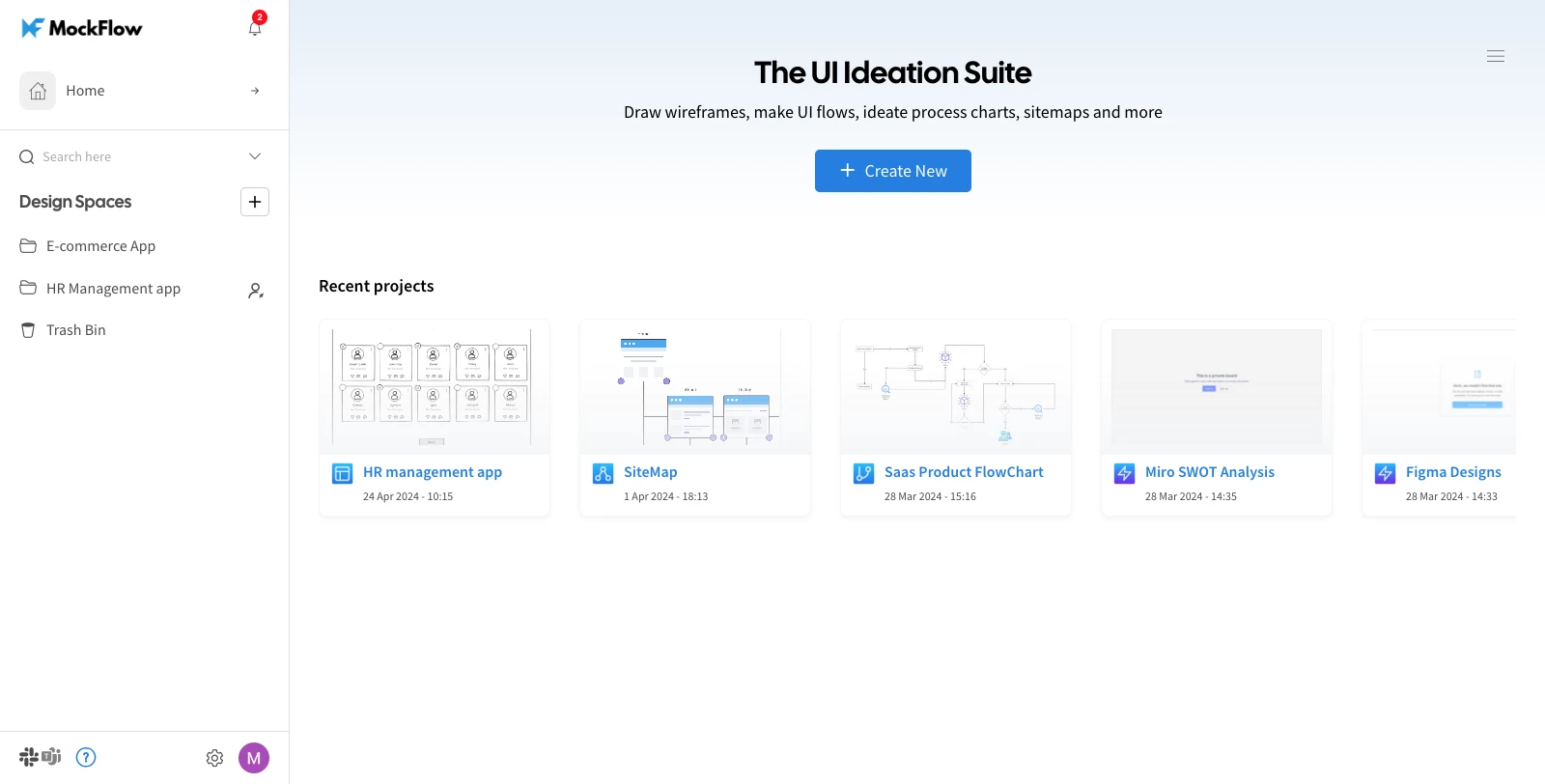
Once logged in, you will be directed to the MockFlow dashboard, where you can create a new project or select an existing one to attach.
Select the desired page and click the 'Post' button to export it. Confirm the action by clicking 'OK' in the confirmation prompt.
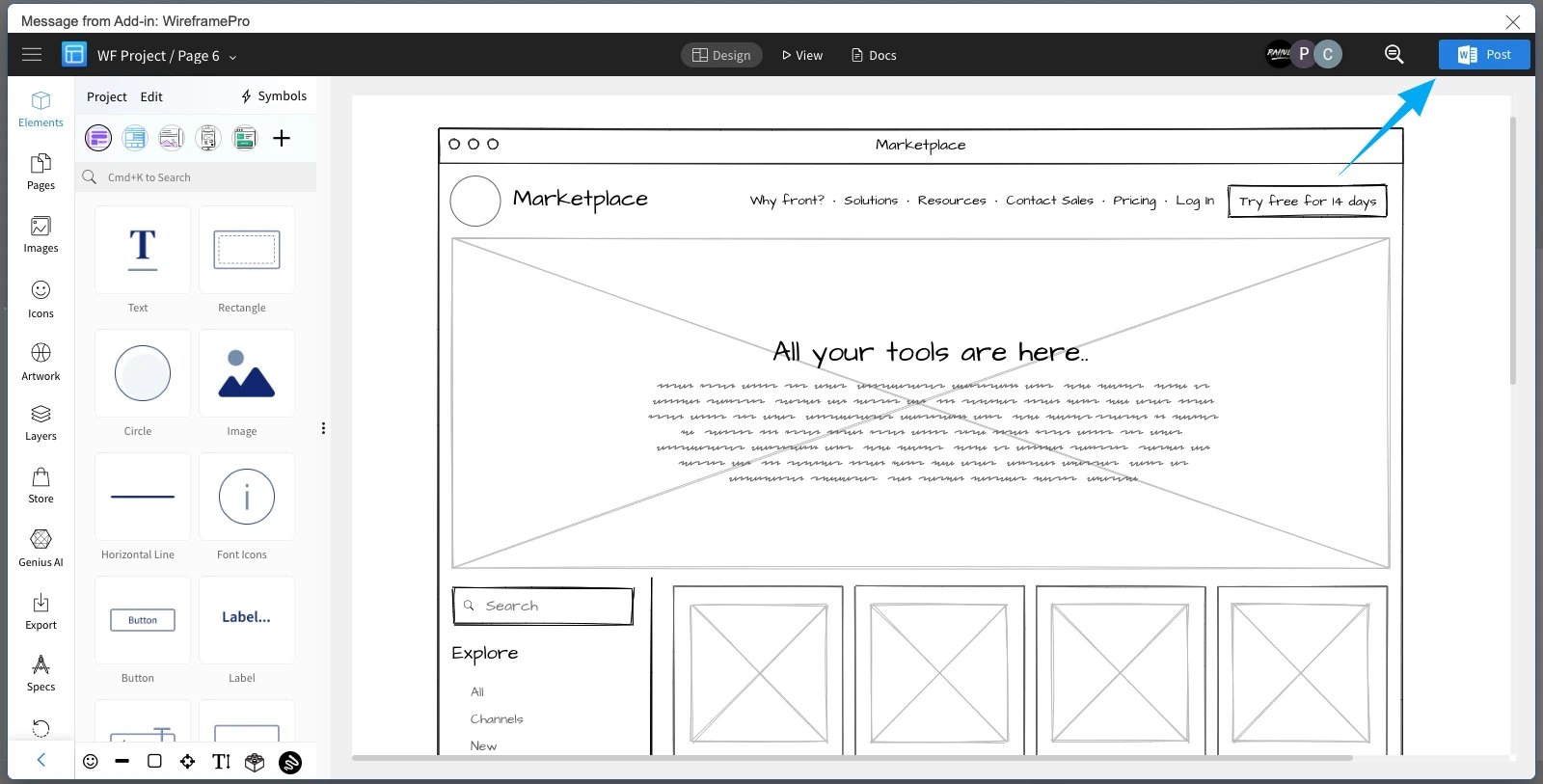
The exported page will be uploaded to your Microsoft Word document.