
Internal
How to invite users to view your MockFlow Board?
Assigning the 'Reviewer' role to a user grants them view-only access to the MockFlow Board, restricting any edits. To invite users...
Assigning the 'Reviewer' role to a user grants them view-only access to the MockFlow Board, restricting any edits.
To invite users to just view your MockFlow Board, click on the Members icon.
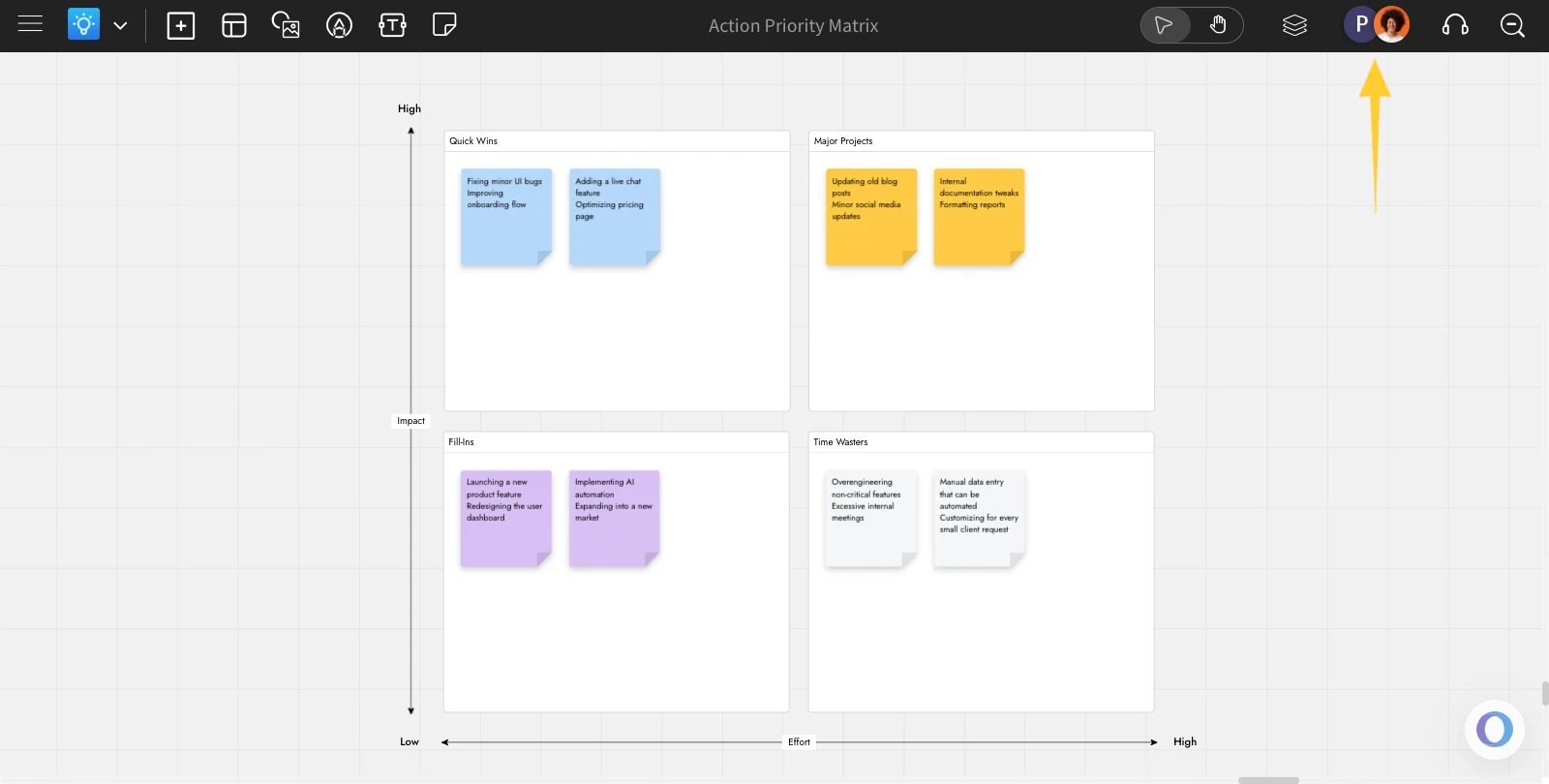
This will open the MockFlow Board Member List.
Enter the email address of the user you want to invite, and from the list of roles, select 'Reviewer.'
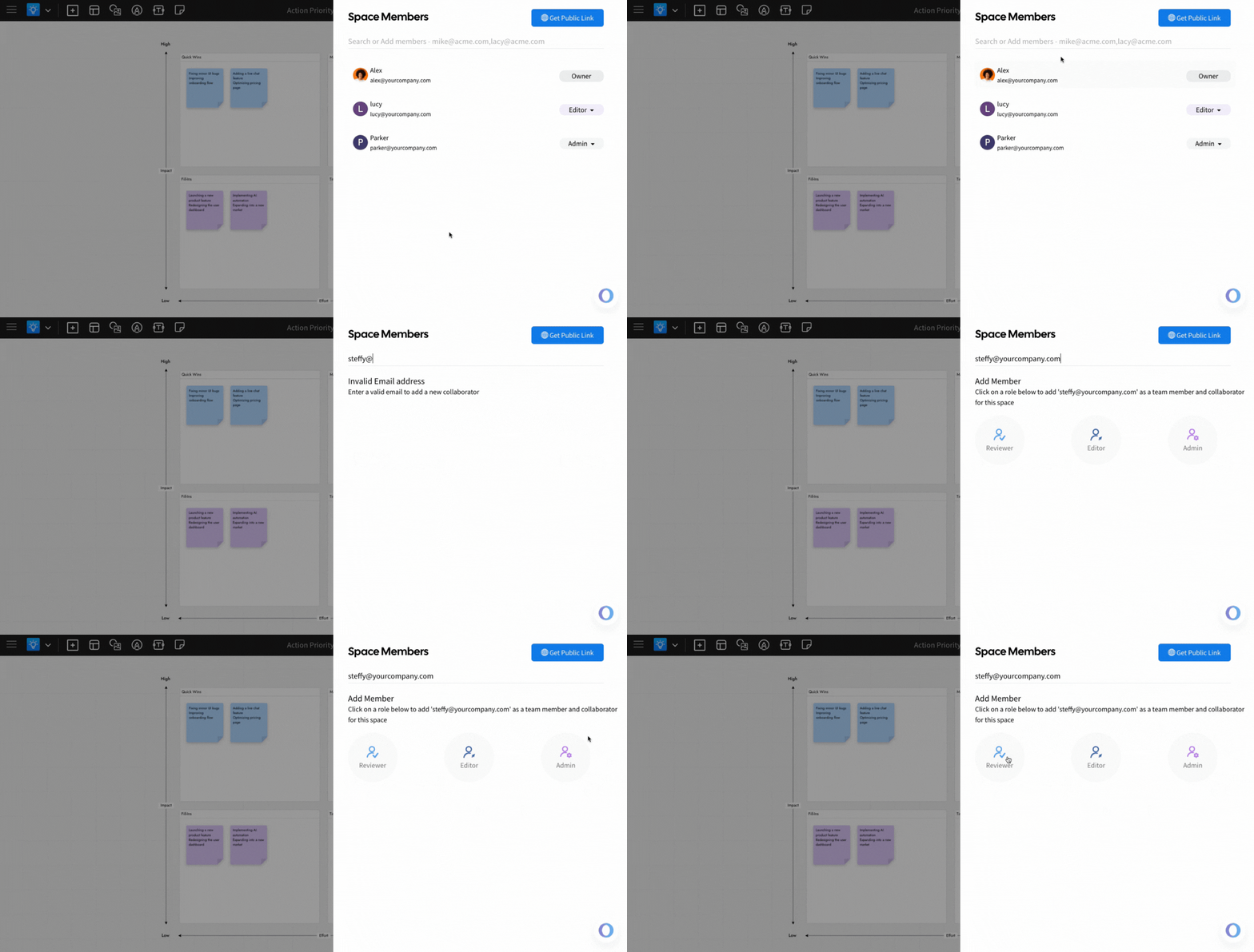
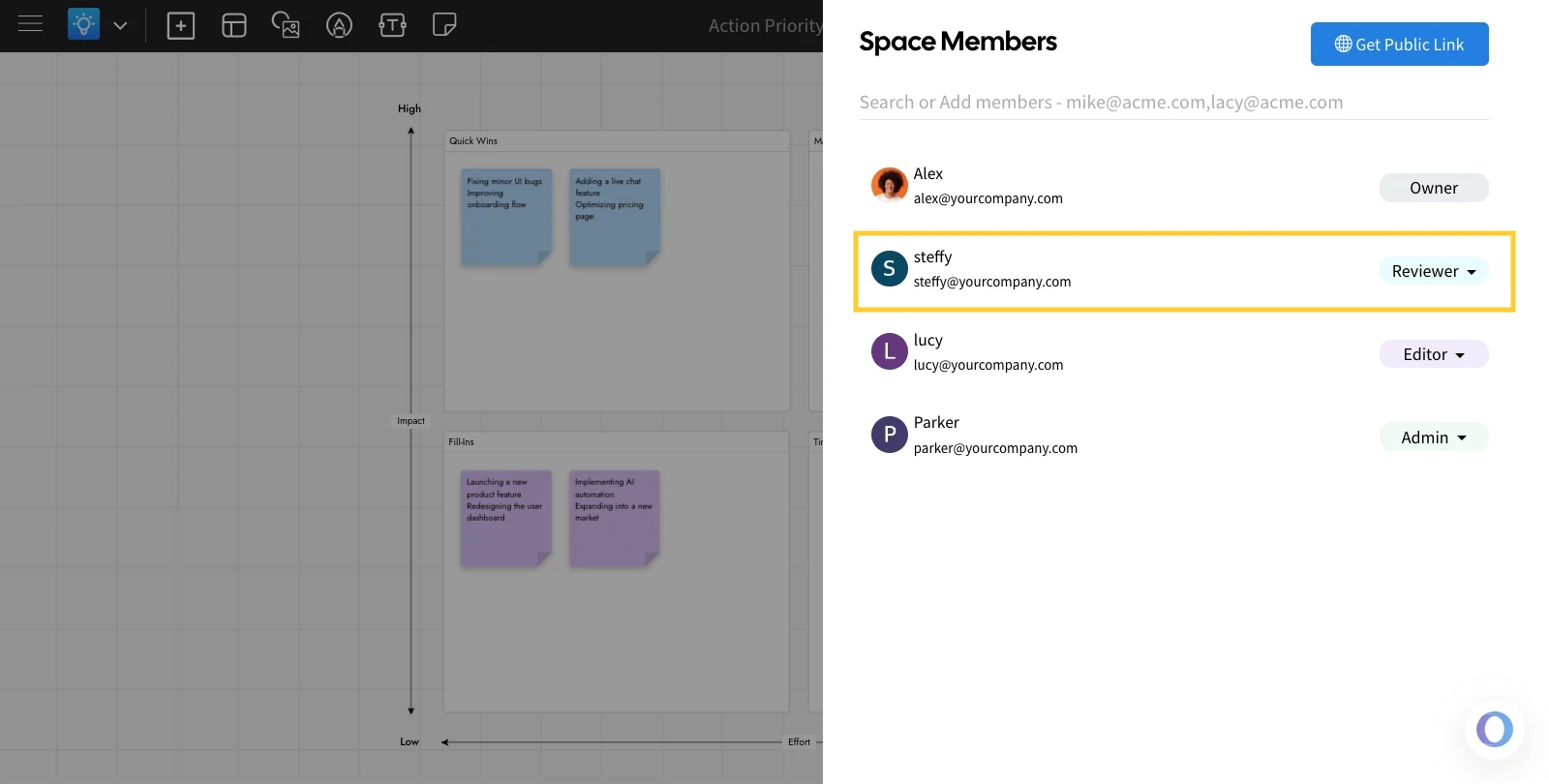
The user will be added to the board with view-only access. The user will receive an invitation to view the board both by email and as a pop-up inside the MockFlow dashboard.
Was this page helpful?