



The whiteboard where your meetings happen.
Talk, present, vote and decide on the same board your team works on, with AI that turns the discussion into next steps.
 Lucas
 Sofia
 Marcus

 AI
 Emma9:12
MockFlow is a whiteboard for meetings where the call happens on the board itself. Start an audio or video meeting from the board you are working on, share your screen, present it live and run timers, polls and a show of hands while everyone edits together. Team chat and AI turn the discussion into action items, so stand ups, retros, workshops and client reviews end with decisions on the board, not lost in a call.
What is a whiteboard for meetings?
A meeting whiteboard is one shared board that everyone in a call sees and edits at the same time. In MockFlow the board is also the meeting room: the agenda, the work being discussed and the decisions sit together, and they are still there when the call ends.
The call lives on the board
Start a meeting from the board you are on. Teammates click Join on the banner and keep editing while you talk, with no separate link to share.
Everyone works, not just watches
Each person has a named cursor. People add notes, move cards and vote while they listen, instead of waiting for one person to share a screen.
The outcome stays put
Votes, comments, chat and the changed plan remain on the board, so the next meeting starts where this one ended.
Why meet on a MockFlow board?
In most meetings the call runs in one app, the slides in another and the notes in a third, and decisions get copied by hand afterwards. On a MockFlow board the people, the work and the tools to decide are in one place. You talk over the real plan, change it together and leave with the next steps already written down.
One board for every kind of meeting.
Each meeting needs different items on the board. Here is what teams put on theirs.
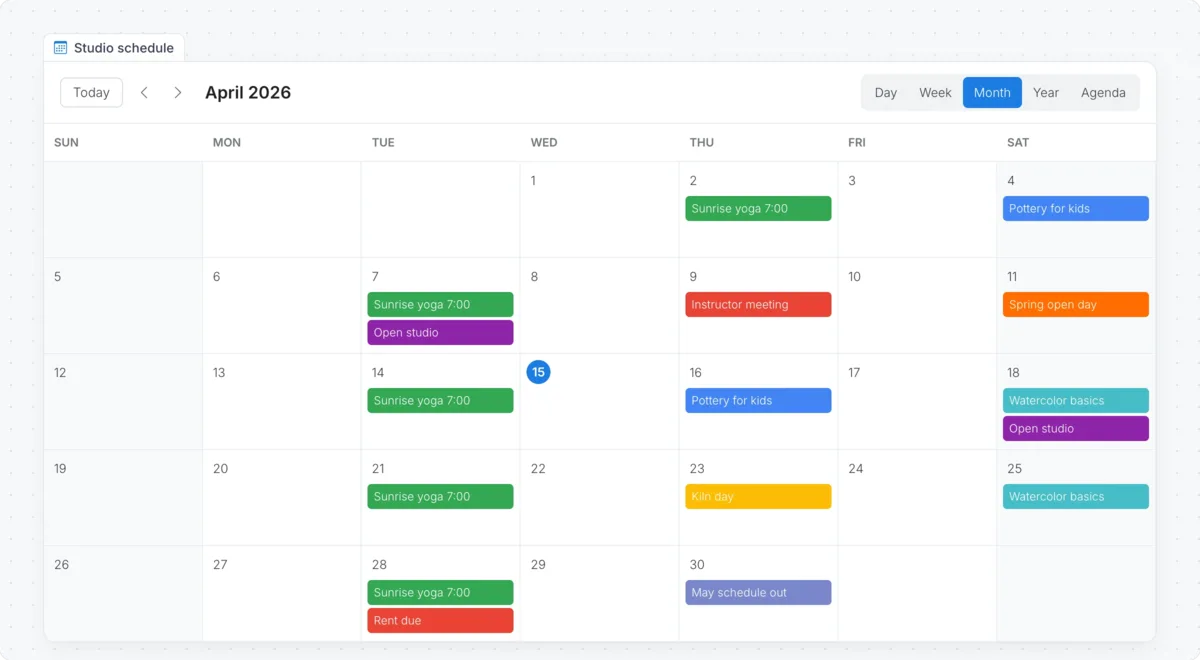
Daily stand ups
The week’s calendar in the middle, a two minute timer for each update, and a spinning wheel to choose who goes first. Dates move while people talk.
- Calendar
- Timer
- Spinning Wheel
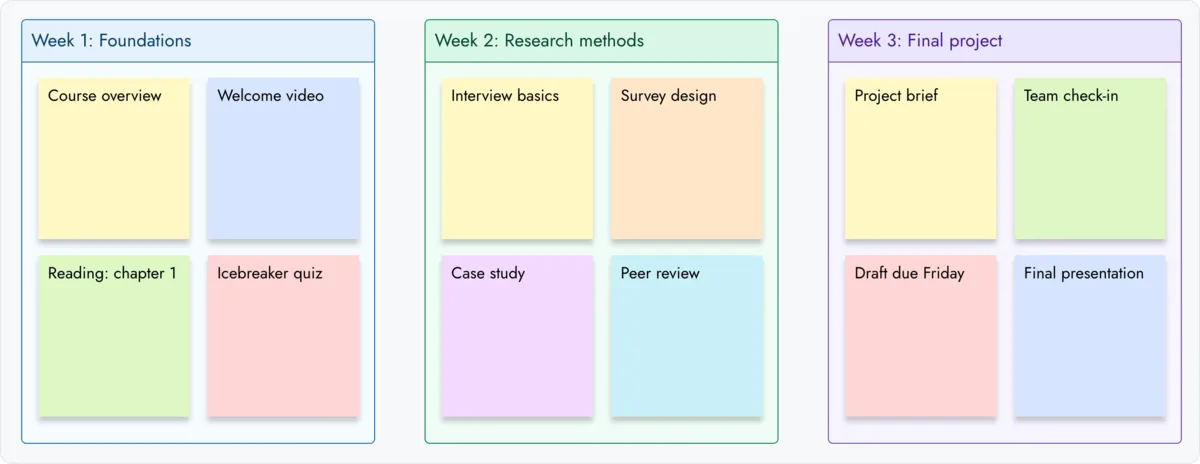
Retrospectives
Sections for what went well and what to change, silent writing on sticky notes under a timer, then upvotes to pick the two actions the team will try.
- Sections
- Sticky notes
- Upvote ideas
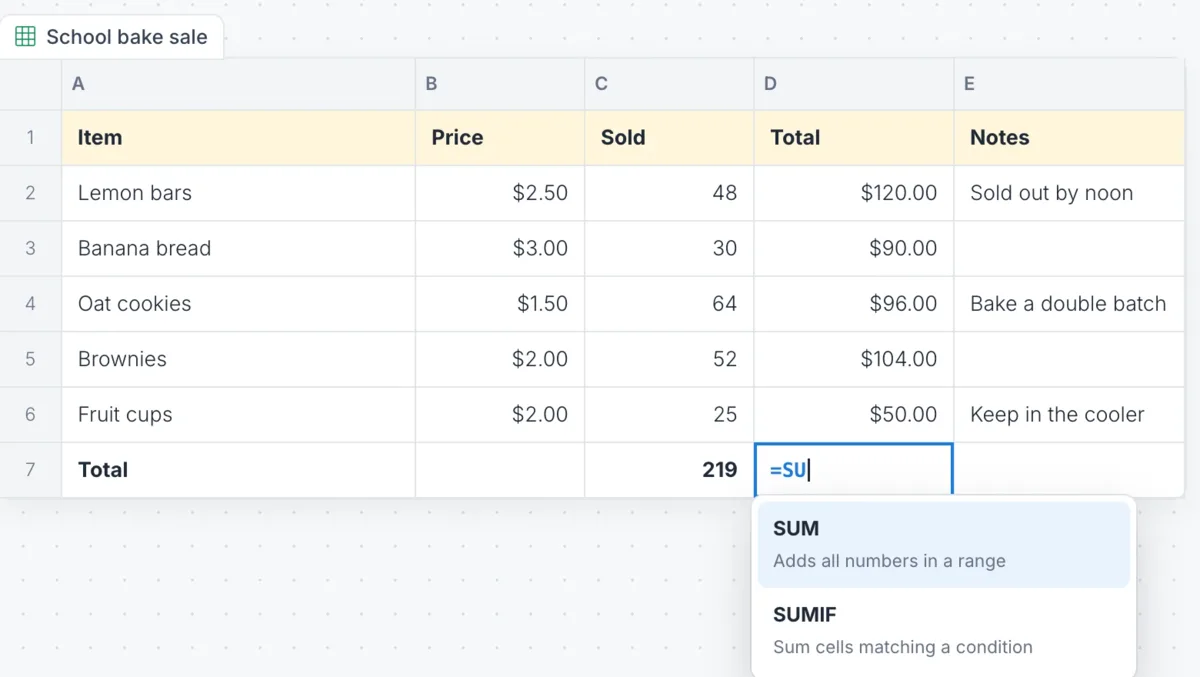
Sprint and project planning
Estimates and capacity in a spreadsheet with formulas, a Gantt chart for the dates, and a poll when the team has to choose between two scopes.
- Spreadsheet
- Gantt Chart
- Poll
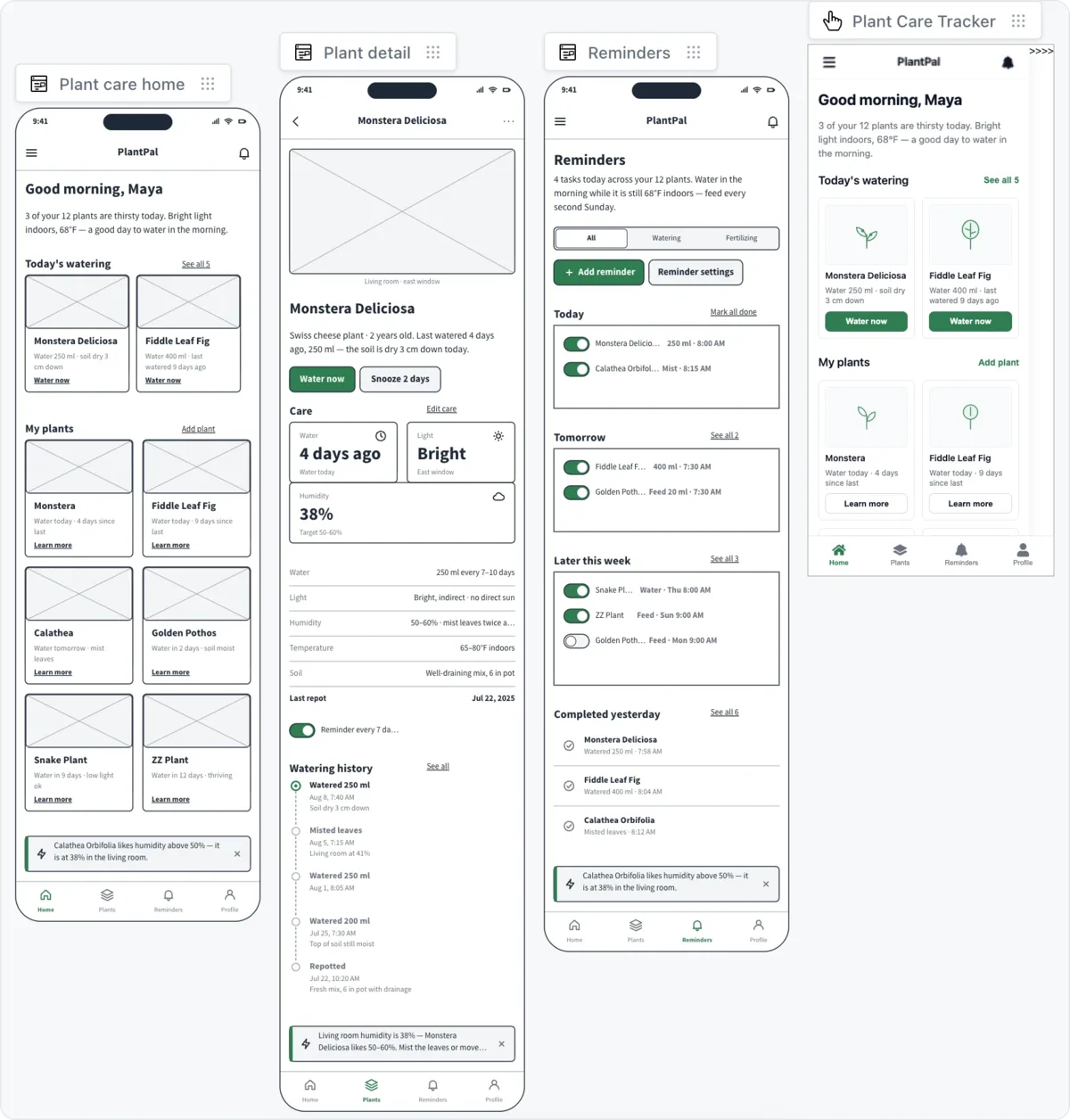
Client and design reviews
The clickable prototype, the storyboard or the campaign drafts on the board, walked through with Live Present. Clients join as reviewers and pin comments where they want changes.
- Prototype
- Live Present
- Comments
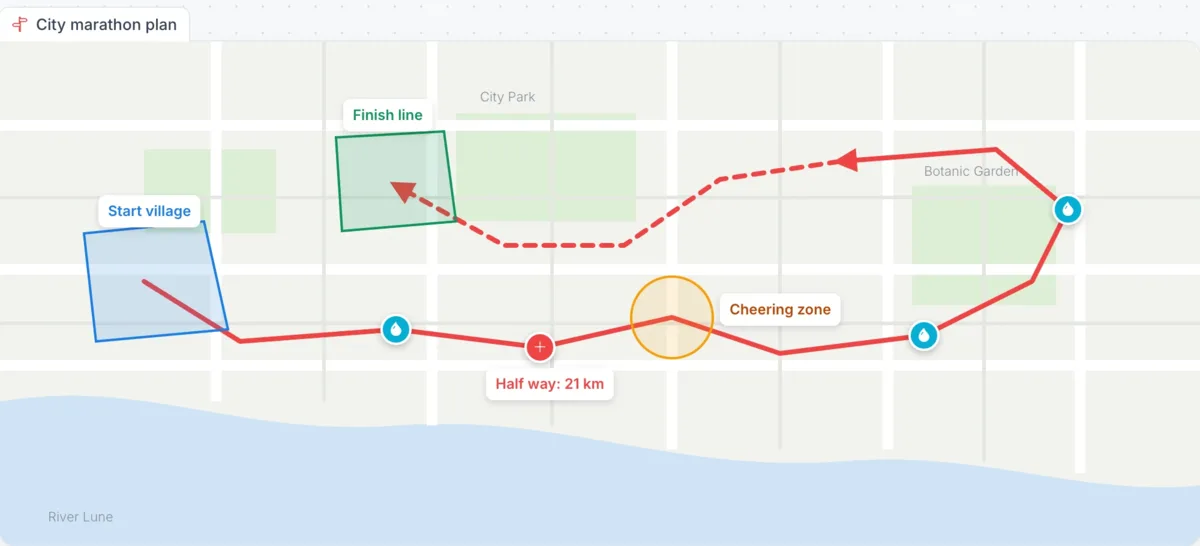
Workshops
A strategy map for plans that happen in a place, such as an event route or store rollout, a show of hands for quick checks and an upvote list to end with clear priorities.
- Strategy Map
- All Hands Meeting
- Upvote ideas
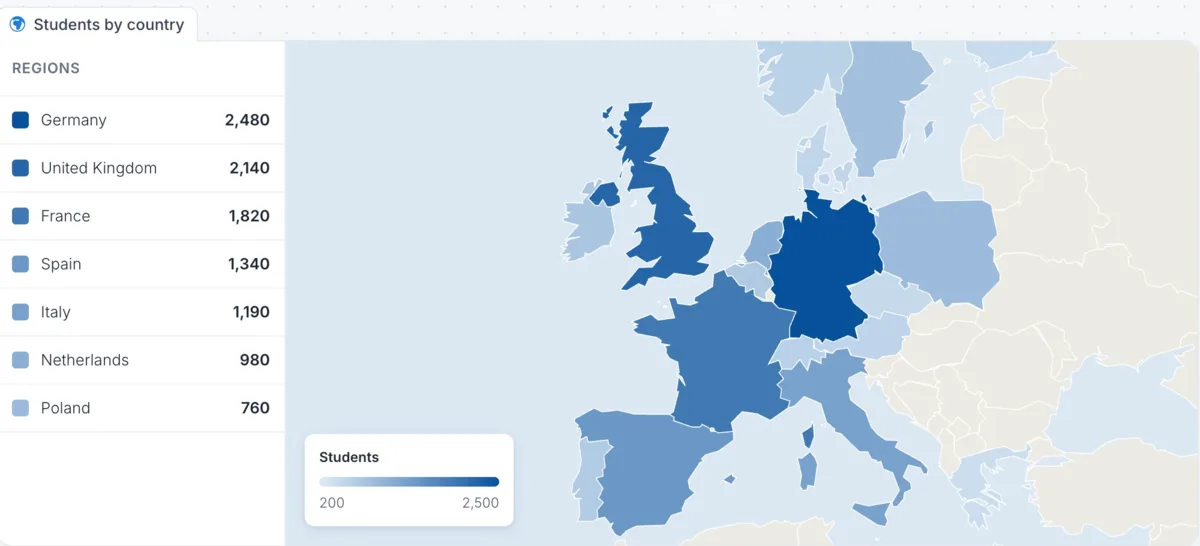
Classes and lessons
The lesson on the board, such as a region map for geography, a poll to check understanding and a wheel to pick the next student.
- Region Maps
- Poll
- Spinning Wheel
How to run a meeting on a whiteboard.
Five steps from an empty agenda to agreed next steps. Details are in Start a meeting on a board.
- Prepare the board.Open the board you will meet on, or start from a meeting template, and add what you will discuss.
- Start the meeting.Point to the headset icon and click Start Meeting. Teammates see a banner and click Join.
- Time box and decide.Start a shared timer, then add a poll, a show of hands or an upvote list when the team needs to choose.
- Present the result.Choose Live Present and everyone follows your view as you move and zoom.
- Capture the next steps.Ask @mida in team chat to list the action items, right beside the work.
Meet on the board, not beside it.
An online whiteboard for video calls should not need a second app. Start a call from the headset menu and the meeting bar appears on the board, with the time and the number of people in the call.
- Audio and video. Audio meetings on Plus. On Max, turn your camera on and the call moves to a strip of faces at the bottom of the board.
- Share your screen. It opens in a panel on the board, and you can drop a screenshot or a short clip of it onto the canvas.
- Bring everyone here. Move the whole call to the part of the board you are looking at. Each person can click Go back.
- Raise hand. Ask to speak without interrupting, and click a teammate’s picture to jump to what they are looking at.
Present the board, live.
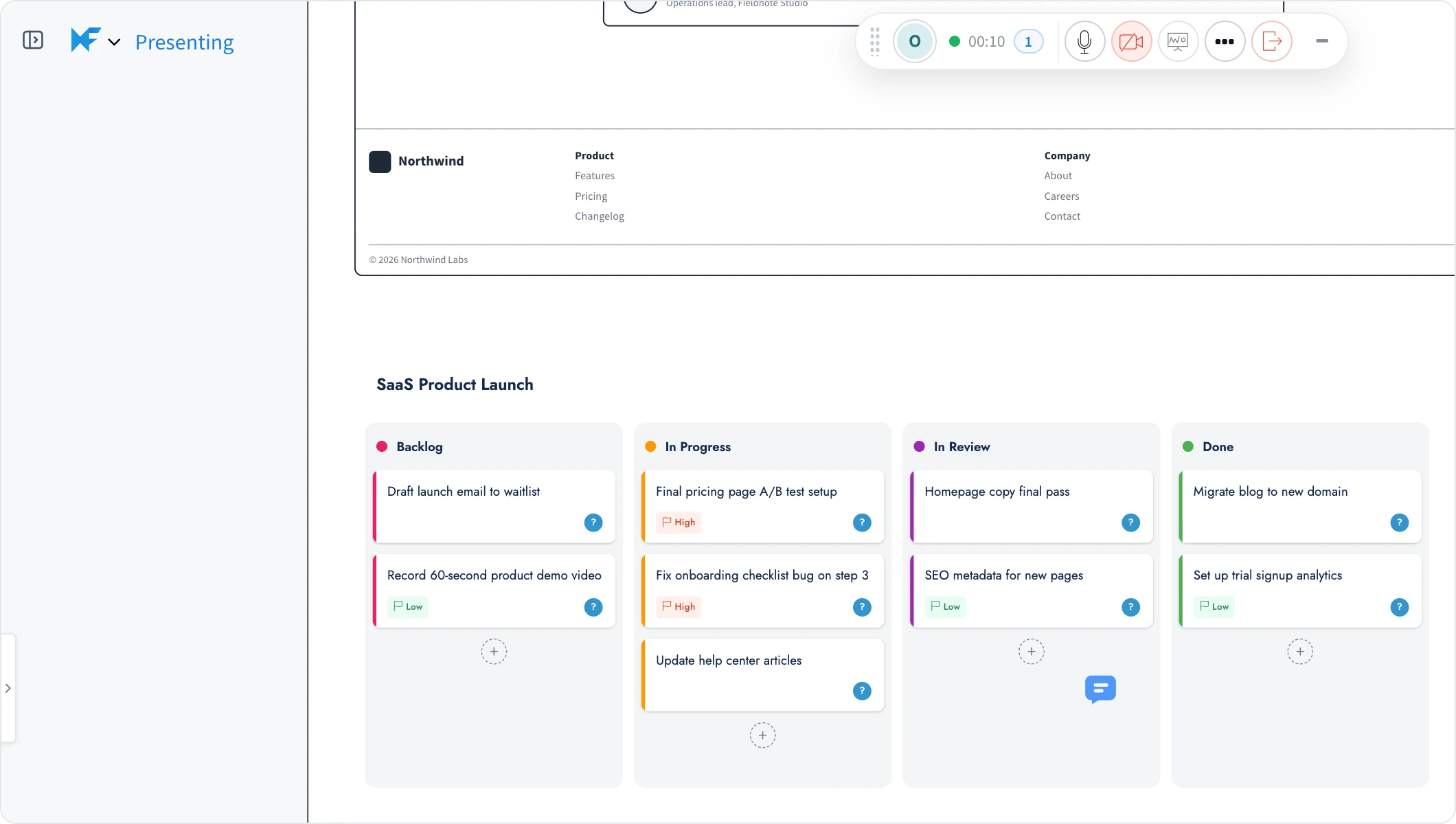
Live Present turns the board into the presentation. As you move and zoom, everyone who joined sees exactly what you see, so you go from the whole plan to one card without asking people to find it.
- Presenting and Following. Your board title says Presenting, and theirs says Following with your name.
- Look around, then come back. Attendees can step away to read a chart, then click Back to return to your view.
- Present on camera. On Max, your team sees you as you present.
Live Present is on Plus and Max. See Present a board live.
Interactive tools to run the room.
Add them from Add anything and everyone on the board takes part live. Polls, show of hands, spinning wheels, upvotes and timers are on Plus and Max.
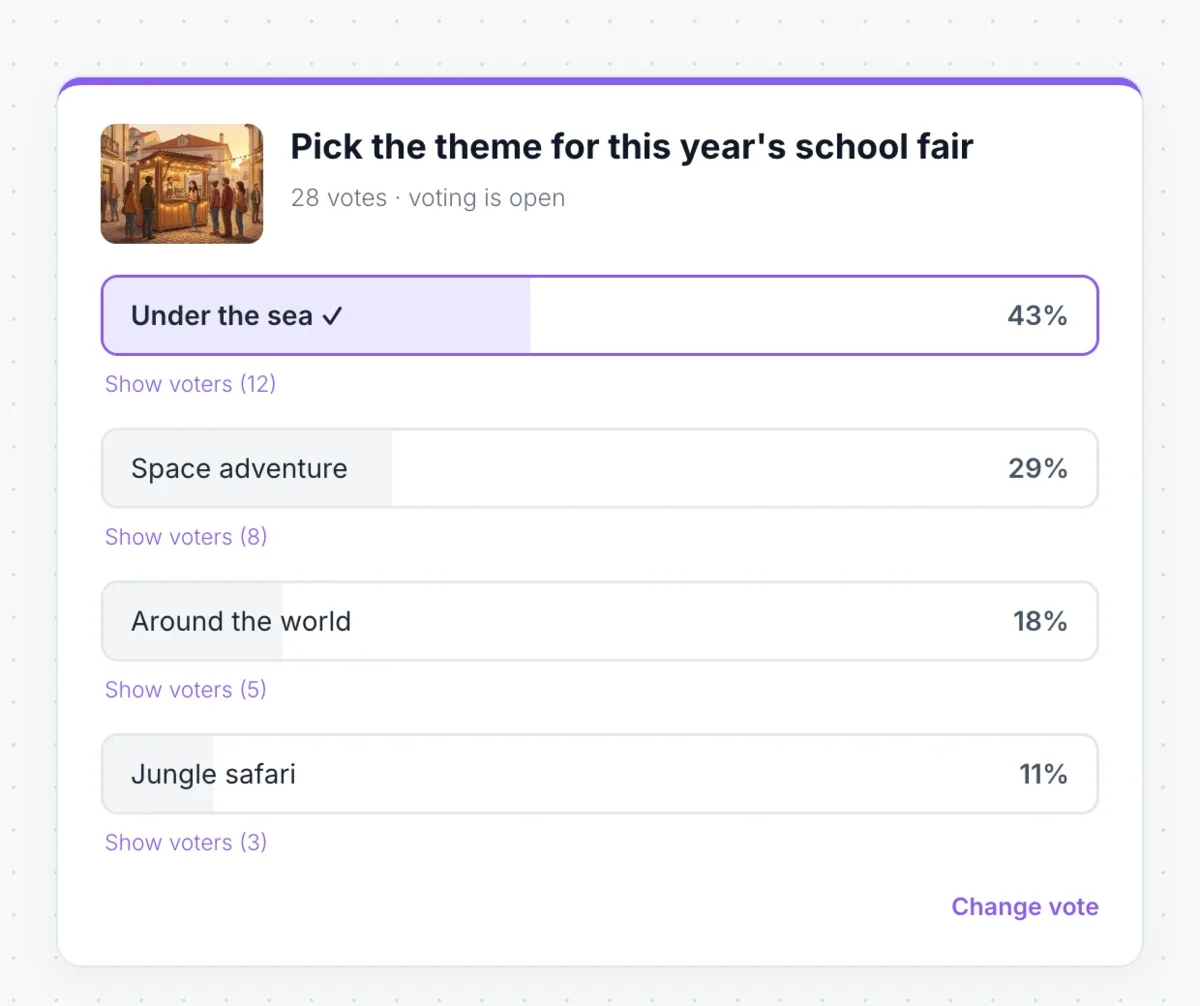
Poll
Ask a question, start the poll and watch the bars move as votes come in. AI can write the options. Run a poll
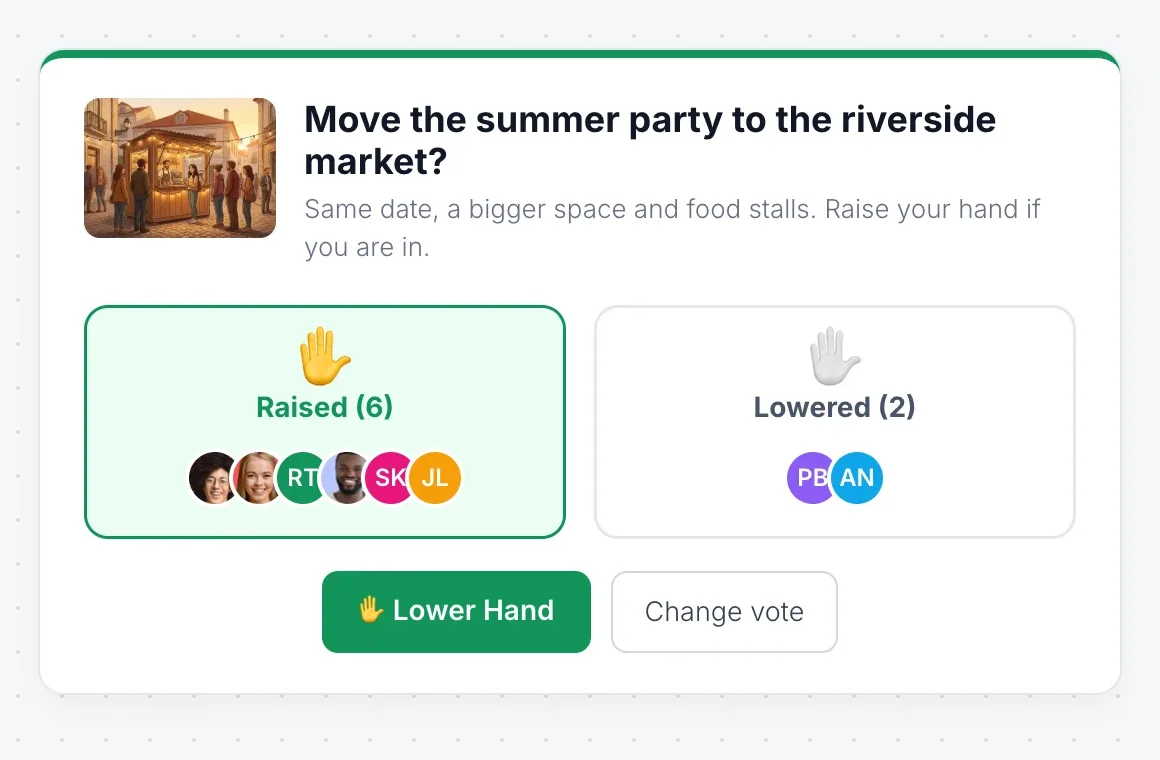
Show of hands
All Hands Meeting asks a yes or no question and shows who raised or lowered their hand. Take a show of hands
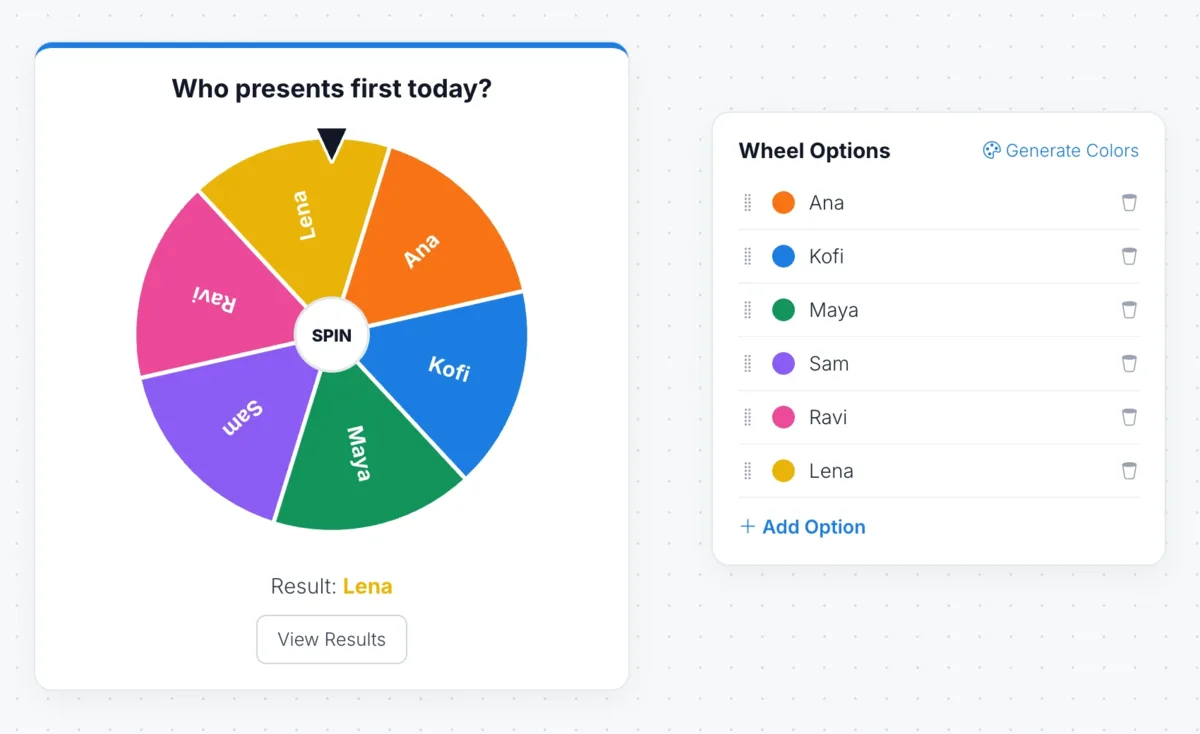
Spinning wheel
Pick who presents first, the next question or a prize winner, with a spin everyone watches. Pick at random
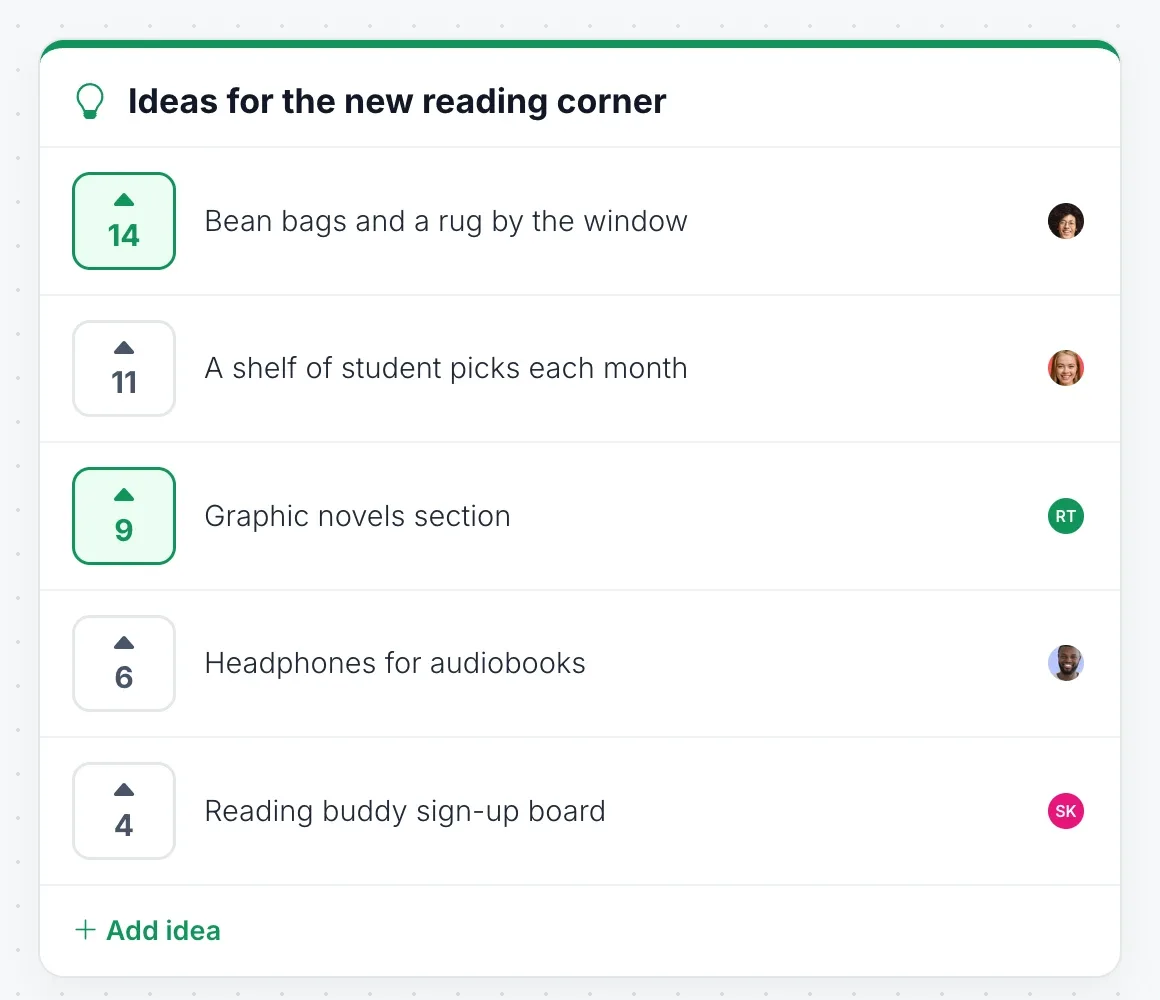
Upvote ideas
Everyone adds ideas and votes, and the favourites rise to the top on their own. Collect and upvote ideas
Keep every point on time with a shared timer that everyone sees at the top right of the board. For more, add apps and games such as dot voting and planning poker from Artifacts, on Plus and Max. Running workshops or classes? See the whiteboard for workshops and the whiteboard for teachers.
Team chat that remembers the meeting.
Team chat keeps the conversation on the board, so anyone who joins later can read it. Mida, the AI in MockFlow, is in the chat as a teammate.
- Point to a spot. Drag the marker onto a card or a screen so everyone knows what you mean.
- Mention people. Type @ to notify a teammate, with a green dot for who is online.
- Ask @mida. Catch me up on what I missed, list the action items, or create a mind map of this discussion.
Team chat is on Plus and Max, and Mida’s answers use AI credits. See Chat with your team on a board.
Before and after the meeting.
The board is ready before anyone joins, and the work carries on after everyone leaves.
- An agenda in a minute. Start from a meeting template, or ask AI to lay out the agenda, the timings and the questions.
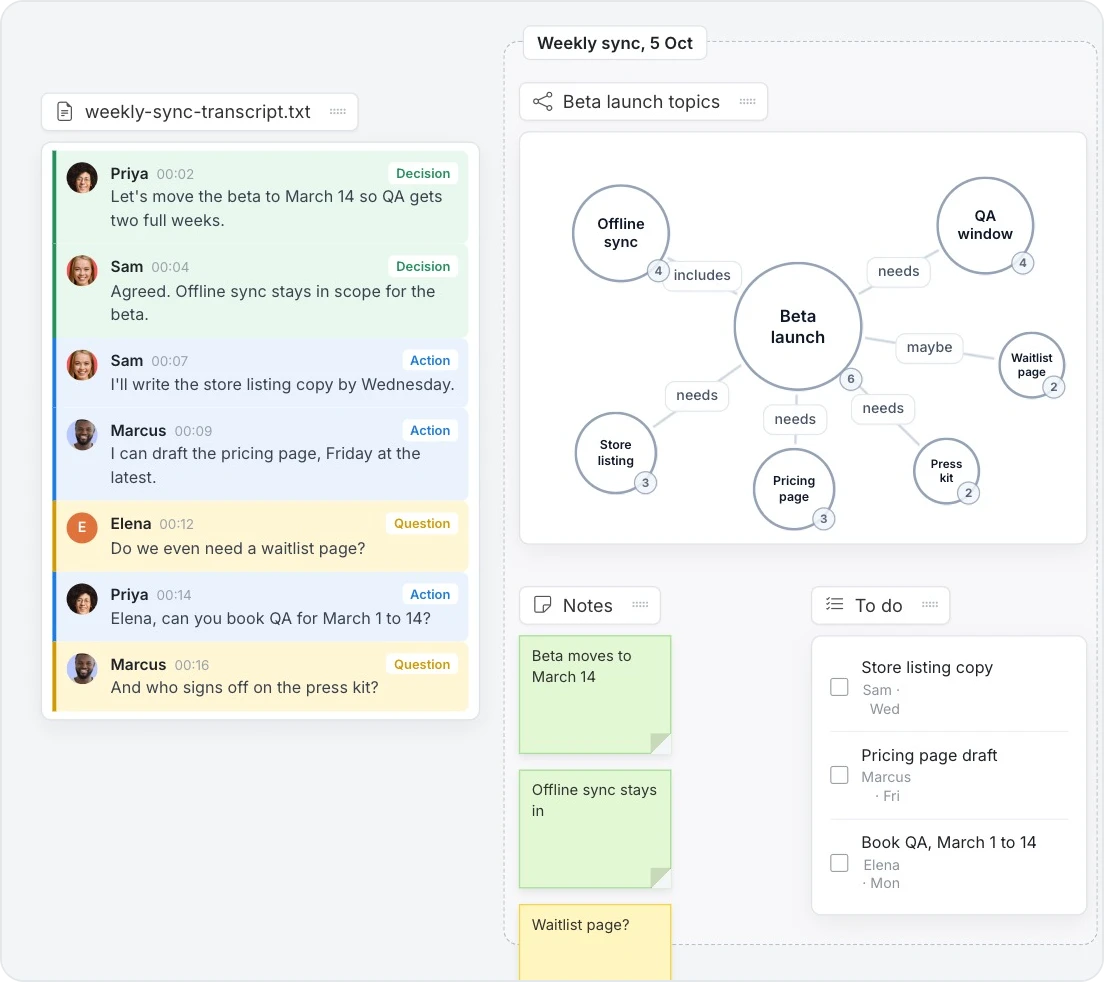
- Notes become a board. Attach a transcript or call notes with Visualize Documents and Mida lays out decisions, owners and open questions, on Plus and Max.
- Feedback without another meeting. Pin a video or audio comment of up to 2 minutes to the exact spot. Audio is on Plus, video on Max.
- See what changed. Track Activity lists comments, replies and revisions since you last looked, on Plus and Max.
Using a notes app? Turn a meeting transcript into a visual board, including Fathom, Granola and Tactiq notes.
Already meeting in Google Meet or Teams?
Bring the board into the call you already use. Everyone works on it together while you talk.
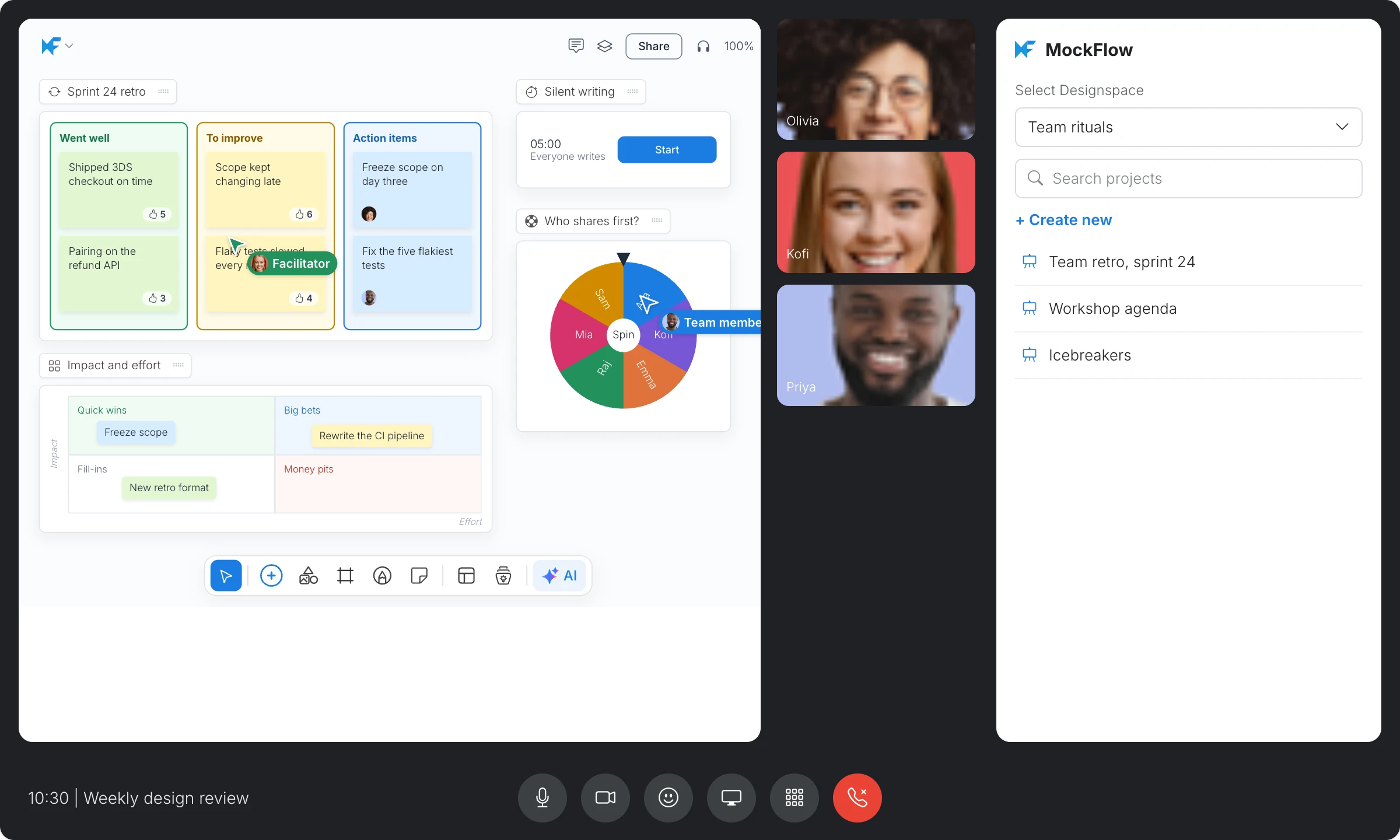

Google Meet
Open a board from Activities and it fills the meeting stage for everyone in the call. The add-on works on every plan, including Basic.
MockFlow for Google Meet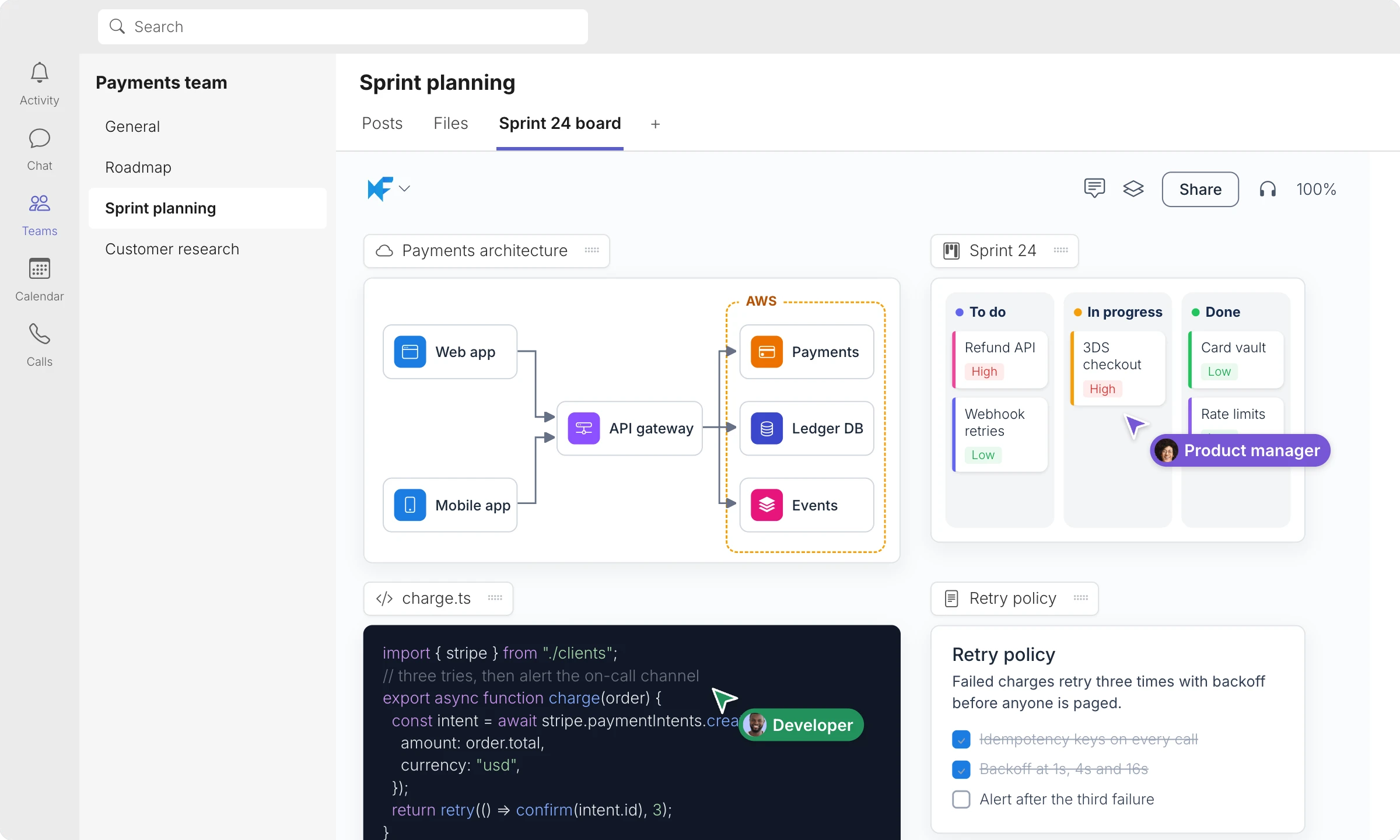

Microsoft Teams
Add a board as a tab in a channel or group chat, open your boards in the personal app and post a snapshot to the conversation. Tabs need a paid plan.
MockFlow for Microsoft TeamsMeetings that end with a decision.
Three teams, three kinds of meeting, one board each.
A product team across time zones
Marcus runs a fifteen minute stand up for a checkout team in Lisbon and Toronto. The kanban, the timer and a quick poll sit on one board, and Mida posts the action items before anyone hangs up.
An agency in a client review
Elena presents a campaign board live to a client. The client joins as a free reviewer, reacts to the concept they like and pins comments on the two posters that need changes.
A teacher with an online class
Sam teaches a weekly evening course. A poll checks the last lesson, the spinning wheel picks who answers, and the class board is still there for anyone who missed the session. More on MockFlow for education.
Start from a meeting template.
Free templates for agendas, huddles, retros and reviews, ready to open before the call. Browse meeting templates
 Team meeting agendaFree template
 Daily team huddle boardFree template
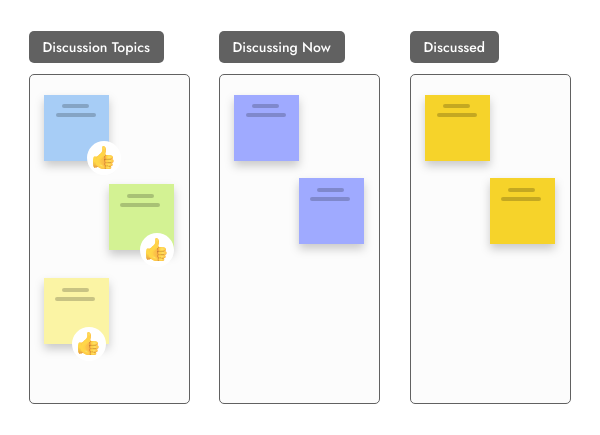 Lean CoffeeFree template
 Meeting notesFree template
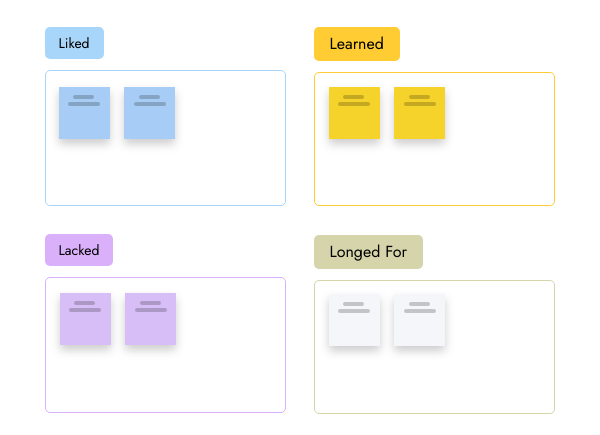 4 L’s retrospectiveFree template
 Quarterly business reviewFree template
Apps and games for meetings, on Plus and Max
More than a meeting board.
The board you meet on is the same board you brainstorm, plan and build on.
Online whiteboard
The free board for brainstorming, diagrams, plans and creative work, with no account needed to start.
AI whiteboard
Describe what you need and AI builds the board items for you, laid out and ready to edit.
Online sticky notes
Silent writing, clustering and voting for retros and workshops, then turn the notes into a plan.
Whiteboarding guide
How teams run whiteboard sessions online, with techniques for brainstorms, retros and workshops.
Moving from a retired board app? See the Jamboard alternative, or compare the best online whiteboards.
Meeting features by plan.
The board is free forever on Basic. Plus brings meetings and facilitation tools, and Max adds video. Compare plans
| Feature | Basic | Plus | Max |
|---|---|---|---|
| Meetings on the board | Audio | Audio and video | |
| Screen sharing, Bring everyone here, Raise hand | |||
| Live Present | With your camera on | ||
| Team chat with Mida | |||
| Timer, poll, show of hands, spinning wheel, upvote ideas | |||
| Comments and reactions | |||
| Audio comments | |||
| Video comments | |||
| People who view and comment | 5 reviewers | Unlimited | Unlimited |
| Google Meet add-on | Up to 10 collaborators per space | ||
| Board as a Microsoft Teams tab |
Meeting whiteboard questions.
Calls, plans, Google Meet and Teams, voting and AI summaries.
What is a whiteboard for meetings?
Can I hold a video meeting on a MockFlow board?
Can I use the whiteboard inside Google Meet or Microsoft Teams?
How do I keep a meeting on time?
How can the team vote or decide during a meeting?
Can AI summarize the meeting?
How do people who missed the meeting catch up?
Is the meeting whiteboard free?
Open a board in one click and set up the agenda before the call. Boards last 24 hours, so sign up to keep one.


 Brainstorm with MockFlow MCP


