



A practical guide to whiteboarding.
What whiteboarding is, how to run a session that ends in a decision, and the techniques teams use in the room and online.

 Sofia
 Lucas



 AI
Whiteboarding is thinking out loud with other people on a shared surface. The group writes ideas, draws boxes and arrows, moves notes into groups and votes until it reaches a decision everyone can see. It works for a ten minute question or a full day workshop.
Teams used to whiteboard on a wall in a meeting room. Today most sessions happen on an online whiteboard, where people in the room and people at home work on the same board at once, and the board is still there the next morning.
This guide covers what whiteboarding is, when it helps, who does what, how to run a session step by step, the techniques worth knowing, tips for remote and hybrid groups, where AI fits, and the mistakes that make sessions drift. It is written for facilitators, team leads, teachers and anyone who has to get a group from a question to an answer.
What is whiteboarding?
Whiteboarding is a visual way for a group to explore a problem together. Ideas go up where everyone can see them, so the conversation is about the same picture instead of what each person remembers.
A whiteboarding session usually has a clear question, a facilitator who keeps time and a surface that everyone can add to. People write ideas on sticky notes, sketch flows or screens, group what belongs together and mark what matters most. The result is not a pretty diagram. It is a shared understanding and a set of decisions, with the reasoning still visible on the board.
Physical whiteboarding happens in a room with markers and paper notes. It is fast and energetic, but only for the people in the room, and the board is wiped or photographed at the end. Online whiteboarding, also called digital or virtual whiteboarding, moves the same work to a shared canvas in the browser. Everyone writes at the same time, remote people take part as equals, and the board stays editable after the meeting.
| Aspect | Physical whiteboard | Online whiteboard |
|---|---|---|
| Who can join | People in the room | Anyone with the link, in the room or remote |
| Space | The size of the wall | A canvas that grows as you add items |
| Writing at once | A few people at the board, the rest wait | Everyone writes at the same time, each with a named cursor |
| After the session | A photo, then the board is wiped | The board stays live, ready for the next session |
| What you can add | Markers, paper notes, printouts | Sticky notes, drawings, diagrams, tables, documents, images, video and planning boards |
| No connection | Works anywhere | Needs a connection, unless you use an offline whiteboard app |
Why teams whiteboard.
Meetings that only talk tend to repeat themselves, and the loudest person sets the direction. Putting ideas on a board fixes both: everyone contributes in writing, the group sees every option side by side, and decisions are made on what is in front of them.
Every voice counts
Writing before talking lets quieter people and remote people add as many ideas as anyone else. Notes are judged on what they say, not who said them.
Faster agreement
When the options, the clusters and the votes are all visible, the group can see where it already agrees and spend its time on the real disagreements.
A record that keeps working
The board shows what was considered and why something was chosen. On an online whiteboard it becomes the starting point for the plan, not a photo in a chat thread.
When to use whiteboarding.
Reach for a whiteboard whenever a group needs to see something to agree on it. These are the sessions teams run most often.
Brainstorming
Open up options for a product idea, a campaign or a problem, then narrow them down. Sticky notes and voting do most of the work. See online sticky notes.
Mapping a process
Draw how something works today, from a customer order to an onboarding, and mark where it breaks. A flowchart or swimlane makes the hand offs visible.
Planning
Turn goals into steps, owners and dates. Start with a mind map of the work, then move it into a kanban or timeline once the plan settles.
Retrospectives
Look back on a sprint, a launch or an event: what went well, what to change, what to try. A fixed format keeps it honest and quick.
Teaching and workshops
Students add ideas to a shared board, groups work in their own corner and present to the class. More in MockFlow for education.
Design reviews
Put screens, posters or storyboards on the board and collect feedback right beside them, so every comment points at something specific.
You may also hear about the whiteboard interview, where a job candidate talks through a coding or system design problem by drawing it. The same habits apply: say what you are solving, draw the big boxes first and talk through each step. Remote interviews use an online whiteboard so the interviewer sees the drawing as it happens.
Who does what in a whiteboard session.
Small sessions can share these jobs, but someone has to hold each one. Name them at the start.
Facilitator
Owns the question and the agenda, explains each exercise, keeps time and stays neutral. The facilitator guides the process, not the answer.
Participants
Bring the knowledge. They write ideas, build on each other's notes and vote. Five to eight active people is a good size for one group.
Note taker
Captures decisions, owners and open questions as they happen, so nothing depends on memory. On an online board, notes can sit right beside the work.
Decision owner
The person who makes the final call when the group is split, and who signs off the next steps. Saying who it is up front saves a lot of circling.
How to run a whiteboarding session.
Six steps take a group from an open question to agreed next steps. The middle three are the classic diamond: open up, then narrow down, then commit.
Prepare
Write the one question the session must answer, for example "How might we get more people riding in winter?". Invite the people who know the problem.
- Set up the board before anyone joins: an agenda, a section per exercise and a parking lot.
- Pick a technique from the list below and add its template.
- Share any background a day ahead.
Warm up
Get everyone to add something to the board in the first five minutes, so nobody is a spectator.
- A quick prompt such as "one word for how this project feels".
- Agree the rules: one idea per note, no judging yet, time limits.
- Check that remote people can see and edit.
Diverge
Everyone writes ideas on their own first, one idea per sticky note, against a visible timer. Quantity beats polish in this round.
- Silent writing stops the first idea from steering the rest.
- Split large groups into sections of their own.
- Park off topic points instead of debating them.
Converge
Each person reads their notes out. The group moves similar notes together, names each cluster and removes duplicates.
- Name clusters as statements, not single words.
- Then dot vote: each person gets three votes.
- Keep the losing ideas on the board, they often come back.
Decide
Take the top voted ideas and place them on an impact and effort matrix. Quick wins go first, big bets get a small test.
- Every action gets one owner and a date.
- The decision owner settles a split vote.
- Write the decision on the board in one sentence.
Follow up
Within a day, share the board with a short summary: decisions, owners, dates and open questions.
- Move actions into a kanban or checklist beside the board.
- Answer the parking lot or schedule it.
- Use the same board for the next session.


Whiteboarding techniques worth knowing.
A technique gives the group a shape to fill in, so nobody stares at a blank board. Each one below links to a free template you can open and change. See every brainstorming template.
Mind mapping
Best for: exploring a topicWrite the topic in the middle and branch out into themes, then into details. It shows how ideas relate before anyone ranks them.
Sticky note mind map templateAffinity mapping
Best for: making sense of many notesMove notes that belong together into groups without talking, then name each group. Ideal after research interviews or a big brainstorm.
Affinity diagram template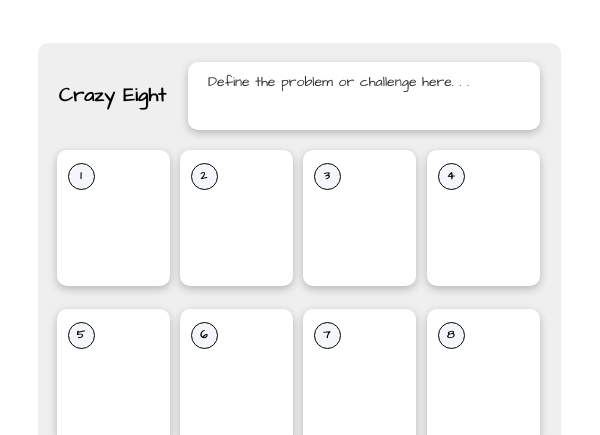
Crazy 8s
Best for: fast visual ideasFold the space into eight boxes and sketch one idea per box, a minute each. It pushes people past their first, safest idea.
Crazy eight templateSWOT analysis
Best for: strategy and planningFour boxes for strengths, weaknesses, opportunities and threats. Fill the inside view first, then the outside view, then compare.
Brand SWOT analysis templateCustomer journey map
Best for: seeing the customer's sideLay out each stage a customer goes through, what they do, think and feel, and where it hurts. The pain points become your ideas list.
Customer journey template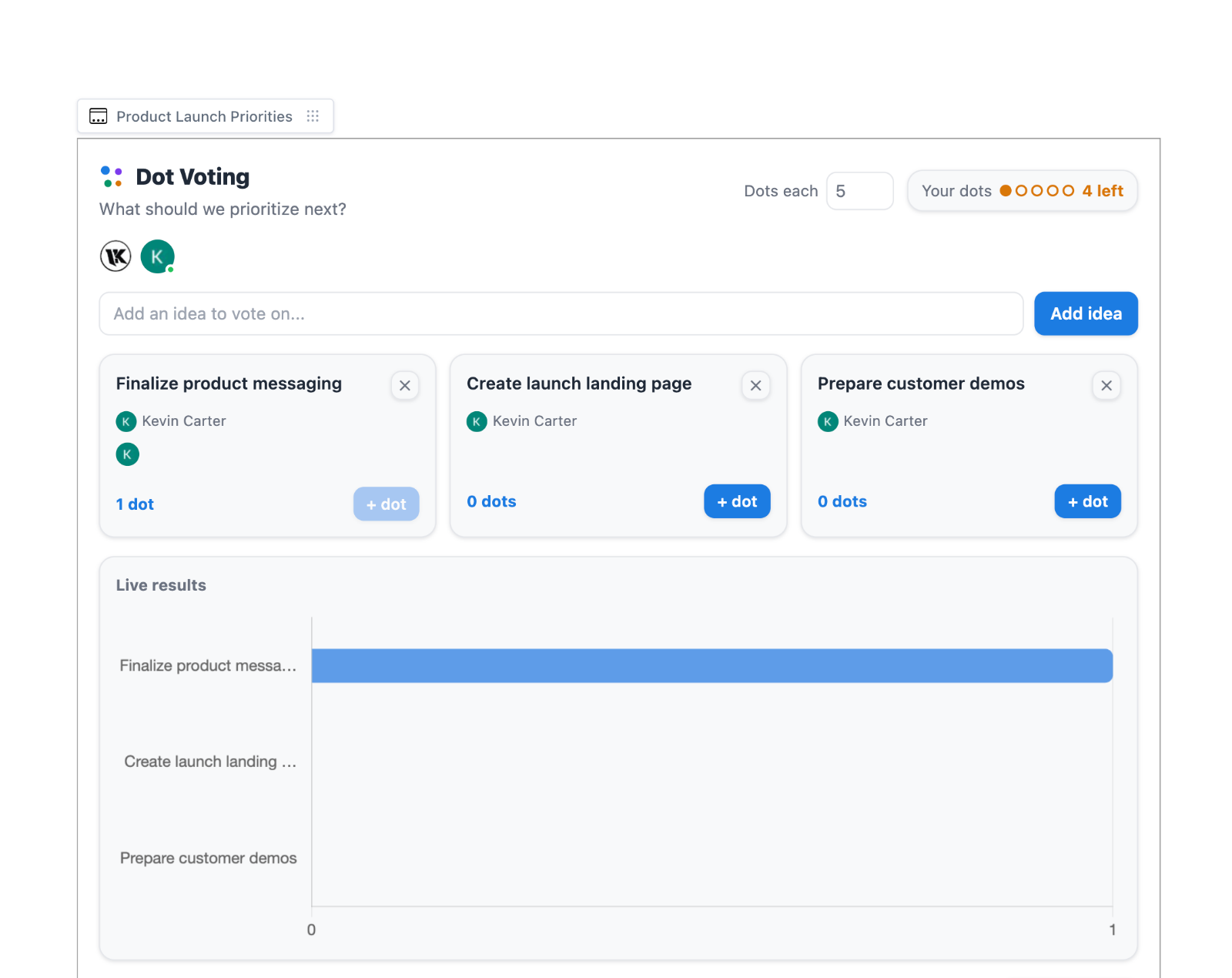
Dot voting
Best for: choosing quicklyGive each person three votes to place on the ideas they back. It turns a long discussion into a clear shortlist in five minutes.
Dot voting template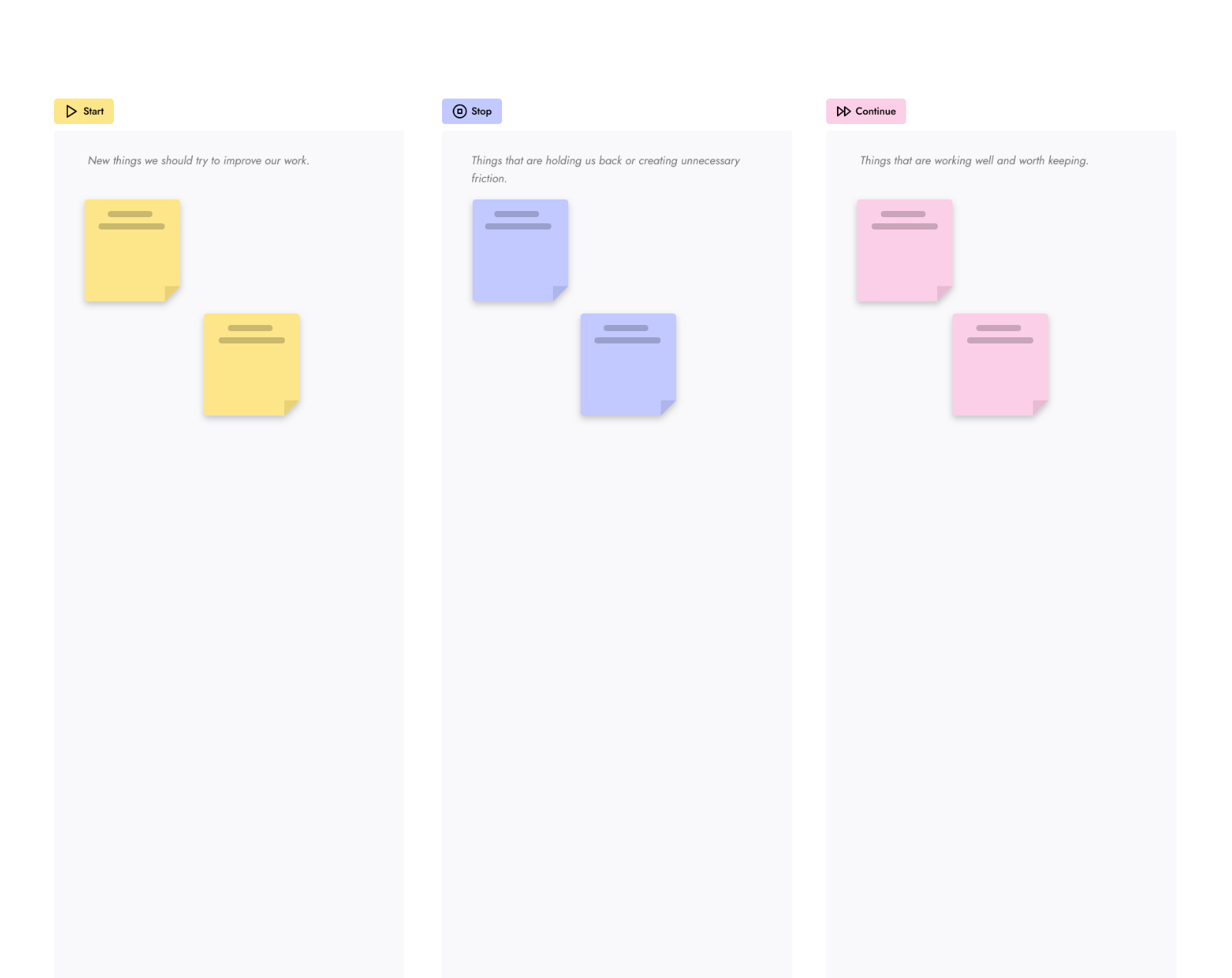
Start, stop, continue
Best for: retrospectivesThree columns: what to start doing, what to stop and what to keep. Simple enough for a fifteen minute retro at the end of every sprint.
Start, stop, continue templateFishbone diagram
Best for: finding root causesWrite the problem at the head and draw a bone for each cause category, such as people, process and tools. Ask why until the real cause shows.
Fishbone diagram template2x2 prioritization
Best for: deciding what comes firstTwo axes, often impact and effort, make four boxes. Place each idea and the order becomes obvious: quick wins first, big bets tested small.
2x2 prioritization template
How might we
Best for: framing the questionRewrite each problem as a question that starts with "How might we". It turns complaints into prompts the group can answer.
How might we template
Six thinking hats
Best for: looking at one idea from every sideThe group looks at a proposal through one lens at a time: facts, feelings, risks, benefits, new ideas and process. Debate turns into a sequence.
6 thinking hats template
Starbursting
Best for: testing a planPut the idea in a star and ask who, what, where, when, why and how around it. The questions you cannot answer are your homework.
Starbursting templateTips for remote and hybrid whiteboarding.
Online whiteboarding works best when nobody is a second class participant. These habits keep the room and the remote group on equal footing. For the meeting side, see whiteboard for meetings.
- One board for everyone.In a hybrid session, people in the room open the board on their own laptops too, and the room screen shows the same board. Nobody writes on a wall the remote group cannot see.
- Remote people go first.When reading notes aloud, start with the people on the call. It is the easiest way to show their ideas count as much.
- Write before you talk.Silent writing rounds work even better online, because everyone can type at once without waiting for a marker.
- Keep the timer visible.A shared countdown on the board replaces the facilitator saying "two more minutes" over and over.
- Give each group its own space.Breakout groups each get a section of the board, so the facilitator can glance across every group at once.
- Bring everyone to the same view.When it is time to discuss, present the board so everyone follows your view instead of hunting for the right corner.
- Point, don't describe.Named cursors and short messages at your cursor beat "the yellow note near the top left".
- Work before and after.Let people add ideas a day early and comment afterwards. The live session is then for deciding, not collecting.
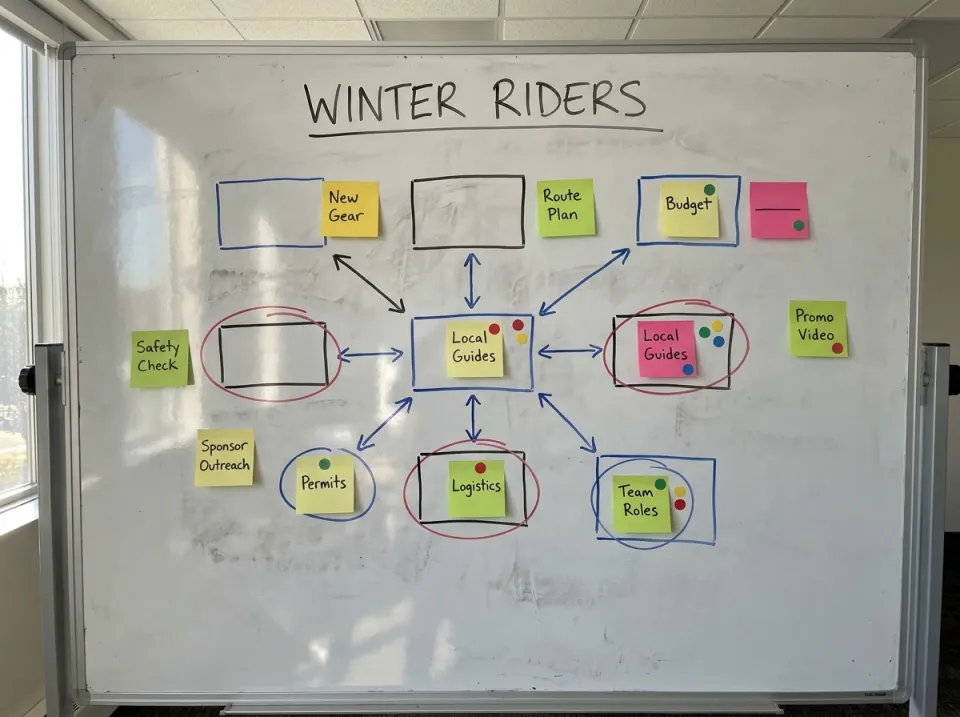
Where AI fits in whiteboarding.
AI is good at the slow, mechanical parts of a session: the first draft, the tidy up and the summary. The thinking and the deciding stay with the people in the session.
Hand to AI
- A first draft of a SWOT, a retro or an agenda to react to.
- Grouping a wall of notes by topic.
- Turning a room photo or a transcript into board items.
- A summary for people who missed it.
Keep human
- Framing the question.
- The ideas from lived experience.
- Voting and the final call.
- Owners, dates and commitments.
In MockFlow, Mida is the AI on your board. It can build a board from a prompt, tidy a board into sections and answer questions about it, and turn whiteboard photos into editable items on Plus and Max. More on the AI whiteboard.
Common whiteboarding mistakes, and the fix.
Most sessions that drift fail in one of these ways. Each has a simple fix.
- No clear question."Let's brainstorm about winter" produces a pile of notes. "How might we get more people riding in winter?" produces options. Write the question at the top of the board.
- Talking before writing.The first idea said aloud anchors everyone. Run a silent writing round first.
- Judging too early.Critique in the diverge round shuts people down. Save it for converging, and say so in the rules.
- No time boxes.Without a timer, the first exercise eats the session. Give each round a time and keep it visible.
- Ending without owners.A board full of votes is not a decision. Leave with one owner and one date per action.
- The board dies after the meeting.A photo in a chat thread is where ideas go to be forgotten. Share the live board with a summary and keep using it.
Run your next session in MockFlow.
MockFlow is an online whiteboard with everything a session needs on one board, from the first sticky note to the plan that comes out of it. Try it at mockflow.com/new with no account.
Prepare the board
Add a Whiteboard frame with notes, tags and sections, or open a template. A frame can be generated with AI from a type such as a SWOT or a retro. See Brainstorm on a whiteboard frame.
Time box each round
Start a shared timer from 1 to 30 minutes. Everyone sees the same countdown at the top of the board.
Plus and MaxVote and decide
Upvote ideas sorts suggestions by votes, and a show of hands settles a yes or no question in seconds.
Plus and MaxMeet and present
Talk on the board itself, with audio on Plus and video on Max, and present it live so everyone follows your view.
Plus and MaxWork together
Every board is multiplayer, with named cursors and cursor chat. Comments and reactions work on every plan.
Editing together: Plus and MaxTurn it into a plan
Put a kanban, checklist, timeline or document beside the notes, so the follow up lives on the same board as the ideas behind it.
Every planThe free Basic plan includes 3 boards, every template and 100 AI credits a month, and people you invite join as reviewers who view and comment. Teams that edit together, time box and vote use Plus or Max. See pricing, or compare tools in the best online whiteboards.
Whiteboarding terms, in plain words.
The words facilitators use, so the agenda makes sense to everyone.
- Affinity map
- Notes grouped by what they have in common, with a name for each group.
- Brainwriting
- Silent brainstorming: everyone writes ideas alone before any discussion.
- Diverge and converge
- First open up as many options as possible, then narrow them down to a choice.
- Dot voting
- Each person places a few votes on the ideas they support, to make a shortlist.
- Facilitator
- The person who runs the session, keeps time and stays neutral on the answer.
- How might we
- A way to phrase a problem as an open question the group can answer.
- Infinite canvas
- An online whiteboard with no page edges that grows as you add items.
- Parking lot
- A space on the board for good points that are off topic, to deal with later.
- Retrospective
- A session that looks back on a piece of work to decide what to keep and change.
- Section
- A titled area of the board that groups items and moves them together.
- Sticky note
- One idea on one note, the basic unit of a whiteboard session. See online sticky notes.
- Time box
- A fixed amount of time for one round, kept with a visible timer.
More templates for your next session.
Retros and brainstorm formats to mix in once the team knows the basics. Browse all templates
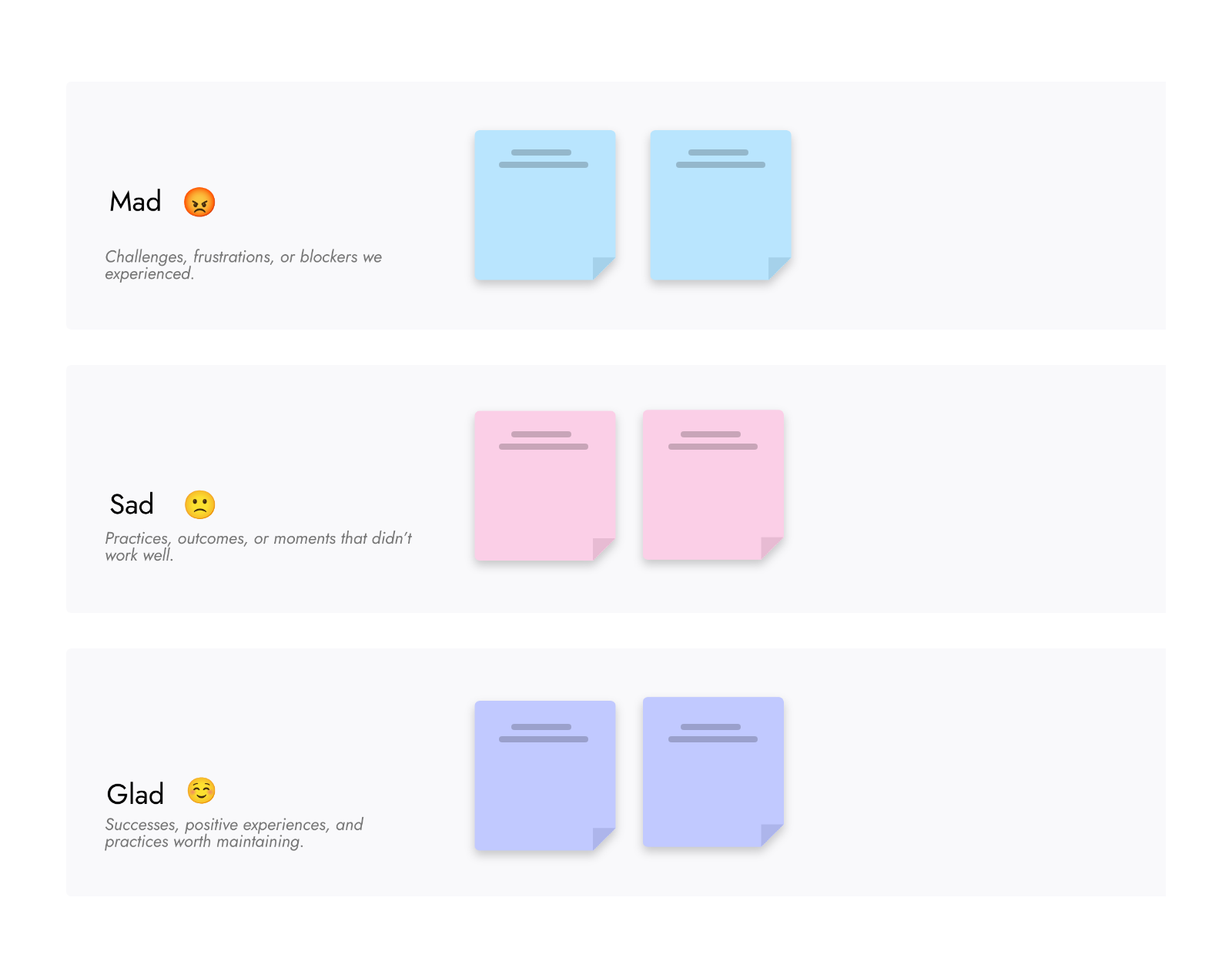
Mad, sad, glad retrospective
Free template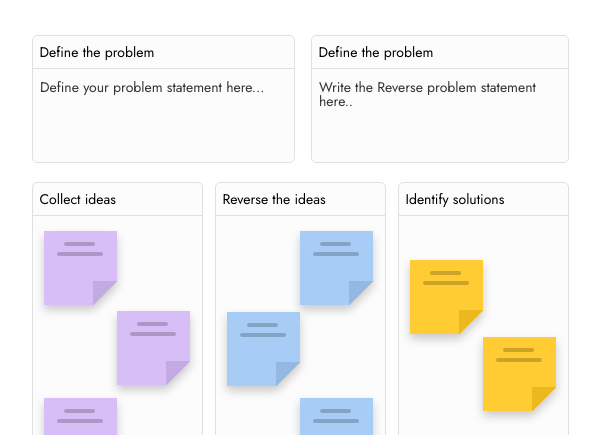
Reverse brainstorming
Free template
Empathy map
Free templateWhiteboarding questions.
Length, group size, tools, cost and what to do afterwards.
What is whiteboarding?
What is the difference between a whiteboard session and a brainstorm?
How long should a whiteboarding session be?
How many people should join a whiteboard session?
What do I need for online whiteboarding?
Can I run a whiteboarding session for free?
How do I turn a photo of a physical whiteboard into a digital one?
What should happen after a whiteboarding session?
Moving a class or team off a retired tool? See the Jamboard alternative. Planning screens rather than ideas? Read the wireframing guide. Facilitating often? The whiteboard for workshops collects the tools, and the whiteboard for teachers shows a full lesson.
Run your next whiteboarding session today.
Open a blank board in one click and set up your session. Boards last 24 hours, so sign up to keep one.


 Brainstorm with MockFlow MCP


