



From first sketch to finished design, on one board.
Mood boards, screens, graphics and videos sit together with the research, so every design decision has its reasons beside it.
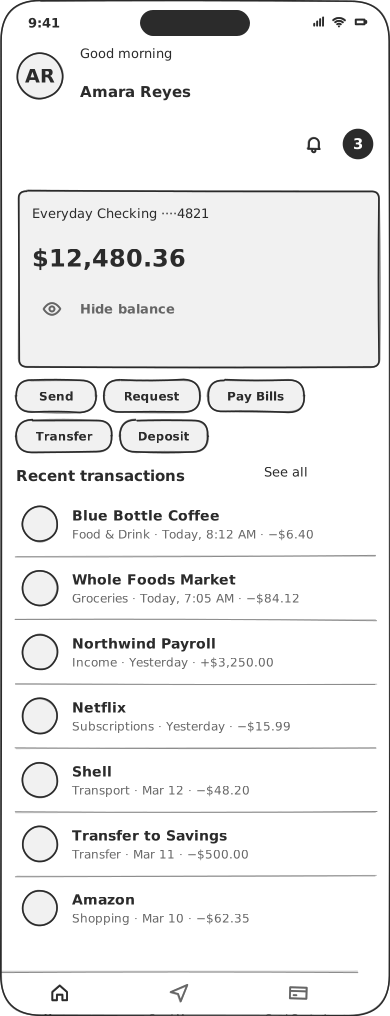
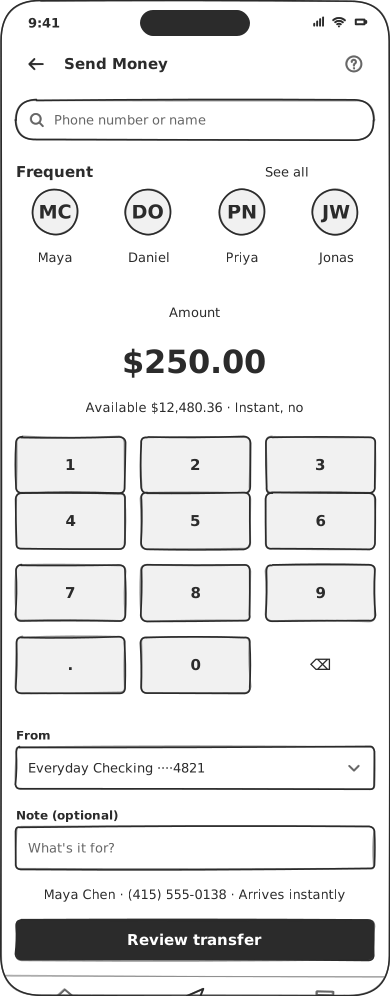
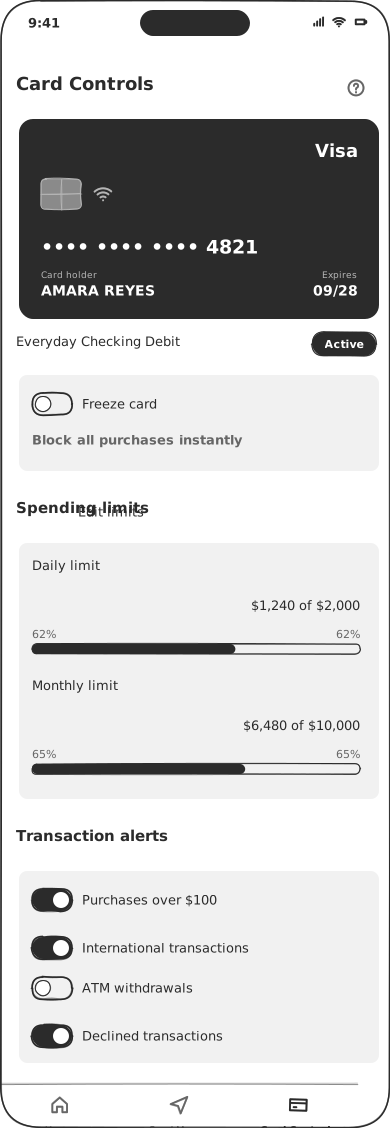
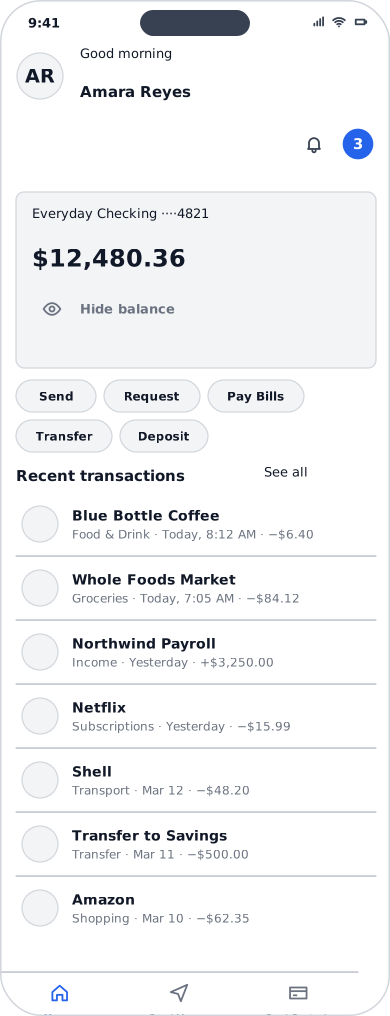
What is a whiteboard for designers?
It is one shared canvas for the whole design process. In MockFlow you collect research and references, set the look on a moodboard, design app screens, social posts, posters and animated videos, and gather feedback, all on the same online whiteboard. When a screen needs detailed work, WireframePro, the built in UI design editor, takes it further.
Understand
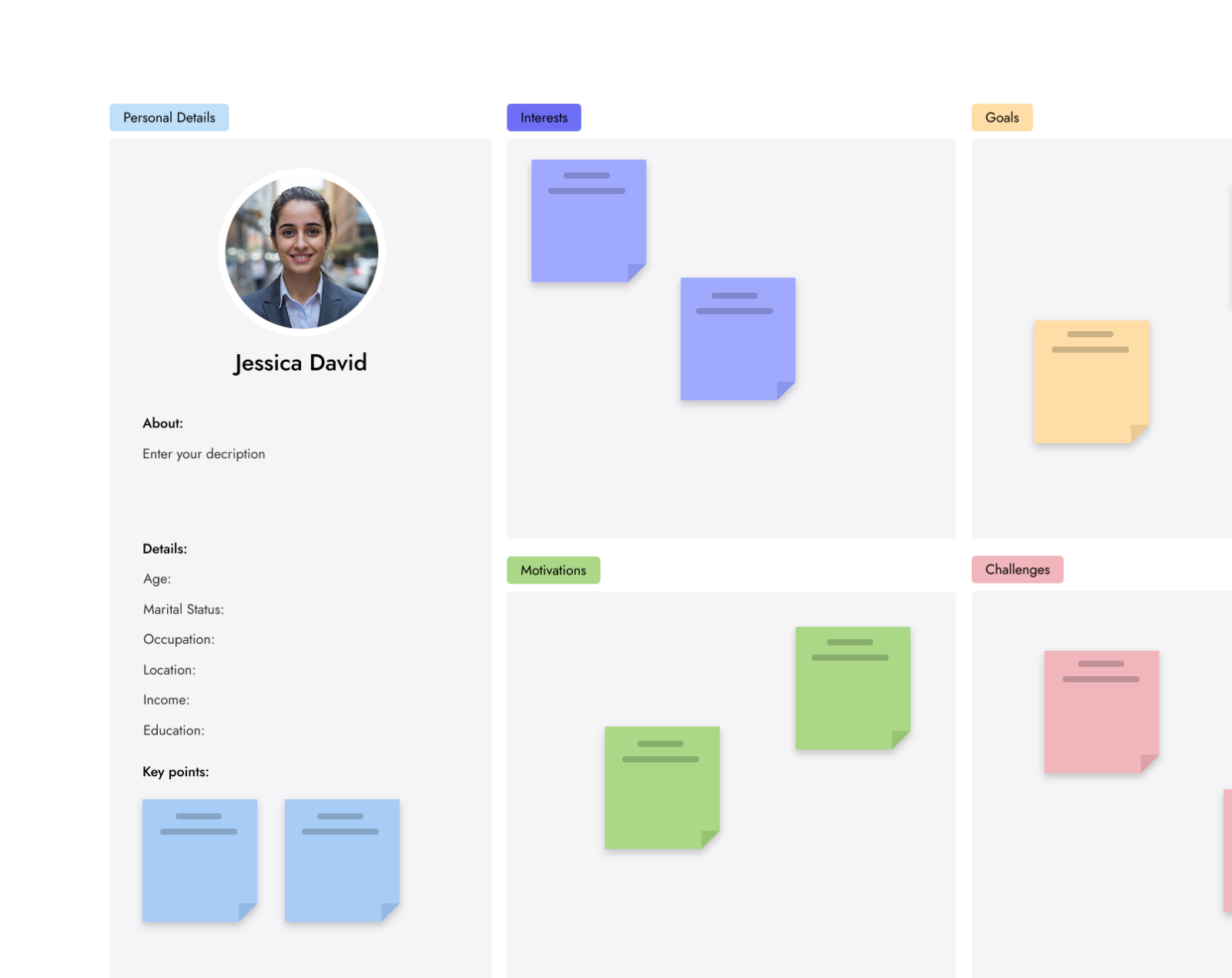
Personas, journey maps, research results and mood boards, kept where the design team can see them.
Design
Screens and flows, social posts and posters, storyboards and animated videos, by hand or with AI.
Review and deliver
Comments from reviewers and user tests, then PNG, PDF, MP4, Figma or code, ready for the channel it is made for.
Why design on a whiteboard?
In most teams the research sits in documents, the screens in one design tool, the graphics and videos in others and the feedback in chat. On a MockFlow board they sit side by side, so anyone can see why a screen looks the way it does. Stakeholders comment on the actual design for free, a poster or a launch video sits next to the brief it answers, and nothing has to be copied between tools before the review.

Mood boards and brand.
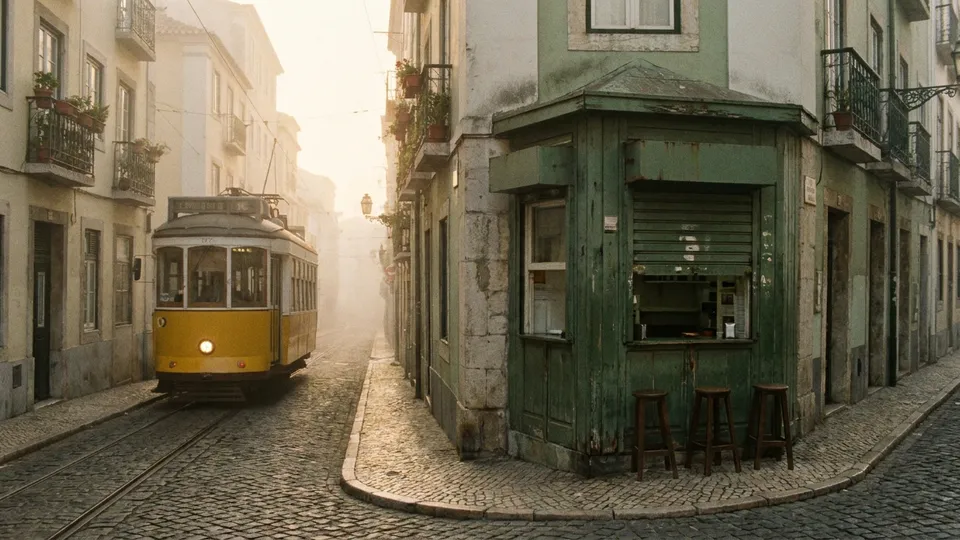
Set the look before anything is designed, and keep it beside every screen, post and video that follows.
- Moodboard frame. Collect pictures, colour swatches with their codes, font previews, notes and even reference videos, or generate a moodboard with AI.
- Storyboards. Plan a film or an ad shot by shot with the storyboard maker, next to the moodboard.
- Wireframes in your brand. Set the brand colour and font on any wireframe style.
Guide: Build a moodboard.
Social posts, posters and ads.
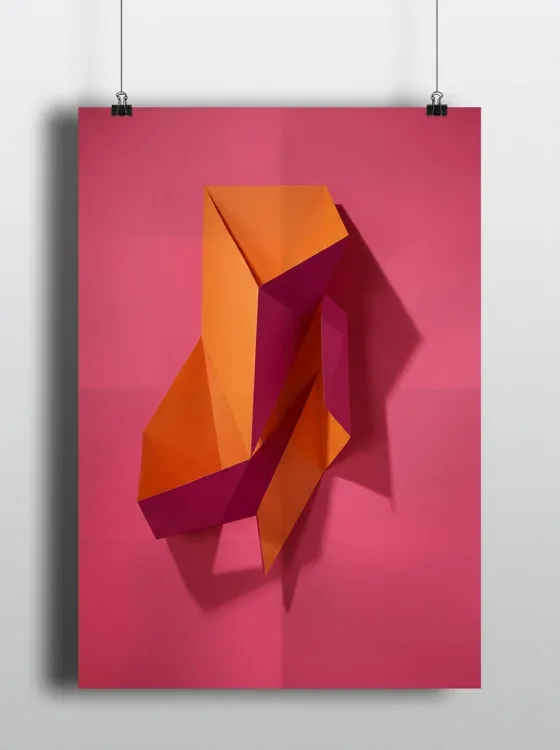
The Design frame makes the graphics a campaign needs at their exact size, on the same board as the moodboard and the copy.
- Pick a size or a template. Social posts, stories, ads, covers and posters, from a template or a blank size.
- Generate with AI. Describe the design and AI lays it out, then edit every text, shape and picture.
- Adapt it to other sizes. Turn one poster into the post and the story for each channel.
- Download it ready to use. PNG for social posts, JPG for photos, SVG and PDF for print.
The Design frame is on every plan. Guide: Create a social post or poster with a Design frame.
 Fresh every morning0:12 / 0:30
 Scene 1Scene 2
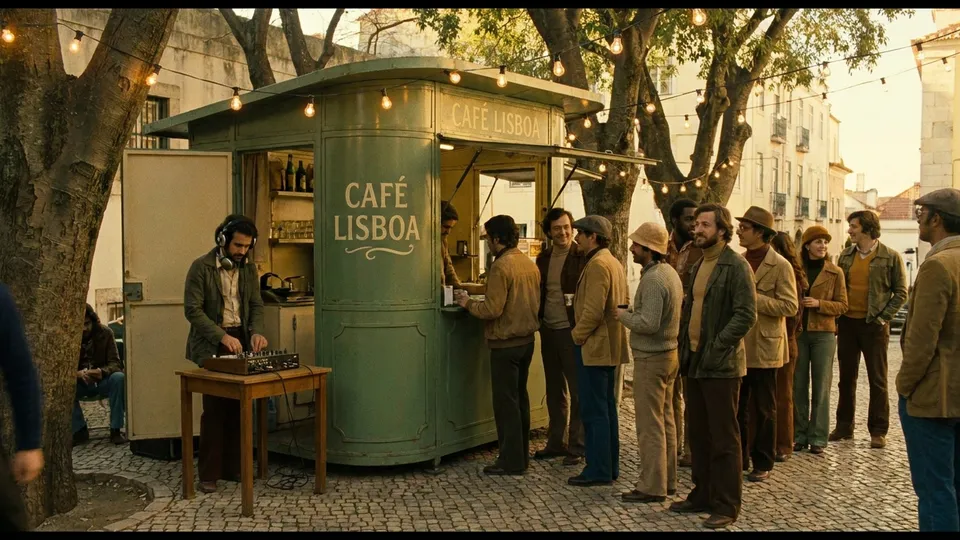 Scene 3
 Scene 4
Animated videos with Video Maker.
Make the launch video, the social reel or the explainer right beside the storyboard, the copy and the designs it came from.
- Scenes on a timeline. Text, shapes and pictures in scenes, each with its own animation.
- Make it with AI. Describe the video, or fill a scene with an AI picture or a short clip with real motion.
- Templates and screen recordings. Start from the library or from a recording of your product.
- Export for any channel. MP4, GIF or animated SVG. Paid plans add 1080p, 4K and videos up to 10 minutes.
Video Maker is on every plan; Basic exports up to 720p and 30 seconds. Guide: Make an animated video with Video Maker.
How to design an app on a whiteboard.
Five steps from an empty board to a prototype your client can try. Each step has a guide in the MockFlow docs.
- Add a wireframe.Click the plus button in the toolbar at the bottom of the board, open Design tools and click Wireframe.
- Pick the device.Choose Phone, Desktop or Watch, or another device such as Tablet, Mac, Windows or TV.
- Design the screen.Drag widgets from the library, or click Generate with AI and describe the screen.
- Make it clickable.Select the screens and click Prototype. AI links them into one interactive prototype.
- Review and hand off.Invite reviewers to comment, then export to Figma, code or an AI coding tool.
Wireframes that become a prototype.
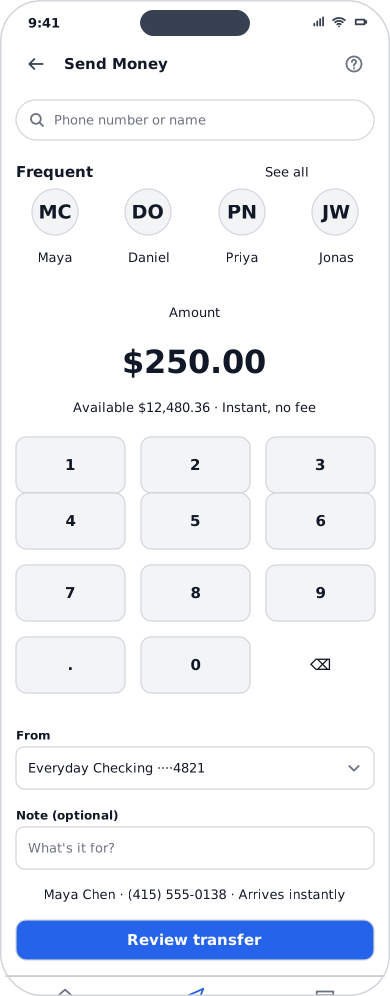
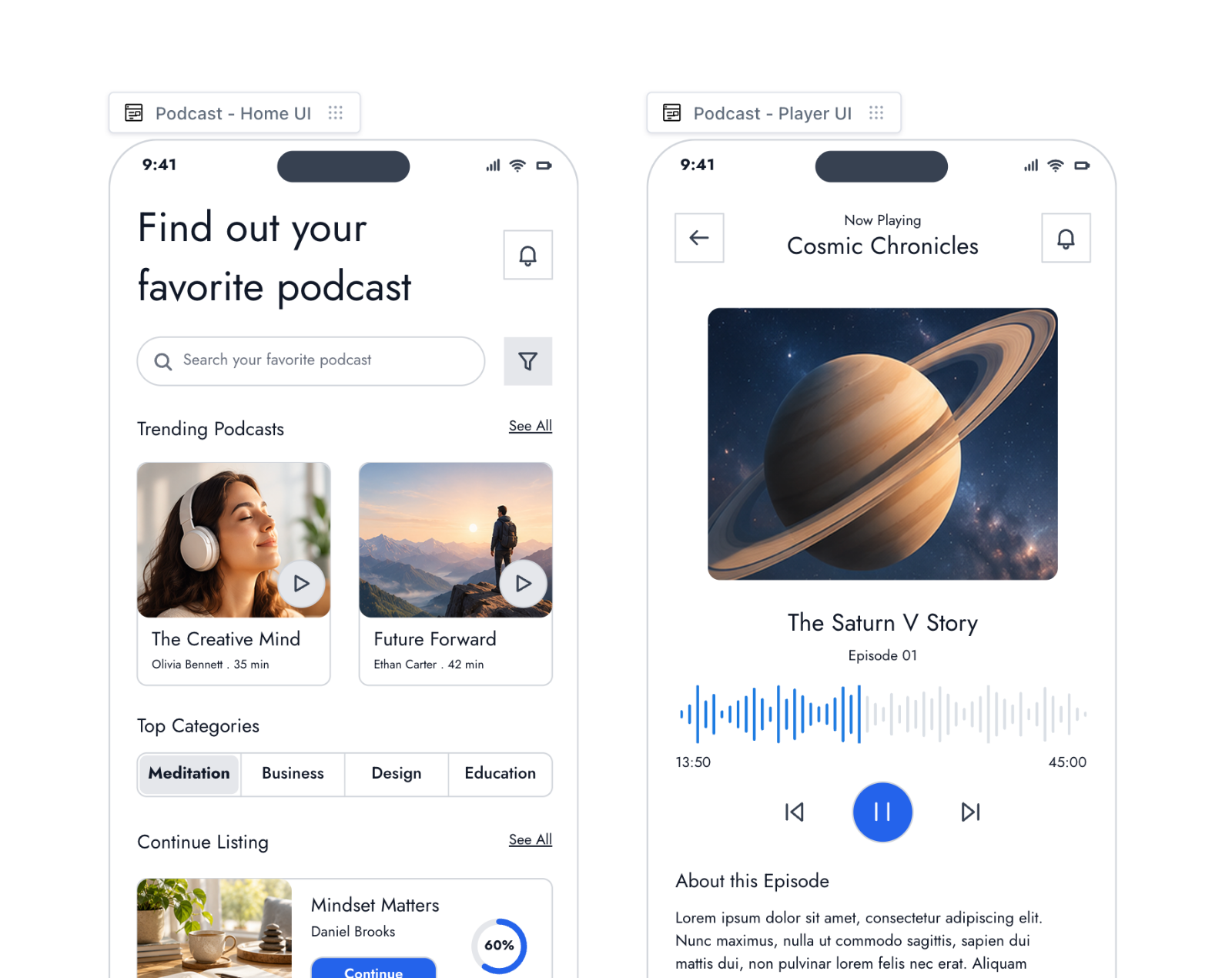
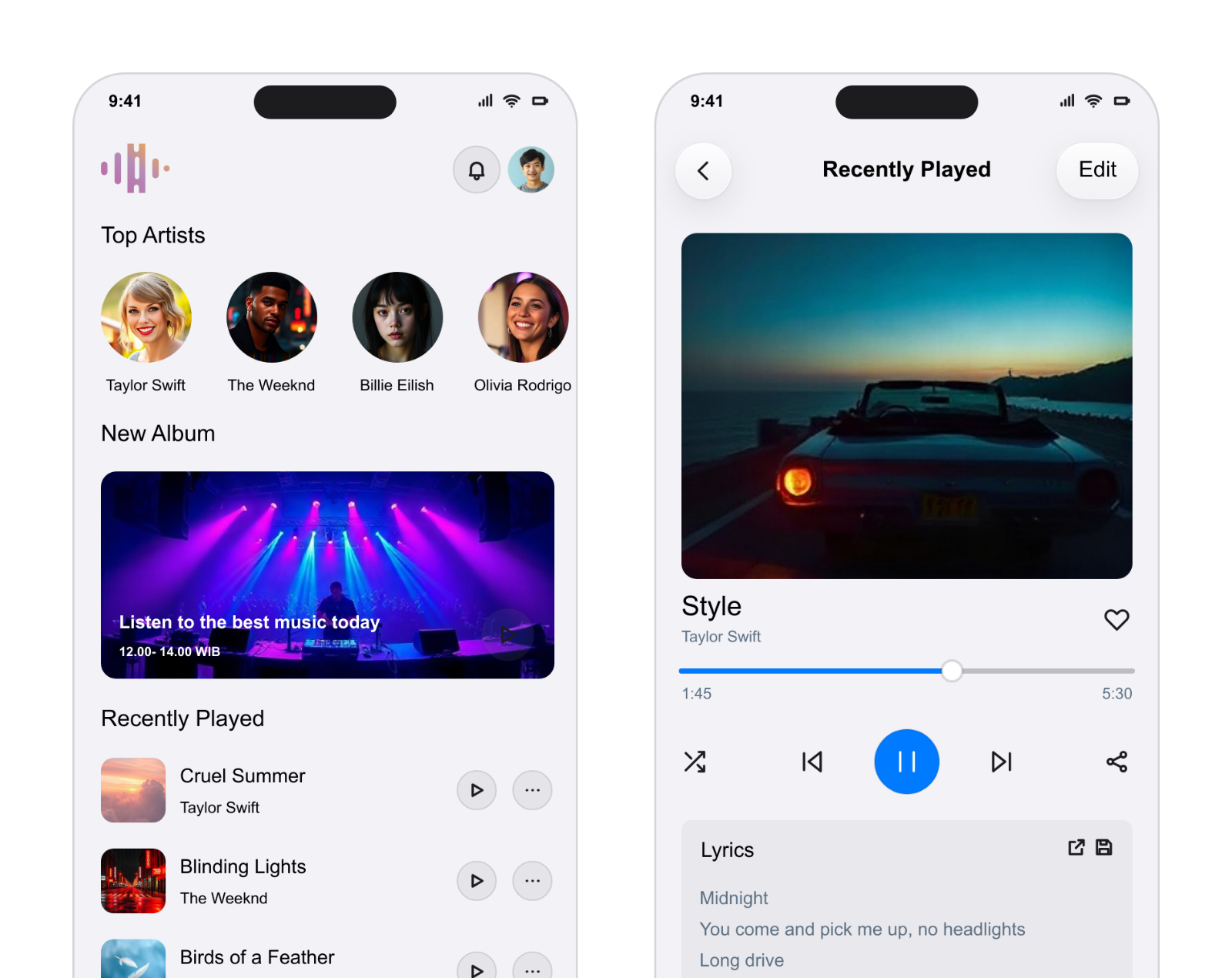
Each screen of an app or website is one Wireframe on the board, built from real widgets with realistic text. Select the screens and click Prototype: AI decides which buttons, links and tabs lead where, and places the prototype beside them.
- Click through it in place. Use the screen counter, and switch the device frame between Mobile, Tablet and Desktop.
- Play it anywhere. Play full screen for a review, or scan a QR code to try it on your own phone.
- Refine with AI. Change the whole prototype with a prompt, or click one element to change it, change its screen or add a new screen.
- Take it as code. Download the prototype as standalone HTML that keeps the clickable flow.
Guides: Make a clickable prototype and Play and share a prototype.
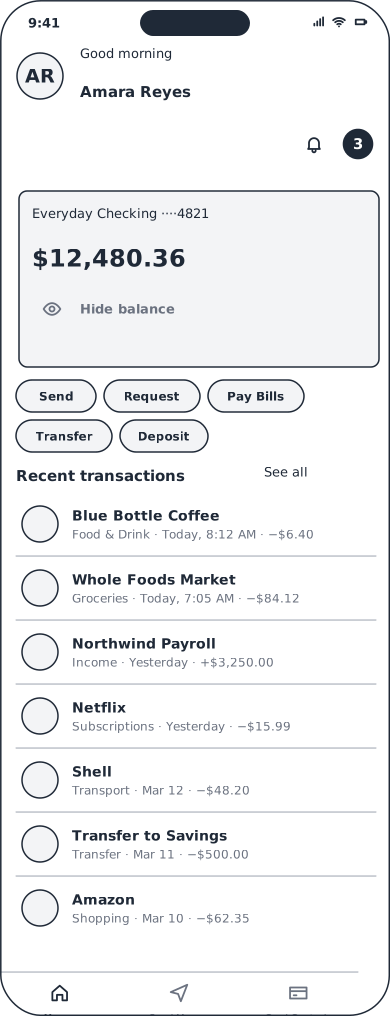
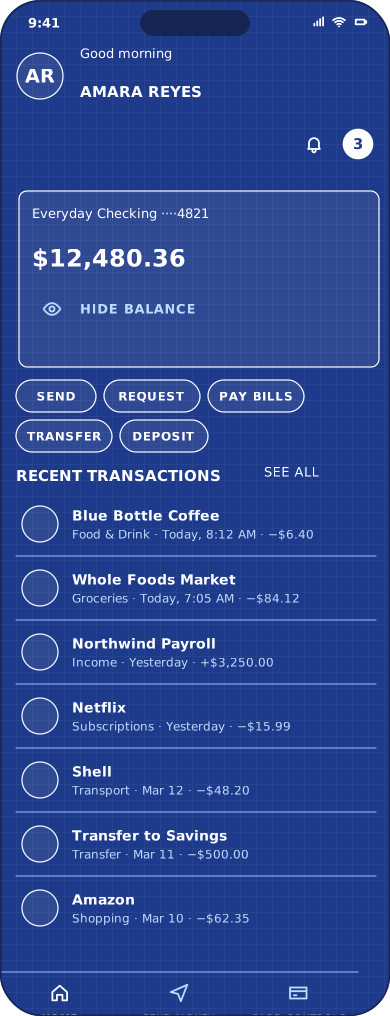
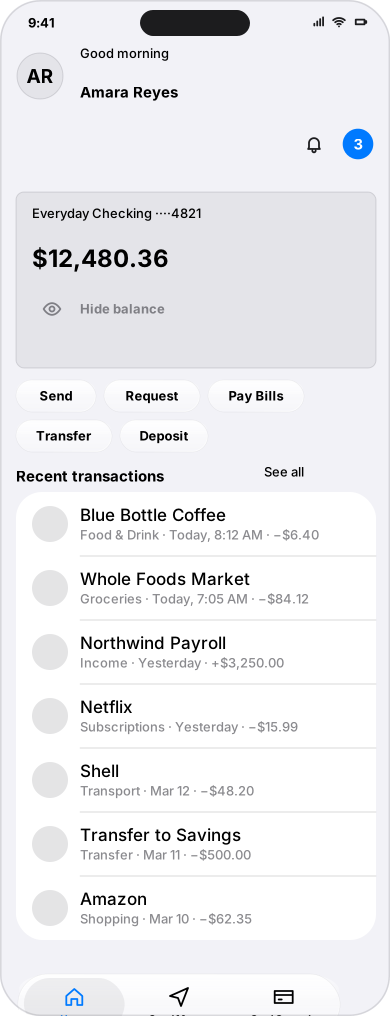
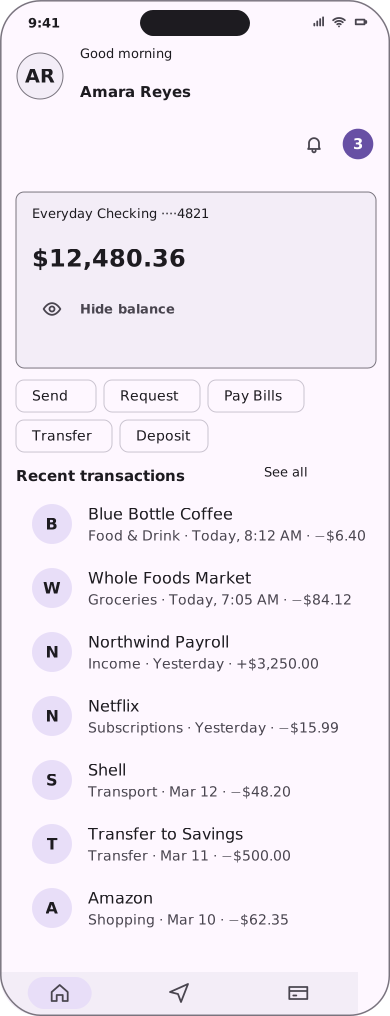
Sketch first, polish later, in one click.
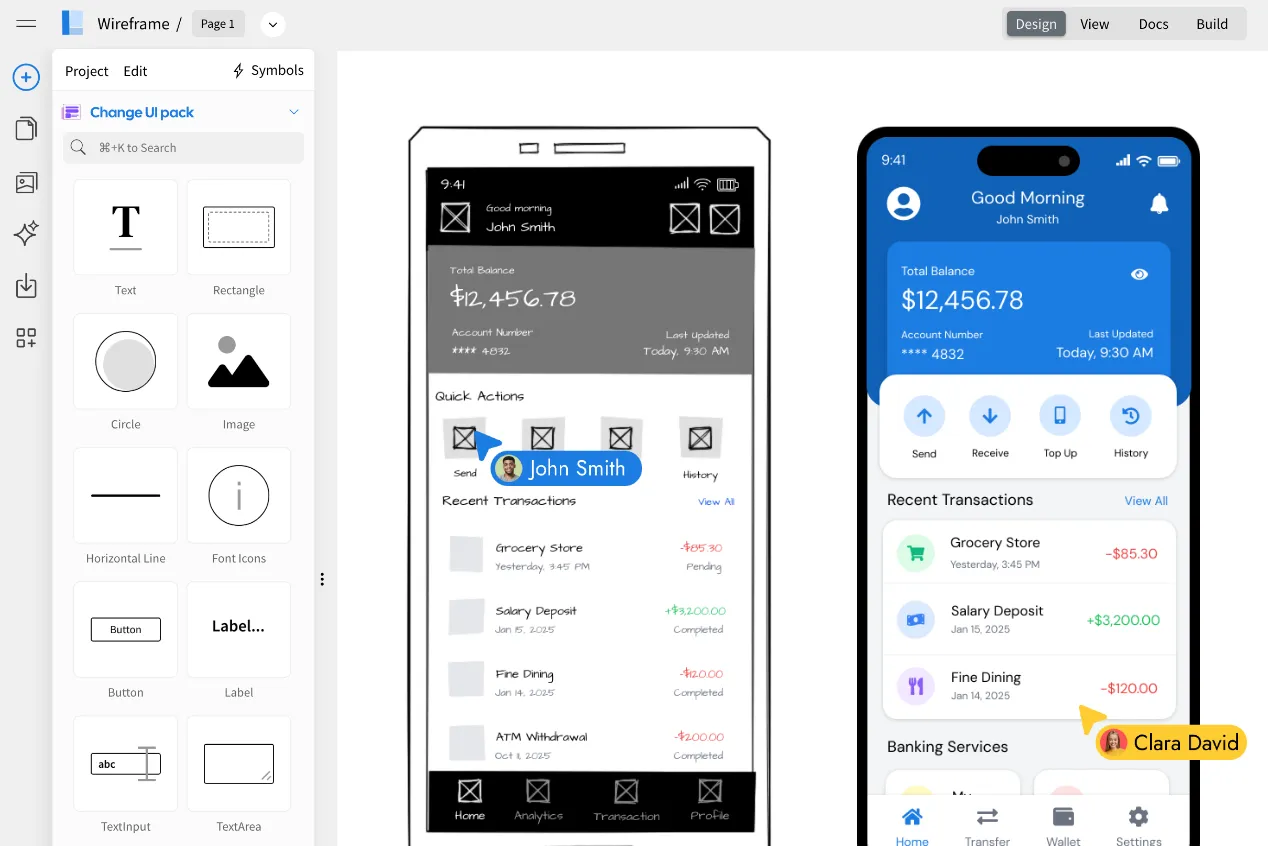
Every wireframe can be redrawn in another style while the widgets, text and layout stay the same. Start sketchy for early ideas and switch to a platform look when it is time to present, in light or dark mode with your brand colour and font. See Change a wireframe’s style.
 MockFlow Clippy
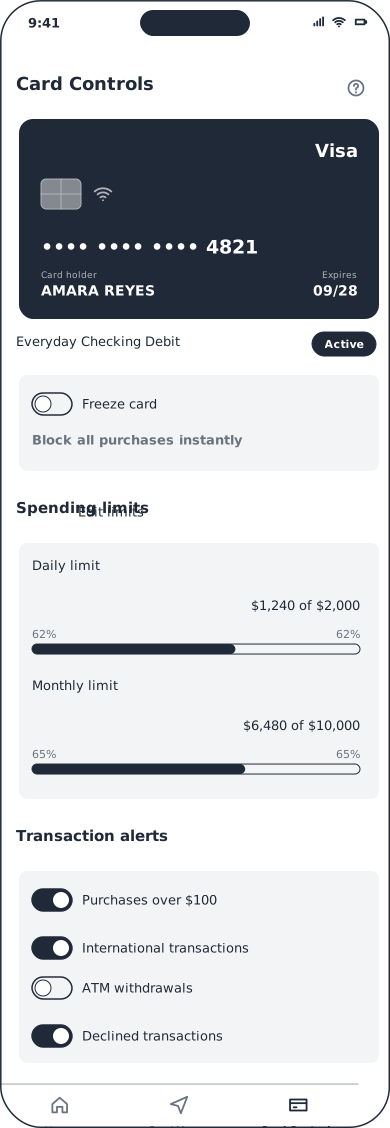
Start from a screenshot.
Redesigns rarely start from nothing. Bring the current screens onto the board as editable wireframes and design the new version right beside them.
- Screenshot or sketch to wireframe. Attach a PNG, JPG or WebP up to 10 MB and AI recreates it as editable widgets.
- Live page to wireframe. Clippy, the Chrome extension, captures a whole page or one part of it and sends it to your board.
- Choose how it lands. Lo-fi widgets, a hi-fi copy in the page’s own colours and fonts, a clickable prototype, or a moodboard and colour palette.
Guides: Generate wireframes with AI and Turn a webpage into a wireframe with Clippy.
Flows and journey maps.
Map how people move through the product before you design each step, then keep the map next to the screens it explains.
- User flows. Draw them with the user flow tools, or describe the flow and let the user flow generator draw it.
- Customer journey maps. Stages across the top, with rows for activities, emotions, pain points and a satisfaction curve, on every plan.
- Sitemaps. Plan the information architecture with the sitemap generator.
Guide: Create a customer journey map.

Test with users right on the board. Plus
Research apps run live on the board, so everyone in the session takes part at once and the results land next to the designs they are about.
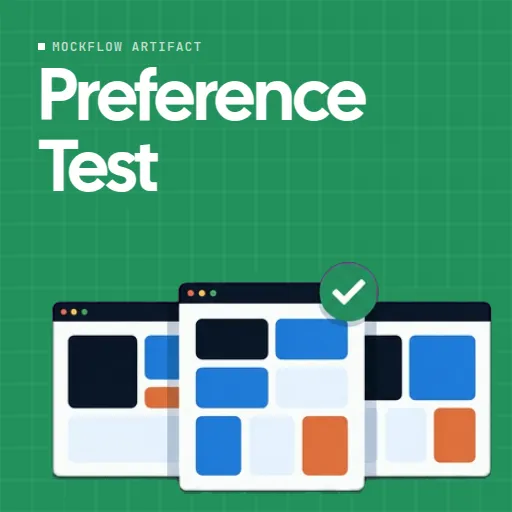 Preference testShow two designs and let people vote for the one they prefer.
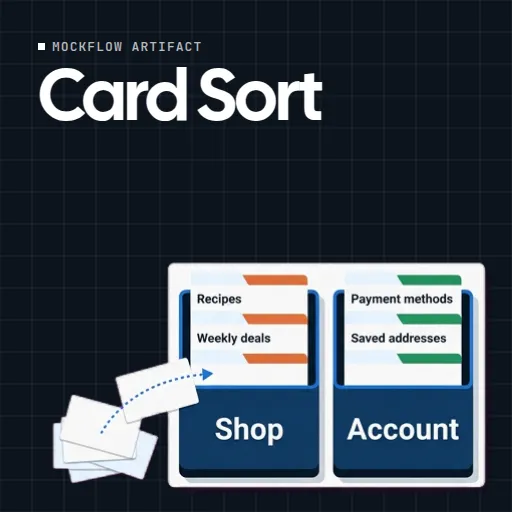 Card sortAsk people to group menu items to find a navigation that makes sense.
 5 second testShow a screen for five seconds and ask what people remember.
 User personaCreate personas with AI and keep them next to the screens.
 Color contrast checkerCheck text and background pairs against WCAG AA and AAA.
Detailed design and handoff.
When a flow needs more than a few screens, WireframePro is built in on every plan: a full UI design editor with UI packs, symbols, pages, specs and live collaboration.
- Export any wireframe. As an image, SVG, an AI made hi-fi image or JSON, or copy it to WireframePro or an AI coding tool as a build prompt.
- Send to Figma Max Native, editable Figma layers.
- Build mode Max Convert a page into HTML, React, Vue or native UI code.
- Team UI kits Max Share your own components across the team, beside the ready UI kits.
Guides: Export a wireframe and Build mode.
| Permission | Reviewer | Editor | Admin |
|---|---|---|---|
| View live and comment | |||
| Export | |||
| Edit in real time | |||
| Invite and change roles | |||
| Needs a paid seat | No | Yes | Yes |
Feedback on the actual design.
Clients and stakeholders review the board itself, not a screenshot in an email. Every comment is pinned to the exact spot it is about.
- Free reviewers. They view live, comment and export without editing tools. 5 on Basic, no limit on Plus and Max.
- Pinned comments. Mention a teammate with @, reply in a thread and see every comment in one list.
- Say it out loud. Leave audio comments on Plus and video comments on Max when typing is not enough.
Guides: Comment on a board and Reviewer, editor and admin roles.
Run the design review on the board.
No separate meeting link and no screen to share. The review happens where the designs are, and the notes stay with them. See Start a meeting on a board and Present a board live.
Meet on the board Plus
Start a call from the board and talk while everyone keeps editing. Turn cameras on with Max.
Present it live Plus
Everyone follows your view from the research to the prototype, and can step away and come back.
Decisions in team chat Plus
Chat stays with the board. Ask @mida for the decisions and action items from the review.
Built for every kind of design team.
From one freelancer and a client to a product team, a brand studio or a video team.
Product designers
Olivia redesigns a banking app. She captures the current screens with Clippy, sketches the new flow beside them and links the screens into a prototype for the Friday review.
UX researchers
Sam runs a card sort and a five second test with the research apps, and the results sit next to the personas and the journey map.
Freelancers and agencies
Elena shares one board with each client: brief, moodboard, wireframes and comments, with the client as a free reviewer. More for freelancers and agencies.
Product managers and developers
Lucas follows the work as it happens, comments on the flow, and picks up the prototype as HTML or the screens as a build prompt for his coding tool.
Graphic and brand designers
Sofia sets the look on a moodboard, makes the opening poster in a Design frame and adapts it into a post and a story for each channel.
Video and motion designers
Emma storyboards the launch film, then animates it in Video Maker beside the storyboard and exports an MP4 for the launch.
Start from a design template.
Free templates for research, briefs, mood boards and app screens. Open one and make it yours, or browse the wireframe templates.


Design tools on every plan.
Moodboards, Design frames, Video Maker, wireframes and templates are free on Basic. Paid plans add research apps, collaboration, longer and sharper videos and handoff. Compare plans. Weighing other tools? See Miro alternatives.
| Feature | Basic | Plus | Max |
|---|---|---|---|
| App and website wireframes, templates and UI kits | |||
| Moodboards and Design frames for posts and posters | |||
| Video Maker exports | Up to 720p and 30 seconds | 1080p and 4K, up to 10 minutes | 1080p and 4K, up to 10 minutes |
| Clickable prototypes | Lite | No page limits | No page limits |
| AI credits each month | 100 | 800 per editor | 2,000 per editor |
| Reviewers who view and comment | 5 | Unlimited | Unlimited |
| Research apps, audio comments, meetings, present live | |||
| Send to Figma, Build mode, Team UI kits, video comments |
Questions from designers.
Plans, graphics, videos, prototypes and reviews.
Is MockFlow free for designers?
Can I design social posts and posters?
Can I make videos in MockFlow?
Can I make a clickable prototype from my wireframes?
Can I turn a screenshot or a live website into a wireframe?
Does MockFlow work with Figma?
Can I turn wireframes into code?
What is the difference between the board and WireframePro?
Can clients review designs without paying?
Can I test designs with users on the board?
A full whiteboard in one click. Share the link and anyone joins. Boards last 24 hours, so sign up to keep one.




 Brainstorm with MockFlow MCP


