




 Card Sort
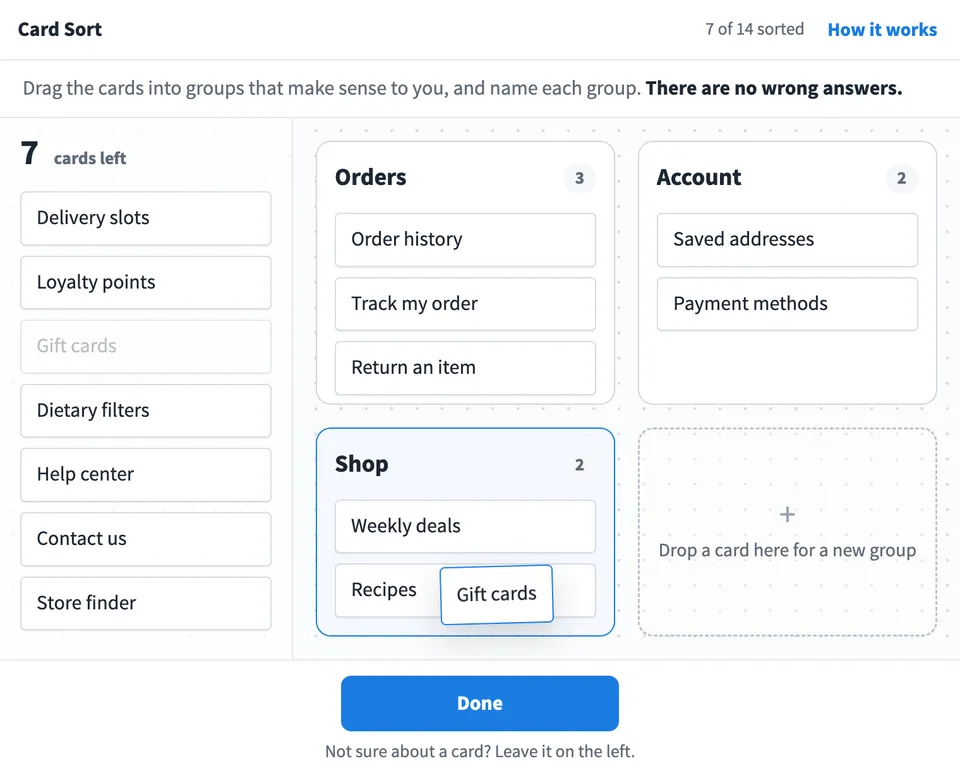
 is an online card sorting tool for product, design and content teams. Write a card for each page, feature or topic, and everyone on the board drags the cards into groups that make sense to them and names each group.
Use Card Sort together on your board.
Nobody sees anyone else's groups while they sort, and results stay hidden until the person who started the sort shows them. You can paste a list of cards, or turn sticky notes or a site map that is already on the board into cards.
The results show the groups most people made, the names they used for them, how strongly people agreed, and the cards people disagreed on. Similarity and agreement tables are there when you want the numbers.
- Open and closed card sorting. Let people create and name their own groups to learn how they think about your content, or give them your groups to check a menu you already have.
- Cards from your board. Turn sticky notes or the pages of a site map on the board into cards, or paste a list.
- Private until you show results. Nobody sees anyone else's groups while they sort, so people do not follow the crowd.
- The groups people made. Cards that most people kept together appear as one group with the name used most, an agreement score and the other names people gave it.
- Cards people disagreed on. Cards with no clear home are listed with a bar showing where people put them, so you know which labels to rethink.
- Similarity and agreement tables. Show detail opens a similarity matrix of how often each pair of cards was grouped together, and an agreement matrix of where each card went.
- Built in help. How it works explains card sorting in plain words for people running their first sort, for people sorting, and for reading the results.
- CSV download. Download every person's groups and any closing answers as a CSV file for your own analysis.
How to use Card Sort.
Write the cards
Type or paste one card per line, or pick sticky notes or a site map on the board and each note or page becomes a card. 15 to 50 cards works well.
Choose how people sort
By default people make and name their own groups, which is an open card sort. Under More options, choose Use my own groups to run a closed card sort with groups you set.
Start the sort
Press Start the sort. Everyone on the board now sees the cards, shown in a different order to each person, and you see who is sorting and who has finished.
People group the cards
Each person drags cards to the right to start a group, drops more cards onto it and names it. Cards they do not understand can stay unsorted, unless you said every card must be sorted.
Ask one question at the end
Optionally ask a closing question, such as which cards were hard to place, and read every answer with the results.
Show the results
Press Show results when enough people have finished. See the groups that formed, what people called them and which cards had no clear home, then download the results as a CSV file.
Who uses Card Sort.
A design team planning a new website menu
Paste the pages from the site map and run an open card sort to see how people expect the sections to be grouped and named.
A product manager checking an app's navigation
Run a closed card sort with the current menu sections and see which features people put somewhere unexpected.
A content team reorganising a help center
Turn article titles into cards, let the support team sort them, and use the groups they made as the new categories.
A UX researcher running a quick workshop
Put Card Sort on the board next to the research notes, have everyone sort during the session, and discuss the cards people disagreed on together.
Add Card Sort to your board.
Use on a board opens a new board with Card Sort already on it. To add it to a board you already have, follow these steps. Each copy keeps its own data, so a vote on one board never changes another.
Open your board
Open the MockFlow board you want to use it on.
Add it from the Artifact Library
Click Add anything (the plus button) in the toolbar at the bottom of the board, switch to Artifacts and pick Card Sort under Planning. Adding it does not use AI credits.
Use it together
Click Interact with Component (the hand button), or switch the board to Play mode. Everyone on the board uses the same app, and Reset shared data clears it for the next session.







 Brainstorm with MockFlow MCP


