



A whiteboard session anyone can join.
Start a live session with a QR code, or schedule one with a calendar invite. Clients, students and partners edit the board with you for the day, without a seat, and the work stays on the board when it ends.
How a whiteboard session works.
From booking a time to keeping the people you worked with. Pick a step to see it on the board.
 Emma
 Maya · Northwind
 Ravi
 Sofia

What happensPick a time, a length from 30 minutes to 4 hours, and the people. Each person shows how they get in: On the team, Guest editor, Edits in session or Can view.
Good to knowTick Only invited people can join with the link, so a forwarded invite cannot bring in anyone else.
What happensEveryone gets an email with a calendar file and Add to calendar links. The board opens 10 minutes before the start.
Good to knowA reminder goes out 15 minutes before, to everyone not on the board yet.
What happensShow the QR code on screen. People scan it, or go to app.mockflow.com/join and type the 6 character code, then sign in and edit.
Good to knowFull screen makes the code easy to read from the back of a room.
What happensFive minutes before the end, a bar offers Extend 30 min. When it ends, people who joined for the session can still view the board.
Good to knowKeep anyone as a guest editor in one step, so the work can carry on.
Start a live session in seconds.
For a class, a workshop or a meeting that is starting now. Open Share, click Start live session, and put the QR code on the screen. Everyone in the room or on the call joins the same board from their own phone or laptop. See Run a live session.
- A QR code and a short code. Scan the code, or type the 6 character code at app.mockflow.com/join. Copy the link or the QR code to send it on.
- As long as you need. Pick 30 minutes to 4 hours, and extend by 30 minutes at a time, up to 24 hours.
- End it when you are done. People who joined can still view the board, and you can keep any of them as guest editors.
- Room for a crowd. Up to 10 people edit on Plus and 30 on Max. Your team and guest editors do not count.
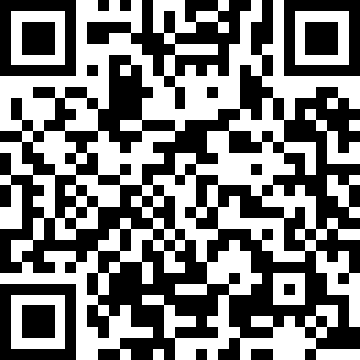 Scan with a phone camera, or go to
app.mockflow.com/join
and enter the code
K7MQ2P
6 of 10 joined
Schedule one with a calendar invite.
For a kickoff, a retro or a client workshop next week. Choose Schedule session in the Share panel, or Schedule Session in the board’s meeting menu. MockFlow sends the invites, opens the board on time and reminds people before it starts. See Schedule a session.
- Works with any calendar. The invite carries a calendar file for Google Calendar, Outlook and Apple Calendar, and updates when you move or cancel.
- Nobody misses the start. The board opens 10 minutes early, and a reminder goes out 15 minutes before.
- Your call, your choice. A MockFlow call on the board, your usual Zoom, Meet or Teams link, or no call at all.
- Only invited people. Tick one box so a forwarded link cannot bring in anyone else.
 zoom.us/j/84012…
Everyone gets the right access.
When you add people to a session, MockFlow shows how each one gets in, so nobody is surprised on the day.
On the team
Your teammates already have the board. The session is simply a time to meet.
Guest editor
People who already edit as guest editors keep editing, before and after.
Edits in session
People from outside edit during the session, and use a session place only if they join.
Can view
Colleagues from your company without a seat can follow along and view the board.
What teams run as sessions.
Anything where a group needs to make something together, for an hour or for a day. Each one shows how to set it up.

Live sessionNo call
Classes and training
Learners add answers, ideas and votes instead of only listening.
- The QR code goes on the projector
- Up to 30 students on Max
- The board stays for the next lesson

Live sessionNo call
Workshops in one room
Everyone writes at once from their own laptop or phone, then votes.
- Votes, polls and a timer on the board
- Results show up on the big screen
- Actions stay on the board
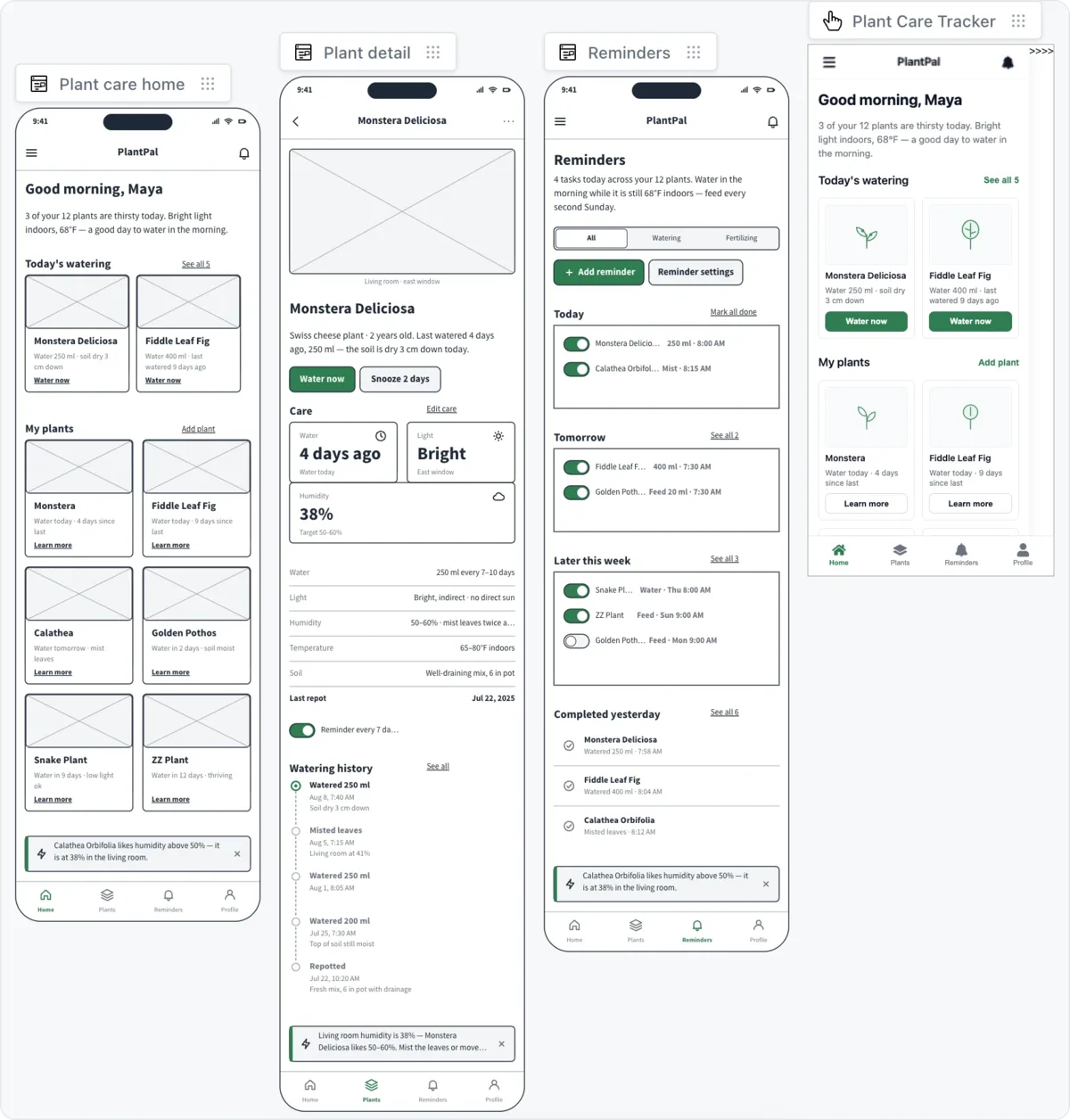
ScheduledYour Zoom link
Client workshops
The client maps the journey or marks up the screens with you.
- One invite with the board and the call
- The client signs in and adds notes
- Keep them as guest editors afterwards
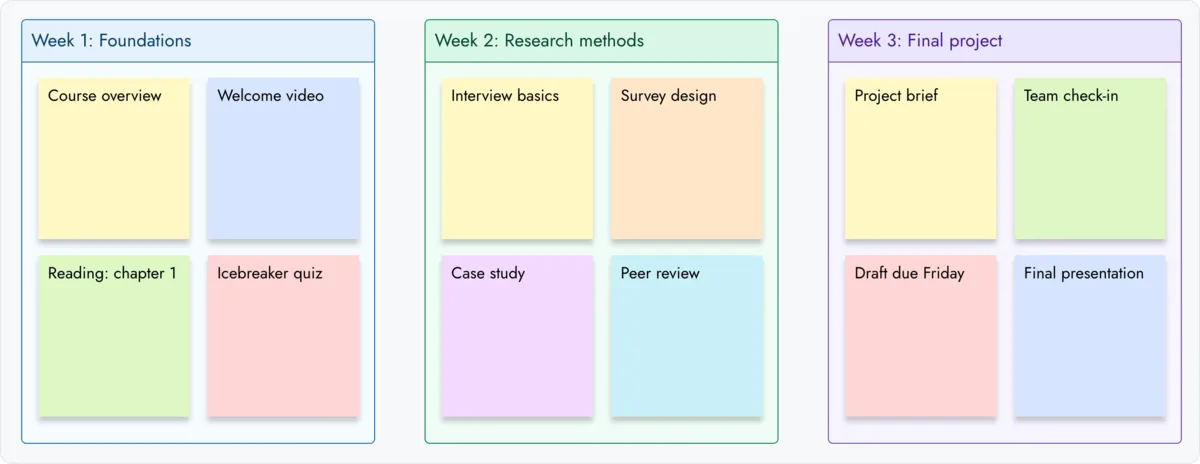
ScheduledCall on the board
Kickoffs and retros
The team and outside partners write, vote and agree on next steps.
- The board opens 10 minutes early
- Extend by 30 minutes if needed
- Next steps stay on the board

Live sessionAll day
Hackathons and offsites
A room full of people builds on one board through the day.
- Sessions extend up to 24 hours
- Diagrams, plans and wireframes on the board
- The board is kept for what comes next
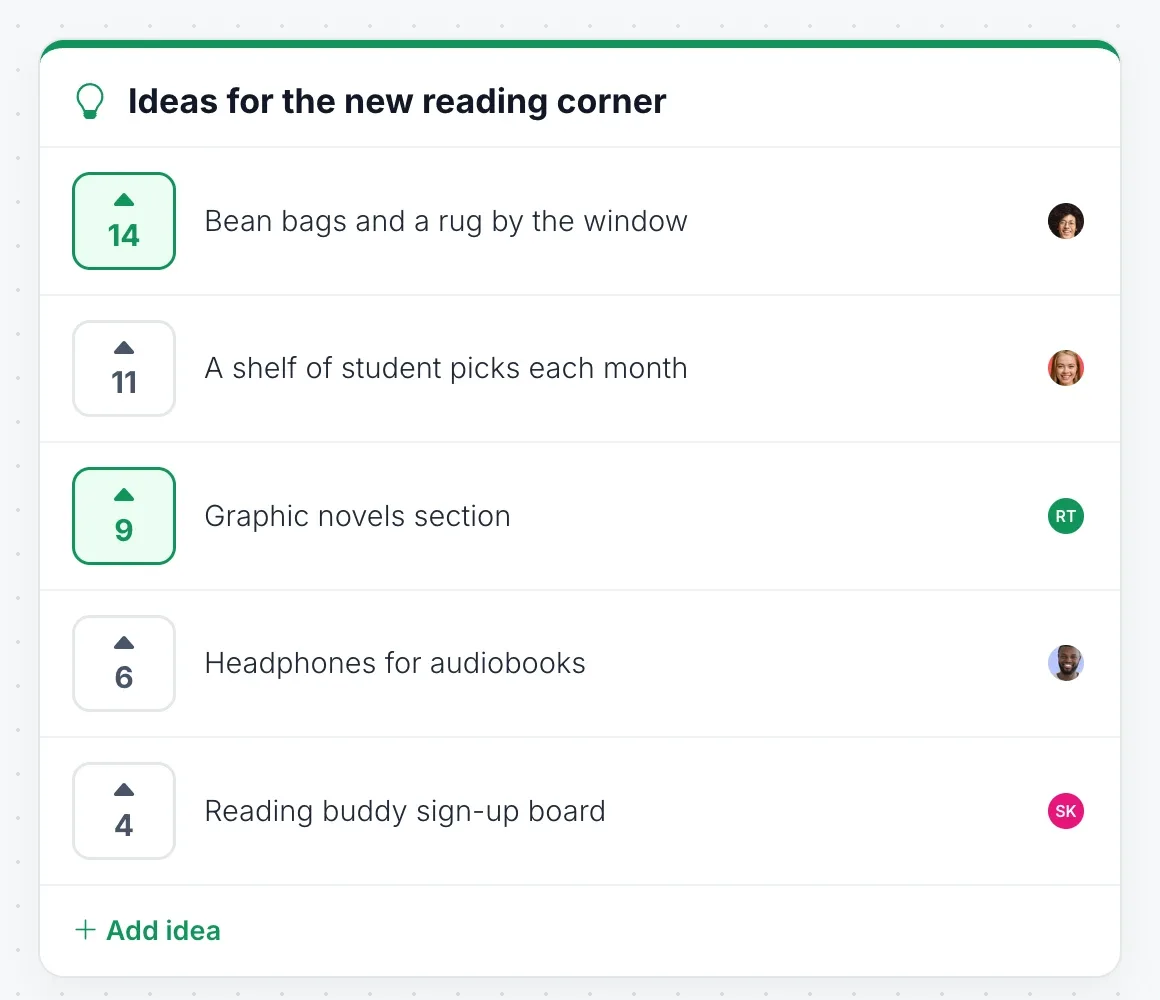
Live sessionCode on the slide
Conference breakouts
The audience adds questions and ideas, and upvotes rank them.
- Put the code on the slide
- Up to 30 people edit on Max
- Share the board with everyone afterwards
Talk wherever you like.
A session is about the board, so it works with any call, or none.
A call on the board
Talk right on the board, with audio on Plus and video on Max, and share your screen in a panel next to the work. See Start a meeting on a board.
Your usual call
Paste your Zoom, Google Meet or Teams link, and the invite carries both links. See MockFlow vs Zoom.
No call at all
In a classroom or a workshop room, everyone is already together. Just show the code.
Using Google Meet or Teams? MockFlow also runs inside Google Meet and inside Microsoft Teams. How sessions compare with meeting software: sessions vs meeting software.
Sessions on Plus and Max.
People you invite can be on any plan, including Basic. Compare plans
| Feature | Basic | Plus | Max |
|---|---|---|---|
| Live and scheduled sessions | Up to 10 people | Up to 30 people | |
| Guest editors | 1 guest | 3 per editor | 5 per editor |
| Calls on the board, with screen sharing | Audio | Audio and video | |
| Polls, voting and timers |
Whiteboard session questions.
Joining, length, limits and plans.
What is a whiteboard session?
How many people can join a session?
How long can a session last?
Can I choose who joins?
Do people need a MockFlow account?
Can I move or cancel a scheduled session?
What happens when a session ends?
Which plans include sessions?
Read more.
Guests who stay, meetings on the board, and how sessions compare.
A full whiteboard in one click. Share the link and anyone joins. Boards last 24 hours, so sign up to keep one.



 Brainstorm with MockFlow MCP


