



 Preference Test
 is a design preference test tool for product and design teams. Add 2 to 5 versions of the same screen, and everyone on the board looks at each one, picks the one they prefer and says why.
Use Preference Test together on your board.
Pick wireframes or Design frames straight from the board, or upload screenshots. Picks stay hidden until the person who started the test reveals them, and each person sees the designs in a different order, so no option wins just by going first or last.
It runs on a shared MockFlow board, so the test sits right next to the designs you are choosing between.
- Designs from the board. Compare wireframes or Design frames without exporting anything, or upload screenshots instead. Up to 5 designs per test.
- Fair comparison. Each person sees the designs in their own order, and the pick happens on a screen with all designs at the same size and none preselected.
- Hidden until revealed. Picks stay private until the person who started the test reveals them, so nobody follows the crowd.
- Live progress. While the test runs, see who is looking, who is choosing, who is writing a reason and who has picked.
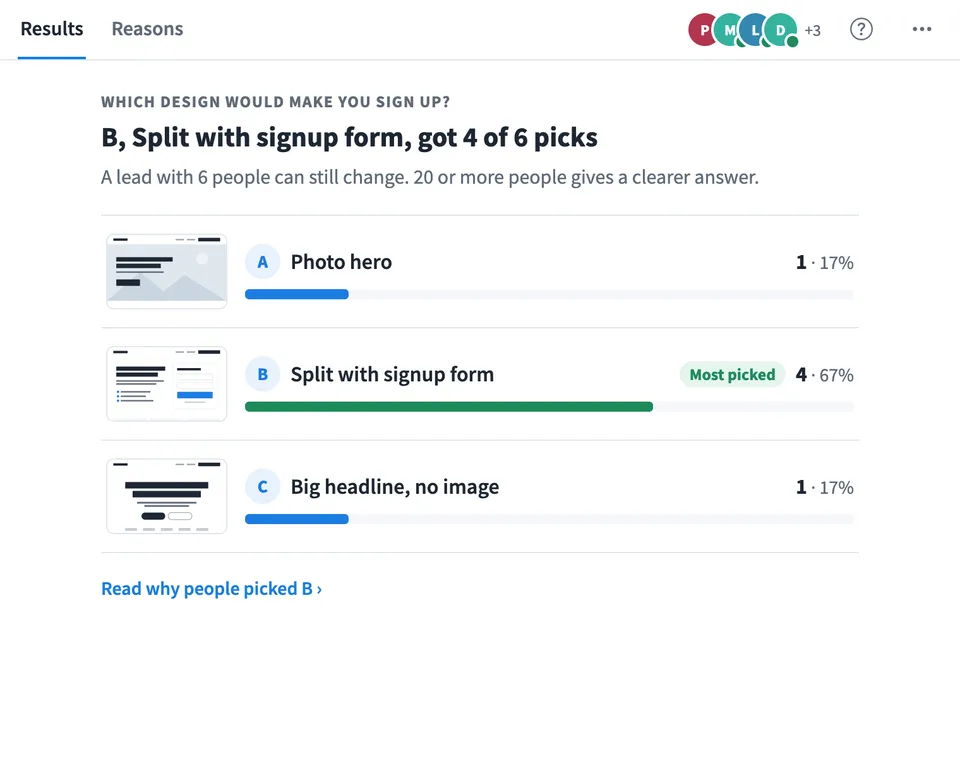
- Results and reasons. See picks and percentages per design, a note on how much a lead can still change with few people, and every reason grouped by design.
- Download the results. Save the picks and reasons for every design as a Markdown file to share in a report or a ticket.
How to use Preference Test.
Add the designs
Upload images from your files, or choose Wireframes or Design frames and select one or more on the board. The test takes a picture of each, and gives them the letters A to E.
Name them and write the question
Give each design a name to help you read the results. Testers only ever see the letters. Write the question, or keep Which design do you prefer?
Choose how people answer
Set Ask why to Required, Optional or Off, and keep the option that shows the designs in a different order for each person.
Start the test
Press Start test. Everyone else on the board sees the question, the number of designs and the three steps.
Look, then choose
Each person looks at every design full size, one at a time, and can scroll each one. Then they pick on a separate screen that shows all designs side by side at the same size, with nothing selected.
Say why
After picking, people write a sentence on what made them choose it. They can change their pick until the results are revealed.
Reveal and review
Press Reveal to show the picks per design and which one was picked most. Open Reasons to read every reason for each design, with the words people used more than once.
Who uses Preference Test.
A design team choosing a landing page direction
Put two or three hero layouts side by side and let the team pick, with a reason, before anyone argues for their favourite.
A product manager settling a review
Turn a long debate between options into a quick vote where nobody sees the others' picks until the end.
A UX workshop or class
Run a live preference test together and read the reasons aloud to show how people judge designs.
A remote team picking a screen design
Everyone takes the test on their own screen during a call, then the results open for the whole team at once.
Add Preference Test to your board.
Use on a board opens a new board with Preference Test already on it. To add it to a board you already have, follow these steps. Each copy keeps its own data, so a vote on one board never changes another.
Open your board
Open the MockFlow board you want to use it on.
Add it from the Artifact Library
Click Add anything (the plus button) in the toolbar at the bottom of the board, switch to Artifacts and pick Preference Test under Planning. Adding it does not use AI credits.
Use it together
Click Interact with Component (the hand button), or switch the board to Play mode. Everyone on the board uses the same app, and Reset shared data clears it for the next session.






 Brainstorm with MockFlow MCP


