



 5 Second Test
 is a five second test tool for design teams. Choose a design, show it to everyone on the board for a few seconds, then ask what they remember. It tells you quickly whether the main message of a screen lands at first glance.
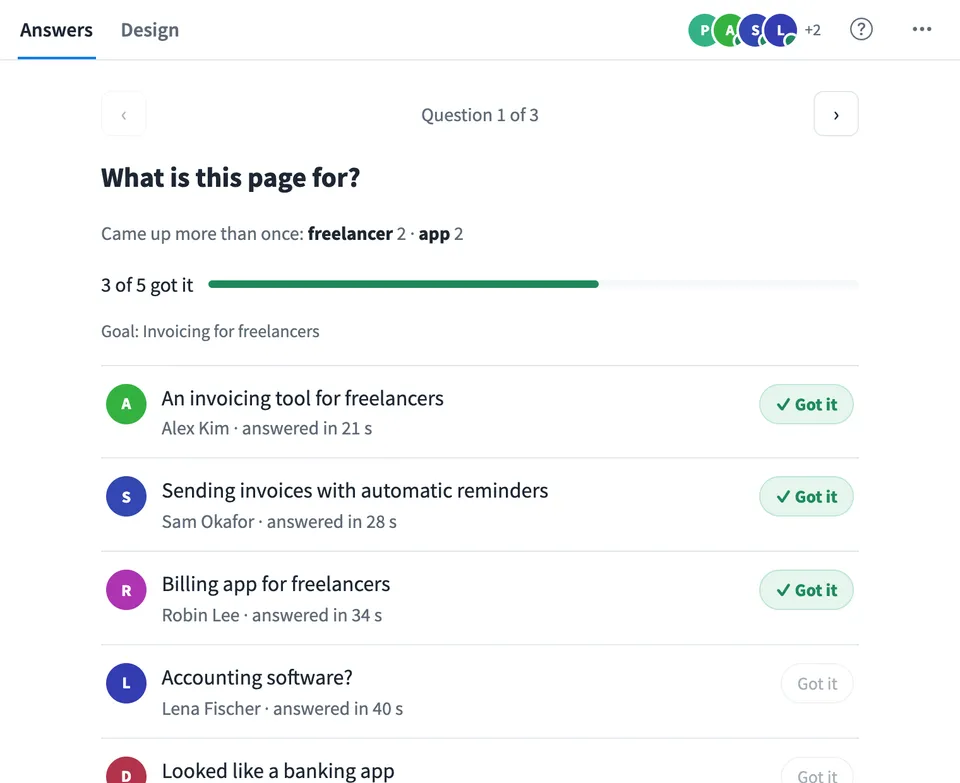
Use 5 Second Test together on your board.
Pick a wireframe or a Design frame straight from the board, or upload a screenshot. Everyone takes the test on their own screen, and the answers stay hidden until the person who started the test reveals them, so nobody copies anyone.
It runs on a shared MockFlow board, so the test sits right next to the designs you are working on.
- Designs from the board. Test a wireframe or a Design frame without exporting anything, or upload a screenshot instead.
- Timed exposure. The design fills the tile for 3, 5, 7 or 10 seconds with a countdown before and a timer bar while it shows. Each person sees it once.
- Hidden until revealed. Answers stay private until the person who started the test reveals them, so first impressions stay honest.
- Live progress. While the test runs, see who is looking at the design, who is answering and who has finished.
- Repeated words and a score. Results show the words that came up more than once, and a count of how many people got the main message once you mark their answers.
- Download the results. Save every question and answer as a Markdown file to share in a report or a ticket.
How to use 5 Second Test.
Choose the design
Upload an image from your files, or choose Wireframe or Design and select that frame on the board. The test takes a picture of it, so later edits to the frame do not change a running test.
Set the questions
Start from three common questions, edit them, or add your own. Choose how long the design shows: 3, 5, 7 or 10 seconds.
Add what people should get
Optionally write the message you hope people take away. It is shown next to the results.
Start the test
Press Start test. Everyone else on the board sees a short intro, a 3, 2, 1 countdown, then the design for the time you chose.
Answer from memory
After the design disappears, each person answers the questions one at a time. You see who is looking, who is answering and who is done.
Reveal and review
Press Reveal answers to show every answer side by side, one question at a time, with the words that came up more than once. Mark the answers that got the main message to see how many did.
Who uses 5 Second Test.
A design team checking a landing page
Before launch, the team runs a five second test on the hero section to see if people can say what the product does.
A product designer comparing ideas
Run the test on one wireframe, then start again with the next one and compare what people remembered.
A UX workshop or class
Show participants how first impressions work by running a live test together and reading the answers aloud.
A remote team reviewing a new screen
Test a screenshot of the new screen during a review call, everyone on their own screen at the same time.
Add 5 Second Test to your board.
Use on a board opens a new board with 5 Second Test already on it. To add it to a board you already have, follow these steps. Each copy keeps its own data, so a vote on one board never changes another.
Open your board
Open the MockFlow board you want to use it on.
Add it from the Artifact Library
Click Add anything (the plus button) in the toolbar at the bottom of the board, switch to Artifacts and pick 5 Second Test under Planning. Adding it does not use AI credits.
Use it together
Click Interact with Component (the hand button), or switch the board to Play mode. Everyone on the board uses the same app, and Reset shared data clears it for the next session.







 Brainstorm with MockFlow MCP


