
Artifact ยท General

Team stopwatch

timerstopwatchutilitytime tracking

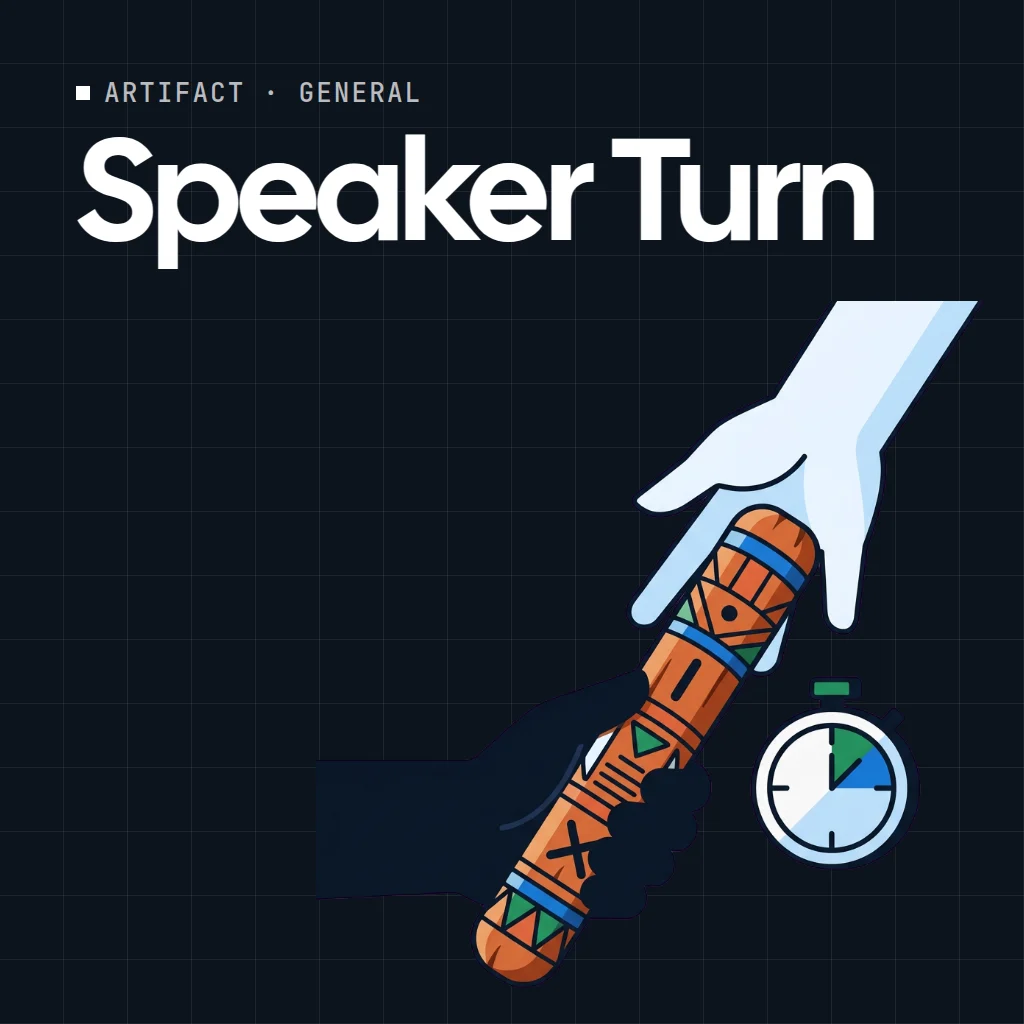
Team Stopwatch is a shared online stopwatch: one clock, everyone in sync. Start it, pause it, record laps and reset it, and everyone sees the same time.
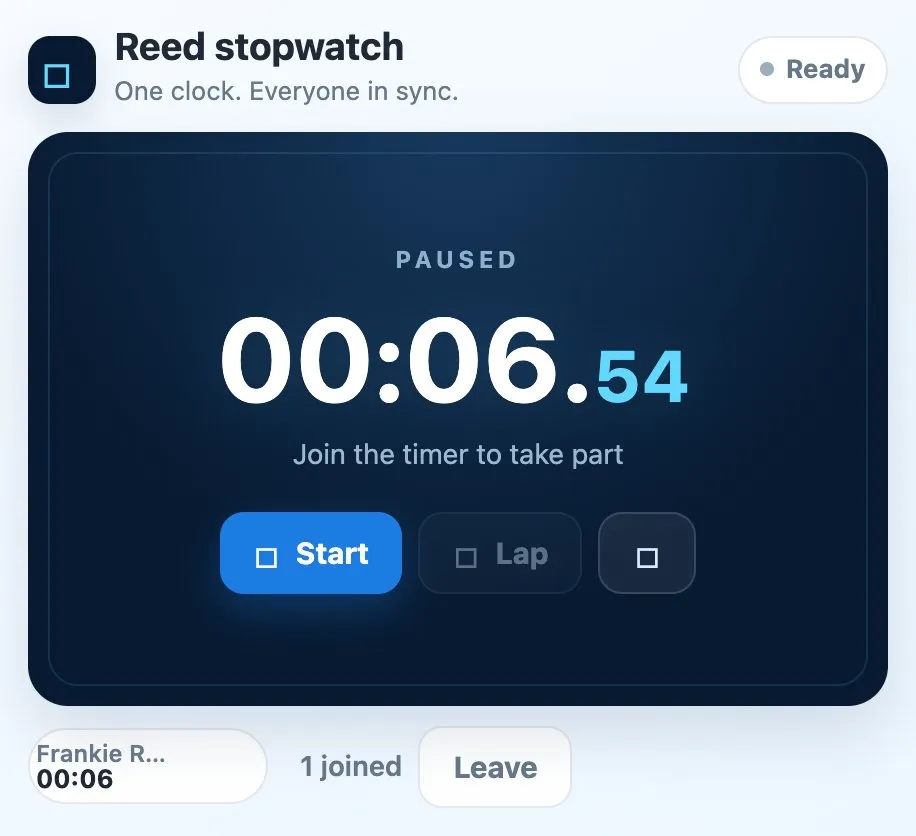
Use Team stopwatch together on your board.

The time shows in large numbers down to hundredths of a second. People join the timer to take part, and each person who joins shows with their own time.

It runs on a shared MockFlow board, so the whole group watches one clock instead of everyone running their own.

  • One shared clock. Everyone sees the same running time, with no drift between screens.
  • Hundredths of a second. Large minutes and seconds, with hundredths shown alongside.
  • Laps. Mark splits while the clock is running.
  • Join and leave. People join the timer to take part and can leave at any time.
  • Clear status. The clock shows whether it is ready, running or paused.

How to use Team stopwatch.

1

Join the timer

Join the timer to take part. Everyone who joined is listed below the clock.

2

Start the clock

Press Start and the time runs for everyone on the board.

3

Record laps

Press Lap while the clock runs to mark a split.

4

Pause and reset

Pause to stop the clock, and reset it to start over.

5

Leave when you are done

Press Leave to take yourself off the timer.

Who uses Team stopwatch.

A team timing a workshop exercise

Start one clock so everyone works to the same time.

A teacher running a class activity

Put the stopwatch where every student can see it.

A group timing a challenge

Use laps to mark each attempt on one shared clock.

A remote team timeboxing a discussion

Keep everyone aware of how long the topic has taken.

Add Team stopwatch to your board.

Use on a board opens a new board with Team stopwatch already on it. To add it to a board you already have, follow these steps. Each copy keeps its own data, so a vote on one board never changes another.

1

Open your board

Open the MockFlow board you want to use it on.

2

Add it from the Artifact Library

Click Add anything (the plus button) in the toolbar at the bottom of the board, switch to Artifacts and pick Team stopwatch under General. Adding it does not use AI credits.

3

Use it together

Click Interact with Component (the hand button), or switch the board to Play mode. Everyone on the board uses the same app, and Reset shared data clears it for the next session.

Update content with AI changes the content without changing how the app works.

Questions about Team stopwatch.

Is this a shared stopwatch everyone can see?
Yes. Team Stopwatch runs on a shared MockFlow board, so everyone sees the same clock running in sync.
Can I record laps?
Yes. Press Lap while the clock is running to mark a split.
What does joining the timer do?
Joining adds you to the people taking part, shown with your name and time below the clock. Press Leave to drop out.
How precise is it?
The clock shows minutes, seconds and hundredths of a second.
Can I clear it for the next session?
Yes. Reset the clock, or use Reset shared data on the component to clear everything.
How do I add Team Stopwatch to a board?
Press Use on a board on this page to open a new board with it already on, or open Add anything (the plus button in the bottom toolbar) on any board and pick it from Artifacts. Adding it uses no AI credits.
Get started

Use Team stopwatch with your team.

Included on Plus and MaxChange it with AI on Max
New to MockFlow

Sign up free, open a board and see what your team can use together.

MCPBrainstorm with MockFlow MCP

Add MockFlow as an MCP connector in Claude, Cursor, or any MCP-compatible AI assistant to generate flowcharts, mindmaps, architecture diagrams, and 16 types of visualizations.

Desktop App MCP Powerful
CLI Web MCP Developer
Loginless Web MCP Easiest

Built into the MockFlow Desktop App. AI creates visuals directly on your open canvas — no URLs, no waiting.

1
Open Desktop App → open a MockFlow project
2
In Claude Code / Cursor, run:
claude mcp add --transport http -s user mockflow-ideaboard http://localhost:21193/mcp
3
Ask: "Create a flowchart for..."

Best for: Designers, product teams, daily MockFlow users.

Download Desktop App →

Install from npm, log in via browser (OAuth), and boards are saved to your MockFlow account.

1
npm install -g @mockflow/ideaboard-mcp
2
mockflow-ideaboard-mcp login
3
mockflow-ideaboard-mcp

Best for: Developers using Claude Code, Cursor, or VS Code Copilot.

npm Package →

Add MockFlow as a connector in Claude.ai or ChatGPT. No installation, no account required. A new board is created and you get a shareable URL.

1
Open Claude.ai → Settings → Connectors
2
Paste this URL: https://app.mockflow.com/ideaboard/mcp
3
Ask Claude to create a flowchart — done!

Best for: Managers, marketers, anyone using Claude.ai or ChatGPT in the browser.

Welcome back

Don't have an account? Sign up

Faster ways in

Sign in with an account you already use.