



 Meeting Agenda Timer
 is a meeting agenda timer for teams. Write the agenda with the minutes each item gets and who leads it, then run the meeting with one timer that everyone on the board follows.
Use Meeting Agenda Timer together on your board.
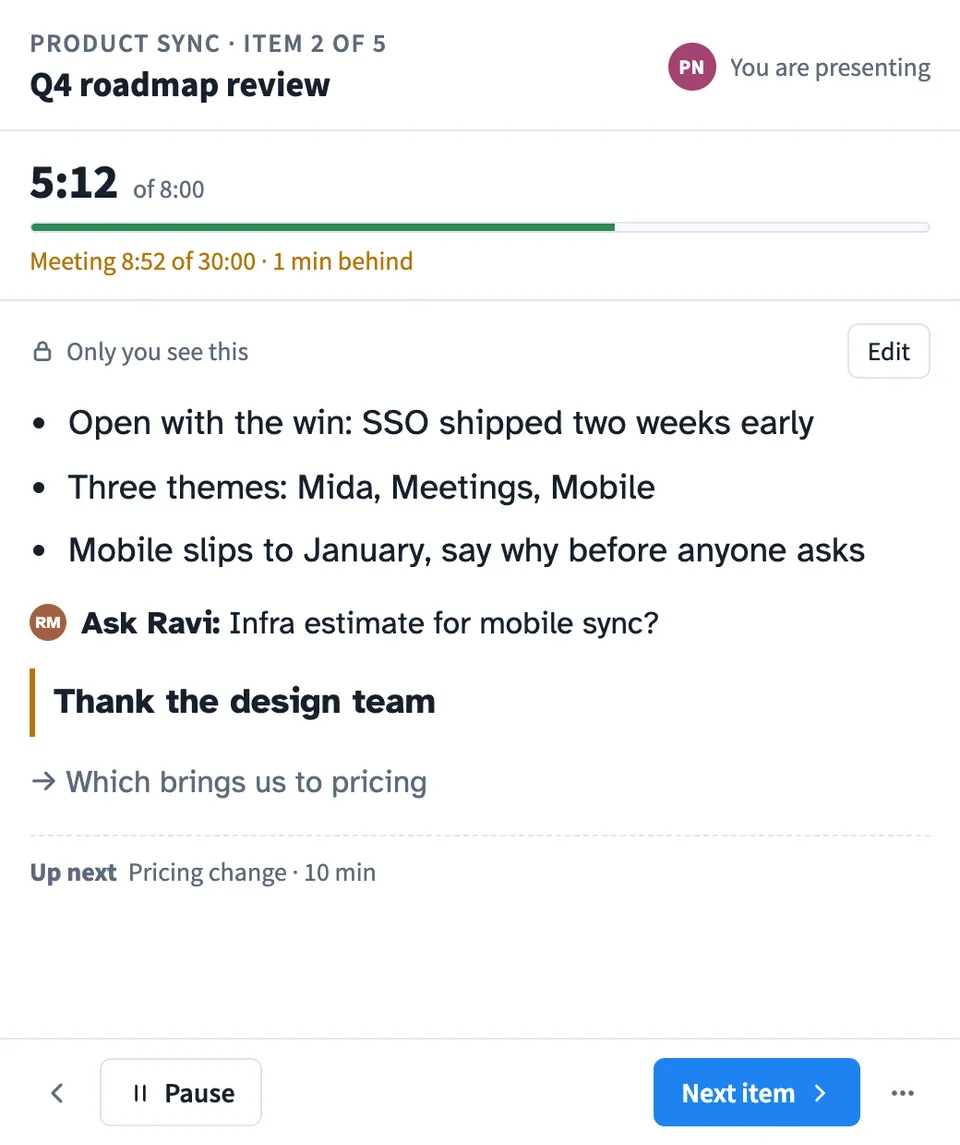
The person presenting sees their own speaker notes for the current item as a cue card or a scrolling teleprompter. Everyone else sees the agenda, the timer and who is presenting. Notes show only to the person who wrote them, and the lead of each item gets a cue when their item comes up.
It runs on a shared MockFlow board, so the agenda sits right next to the work you are discussing.
- Shared agenda timer. One timer for the current item and the whole meeting, the same on every screen, so nobody keeps time by hand.
- Speaker notes only you see. Your notes are drawn only on your own screen. Two people can write notes for the same item and each sees their own.
- Cue card and teleprompter. Read the current item's points as a large cue card, or scroll every item as a teleprompter with speed and text size controls.
- Item leads. Assign a member to lead an item. When the meeting reaches it, their screen says they are up and opens their own notes.
- Running ahead or behind. See the elapsed meeting time against the plan and how many minutes ahead or behind you are.
- Planned versus actual summary. When the meeting ends, every item shows its planned minutes, the time it took and the difference, with items not reached marked.
- Hand over and take over. Pass the presenter role to another member, or take it over after a confirmation if the presenter drops off.
How to use Meeting Agenda Timer.
Write the agenda
Name the meeting, add each item with its minutes, and reorder or remove items as you plan. Pick a board member to lead any item.
Add your speaker notes
Open Notes on an item to write talking points one per line, questions to ask a teammate, a Don't forget line and a lead into the next item. Only you see them.
Start the meeting
Press Start meeting. You become the presenter and everyone on the board follows the same agenda and timer.
Move through the items
Use Next item, the back arrow and Pause. The item timer turns amber near the end and red when it runs over, and a line below shows how far ahead or behind the whole meeting is.
Read from the teleprompter
Open the menu and choose Teleprompter view to scroll all your notes at a speed and text size you set. Choose Cue card to go back.
Hand over or end
Hand over to another member from the menu, or let a member take over. End the meeting to see planned and actual time for every item.
Who uses Meeting Agenda Timer.
A team lead running a weekly sync
Keep each topic to its minutes and see straight away when the meeting starts to run late.
A product manager presenting a roadmap
Present from a cue card of talking points that the rest of the team never sees.
A facilitator with several speakers
Assign a lead to each item so every speaker gets a cue and their own notes when it is their turn.
Someone recording a demo
Use the teleprompter view to read a prepared walkthrough at a steady pace.
A team reviewing how meetings go
Use the end summary to see which items keep running over and plan the next agenda better.
Add Meeting Agenda Timer to your board.
Use on a board opens a new board with Meeting Agenda Timer already on it. To add it to a board you already have, follow these steps. Each copy keeps its own data, so a vote on one board never changes another.
Open your board
Open the MockFlow board you want to use it on.
Add it from the Artifact Library
Click Add anything (the plus button) in the toolbar at the bottom of the board, switch to Artifacts and pick Meeting Agenda Timer under Timers. Adding it does not use AI credits.
Use it together
Click Interact with Component (the hand button), or switch the board to Play mode. Everyone on the board uses the same app, and Reset shared data clears it for the next session.




 Brainstorm with MockFlow MCP


