



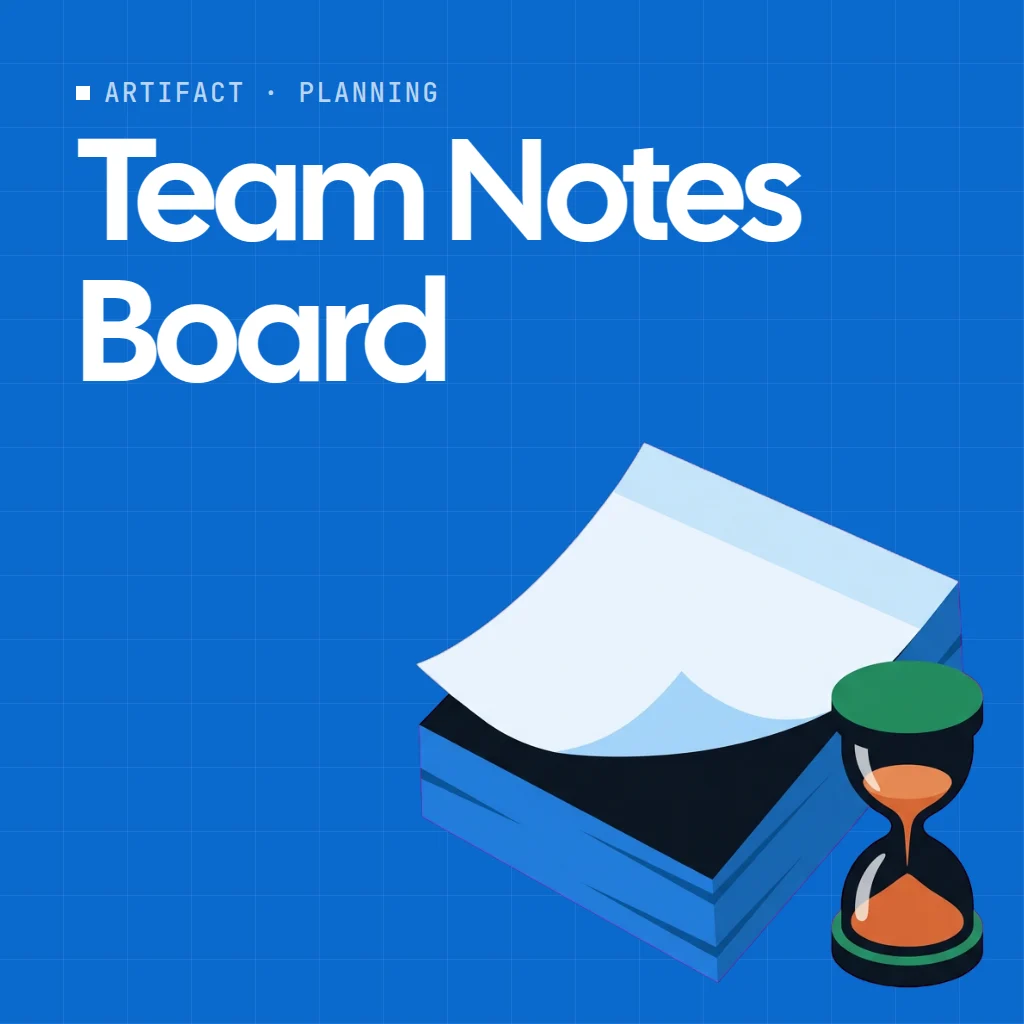
 Team Notes Board
 is a shared notes board where everyone on the board can pin short notes for the team. Write a note, pick a color, and it appears on every screen at once.

Use Team Notes Board together on your board.
Each note can stay forever or be a disappearing note: choose 1 minute, 10 minutes, 1 hour or 24 hours, and it vanishes for everyone when the time runs out.
It runs on a shared MockFlow board, so quick notes sit right next to the work instead of in a separate chat.
- Disappearing notes. Set a lifetime and the note vanishes for everyone when the time runs out.
- Five note colors. Yellow, blue, green, pink and purple make it easy to group or highlight notes.
- Live for everyone. Notes appear on every screen as soon as they are added.
- Timestamps. Each note shows when it was posted, from just now to days ago.
How to use Team Notes Board.
Write a note
Type in the Write a note for the board box. A note can be up to 500 characters.
Pick a color
Choose yellow, blue, green, pink or purple for your note.
Choose how long it stays
Leave it on Keep forever, or pick 1 min, 10 min, 1 hour or 24 hours to make it a disappearing note.
Add it to the board
Press Add note. The note appears for everyone, with how long ago it was posted and, for disappearing notes, the time left.
Who uses Team Notes Board.
A team during a live session
Drop quick thoughts, links or reminders that only matter for the next ten minutes.
A team starting the day
Post a 24 hour note with today's focus so everyone sees it on the board.
A facilitator running a workshop
Share short prompts or instructions that clear themselves once the exercise ends.
A team keeping lasting notes
Pin decisions and reminders with Keep forever so they stay next to the work.
Add Team Notes Board to your board.
Use on a board opens a new board with Team Notes Board already on it. To add it to a board you already have, follow these steps. Each copy keeps its own data, so a vote on one board never changes another.
Open your board
Open the MockFlow board you want to use it on.
Add it from the Artifact Library
Click Add anything (the plus button) in the toolbar at the bottom of the board, switch to Artifacts and pick Team Notes Board under Planning. Adding it does not use AI credits.
Use it together
Click Interact with Component (the hand button), or switch the board to Play mode. Everyone on the board uses the same app, and Reset shared data clears it for the next session.








 Brainstorm with MockFlow MCP


