



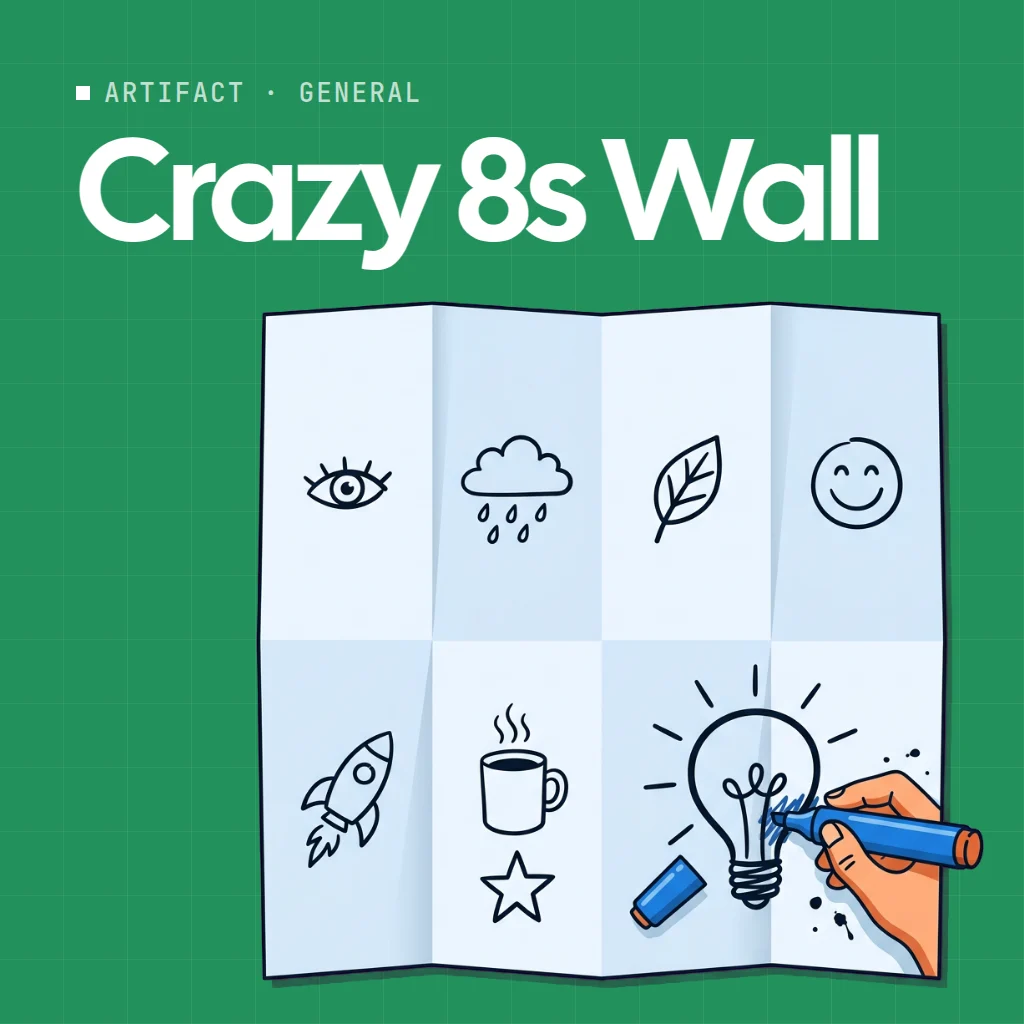
 Crazy 8s Wall
 runs the Crazy 8s sketching exercise online: eight cards, eight minutes, one idea per card. It pushes a team toward many ideas fast, rather than one polished one.
Use Crazy 8s Wall together on your board.
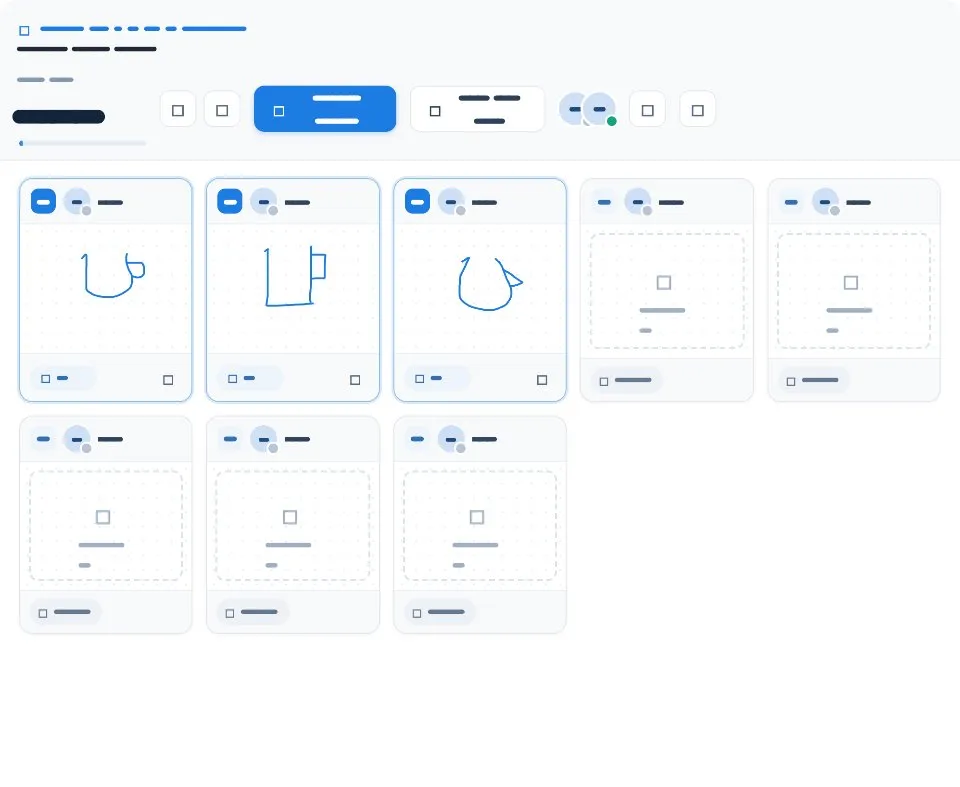
Everyone sketches on their own sheet in silence while the clock runs. When the timer hits zero every card locks and the whole wall is revealed together for critique.
It runs on a shared MockFlow board, so the prompt, the timer and the reveal are the same for everyone.
- Eight card sheet. Each person gets eight cards to fill, one idea per card.
- Drawing on each card. Sketch freehand straight onto a card.
- Shared timer. One countdown for the whole board keeps everyone on pace.
- Lock and reveal. Cards lock at zero and the wall opens for everyone at once.
- Clear the wall. Wipe every sheet and the timer in one step for a fresh round.
- Your own prompt. Update content with AI changes the prompt and rules to fit your problem.
How to use Crazy 8s Wall.
Set the prompt
Start from a How might we question, such as how to make the first five minutes of onboarding feel effortless.
Start the clock
Eight cards, eight minutes. Roughly a minute per card, then move on.
Sketch one idea per card
Open a card and draw. Ugly is fine: a box, an arrow and a word beats a beautiful blank.
Stay quiet while the clock runs
No discussion during the timer. Silence now, critique after.
Reveal the wall
When the timer hits zero every card locks and the wall is revealed to everyone together.
Clear for the next round
Clear the wall to wipe everyone's sheets and reset the timer for the whole board.
Who uses Crazy 8s Wall.
A design sprint team on sketch day
Run Crazy 8s after mapping the problem to generate solution ideas.
A product team stuck on a feature
Get eight rough directions from each person in eight minutes.
A UX workshop with a remote group
Everyone sketches in parallel and the reveal starts the critique.
A teacher running an ideation class
Teach divergent thinking with a timed, hands on exercise.
Add Crazy 8s Wall to your board.
Use on a board opens a new board with Crazy 8s Wall already on it. To add it to a board you already have, follow these steps. Each copy keeps its own data, so a vote on one board never changes another.
Open your board
Open the MockFlow board you want to use it on.
Add it from the Artifact Library
Click Add anything (the plus button) in the toolbar at the bottom of the board, switch to Artifacts and pick Crazy 8s Wall under General. Adding it does not use AI credits.
Use it together
Click Interact with Component (the hand button), or switch the board to Play mode. Everyone on the board uses the same app, and Reset shared data clears it for the next session.
Update content with AI changes the content without changing how the app works.







 Brainstorm with MockFlow MCP


