



 Hand written Paper
 is a shared sheet of lined notebook paper for writing and sketching by hand, together. Write notes, draw arrows, circle ideas, and everyone sees the same page.
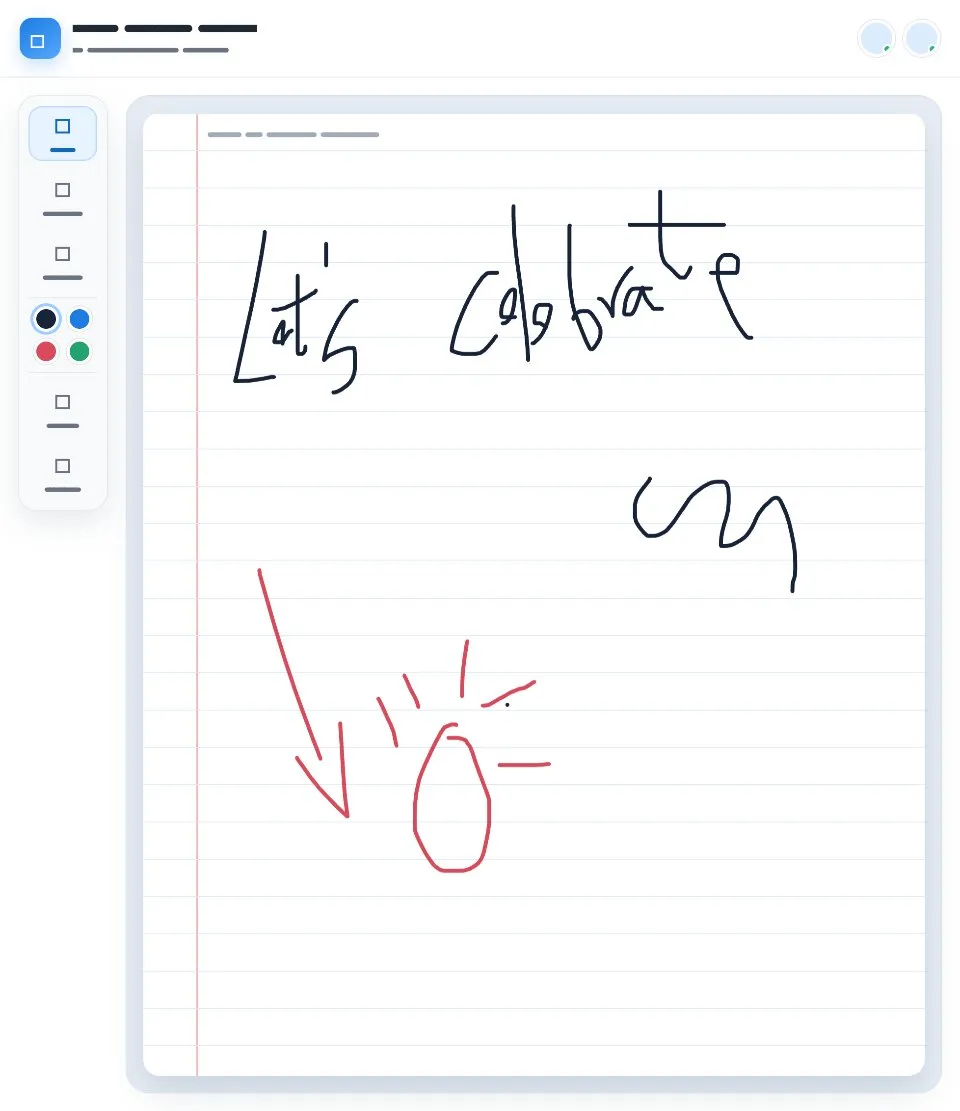
Use Hand written Paper together on your board.
A small toolbar holds a pen, a pencil and an eraser, a few ink colors and undo, so it feels like writing on paper rather than using a drawing app.
It runs on a shared MockFlow board, so the whole team writes on the same paper at once.
- Lined notebook paper. Ruled lines and a margin, like a real sheet of paper.
- Pen, pencil and eraser. The basic writing tools, nothing more to learn.
- Ink colors. Switch between a few colors to mark up or highlight.
- Undo. Take back a stroke you did not mean.
- One shared page. Everyone writes on the same paper and sees each other's strokes.
How to use Hand written Paper.
Pick a tool
Choose the pen or pencil from the toolbar on the left.
Choose a color
Pick an ink color from the swatches.
Write or sketch
Draw straight on the lined paper. Everyone on the board sees your strokes.
Fix mistakes
Use the eraser, or undo your last stroke.
Who uses Hand written Paper.
A team that thinks better by hand
Jot ideas and sketches together on one page.
A tutor working through a problem
Write out steps by hand while the student follows along.
A group sketching a quick diagram
Draw arrows and shapes freehand without any setup.
A team leaving a handwritten note
Sign a card or write a message together.
Add Hand written Paper to your board.
Use on a board opens a new board with Hand written Paper already on it. To add it to a board you already have, follow these steps. Each copy keeps its own data, so a vote on one board never changes another.
Open your board
Open the MockFlow board you want to use it on.
Add it from the Artifact Library
Click Add anything (the plus button) in the toolbar at the bottom of the board, switch to Artifacts and pick Hand written Paper under General. Adding it does not use AI credits.
Use it together
Click Interact with Component (the hand button), or switch the board to Play mode. Everyone on the board uses the same app, and Reset shared data clears it for the next session.
Update content with AI changes the content without changing how the app works.




 Brainstorm with MockFlow MCP


