



 Virtual Office
 is a simple online office floor plan where your team shows what they are up to. Each person checks in by choosing a room, and their profile head appears there for everyone to see.
Use Virtual Office together on your board.
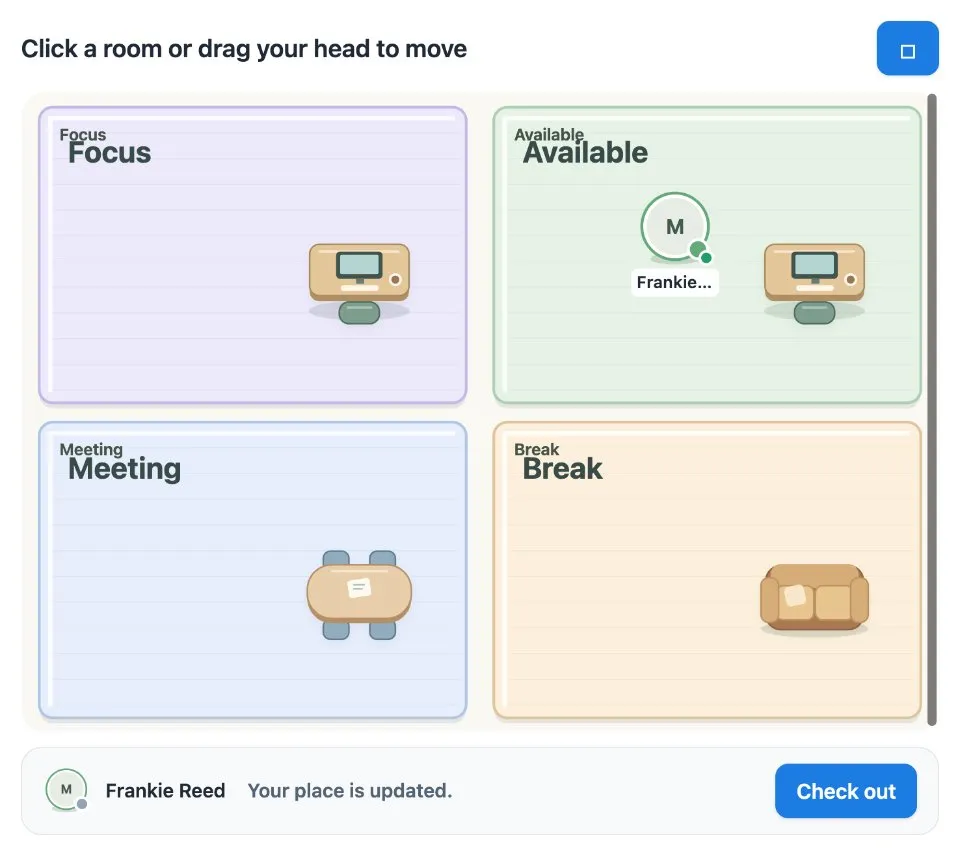
The rooms say it at a glance: Focus for quiet work, Available for a chat, Meeting for busy together and Break for a breather. Dots show who is online, and each place stays until that person checks out.
It runs on a shared MockFlow board, right next to the work. Everyone on the board sees the office update live.
- A tiny office floor plan. A simple 2D office with four rooms that each stand for a status.
- Profile heads. Everyone appears as their own profile head in the room they chose.
- Live updates. When someone checks in, moves or checks out, the whole team sees it right away.
- Online dots. A dot on each head shows whether that person is online or offline.
- Places that stay. Your place stays where you left it until you check out, even if you go offline.
- Built in help. How to use explains the rooms and how to move in a few lines.
How to use Virtual Office.
Check in
Choose a room to place your own profile head and open your day.
Pick the room that fits
Focus means quiet work, Available means open to a chat, Meeting means busy together and Break means taking a breather.
Move when things change
Click anywhere in another room, or drag your own head there. Everyone sees the move live.
See who is around
Each head shows a dot for online or offline, so you know who is there right now.
Check out
Press Check out when you are done for the day. Come back tomorrow by choosing any room.
Who uses Virtual Office.
A remote team starting the day
Everyone checks in to a room so the team knows who is focusing and who is free to talk.
A hybrid team on a shared project board
Keep the office next to the project so people can see who is available before asking a question.
A team lead planning a quick sync
Glance at the Available and Meeting rooms to find a good moment to pull people together.
A design or engineering team protecting focus time
Sit in Focus to show you are heads down, and move to Available when you are open again.
Add Virtual Office to your board.
Use on a board opens a new board with Virtual Office already on it. To add it to a board you already have, follow these steps. Each copy keeps its own data, so a vote on one board never changes another.
Open your board
Open the MockFlow board you want to use it on.
Add it from the Artifact Library
Click Add anything (the plus button) in the toolbar at the bottom of the board, switch to Artifacts and pick Virtual Office under Planning. Adding it does not use AI credits.
Use it together
Click Interact with Component (the hand button), or switch the board to Play mode. Everyone on the board uses the same app, and Reset shared data clears it for the next session.










 Brainstorm with MockFlow MCP


