



 YouTube Video Ideas
 is a video ideas generator and content planner that sits on a shared MockFlow board. Describe your channel in a short brief and get ideas written for an influencer, a professional, a brand or a company, each with a title, an opening hook, a format and a content pillar.
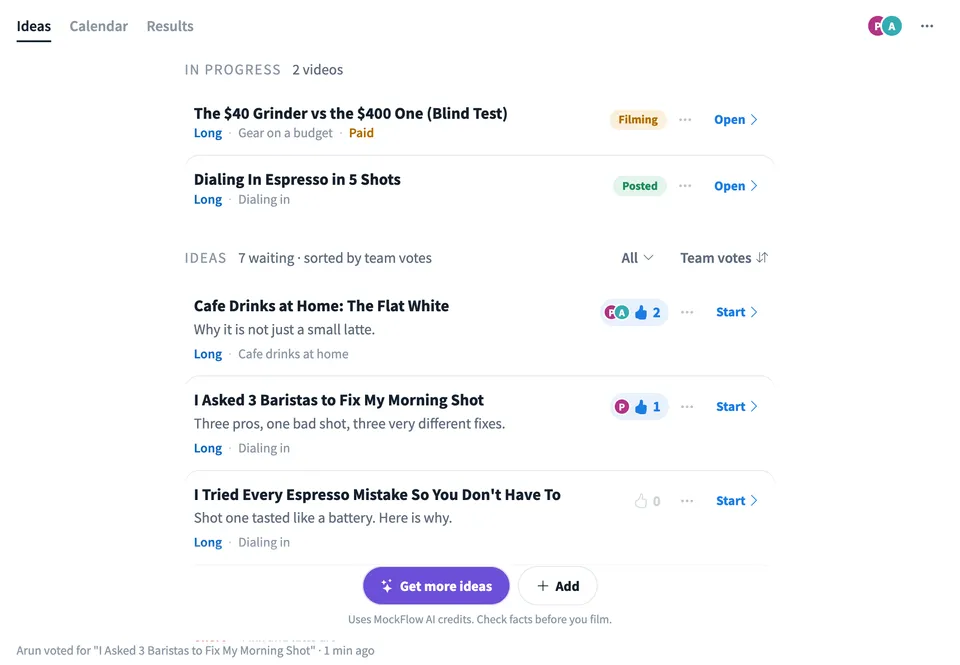
Use YouTube Video Ideas together on your board.
Vote on the ideas with your team, then start a video plan for the ones you will make: title options, the first 30 seconds, chapters, a description, tags, Shorts cut from the video and thumbnail concepts. Add the thumbnail from your own photos or AI pictures, put the video on a calendar and keep track of how it did.
- Ideas for four kinds of channels. Influencer, professional, brand and company channels each get their own angles, hooks and calls to action.
- Ready to film video plans. Titles, the first 30 seconds, chapters, description, tags and Shorts for each video, plus a full script written chapter by chapter.
- Thumbnail concepts. AI suggests thumbnail concepts that pair an image idea with a title. Add the image from your own photos or generate it with AI, then vote on the pairs and check the title length.
- Titles and thumbnails side by side. Compare up to six thumbnail and title pairs, vote on them and see how each looks in a feed, with simple checks for length and readability.
- Captions for other channels. Turn a video into a community post with a poll, a pinned comment and captions for Instagram, TikTok, LinkedIn and X, each with its character limit.
- Brand kit and approval. Set the channel name, tone of voice, words to avoid and a call to action. Turn on approval so video plans move from draft to review to approved before filming.
- Works without AI. Title patterns, editing, planning, results and exports all work by hand. AI uses your MockFlow AI credits.
How to use YouTube Video Ideas.
Write the brief
Pick who the channel is for, then add the topic, who watches, the goal, the formats you make and the language. Paste past video titles so ideas skip what you already made.
Get ideas
Get 6, 12 or 24 ideas with AI, or start without AI by filling in proven title patterns such as X vs Y, Mistakes or Day 1 to Day 30. You can also add your own ideas.
Vote on ideas
Vote on the ideas you like with your team. Ideas you have used or archived move to the idea bank so they are not suggested again.
Start a video plan
Press Start on an idea and plan it with AI or start blank: three title options with a check for the 60 characters shown before the cut, the first 30 seconds, chapters checked against YouTube rules, the description lead, tags and Shorts. The video moves to In progress and its status shows as steps from Idea to Posted.
Design the thumbnail
Open the thumbnail from the video plan and pick an image from the board's file library, or generate a picture with AI from the concept's idea. Each concept pairs one image with a title, and the team votes on the pair.
Plan and track
Place videos in progress and their Shorts on the next seven days or the four week calendar, or auto-fill them from your posting rhythm. After posting, type in the numbers from YouTube Studio and note what worked.
Who uses YouTube Video Ideas.
A creator planning next month
Gets a fresh list of ideas from the brief, starts video plans for the best five and fills the calendar with long videos and Shorts.
A brand marketing team
Keeps product videos on brand with the brand kit, marks sponsored videos for disclosure and sends each video plan for approval before filming.
A company content team
Plans customer stories and thought leadership videos together, votes on thumbnails and exports the plan as CSV for a spreadsheet.
A professional building trust
Turns the questions clients ask into videos with clear hooks and chapters, then writes the full script ready to read on camera.
Add YouTube Video Ideas to your board.
Use on a board opens a new board with YouTube Video Ideas already on it. To add it to a board you already have, follow these steps. Each copy keeps its own data, so a vote on one board never changes another.
Open your board
Open the MockFlow board you want to use it on.
Add it from the Artifact Library
Click Add anything (the plus button) in the toolbar at the bottom of the board, switch to Artifacts and pick YouTube Video Ideas under Planning. Adding it does not use AI credits.
Use it together
Click Interact with Component (the hand button), or switch the board to Play mode. Everyone on the board uses the same app, and Reset shared data clears it for the next session.






 Brainstorm with MockFlow MCP


