



 TeamPlay for YouTube
 is a YouTube watch party for your team. Paste a YouTube link and the video plays on the board. Whoever starts it controls it with the player's own buttons, and everyone else on the board sees the same moment.
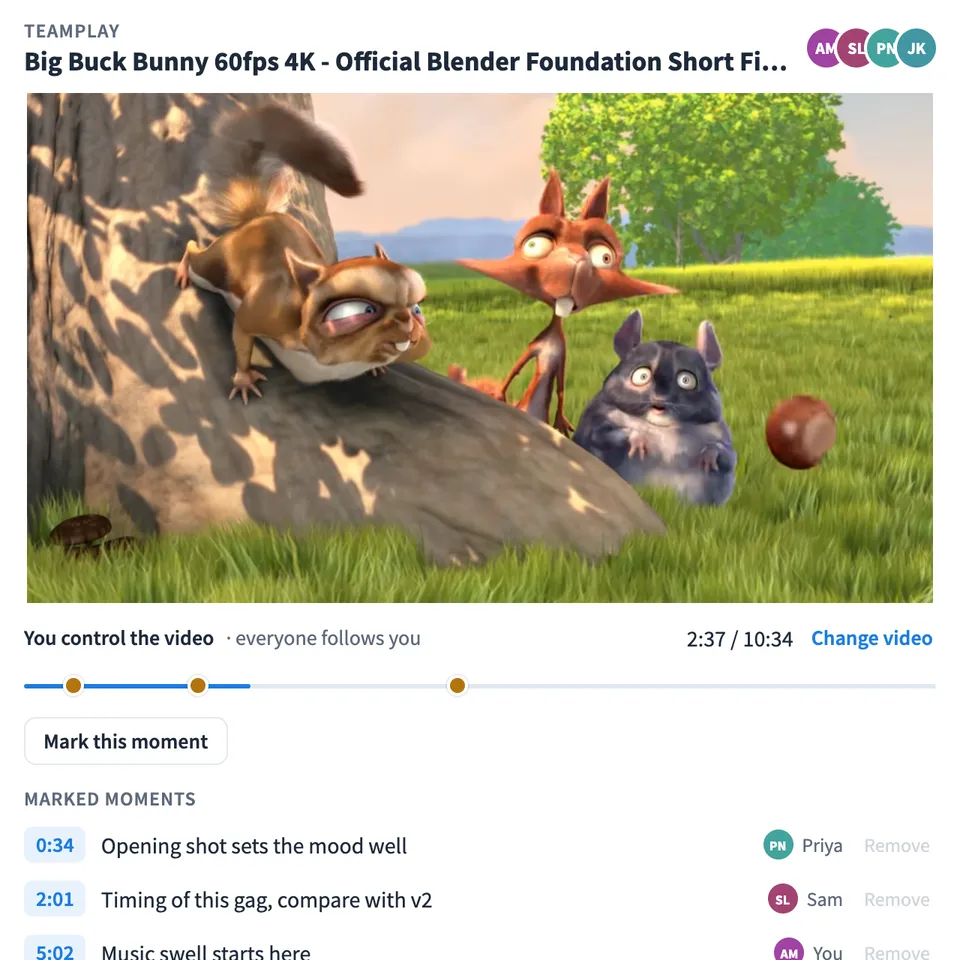
Use TeamPlay for YouTube together on your board.
People who join late land where the group is. Anyone can mark a moment with a short note, so the team can jump back to the part they want to talk about.
It runs on a shared MockFlow board, next to your notes, designs and plans, so the discussion that follows the video happens in the same place.
- Everyone sees the same moment. Play, pause and seeking by the person in control reach everyone on the board, and late joiners start where the group is.
- One person in control. The person who starts the video controls it, and anyone can take over, including when the person in control leaves the board.
- Marked moments. Mark a moment with an optional note. Marks show as dots on a strip under the video and in a list with who marked each one.
- Watch on your own. Pause or scrub without stopping anyone else, then choose Back in sync to return to the group.
- Any YouTube link. Watch, youtu.be, Shorts, embed and live links all work, and a start time in the link is kept.
- Fits the tile. On a wide tile the marked moments move beside the video, so the video keeps its size.
How to use TeamPlay for YouTube.
Paste a YouTube link
Paste a watch, youtu.be, Shorts, embed or live link and choose Watch. A link with a start time, such as ?t=90, starts the video there.
Play it for everyone
You now control the video. Play, pause and seek with the player's own buttons, and everyone on the board follows you.
Join in
Anyone who opens the board sees the video at the group's moment. If the browser blocks sound until a click, press play on the video to join in.
Mark a moment
Choose Mark this moment, add an optional note such as Pricing step starts here, and save it. The mark shows on the strip under the video and in Marked moments.
Jump to a mark
When the person in control chooses a mark, everyone jumps there. Anyone else who chooses one jumps there on their own screen.
Watch on your own or take over
Pause or scrub on your own and you watch on your own until you choose Back in sync. Choose Take over to control the video for everyone.
Who uses TeamPlay for YouTube.
A product team reviewing a demo
Watch a recorded demo together and mark the moments to discuss, then talk them through on the board.
A remote team watching a talk
Play a conference talk for everyone in a meeting and mark the ideas worth following up.
A trainer running a session
Play a training video to the group and point everyone back to the part being explained.
A research team studying a competitor
Watch a competitor's walkthrough together and mark each step of their flow.
A team taking a break
Watch something fun together during a remote team event, with everyone at the same moment.
Add TeamPlay for YouTube to your board.
Use on a board opens a new board with TeamPlay for YouTube already on it. To add it to a board you already have, follow these steps. Each copy keeps its own data, so a vote on one board never changes another.
Open your board
Open the MockFlow board you want to use it on.
Add it from the Artifact Library
Click Add anything (the plus button) in the toolbar at the bottom of the board, switch to Artifacts and pick TeamPlay for YouTube under Utilities. Adding it does not use AI credits.
Use it together
Click Interact with Component (the hand button), or switch the board to Play mode. Everyone on the board uses the same app, and Reset shared data clears it for the next session.







 Brainstorm with MockFlow MCP


