



 Sign-off Seal
 is a design approval and sign off tool that sits right beside the work. Pick a frame, design or any item on the board, choose who must sign, and each person signs by hand. When everyone has signed, the seal stamps itself Approved with the date.
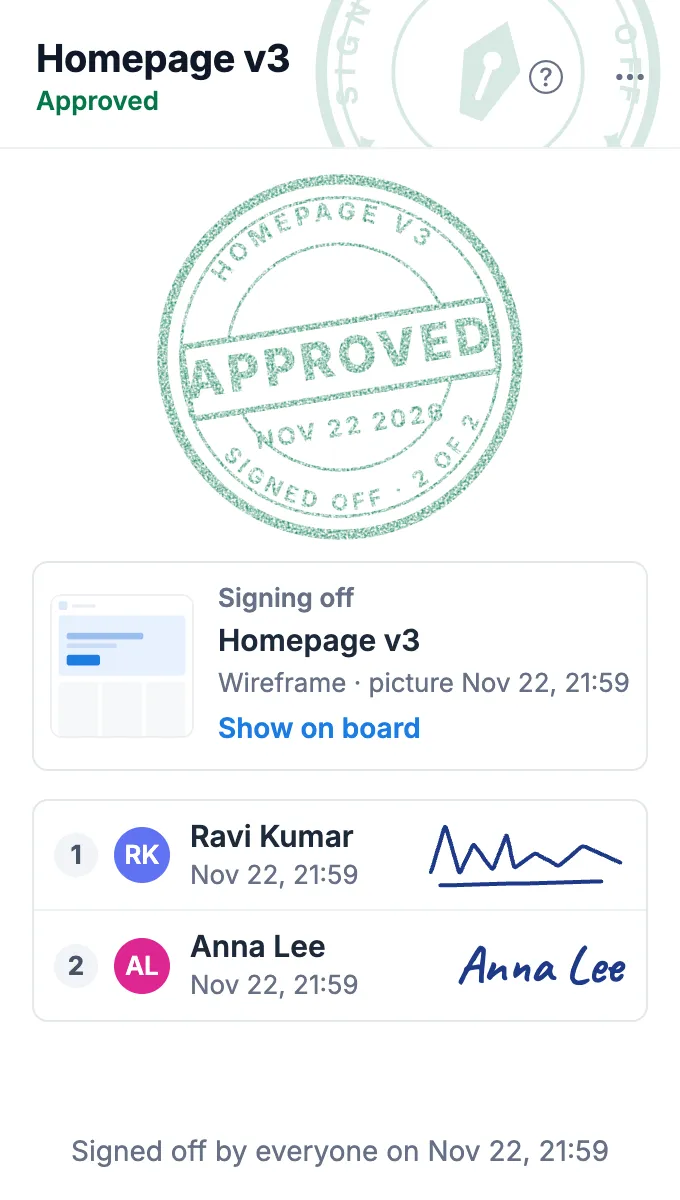
Use Sign-off Seal together on your board.
It keeps a picture of what was signed. If the item is edited afterwards, the seal says Changed since signed, so nobody mistakes an old approval for a new one.
It runs on a shared MockFlow board, so the approval lives next to the design and everyone sees who signed and when. It is a sign off record for your team, not a legal e-signature.
- Linked to the item. The seal keeps a picture of the item it signs off, opens it full size, and jumps to it with Show on board.
- Handwritten signatures. Each person draws their signature or types it, and only they can sign their own row.
- Sign in order. Set a signing order by dragging, and later signers wait until it is their turn.
- Changed since signed. If the item is edited after signing, the stamp fades and the seal says so. Moving or resizing the item does not count.
- Not yet and Withdraw. Signers can hold the sign off with a reason, or withdraw their own signature before the stamp lands, with Undo.
- Cancel, reopen, start again. The person who set it up can cancel it, reopen an approved seal for signing, or start a new sign off from the menu.
How to use Sign-off Seal.
Pick what is being signed off
Tap Pick from the board and click the frame, design or item. The seal takes a picture of it and fills in the name.
Choose who must sign
Tick the board members who need to approve. Turn on Sign in order and drag the list to set who signs first.
Ask them to sign
Press Ask to sign. The seal shows how many have signed, and each person sees Sign on their own row when it is their turn.
Sign by hand
Tap Sign and draw your signature, or choose Type instead. Your signature, name and time appear in your row.
Hold it with a reason
Not ready? Tap Not yet and write what needs to change. Everyone sees the reason until you sign.
Get the Approved stamp
When the last person signs, the seal stamps Approved with the date. If the item changes later, the person who set it up can ask everyone to sign again.
Who uses Sign-off Seal.
A design team getting client approval
Ask the client and the design lead to sign off a homepage wireframe before it goes to development.
A product manager locking scope
Have engineering and design sign the scope note, and see at once if it changed after approval.
An agency handing over deliverables
Collect sign off on each delivered design right on the review board.
A team approving a launch plan
Get the owners of each area to sign in order before the launch date.
Add Sign-off Seal to your board.
Use on a board opens a new board with Sign-off Seal already on it. To add it to a board you already have, follow these steps. Each copy keeps its own data, so a vote on one board never changes another.
Open your board
Open the MockFlow board you want to use it on.
Add it from the Artifact Library
Click Add anything (the plus button) in the toolbar at the bottom of the board, switch to Artifacts and pick Sign-off Seal under Planning. Adding it does not use AI credits.
Use it together
Click Interact with Component (the hand button), or switch the board to Play mode. Everyone on the board uses the same app, and Reset shared data clears it for the next session.










 Brainstorm with MockFlow MCP


