




 Image Editor
 is a shared photo editor for teams. Pick a picture on your board or upload one, fix it together, and put the result straight back where it was.
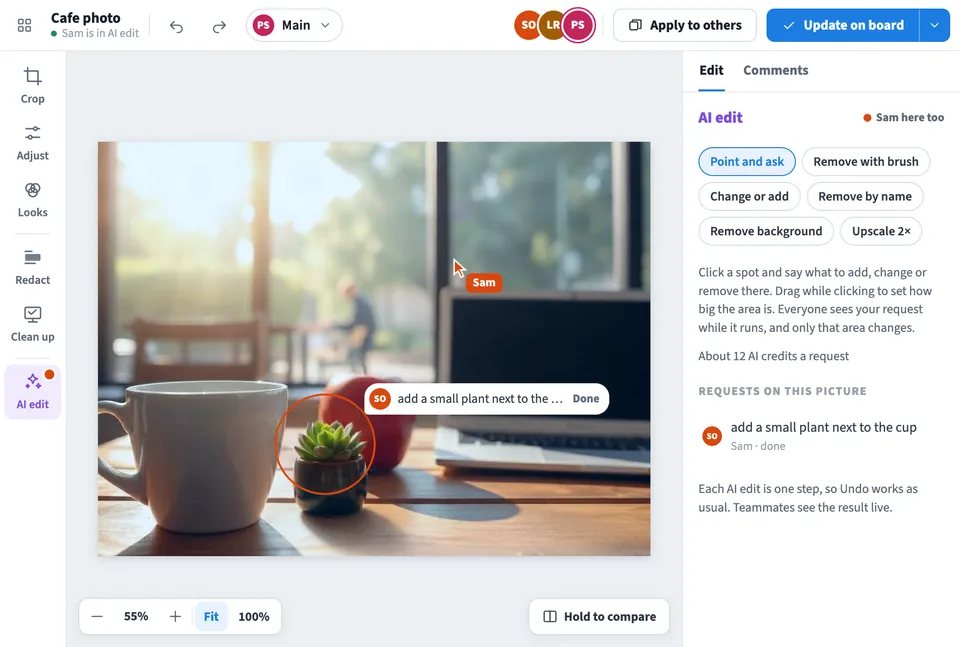
Use Image Editor together on your board.
Crop and straighten, square up a whiteboard photo taken at an angle, balance colour and light with Auto fix, and blur or block out names, emails and faces before a picture is shared. AI edits remove things, add things, remove backgrounds and upscale small pictures.
It runs on a shared MockFlow board, so everyone sees the same picture, each other's cursors and every change as it happens.
- Edits never touch the original. Every change is kept as a recipe on top of the original picture. Hold Compare to see the original, or start over from the menu.
- Whiteboard photo fixes. Drag four corners to square up a board, page or screen photo, then clean it up so the board turns white and the ink stands out.
- Redaction. Hide names, emails, numbers and faces with a solid bar, pixelation or blur before the picture is shared.
- AI edits. Point and ask, remove with a brush, change or add, remove by name, remove the background or upscale 2 times. Only the area you mark changes.
- Live together. See teammates' cursors and which tool they are in. An area someone is editing is locked for everyone else until they let go.
- Team presets and Apply to others. Save a look as a preset for everyone on the board, and apply the same fix to other pictures on the board in one go.
- Versions, votes and reviewers. Try ideas in your own version, vote, and make the winner Main. Reviewers can comment, approve and vote but not change the picture.
- Fits any tile size. The layout gets compact when the tile is small, with tools along the bottom and controls opening below the picture.
How to use Image Editor.
Choose a picture
Press Pick on board and click a picture on the board, or press Upload to choose one from your files. You can also drop a picture onto the editor.
Fix it
Use Crop to crop, straighten, rotate, flip or fix perspective. Use Adjust for Auto fix and the light, colour and detail sliders, and Looks for built in and team presets.
Clean up and redact
Clean up evens out shadows on whiteboard and paper photos and can remove a plain background. Redact lets you drag over private details and choose a solid bar, pixelate or blur.
Use AI edit
Point at a spot and say what to change, paint over something to remove it, name what to take out, remove the background or upscale. Each AI edit uses AI credits.
Review with the team
Pin comments on spots, request a review and approve. Make your own version to try a different fix, vote on versions and make the winner Main.
Save
Press Update on board to replace the picture in the same place. The menu next to it places a copy on the board, saves to the library or downloads a PNG or JPEG.
Who uses Image Editor.
A team after a workshop
Square up and clean the whiteboard photos so everyone can read the notes on the board.
A designer sharing a screenshot
Redact customer names and emails before the screenshot goes into a review or a deck.
A marketing team preparing product shots
Apply the same team preset to every product photo so the set looks consistent.
A product team reviewing visuals
Request a review, collect comments pinned on spots, and approve the picture before it is used.
Anyone with a messy photo
Remove a person or object in the background with AI, or upscale a small picture before using it larger.
Add Image Editor to your board.
Use on a board opens a new board with Image Editor already on it. To add it to a board you already have, follow these steps. Each copy keeps its own data, so a vote on one board never changes another.
Open your board
Open the MockFlow board you want to use it on.
Add it from the Artifact Library
Click Add anything (the plus button) in the toolbar at the bottom of the board, switch to Artifacts and pick Image Editor under Utilities. Adding it does not use AI credits.
Use it together
Click Interact with Component (the hand button), or switch the board to Play mode. Everyone on the board uses the same app, and Reset shared data clears it for the next session.





 Brainstorm with MockFlow MCP


