



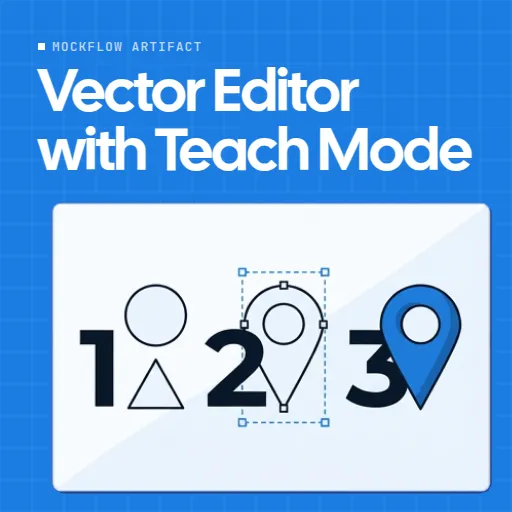
 Vector Editor with Teach Mode
 is an online vector editor for drawing logos and icons from shapes, and for teaching how they are made. It sits on a shared MockFlow board, so everyone on the board draws in the same tile and sees each change as it happens.
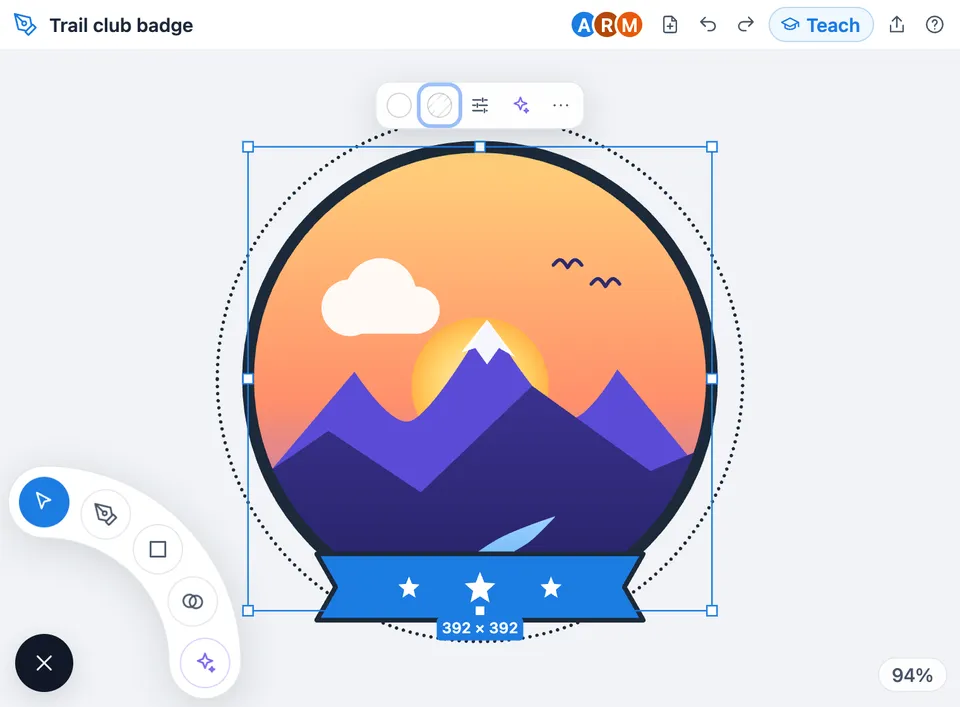
Use Vector Editor with Teach Mode together on your board.
Teach mode turns drawing into a lesson. One person draws while every change is recorded as a step, and teammates follow live, replay it later or try each step themselves over a dashed guide. A built-in lesson, Location pin icon, shows how it works.
For the drawing itself there are rectangles, ellipses, polygons, stars, lines and arrows, a pen for your own curves, Union, Subtract, Intersect and Exclude to combine shapes, solid fills and gradients, AI that draws editable shapes, and clean SVG export.
- Teach mode. Every change becomes a lesson step with a plain label. Learners see a banner when someone is teaching, follow each step live, and can replay the lesson later.
- Your turn. In a lesson, Your turn shows the target as a dashed guide. Trace it and press Check to see how closely your shape matches, or Show me to see the answer.
- Pen and shape tools. Rectangle, ellipse, line, arrow, polygon and star, plus a pen for curves. Corner radius, sides and points stay editable after you draw.
- Combine and Shape builder. Union, Subtract, Intersect and Exclude turn simple shapes into marks, and Shape builder merges or cuts overlapping pieces by dragging.
- Icon canvas. A 24 or 48 icon canvas, or a 512 logo canvas, with keylines and snapping to whole pixels so edges stay crisp at small sizes.
- AI that draws editable shapes. Draw with AI makes a logo mark, line icon, filled icon, badge or flat illustration from a description, as one option or three. The result is ordinary shapes, not a picture.
- Clean SVG export. Export the whole drawing or a selection as a plain SVG file, fitted to the shapes with optional padding or to the icon canvas, or copy the code.
- Made for working together. Everyone on the board draws in the same tile. You see each other's cursors, and a shape someone has selected is outlined in their colour so two people never change it at once.
How to use Vector Editor with Teach Mode.
Add it to a board
Open Add anything with the plus button in the bottom toolbar, choose Artifacts and add Vector Editor. Use on a board on this page opens a new board with it already on.
Start a drawing
Pick a starter such as Badge, App icon, Line icons or Logo mark, choose Draw with AI, or tap the round button in the corner to open the tools.
Teach a lesson
Press Teach, name the lesson and draw as usual. Add a note to any step, then choose End lesson to save it on the tile for others to watch or try.
Follow or try a lesson
When someone is teaching, press Follow on the banner to see each step as they draw. Open Teach to watch a saved lesson step by step, or press Your turn to draw each step and check it.
Draw shapes
Choose Shapes for a rectangle, ellipse, line, arrow, polygon or star and drag on the canvas, or use the Pen: click for corners and drag for curves.
Shape and combine them
Select a shape to get its options right above it: fill, stroke, position and size, and Edit points. Select overlapping shapes and choose Combine shapes for Union, Subtract, Intersect or Exclude, or drag across pieces with Shape builder.
Draw with AI
Describe a logo mark or an icon, pick a style such as Line icon or Badge, and AI draws it as shapes you can edit. Change with AI reworks the shapes you have selected.
Export SVG
Open Export to download the drawing or a selection as an SVG file, or copy the SVG code. With an icon canvas on, the file is exactly 24, 48 or 512 wide.
Who uses Vector Editor with Teach Mode.
A design lead teaching a new teammate
Record how to build a location pin from a circle and a triangle, with notes on each step, and leave the lesson on the board to replay.
A teacher running a design class
Draw an icon step by step while students follow live, then let each student try the steps and check their own shapes.
A startup team choosing a logo
Sketch a few logo marks side by side during a brand session, combine and recolour them together, and export the one the team picks as SVG.
A designer making icons for a product
Turn on the 24 icon canvas, draw a set of line icons with consistent strokes, and export each one at the exact size developers need.
A marketer who needs a quick badge
Describe an event badge to AI, adjust the colours and shapes by hand, and download the SVG for the campaign.
Add Vector Editor with Teach Mode to your board.
Use on a board opens a new board with Vector Editor with Teach Mode already on it. To add it to a board you already have, follow these steps. Each copy keeps its own data, so a vote on one board never changes another.
Open your board
Open the MockFlow board you want to use it on.
Add it from the Artifact Library
Click Add anything (the plus button) in the toolbar at the bottom of the board, switch to Artifacts and pick Vector Editor with Teach Mode under Utilities. Adding it does not use AI credits.
Use it together
Click Interact with Component (the hand button), or switch the board to Play mode. Everyone on the board uses the same app, and Reset shared data clears it for the next session.





 Brainstorm with MockFlow MCP


