 Cornell Notes
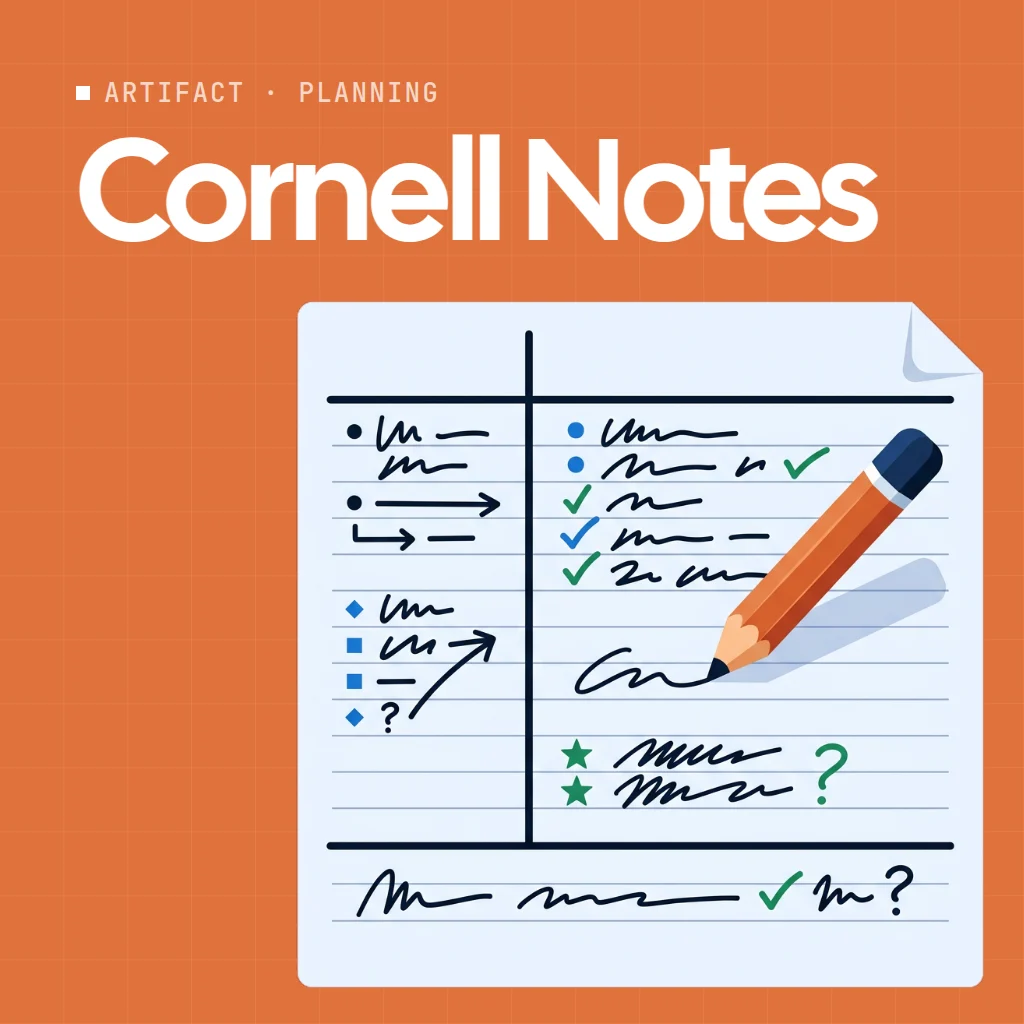
Cornell Notes is an online Cornell notes template the whole class can write together. Questions go on the left, notes on the right and a short summary at the bottom, just like the paper method.
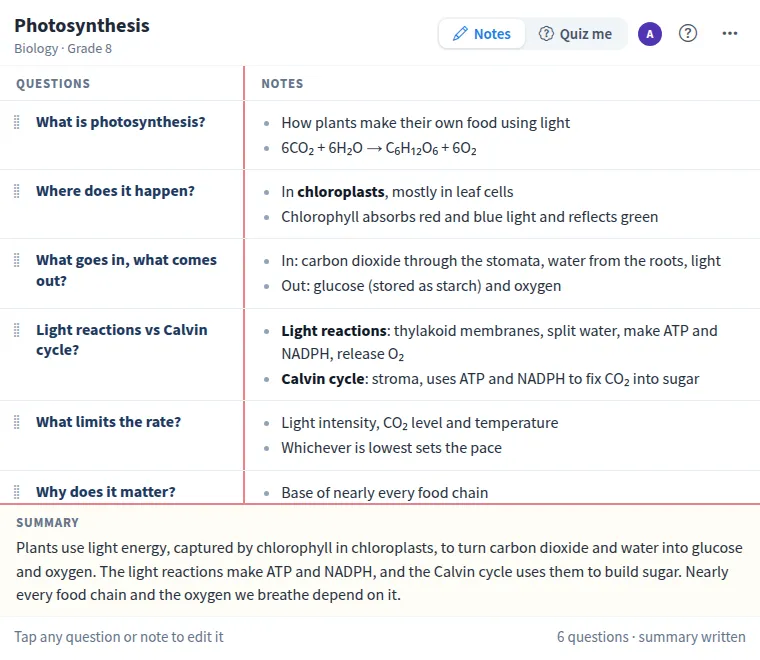
Use Cornell Notes together on your board.
When it is time to revise, Quiz me covers the notes and the summary. Each person answers from the questions, checks the answer and marks it Got it or Review again. Those marks belong to each person, so everyone tests themselves at their own pace.
It runs on a shared MockFlow board, so a teacher and students, or a study group, see the same page and every edit stays in sync.
- The classic Cornell layout. Questions on the left, notes on the right and a summary at the bottom of one page.
- Quiz me mode. Covers the notes and the summary so you recall each answer from the question alone, with a count of how many you recalled.
- Personal review marks. Got it and Review again marks are yours only, so each person revises on their own while sharing the same notes.
- Simple formatting. Each line becomes a bullet point, and double stars make a word bold.
- Reorder questions. Drag the grip beside a question, or focus it and press the up or down arrow.
- Undo and new pages. Undo brings back a deleted question, and Start a new page clears the sheet for the next lesson.
How to use Cornell Notes.
Name the page
Type the topic at the top and add the class, lesson or date underneath.
Add a question
Press Add question, type a short question or keyword and press Enter to move on to its notes.
Write the notes
Put one point per line and each line becomes a bullet. Wrap words in double stars to make them bold.
Sum it up
Write two or three sentences in the summary at the bottom of the page.
Quiz yourself
Switch to Quiz me. The notes are covered, so answer each question from memory, then check the answer and mark Got it or Review again.
Review what you missed
Cover the questions you marked Review again and go through them once more, then show the summary to finish.
Who uses Cornell Notes.
A teacher running a lesson
Build the notes page live with the class, then leave it on the board for revision.
A study group before an exam
Split a topic into questions, fill in the notes together and quiz each other from the cues.
A student revising alone
Use Quiz me to test recall and keep going over the questions marked Review again.
A team capturing a training session
Turn a talk or workshop into questions and key points everyone can look back on.
Add Cornell Notes to your board.
Use on a board opens a new board with Cornell Notes already on it. To add it to a board you already have, follow these steps. Each copy keeps its own data, so a vote on one board never changes another.
Open your board
Open the MockFlow board you want to use it on.
Add it from the Artifact Library
Click Add anything (the plus button) in the toolbar at the bottom of the board, switch to Artifacts and pick Cornell Notes under Planning. Adding it does not use AI credits.
Use it together
Click Interact with Component (the hand button), or switch the board to Play mode. Everyone on the board uses the same app, and Reset shared data clears it for the next session.
Update content with AI changes the content without changing how the app works, for example "Make Cornell notes on a different lesson, for example the causes of World War I or how vol".




 Brainstorm with MockFlow MCP