 Spelling Bee
Spelling Bee is a live spelling bee and class quiz that the teacher runs round by round. Type a word and it turns into jumbled letter tiles for students to unscramble and spell, or ask a question instead, and the students you pick answer in secret on their own screens.
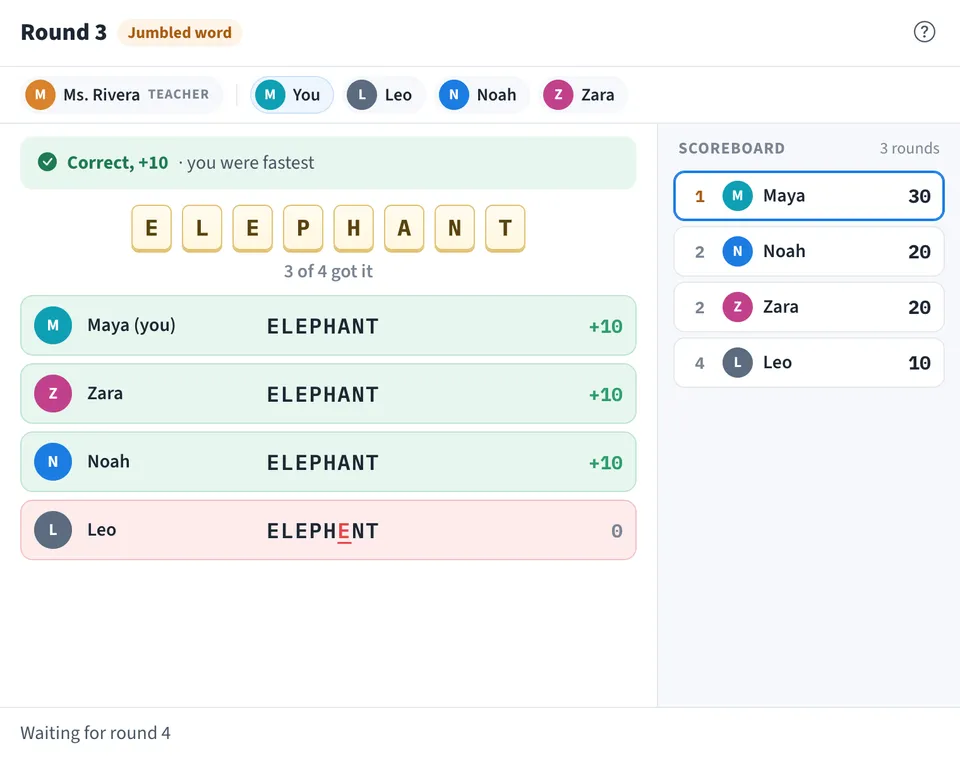
Use Spelling Bee together on your board.
When answers close, the teacher marks each one right or wrong, then reveals them to the whole class together with the points and a scoreboard. At the end, the final standings appear on a podium.
It runs on a shared MockFlow board, so the spelling bee sits next to your lesson notes, word lists and diagrams. Everyone on the board sees the same game at once and it stays in sync for all of them.
- Questions and jumbled words. Mix free questions with word scrambles in the same game. A jumbled word is shown as letter tiles, mixed the same way on every screen.
- One secret try each. Students get one answer per round, and answers stay hidden from other students until the teacher reveals them. The teacher sees answers arrive live, with how long each one took.
- The teacher marks. Exact matches to a jumbled word are ticked automatically, and the teacher decides the rest. A mark can still be changed after the reveal and the scores follow.
- Timer per round. Set 10, 20, 30 or 60 seconds, or no limit. The countdown shows in the header and answers close when it ends.
- Scoreboard and podium. Correct answers score 1, 5 or 10 points, set in the teacher's menu. Students who tie share a place, and the final standings show the top three on a podium.
- Scores now or at the end. Show the scoreboard after every round, or turn that off to keep the standings secret until the end of the game while answers and marks still show.
How to use Spelling Bee.
Take the teacher seat
The person running the quiz taps I'm the teacher. Only the teacher starts rounds, marks answers and reveals them.
Pick the students
Tap Add students and tick the people on the board who will answer, or choose Add everyone. Anyone you don't pick watches along.
Write the round
Choose Jumbled word and type a word, and the tile shows how the letters will look to students, with Shuffle to mix them again and an optional clue. Or choose Question and type the question with an answer key that only you see. Then pick 10, 20, 30 or 60 seconds, or no time limit.
Students answer
Tap Start round. Each student types one answer and sends it. Students see who has answered, but nobody sees another student's answer. The round closes when time runs out, when everyone has answered, or when the teacher taps Stop now.
Mark the answers
For a jumbled word, answers that match the word are ticked for you and wrong letters are underlined. For a question, tap the tick or the cross for each answer, so a near miss can still count.
Reveal to the class
Tap Reveal to class. Everyone sees every answer with its mark and points, the scoreboard updates, and each student sees whether they got it right. Tap Next round to keep going.
End the game
Tap End game to show the final standings with the top three on a podium. Play again keeps the same students and starts the scores from zero.
Who uses Spelling Bee.
A teacher running a spelling bee
Type the spelling words as jumbled words, give a clue, and let the class race to unscramble them, with the scores up after each round.
A class reviewing before a test
Ask quick questions from the unit, mark the answers together and talk through the wrong ones when they are revealed.
A tutor with a small group online
Run a short vocabulary or general knowledge quiz on the board you already teach on, without switching to another app.
A team warming up a workshop
Open a meeting with a few trivia questions or word puzzles, then move on to the work on the same board.
Add Spelling Bee to your board.
Use on a board opens a new board with Spelling Bee already on it. To add it to a board you already have, follow these steps. Each copy keeps its own data, so a vote on one board never changes another.
Open your board
Open the MockFlow board you want to use it on.
Add it from the Artifact Library
Click Add anything (the plus button) in the toolbar at the bottom of the board, switch to Artifacts and pick Spelling Bee under Quizzes. Adding it does not use AI credits.
Use it together
Click Interact with Component (the hand button), or switch the board to Play mode. Everyone on the board uses the same app, and Reset shared data clears it for the next session.





 Brainstorm with MockFlow MCP