 Class Timetable
Class Timetable is an online school timetable maker that the whole team can edit together. Set your own days, period times and breaks, then fill the week with subjects, teachers and rooms.
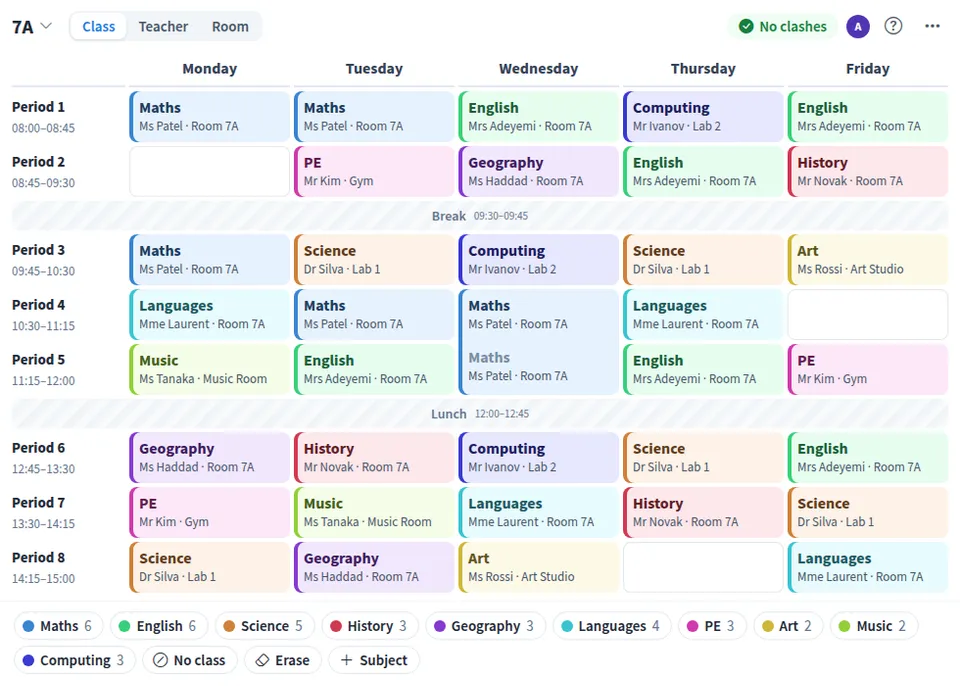
Use Class Timetable together on your board.
Keep a separate timetable for every class, switch to any teacher's or room's week, and see at a glance when a teacher or room is booked twice at the same time.
It runs on a shared MockFlow board, so heads of department and teachers can work on the same timetable at once and every change stays in sync.
- Your own school day. Name the days, set start and end times for every period, add breaks that run across every day, and show times in 24 hour or 12 hour clock.
- A timetable per class. Each class keeps its own week with a home room, and you can duplicate a class with its timetable to start the next one.
- Teacher and room views. See any teacher's or room's whole week, with a count of their periods and clashes.
- Clash detection. Double bookings of a teacher or room across classes are caught at once and explained in plain words.
- Paint with subjects. Colour coded subject brushes fill periods with a tap or a drag, with defaults for teacher and room.
- Flexible layout. Put days across the top or down the side, and choose whether each period shows the teacher, the room or both.
- Rotating timetables. Use Day 1 to Day 6 for a rotating cycle, or add a class per week for Week A and Week B.
How to use Class Timetable.
Set up days and periods
Open Days and periods in the more actions menu. Choose Mon to Fri, Mon to Sat, Sun to Thu or Day 1 to 6, then add, rename and time your periods and breaks.
Add subjects and classes
Add each subject with its colour, default teacher and room, and add a class for every class, section or group.
Fill a period
Tap a period to choose its subject, then change the teacher or room for that one period if needed.
Paint the week fast
Pick a subject at the bottom and tap or drag across periods to fill them. Use Erase to clear periods, or mark a period as no class.
Check each teacher and room
Switch the view to Teacher or Room to see one person's or one room's week, with the periods they have.
Fix clashes
A red mark shows a teacher or room booked twice. Open the clashes list to see who is double booked and jump straight to it.
Who uses Class Timetable.
A school timetabler planning next term
Build every class's week in one place and clear every clash before the timetable goes out.
A head of department sharing out lessons
Check each teacher's load in the Teacher view and balance periods across the team.
A teacher planning their own week
Lay out classes, rooms and breaks in a clear, colour coded grid.
A tutoring centre or college
Set custom days and session times, give each group its own timetable and keep rooms from being double booked.
Add Class Timetable to your board.
Use on a board opens a new board with Class Timetable already on it. To add it to a board you already have, follow these steps. Each copy keeps its own data, so a vote on one board never changes another.
Open your board
Open the MockFlow board you want to use it on.
Add it from the Artifact Library
Click Add anything (the plus button) in the toolbar at the bottom of the board, switch to Artifacts and pick Class Timetable under Planning. Adding it does not use AI credits.
Use it together
Click Interact with Component (the hand button), or switch the board to Play mode. Everyone on the board uses the same app, and Reset shared data clears it for the next session.
Update content with AI changes the content without changing how the app works, for example "Make a timetable for a different school, for example Grade 9 with 7 periods, Monday to Sat".







 Brainstorm with MockFlow MCP