




 Device Shell
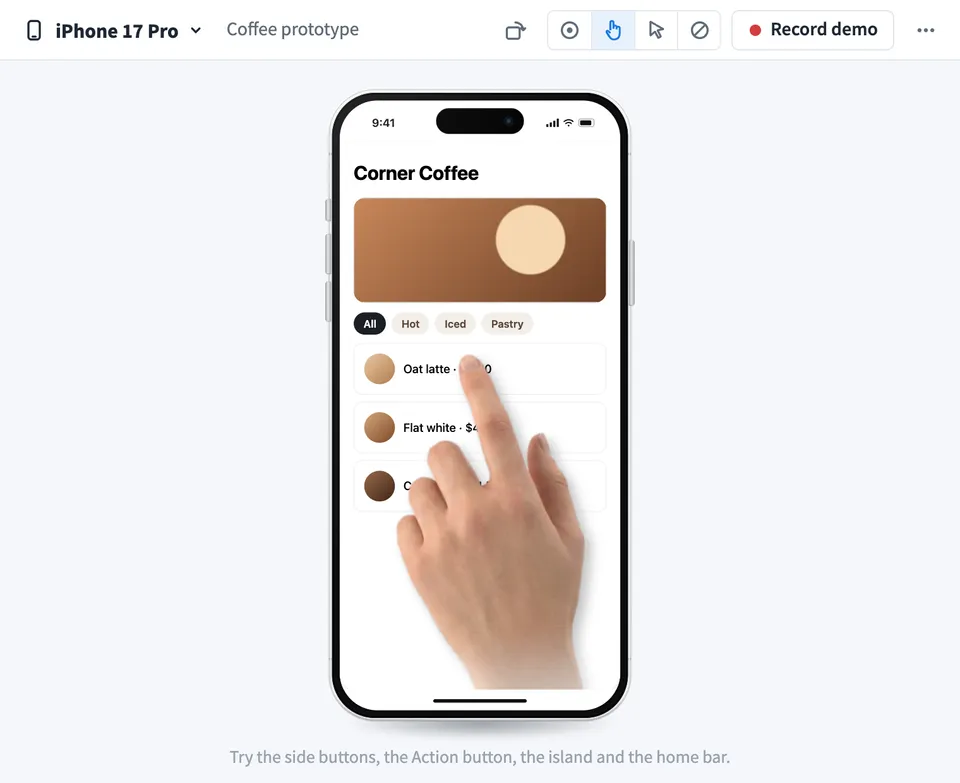
 puts a working prototype inside a real looking device, so you can show it the way people will really use it. Pick a prototype on your MockFlow board and it runs inside a phone, tablet, watch, laptop, browser window or other screen, and you can still click through it.
Use Device Shell together on your board.
The hardware works too. Side buttons turn the screen off and on, volume buttons show the volume, a watch crown scrolls the app, foldables open and close and a laptop lid opens and closes. Choose how taps look: a touch dot, a hand, a mouse pointer or nothing.
Record a demo by tapping through your prototype once, play it back in a review, and turn it into a video. Place the video on the board, download it as MP4, GIF or WebM, or open it in Video Maker to add zooms, captions and a voiceover.
- Phones, tablets, watches and computers. iPhone, Pixel, Galaxy and OnePlus phones, Galaxy foldables, iPad and Galaxy Tab, Surface Pro, Apple Watch, Galaxy Watch and Pixel Watch, MacBook, iMac, a Windows laptop, a browser window and a desktop display.
- Screens beyond phones. A Kindle, a smart TV, a car display, a smart display, a game handheld, a kiosk and a spatial window, each sized so your prototype gets the right screen.
- Hardware that works. Power and side buttons turn the screen off and show a lock screen, volume buttons show the volume, crowns and bezels scroll, foldables unfold and laptop lids open and close.
- A clickable prototype on the screen. Your prototype runs inside the device, so you click through its screens as usual. Restart prototype takes it back to the start.
- Touch dot, hand or mouse pointer. Show taps as a touch dot, a realistic hand that moves between taps, or a mouse pointer for desktop designs.
- Recorded demos. Tap through once to record a demo, then play it back with the pointer as many times as you need.
- Videos in MP4, GIF or WebM. Turn the demo into a vertical, landscape or square video, with an optional zoom on each tap, and place it on the board, download it or open it in Video Maker.
How to use Device Shell.
Pick a prototype
Add Device Shell to a board that has a prototype, press Pick and select the prototype on the board. No prototype yet? Make one from the Create menu first.
Choose a device
Open the device list and pick from Phones, Tablets, Watches, Computers and Other. Change the finish, and rotate a phone or tablet to landscape.
Try the hardware
Click the side buttons, the volume buttons, the crown, the hinge or the lid. The tip under the device tells you what each one does on the device you picked.
Choose how taps look
Switch between a touch dot, a hand, a mouse pointer or no pointer. Everyone on the board sees the same device and the same pointer.
Record a demo
Press Record demo and tap through the prototype once, then press Stop. Play replays your taps with the pointer you chose, ready for a presentation.
Make a video
Choose the shape (9:16, 16:9 or 1:1), the background and the quality, and turn on Zoom in on each tap if you like. The video is made on our server, so you can keep working.
Use the video
Place it on the board next to the tile, download it as MP4, GIF or WebM, or open it in Video Maker to add zooms, captions and a voiceover.
Who uses Device Shell.
A designer presenting a new app flow
Show the prototype inside the phone it was designed for, tap through it with the hand pointer and let the team try the real screen size.
A product team in a review meeting
Play a recorded demo of the flow on the board while everyone watches the same device, then discuss it right next to the work.
A marketer making a launch clip
Record a short tapped demo, make a 9:16 or square video with a zoom on each tap, and finish it in Video Maker with captions and a voiceover.
A team designing for watches, TVs or cars
Check how a prototype reads on a watch face, a TV or a car display, using the crown, bezel or knob to scroll it.
A founder sharing a demo with investors
Download the demo as an MP4 or GIF and drop it into a deck or an email.
Add Device Shell to your board.
Use on a board opens a new board with Device Shell already on it. To add it to a board you already have, follow these steps. Each copy keeps its own data, so a vote on one board never changes another.
Open your board
Open the MockFlow board you want to use it on.
Add it from the Artifact Library
Click Add anything (the plus button) in the toolbar at the bottom of the board, switch to Artifacts and pick Device Shell under Planning. Adding it does not use AI credits.
Use it together
Click Interact with Component (the hand button), or switch the board to Play mode. Everyone on the board uses the same app, and Reset shared data clears it for the next session.








 Brainstorm with MockFlow MCP


