



 Idea Builder
 turns one rough idea into a product vision your whole team shaped. Someone writes the idea in a line, such as a SaaS app to schedule social posts, and everyone adds pieces to it.
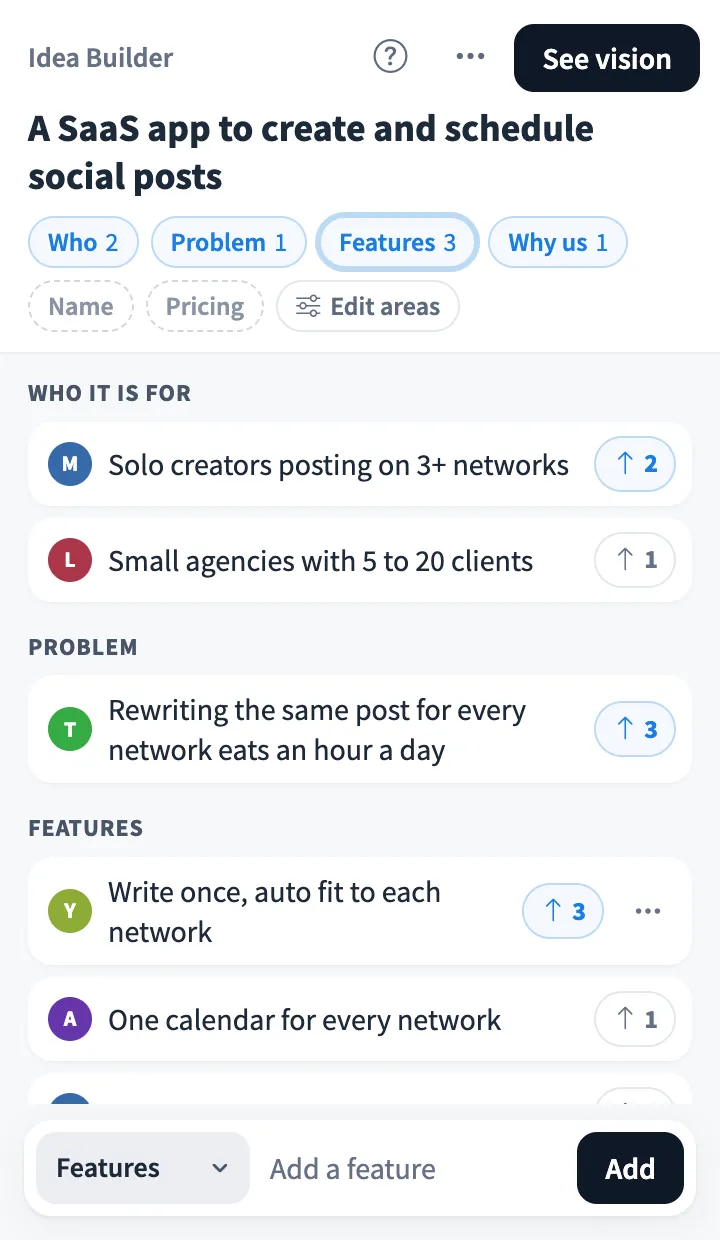
Use Idea Builder together on your board.
It sits on a shared MockFlow board next to your work. Pieces go under areas like who it is for, the problem, features, why us, a name and pricing. The team keeps the best ones with an arrow, and the kept pieces come together as a short vision statement anyone can copy.
- One idea per board tile. Each Idea Builder holds a single idea, so the team builds it out together instead of piling up a list of half ideas.
- Areas you can change. Start with who it is for, problem, features, why us, name and pricing, or rename, add, remove and reorder areas to fit a campaign, an event or anything else.
- Keep with an arrow. Everyone keeps the pieces they like. Counts show at a glance which pieces the team agrees on.
- A vision written for you. The vision appears right away from the kept pieces, and MockFlow AI then rewrites the statement in plain words using only what the team wrote.
- Choose what goes in. Set each area to add its top piece or its top two or three, and pick one area whose top piece becomes the vision's title.
- Shows who built it. Each piece shows its writer, and the vision shows how many pieces and people went into it.
- Edit, remove and undo. Change or remove your own pieces, and bring a removed piece back with Undo. Start over clears the idea for a new one, also with Undo.
- Private public view. Someone opening the board from a public link sees the idea and the vision without any names and cannot change anything.
How to use Idea Builder.
Add it to a board
Open Add anything with the plus button in the bottom toolbar, choose Artifacts and add Idea Builder. Use on a board on this page opens a new board with it already on.
Write the idea
Type the idea in a line and choose Start building. It stays at the top for everyone on the board.
Add pieces
Pick an area, such as Who it is for or Features, type a few words and add it. Areas with nothing yet are shown dashed, and the list asks for the next missing one.
Keep the best pieces
Tap the arrow on any piece you want in the vision. The pieces with the most arrows lead their area.
See the vision
See vision brings the kept pieces together: a title, a short statement and the top pieces from each area, with how many people built it.
Update and copy
When the team adds or changes pieces, the vision says so and Update writes it again. Copy puts the whole vision on your clipboard.
Who uses Idea Builder.
A product team with a new feature idea
Write the idea, let product, design and engineering add who it is for, the problem and the features, then share the vision in the planning doc.
A startup team testing a business idea
Collect audiences, problems, a name and pricing from the whole team and see which ones everyone keeps.
A marketing team planning a campaign
Change the areas to Audience, Hook, Channels and Budget, and let the hook with the most arrows become the campaign title.
A workshop or hackathon kickoff
Give each group one Idea Builder on the board and compare the visions at the end.
A remote team that cannot meet live
Teammates add and keep pieces whenever they open the board, and the vision updates when they are ready.
Add Idea Builder to your board.
Use on a board opens a new board with Idea Builder already on it. To add it to a board you already have, follow these steps. Each copy keeps its own data, so a vote on one board never changes another.
Open your board
Open the MockFlow board you want to use it on.
Add it from the Artifact Library
Click Add anything (the plus button) in the toolbar at the bottom of the board, switch to Artifacts and pick Idea Builder under Planning. Adding it does not use AI credits.
Use it together
Click Interact with Component (the hand button), or switch the board to Play mode. Everyone on the board uses the same app, and Reset shared data clears it for the next session.





 Brainstorm with MockFlow MCP


