



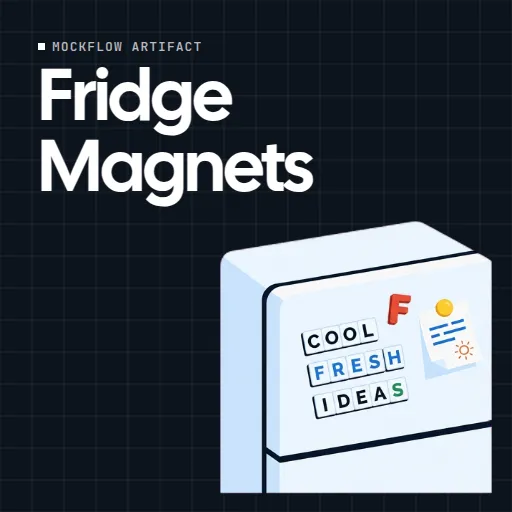
 Fridge Magnets
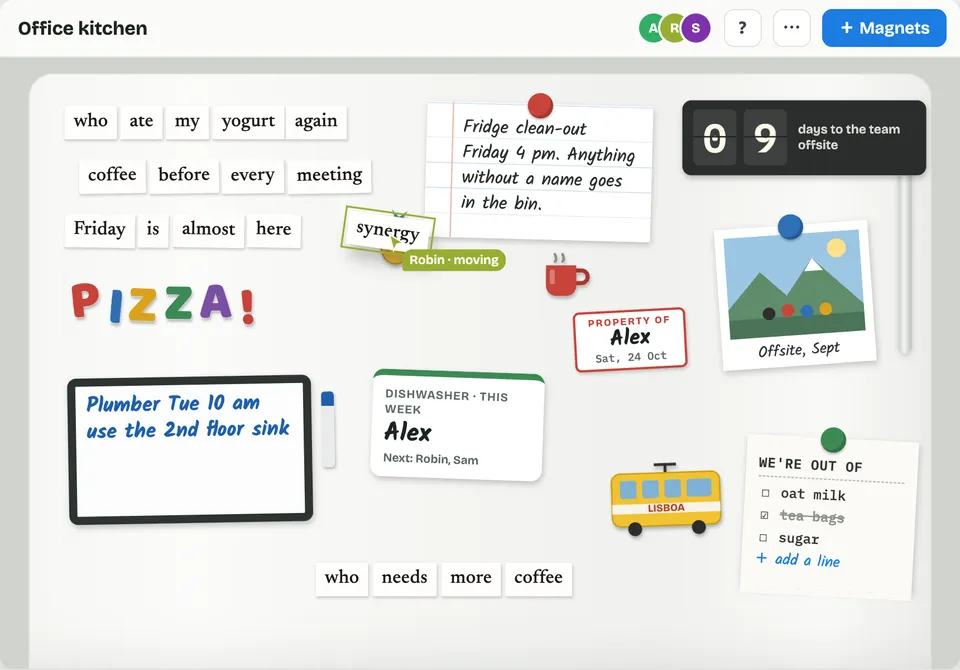
 is an online fridge door that the whole team shares. Type straight onto the door to make magnetic poetry with word tiles, spell things out in colorful letter magnets, and pin up notes, name labels, photos and souvenirs.
Use Fridge Magnets together on your board.
Everyone on the board works on the same door at once. You see other people's cursors with their names, magnets move on your screen as they are dragged, and a short notice tells you when someone sticks up a new note.
It runs on a shared MockFlow board, so the team's fridge sits right next to the work, with the same in jokes, reminders and lunch orders a real office fridge collects.
- Magnetic poetry with word packs. Deal a hand of word tiles from the Office, Classic poetry, Kitchen or Celebrations pack, shake for a new hand, or add a word of your own. Suffix tiles like -ing and -ed are included.
- Notes held by a magnet. Write on a notepad page, an index card, a chalkboard or a list that anyone can add a line to and tick off. Notes can take themselves down on a date you pick.
- Kitchen magnets. Claim your lunch with a name label, scribble on a dry-erase board, count down to an event with flip digits, keep a chore rota that turns over every Monday, or pin a takeout menu, a clip of papers or a souvenir from a trip.
- Photos. Pin a polaroid with a caption or a three shot photo strip, using pictures from your MockFlow files.
- Live with the whole team. Everyone uses the same door at once, with name tags on cursors and magnets that glide as people drag them.
- Feels like a real fridge. Magnets clack down when dropped, paper swings on its magnet, words snap into place and a cleared door drops everything off the bottom.
- Nothing gets lost. Recently taken off keeps removed and expired magnets for 7 days with a Put back button, and Undo brings back anything taken off by mistake.
- Door finishes. Choose a white, steel, retro mint or black door and give it a name, such as the floor or team it belongs to.
How to use Fridge Magnets.
Type on the door
Click an empty spot and start typing. Each word becomes a magnet tile when you press Space, and Enter starts a new line underneath. Press Esc when you are done.
Switch to letter magnets
While typing, press Tab to spell in chunky plastic letters instead of word tiles. Press Tab again to go back to words.
Open the magnet tray
Press Magnets to browse word packs, letters, notes, shapes, kitchen magnets and photos. Drag a magnet onto the door, or tap it to drop it in.
Double-click for more
Double-click an empty part of the door to add a word, letters, a note, a name label, a board, a countdown or a photo right where you clicked.
Move words and lines
Drag a word to move its whole line. Drop a word next to another and it snaps into the line. Press and hold a word, then drag, to pull it out on its own.
Tidy up
Tap a magnet to see who put it there, bring it to the front, rotate it, duplicate it or take it off. Anything taken off can be put back for 7 days.
Who uses Fridge Magnets.
A remote team that misses the office kitchen
Keep a shared fridge door for the small talk, jokes and notices that used to live by the coffee machine.
An office manager posting kitchen notices
Pin the fridge clean out reminder, a dishwasher rota and a list of what has run out, all in one place.
A team celebrating a birthday or launch
Count down to the day, spell out the message in letter magnets and pin up the photos.
A workshop warm up
Give everyone a hand of word tiles and five minutes to write a line about the week, then read them out together.
A team planning lunch
Pin the takeout menu and start a list where everyone adds their order.
Add Fridge Magnets to your board.
Use on a board opens a new board with Fridge Magnets already on it. To add it to a board you already have, follow these steps. Each copy keeps its own data, so a vote on one board never changes another.
Open your board
Open the MockFlow board you want to use it on.
Add it from the Artifact Library
Click Add anything (the plus button) in the toolbar at the bottom of the board, switch to Artifacts and pick Fridge Magnets under General. Adding it does not use AI credits.
Use it together
Click Interact with Component (the hand button), or switch the board to Play mode. Everyone on the board uses the same app, and Reset shared data clears it for the next session.
Update content with AI changes the content without changing how the app works, for example "Change the sample door, for example a team kitchen door with notices and word magnet lines".




 Brainstorm with MockFlow MCP


