



 Prompt Builder
 is a shared AI prompt library for your team. Write a good prompt once, mark the parts that change as blanks, and everyone can reuse it by filling those blanks in instead of rewriting the whole thing.
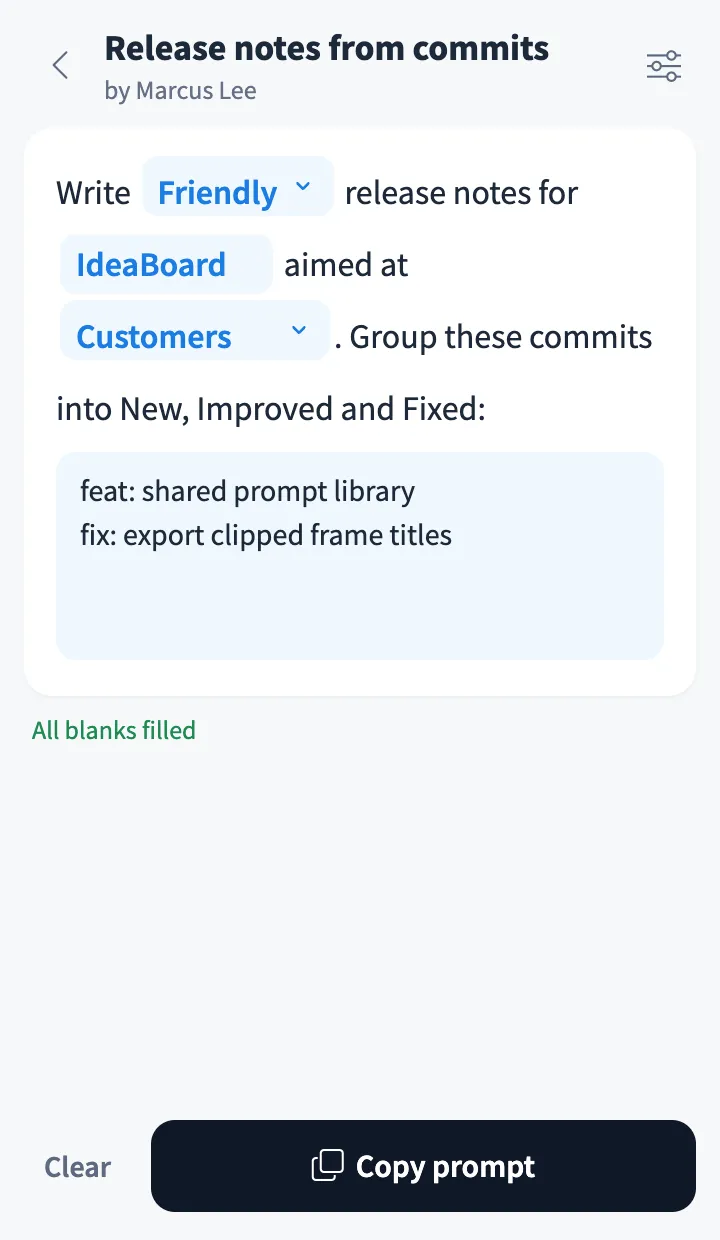
Use Prompt Builder together on your board.
It sits on a shared MockFlow board next to your work. Every prompt saved there is there for everyone on the board, with who wrote it. Open one, fill the blue blanks right inside the sentence, and copy the finished prompt into ChatGPT, Claude or any other AI tool.
- Fill in the blank prompts. Blanks appear as blue fields inside the sentence, so you always see what the finished prompt will say.
- Choice lists. Give a blank a set of choices, such as a tone or an audience, and people pick one from a dropdown.
- Text box or form. Write freely in one box, or build the prompt as a form with Role, Task and Format. Empty form fields are left out.
- Shared with everyone on the board. Every saved prompt is there for the whole board, with the author's name, and anyone who can edit the board can change it later.
- Your answers remembered. What you typed into a prompt's blanks is kept for you only, so the next time you open it, your last answers are already there.
- Search. Find a prompt by its name or by any word in it.
- Delete with undo. Delete a prompt from its editor and bring it back with Undo.
- Private public view. Someone opening the board from a public link sees the prompts without any names and cannot change anything.
How to use Prompt Builder.
Add it to a board
Open Add anything with the plus button in the bottom toolbar, choose Artifacts and add Prompt Builder. Use on a board on this page opens a new board with it already on.
Name your library
Tap the heading to rename the library for everyone on the board, such as Product team prompts.
Write a prompt
Choose New prompt, give it a name and write it in the text box. Or switch Write as to Form and fill in Role, Task and Format.
Add blanks
Type {{product}} for a blank someone fills in. Type {{tone: Friendly, Formal}} for a blank with a list of choices. A blank on a line of its own becomes a bigger box for pasting text, such as notes or a transcript.
Save it for the team
Save adds the prompt to the shared list, where each card shows who wrote it and how many blanks it has. Search finds a prompt by its name or its words.
Fill the blanks and copy
Open a prompt, type into each blue blank or pick a choice, and watch the count of blanks left. Copy prompt puts the finished text on your clipboard.
Who uses Prompt Builder.
A product team writing release notes
Keep one release notes prompt with blanks for the product, the audience and the tone, then paste in the commits and copy.
A support team answering customers
Share a reply prompt with a choice of tone and a box for the customer's message, so every agent starts from the same good prompt.
A research team after interviews
Save a summary prompt as a form with a role and an output format, and fill in the persona for each interview.
A marketing team brainstorming copy
Reuse headline and email prompts with blanks for the product and audience instead of retyping them for every campaign.
A team new to AI tools
The people who write the best prompts save them once, and everyone else gets the same results by filling in a few blanks.
Add Prompt Builder to your board.
Use on a board opens a new board with Prompt Builder already on it. To add it to a board you already have, follow these steps. Each copy keeps its own data, so a vote on one board never changes another.
Open your board
Open the MockFlow board you want to use it on.
Add it from the Artifact Library
Click Add anything (the plus button) in the toolbar at the bottom of the board, switch to Artifacts and pick Prompt Builder under General. Adding it does not use AI credits.
Use it together
Click Interact with Component (the hand button), or switch the board to Play mode. Everyone on the board uses the same app, and Reset shared data clears it for the next session.








 Brainstorm with MockFlow MCP


