



 Mermaid Diagram Editor
 lets you write Mermaid code and see the diagram drawn beside it as you type. It sits on a shared MockFlow board, so everyone on the board sees the same diagram and watches it change live.
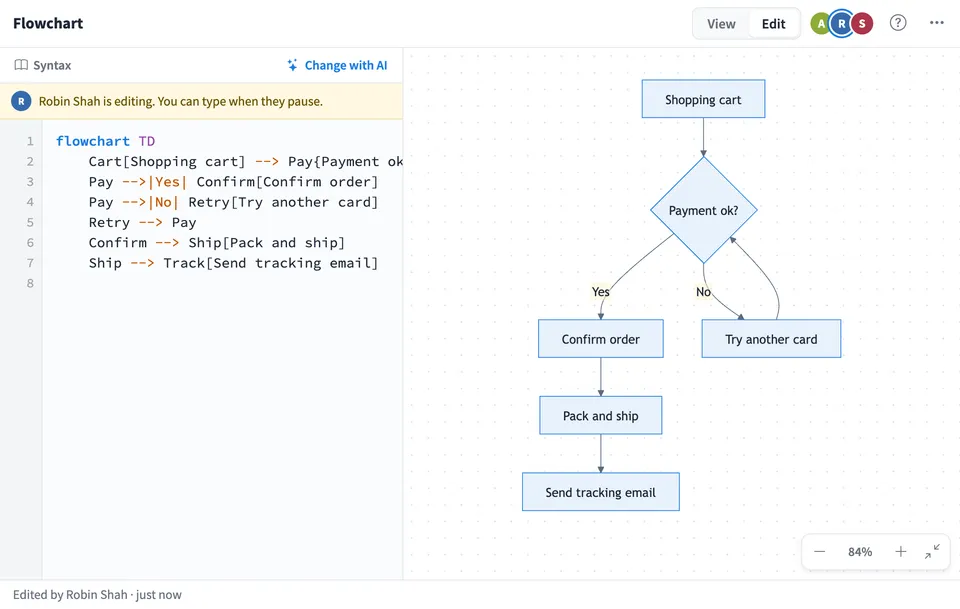
Use Mermaid Diagram Editor together on your board.
It handles every Mermaid diagram type, including flowcharts, sequence, class, state and ER diagrams, Gantt charts, pie charts, mind maps, timelines, user journeys, git graphs and quadrant charts. Start from a template, describe what you want and let AI draw it, or paste code you already have.
- Live preview. The diagram redraws as you type, and everyone on the board sees each change as it happens.
- Every Mermaid diagram type. Uses the real Mermaid engine, with twelve starter templates from flowcharts to quadrant charts.
- AI that writes valid Mermaid. Create, change and fix diagrams with AI. Each answer is checked by the Mermaid parser before it reaches the board, and the code it replaces is kept as a saved version.
- Syntax help built in. Shapes, arrows, groups, notes and more for each diagram type, with an Insert button and a link to the full Mermaid reference.
- Clear errors. Errors name the line and say what is wrong in plain words, while the last working diagram stays visible.
- Saved versions. Name and keep up to twenty versions of the code, open any of them, and restore one without losing the current code.
- Colours and a hand-drawn look. Choose Default, Neutral, Forest or Blue colours, and a classic or hand-drawn style that suits a whiteboard.
- Made for working together. When someone is typing, the others see their name and can type again when they pause, so edits never collide.
How to use Mermaid Diagram Editor.
Add it to a board
Open Add anything with the plus button in the bottom toolbar, choose Artifacts and add Mermaid Diagram Editor. Use on a board on this page opens a new board with it already on.
Start a diagram
Describe your diagram and choose Create with AI, pick a diagram type such as Flowchart or Sequence to load a starter, or type and paste Mermaid code in the editor.
Edit the code
In Edit, the code sits beside the diagram, which redraws as you type. Syntax lists the building blocks of each diagram type, and Insert puts one into your code.
Fix mistakes
A mistake is pointed out by line number in plain words, and the last diagram that worked stays on screen until it is fixed. Fix with AI can correct it for you.
Change it with AI
Change with AI edits the diagram from a plain request, such as add a refund step after payment. Every AI change can be undone.
Save versions
Saved versions in the menu keeps a named copy of the code, such as Before review. Open a version to see its diagram and restore it if the team wants it back.
Present and share
View shows only the diagram, for reading from across the board. Drag to move it, zoom with the corner buttons, and download it as a PNG picture or the code as Markdown.
Who uses Mermaid Diagram Editor.
Engineers in a design review
Sketch a sequence diagram of a new API call while the team discusses it, then save it as a version before the next round of changes.
A product team mapping a flow
Describe a sign up or checkout flow, let AI draw the flowchart, and adjust the steps together until everyone agrees.
A project lead planning a launch
Lay out a Gantt chart of the work beside the rest of the planning board and update it as dates move.
Developers documenting a system
Draw class, ER or state diagrams next to the notes, then download the code as Markdown for the repository.
A teacher explaining a process
Build a diagram step by step in front of the class, using View to show just the diagram.
Add Mermaid Diagram Editor to your board.
Use on a board opens a new board with Mermaid Diagram Editor already on it. To add it to a board you already have, follow these steps. Each copy keeps its own data, so a vote on one board never changes another.
Open your board
Open the MockFlow board you want to use it on.
Add it from the Artifact Library
Click Add anything (the plus button) in the toolbar at the bottom of the board, switch to Artifacts and pick Mermaid Diagram Editor under Utilities. Adding it does not use AI credits.
Use it together
Click Interact with Component (the hand button), or switch the board to Play mode. Everyone on the board uses the same app, and Reset shared data clears it for the next session.






 Brainstorm with MockFlow MCP


