



 Meeting Transcript Parser
 turns a raw meeting transcript into something you can read and act on. Paste a transcript from Zoom, Microsoft Teams, Google Meet or Otter, and it sorts out the speakers and timestamps, hides filler words like um and uh, and pulls out the action items, decisions and questions that came up.
Use Meeting Transcript Parser together on your board.
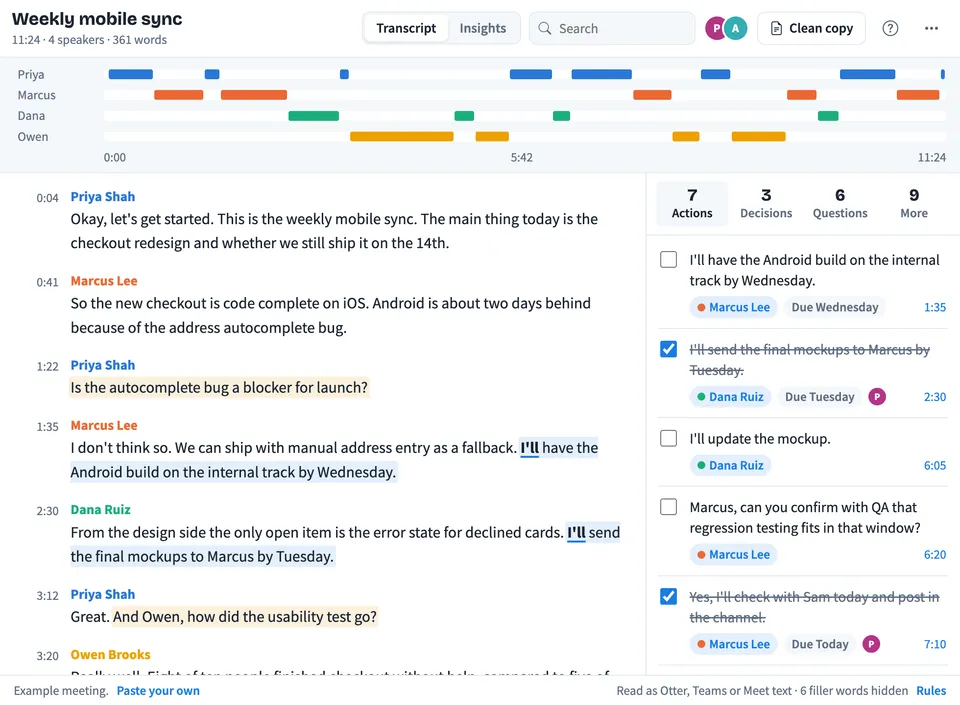
Every action shows who owns it and the day it is due, and every question shows whether it got an answer or was left open. The phrase that flagged each line is underlined, so you can always see why it was picked. It works on simple phrase rules with no AI, so the same transcript always gives the same result.
It runs on a shared MockFlow board, so the whole team reads the same meeting, ticks off actions together and keeps the follow ups next to the rest of the work.
- Reads the common transcript formats. Zoom, Microsoft Teams and Google Meet caption files, Otter text exports, SRT subtitles, timestamped chat logs and simple Name: text scripts. Without timestamps, talk time is estimated from word counts.
- Action items with owners and due days. Phrases such as "I'll", "can you" and "please" mark an action. The owner is the speaker or the person named, and days like Friday, tomorrow or end of week become the due day.
- Decisions and open questions. Lines such as "we decided" or "let's go with" are marked as decisions. A question is marked open when the reply says things like "not sure" or "I'll find out".
- Search and focus on one speaker. Search highlights every match in the transcript, and clicking a name in the strip shows only that person's turns.
- Rename and merge speakers. Fix names like "Speaker 2" by typing the real name. Type a name that already exists to merge the two into one speaker.
- Phrase rules you can edit. Every highlight comes from editable phrase lists for actions, decisions, open questions and filler words. Add the phrases your team uses, and the change applies for everyone on the board.
- Downloads for your notes. Download the clean transcript as a .txt file, the minutes as a Markdown .md file, and the action items as a .csv file with owner, due day and done status for a spreadsheet or task tracker.
- No AI involved. Everything runs inside the tile on fixed rules, so results are instant and the same every time.
How to use Meeting Transcript Parser.
Paste your transcript
Paste the transcript text, open a .vtt, .srt or .txt file, or drop the file onto the tile. The format is detected for you, and the footer shows how it was read.
Read the clean transcript
Each turn shows the speaker in color with its timestamp. Filler words are hidden, and the strip at the top shows who spoke when across the meeting.
Check the found items
The list beside the transcript has tabs for Actions, Decisions and Questions, plus More for dates, links, emails and the most said words. Click a timestamp to jump to that line.
Tick off actions together
Tick an action when it is done. Everyone on the board sees the tick, with the avatar of the person who ticked it.
Open Insights
Switch to Insights for plain answers: who talked the most, who has the most to do, how many questions were left open, which deadline comes first, what came up most and the longest stretch anyone spoke.
Copy or download a clean copy and minutes
Press Clean copy to get the transcript without filler words, with options to drop timestamps, mask emails and phone numbers, or use initials. Switch to Minutes for decisions, action items and open questions. Copy the text, or download it as a .txt or .md file.
Who uses Meeting Transcript Parser.
A product team after its weekly sync
Paste the Teams or Zoom transcript, check who owns each follow up and tick them off together during the next meeting.
A project manager writing meeting minutes
Use the Minutes view to get the decisions, action items and open questions, then copy them into the meeting notes or a chat channel.
A researcher reviewing customer interviews
Hide the filler words, search for the topics that matter and see how much of the time the customer did the talking.
A team lead checking meeting balance
Open Insights to see who talked the most and who spoke longest without a break, and use it to make the next meeting more even.
Anyone sharing a transcript outside the team
Make a clean copy with emails and phone numbers masked before pasting it into an email or a document.
Add Meeting Transcript Parser to your board.
Use on a board opens a new board with Meeting Transcript Parser already on it. To add it to a board you already have, follow these steps. Each copy keeps its own data, so a vote on one board never changes another.
Open your board
Open the MockFlow board you want to use it on.
Add it from the Artifact Library
Click Add anything (the plus button) in the toolbar at the bottom of the board, switch to Artifacts and pick Meeting Transcript Parser under Utilities. Adding it does not use AI credits.
Use it together
Click Interact with Component (the hand button), or switch the board to Play mode. Everyone on the board uses the same app, and Reset shared data clears it for the next session.







 Brainstorm with MockFlow MCP


