 Time Capsule
Time Capsule is a team time capsule online, built for a shared board. Everyone writes a note for the future and folds it in. Other people's notes stay folded, so nobody reads them early.
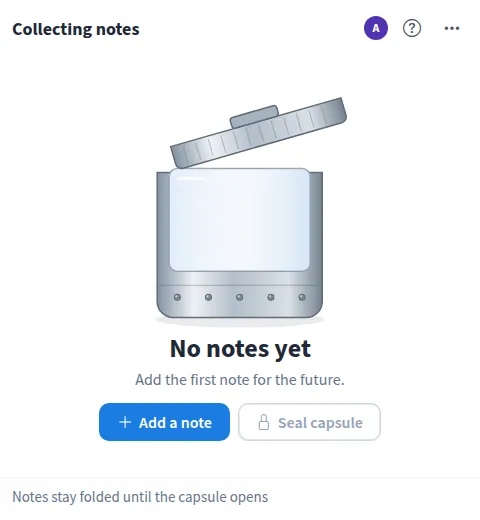
Use Time Capsule together on your board.
When the notes are in, someone seals the capsule with an open date. A countdown runs for everyone, and on that day anyone can open it and read the notes one by one, each with its writer and the date it was written.
It runs on a shared MockFlow board, next to the work the notes are about. Everyone on the board sees the same capsule and the same countdown.
- Folded notes. Notes show as folded slips in the capsule window, so the count grows but the words stay private.
- Notes with photos. Add a photo from your MockFlow files to any note.
- Sealed with a date. Choose a month, six months, a year or any date. Sealing locks the capsule for everyone.
- Shared countdown. Everyone on the board sees the same countdown, and the capsule shows who sealed it and when.
- Read one by one. When it opens, each note appears on its own with the writer's name and the day it was written.
- Start again and undo. Start again clears the capsule for a new one, and Undo brings it back if that was a mistake.
How to use Time Capsule.
Write a note
Press Add a note, write to the future and press Fold it in. You can attach a photo from your MockFlow files too.
Edit your own note
Until the capsule is sealed, tap your slip to change or delete your note. Other people's notes stay folded.
See who has written
The member avatars show who has already folded in a note.
Seal the capsule
Press Seal capsule and pick In 1 month, In 6 months, In 1 year, or a date of your own, then press Seal it.
Wait for the countdown
Once sealed, nobody can add, read or change notes. The countdown shows how long until it opens.
Open it together
On the open date, press Open capsule and step through the notes with Prev and Next.
Who uses Time Capsule.
A team at the end of a retro
Seal what everyone hopes will be true a year from now, and open it at the next big retro.
A project kicking off
Write predictions for launch day and open them once the project ships.
A class at the start of term
Students write to their future selves and the class opens the capsule at the end of the year.
A team marking a milestone
Collect memories and photos from a launch or anniversary and seal them for the next one.
Add Time Capsule to your board.
Use on a board opens a new board with Time Capsule already on it. To add it to a board you already have, follow these steps. Each copy keeps its own data, so a vote on one board never changes another.
Open your board
Open the MockFlow board you want to use it on.
Add it from the Artifact Library
Click Add anything (the plus button) in the toolbar at the bottom of the board, switch to Artifacts and pick Time Capsule under General. Adding it does not use AI credits.
Use it together
Click Interact with Component (the hand button), or switch the board to Play mode. Everyone on the board uses the same app, and Reset shared data clears it for the next session.








 Brainstorm with MockFlow MCP