



 Prediction Market
 is a team forecasting game for questions about the future, such as whether the next release will ship on time. Each person gets 20 tokens and spreads them across the possible outcomes, putting more on what they think is most likely.
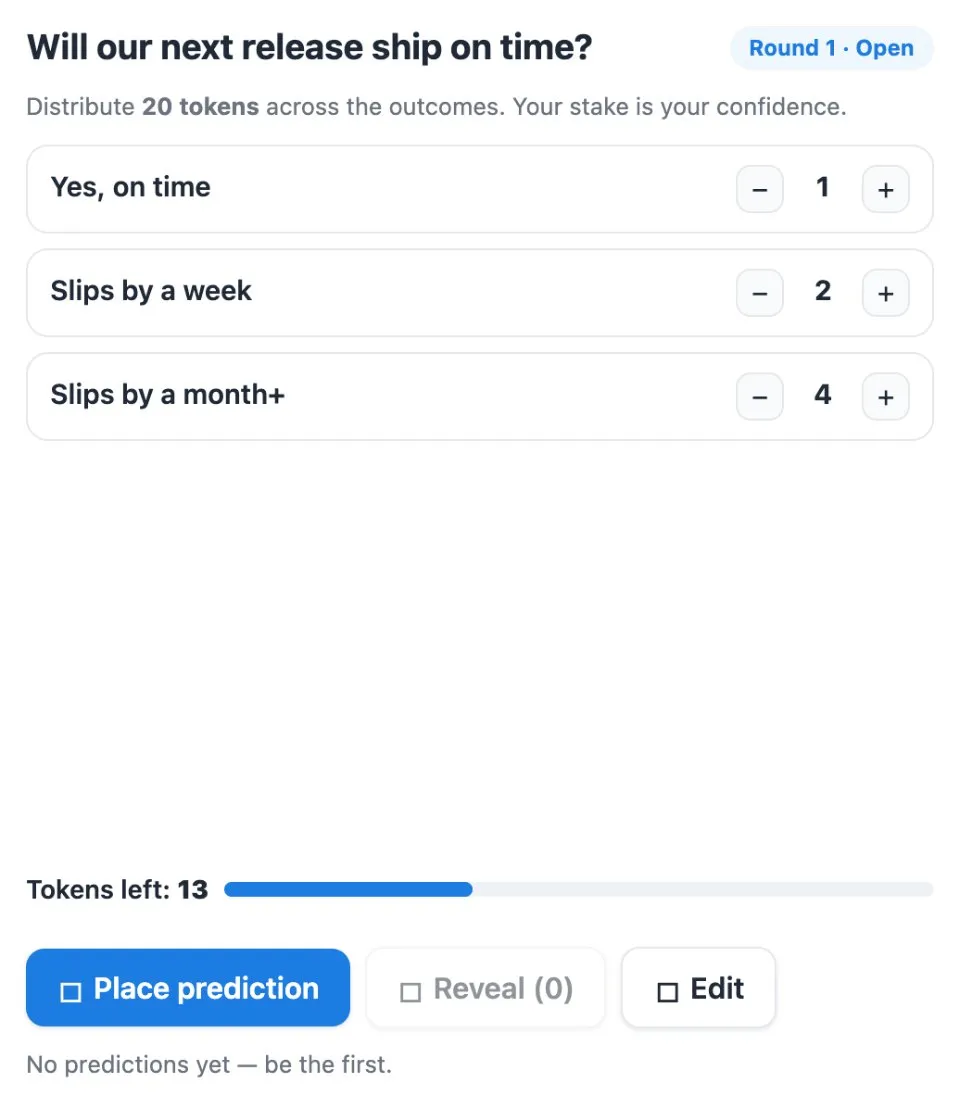
Use Prediction Market together on your board.
The tokens add up into a group forecast, so you see what the whole team really expects instead of the loudest opinion in the room.
It runs on a shared MockFlow board, so everyone places their tokens on the same question and sees the same result.
- Token based forecasts. Every person has the same 20 tokens, so each voice carries equal weight and confidence shows in how they are spread.
- Your own question. Ask anything with a handful of possible outcomes and set the options to match.
- Group totals. Tokens from everyone on the board add up per outcome, and the leading outcome is called out.
- Rounds. Run the market again for a fresh forecast without setting up a new board.
How to use Prediction Market.
Set the question
Start from a question about the future, for example Will our next release ship on time.
List the outcomes
Add the possible results as options, such as On time, Slips by a week or Slips by a month or more.
Place your tokens
Each person spreads their 20 tokens across the outcomes, putting more where they feel more confident.
Reveal the forecast
Reveal the totals to see how many tokens each outcome drew and which one the group backs most.
Run another round
Start a new round when you want to forecast again.
Who uses Prediction Market.
A product team before a release
Forecast whether the release will ship on time and talk through the risks behind the spread.
A team lead in sprint planning
Ask how much of the sprint will get done and compare the group forecast with the plan.
A strategy group weighing scenarios
Put competing scenarios up as outcomes and see where the team's confidence lands.
A remote team after an all hands
Turn a big announcement into a quick forecast game that everyone can join.
Add Prediction Market to your board.
Use on a board opens a new board with Prediction Market already on it. To add it to a board you already have, follow these steps. Each copy keeps its own data, so a vote on one board never changes another.
Open your board
Open the MockFlow board you want to use it on.
Add it from the Artifact Library
Click Add anything (the plus button) in the toolbar at the bottom of the board, switch to Artifacts and pick Prediction Market under General. Adding it does not use AI credits.
Use it together
Click Interact with Component (the hand button), or switch the board to Play mode. Everyone on the board uses the same app, and Reset shared data clears it for the next session.




 Brainstorm with MockFlow MCP


