



 Badminton
 is a 3D badminton game you play online, live, with another person. You see the court from behind your own baseline, run with the arrow keys and press Space to swing as the shuttle reaches you.
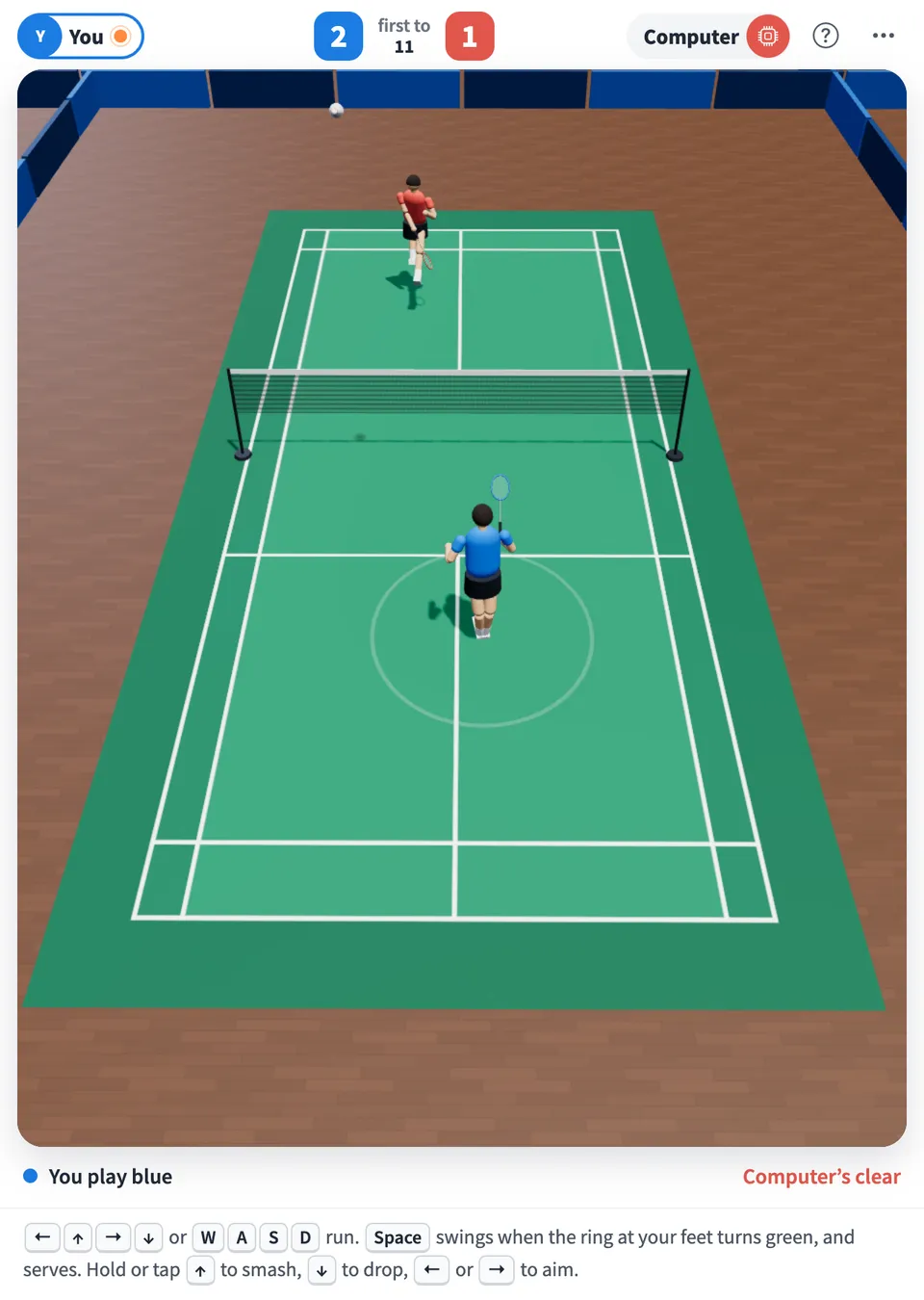
Play Badminton online together.
Two people take the blue and red ends and play rally scoring to 11, win by 2. On your own, play the computer. Everyone else on the board watches the match live, and the whole board can run a knockout tournament.
It runs on a shared MockFlow board, so a quick game sits right next to the work, ready for a break between meetings.
- A real 3D court. A full singles court with lines, net and players, seen from behind your baseline, with the shuttle's shadow showing where it will come down.
- Shuttle physics. The shuttle leaves the racket fast, slows hard in the air and drops steeply, the way a feather shuttle flies, and turns over cork first after each hit.
- Timed swings. You press to swing, and the up or down key you hold picks a smash, a drop or a clear. The line under the court names every shot.
- Play the computer. No opponent around? Pick a color and play a match against the computer.
- Knockout tournaments. Open sign-up from the menu. Once at least three people join, the organizer starts a random draw, and winners go through until one champion is left.
- Live for the whole board. Everyone else on the board watches every rally as it happens.
- Leaderboard. Finished matches go on the leaderboard. Wins against people rank first, and games against the computer are counted on their own.
- Keyboard and touch. Play with the keyboard on a computer, or with an on screen joystick on a phone or tablet.
How to play Badminton.
Pick an end
Choose Play blue or Play red to take an end of the court. Your end is always nearest you. On your own, choose Play the computer.
Run to the shuttle
Use the arrow keys or W A S D to run; up runs toward the net. The shuttle's shadow on the floor shows where it is. On a phone, drag a finger on the court like a joystick.
Swing in time
Press Space, click or tap as the shuttle reaches you. A ring at your feet shows your reach and turns green while the shuttle can be hit. Swing too early or too late and you miss.
Choose your shot
Hold or tap up as you swing to attack: a smash when you meet the shuttle high, a fast drive lower down. Hold down to play a drop or a net shot. Hold neither for a safe clear or lift. Left or right aims it to that side.
Get behind the shuttle
A shuttle met square on always clears the net and lands in. Met at full stretch, or scraped up off the floor, the shot is weaker and can go into the net or out. A smash from a stretch is the riskiest.
Serve
The winner of each rally serves next, high and deep into the court diagonally opposite. Press Space to serve, or wait and it goes by itself.
Win the match
Every rally scores. First to 11 points wins, and you must win by 2. At 14 all, the next point wins.
Who uses Badminton.
Two teammates on a break
Play a quick game to 11 without leaving the board you are working on.
A team planning a friendly competition
Open a badminton tournament for the whole board and follow the bracket to the final.
Someone with a few minutes alone
Play the computer and practice smashes and drop shots.
A remote team after a long meeting
Two people rally while the rest of the team watches every point on the board.
An office that plays badminton after work
Keep the leaderboard going over the week and see who ends on top.
Add Badminton to your board.
Use on a board opens a new board with Badminton already on it. To add it to a board you already have, follow these steps. Each copy keeps its own data, so a vote on one board never changes another.
Open your board
Open the MockFlow board you want to use it on.
Add it from the Artifact Library
Click Add anything (the plus button) in the toolbar at the bottom of the board, switch to Artifacts and pick Badminton under Games. Adding it does not use AI credits.
Use it together
Click Interact with Component (the hand button), or switch the board to Play mode. Everyone on the board uses the same app, and Reset shared data clears it for the next session.







 Brainstorm with MockFlow MCP


